Blinue/Magpie: A Window Upscaler for Windows 10 and 11
A general-purpose window upscaler for Windows 10/11.
At a glance
- What is it?
- Magpie is a lightweight window upscaling tool for Windows that applies Anime4K, FSR and CRT shaders to any window. It is for people who want sharper output from low-resolution games and apps without changing the source.
- Who is it for?
- Magpie suits Windows 10 v1903+ or Windows 11 users with DirectX feature level 11 hardware who want to upscale a window, especially older games that render at low resolution. It is the wrong tool if you need a cross-platform upscaler, if the application does not support high DPI and you cannot change its compatibility settings, or if you expect it to add detail that was never captured.
- Can I use it commercially?
- Yes, with conditions. GPL-3.0 is a copyleft licence: if you distribute software that includes it, you must release that software's source code under the same licence. Running it internally without distributing it does not trigger that obligation.
- Is it still maintained?
- Yes. The repository received new commits within the last day.
- What is it written in?
- Mainly HLSL, according to GitHub's language statistics.
Answers come from the project's GitHub data, last synced on November 14, 2026, and from our analysis. They are not legal advice.
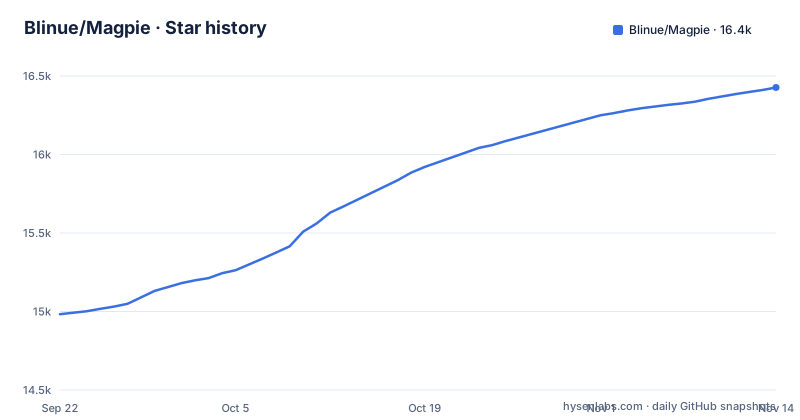
Star history
- Blinue/Magpie16,427 ★ · +1,444
| Repository | 2026-09-22 | 2026-11-14 |
|---|---|---|
| Blinue/Magpie | 15k | 16.4k |
1,444 Stars in the last 53 days, measured from the daily GitHub snapshot. Compare with other projects
Editorial analysis
What Magpie Solves, and Who It Is For
Magpie is a general-purpose window upscaler for Windows 10 and 11. The problem it addresses is straightforward: many applications, particularly older games, render at a fixed low resolution and then either refuse to scale or scale with what the README calls extremely naive algorithms. Magpie sits between the application and the display and applies a scaling algorithm of your choosing.
The README lists the core capabilities: fullscreen and windowed scaling, a set of built-in algorithms and filters including Anime4K, FSR and CRT shaders, a WinUI-based interface with light and dark themes, and multi-monitor support. The primary language is HLSL, which is consistent with a tool whose main work happens in shaders rather than in general-purpose CPU code.
The intended user is someone on Windows with a DirectX feature level 11 GPU who wants a specific visual result from a specific window. It is not a system-wide display filter and it is not a video player. The README's own hints assume a gamer or a user of older software: it advises entering the program's compatibility settings and setting High DPI scaling override to Application when the window does not support high DPI, and it advises setting a game's resolution to the built-in best option when the game's own zooming is naive.
How the Upscaling Pipeline Fits Together
The README describes a WinUI-based user interface, and the primary language is HLSL, which matches a WinUI shell wrapping a shader pipeline.
The README describes two scaling modes, fullscreen and windowed, and a set of built-in effects. It links to a wiki page titled Built-in effects, which is where the individual algorithms are catalogued. The README does not document the capture mechanism, the shader dispatch order, or how a source window's frames reach the shader chain. What can be said from the repository is the boundary: Magpie operates on a window, applies an effect from its built-in set, and presents the result at the target size.
The effect choice is the substantive decision. Anime4K, FSR and CRT shaders target different content. Anime4K is associated with line art and animation, FSR with general real-time upscaling, and CRT shaders with a retro display look. The README does not state which effect suits which content, so that mapping has to come from the wiki page on built-in effects rather than from the README itself.
Installing Magpie and Scaling Your First Window
The README does not give a command-line install. It points to the releases page as the download location, so the practical route is to take the latest release archive from https://github.com/Blinue/Magpie/releases and run it. The releases listed in the repository are v0.13.0 from 2026-10-17, v0.13.0-preview02 from 2026-10-01, and v0.13.0-preview01 from 2026-10-01.
Before running anything, confirm the two system requirements the README states: Windows 10 v1903 or newer, or Windows 11, and DirectX feature level 11. The README does not document a command for checking the feature level, so verify it through the system information your Windows build exposes.
There is no package manager entry documented in the README, so there is no winget, scoop or choco command to copy here. After launching the downloaded build, the first real use is to pick a target window, choose a scaling mode, and select an effect. The README's hints matter at this point: if the window you want to scale does not support high DPI, set High DPI scaling override to Application in that program's compatibility settings first. The README states that compatibility setting by name but does not give the click path, so follow the wording in Magpie's own hint.
If the application is a game that offers its own window zoom, set the game resolution to its built-in best option before letting Magpie scale it, because the README warns that some games zoom with extremely naive algorithms.
Where Magpie Is the Wrong Tool
Magpie is Windows-only. The system requirements are explicit about Windows 10 v1903+ and Windows 11, and nothing in the repository suggests a macOS or Linux build. If your workflow crosses platforms, a Windows-only upscaler is a dead end regardless of shader quality.
It also cannot fix a source that was never rendered at a usable resolution. Upscaling interpolates and filters existing pixels; it does not recover detail that was not captured. The README's framing of scaling algorithms and filters is consistent with that limit.
The DPI hint is a real failure mode rather than a footnote. If the target window does not support high DPI and you do not change its compatibility settings, the result will not be what you expect. That is a per-application configuration step, not a global setting Magpie can apply for you.
Finally, the README does not document rollback, an uninstall procedure, or how settings are stored. If you need a tool with a documented removal path, that information is not in the README.
Magpie Compared With Lossless Scaling and GPU Driver Scaling
The closest category is window-scaling utilities that hook a running application and apply a filter. Lossless Scaling is the common comparison in that space, and the difference in approach is where the scaling work is defined. Magpie ships its own set of built-in effects, described in the README as including Anime4K, FSR and CRT shaders, and exposes them through a WinUI interface.
GPU driver scaling is the other alternative, and the difference is scope. Driver-level scaling applies across the whole display output, while Magpie targets a window. That distinction matters when you want one application scaled and everything else left alone, which is the case the README's windowed scaling mode is for.
A third option is simply setting the application to a higher internal resolution. That is often the better answer when the application supports it, and the README's second hint points in that direction by telling users to pick a game's built-in best resolution rather than relying on the game's own naive zoom. Magpie is for the cases where that option does not exist.
Maintenance, Licensing and Upgrade Cost
The repository is not archived, and the last push was on 2026-11-02. The most recent release listed is v0.13.0 from 2026-10-17, with v0.13.0-preview02 and v0.13.0-preview01, both from 2026-10-01, before it. The default branch is dev, so the branch you see by default is not necessarily the branch a release is cut from.
Magpie is licensed under GPL-3.0. That is a copyleft licence. If you redistribute the software or a modified version, the licence terms apply to that distribution. If you are considering embedding Magpie in a product, the licence is the first thing to review with someone qualified to advise on it, because copyleft obligations are not the same as permissive ones. Nothing here is legal advice.
The upgrade cost is low on the surface: the README points to a releases page, and there is no documented package manager channel, so updating means downloading a newer release. What the README does not document is whether settings and per-application profiles survive an upgrade, or whether the built-in effect set changes between releases. The README gives no changelog, so the release notes are the place to check.
Editorial conclusion
Magpie suits Windows 10 v1903+ or Windows 11 users with DirectX feature level 11 hardware who want to upscale a window, especially older games that render at low resolution. It is the wrong tool if you need a cross-platform upscaler, if the application does not support high DPI and you cannot change its compatibility settings, or if you expect it to add detail that was never captured. Before adopting it, check the compatibility setting for High DPI scaling override on your target application and confirm which built-in effect you intend to use, since the README lists Anime4K, FSR and CRT shaders but does not document what each one costs in performance.
Frequently asked questions
How do I install Magpie?
The README points to the releases page at https://github.com/Blinue/Magpie/releases as the download location. There is no package manager command documented in the README.
How do I use Magpie scaling?
Magpie supports both fullscreen and windowed scaling, and you choose from a set of built-in algorithms and filters that the README says includes Anime4K, FSR and CRT shaders. The README links to a wiki page called Built-in effects for the catalogue of effects.
How do I use Magpie with FSR?
FSR is one of the built-in algorithms the README lists alongside Anime4K and CRT shaders. The README does not give a step-by-step for selecting FSR, so the built-in effects wiki page is the documented reference.
How do I set up Magpie?
Download a release from the releases page, confirm you are on Windows 10 v1903+ or Windows 11 with DirectX feature level 11, then pick a window and an effect. The README also advises setting High DPI scaling override to Application for windows that do not support high DPI.
How do I use Magpie for games?
The README says to set the game's resolution to its built-in best option, because some games zoom the window with extremely naive algorithms. Older games that do not support high DPI may also need the High DPI scaling override set to Application.
Official sources
Add this badge to your README
If you maintain this project, the badge below links readers to this analysis and shows its maintenance status from the daily GitHub snapshot. Paste the markdown into your README; add ?metric=license or ?metric=stars to the image URL for a different field.

[](https://hysenlabs.com/projects/blinue-magpie)Star history chart for your README
[](https://hysenlabs.com/projects/blinue-magpie)Was this useful?