Blur Auto Clicker: accurate CPS on Windows and the WebView2 overhead
An Auto-clicker with a few advanced features and generally better performance than popular alternatives. Made for windows.
At a glance
- What is it?
- Blur Auto Clicker is a Windows-only auto-clicker built on Tauri that aims to deliver the exact click rate you configure, capped at 500 CPS by Windows limits. Two operating modes, a winget package and a GPL-3.0 license make it easy to get running, while the unsigned installer and WebView2 dependency shape the real cost of adoption.
- Who is it for?
- Blur Auto Clicker suits anyone on Windows who needs automation at a set click rate. Simple Mode handles the common case with minimal setup; Advanced Mode adds duty-cycle tuning, range-based CPS and position clicking.
- Can I use it commercially?
- Yes, with conditions. GPL-3.0 is a copyleft licence: if you distribute software that includes it, you must release that software's source code under the same licence. Running it internally without distributing it does not trigger that obligation.
- Is it still maintained?
- Yes. The repository last received commits 2 days ago.
- What is it written in?
- Mainly TypeScript, according to GitHub's language statistics.
Answers come from the project's GitHub data, last synced on October 22, 2026, and from our analysis. They are not legal advice.
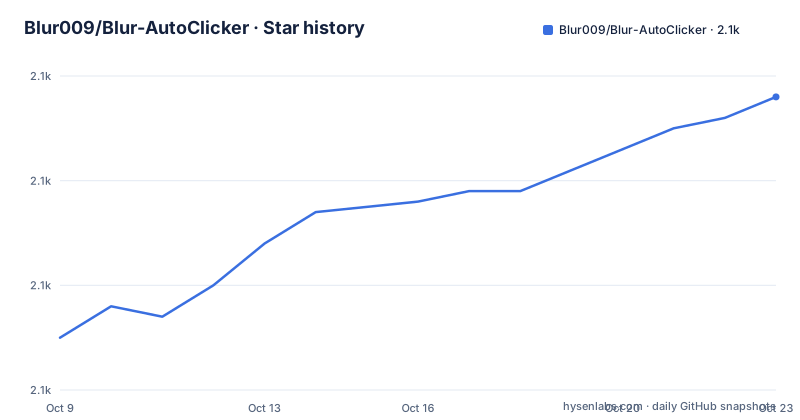
Star history
- Blur009/Blur-AutoClicker2,086 ★ · +21
| Repository | 2026-10-09 | 2026-10-22 |
|---|---|---|
| Blur009/Blur-AutoClicker | 2.1k | 2.1k |
21 Stars in the last 13 days, measured from the daily GitHub snapshot. Compare with other projects
Editorial analysis
Clicks per second accuracy and the Windows 500 CPS ceiling
The central claim in Blur Auto Clicker's README is that most auto-clickers fail to hit the rate you actually set: request 50 CPS and you might get 40 or 60. Blur Auto Clicker sets out to solve that by holding the click output steady at whatever rate you configure. Its own description puts it as "an auto clicker that actually clicks at the speed you set."
Output is capped at 500 CPS by default. The README explains why: Windows imposes a practical ceiling on how fast mouse events can fire. Timer resolution in Windows bottoms out at around 1 ms, which corresponds to 1000 CPS, but Windows processes other events in parallel. On most machines the practical ceiling is around 800 CPS, and to avoid inconsistent behavior across different hardware, the cap is set to 500. A 1000 CPS setting exists but the project marks it as not recommended.
That ceiling matters more for some use cases than others. For tasks like web testing or filling out forms, 500 CPS is far above anything you need. For use cases that push the hardware, the cap reflects a conservative choice that trades maximum throughput for predictable output across machines with different timer resolution characteristics.
Simple Mode and Advanced Mode cover different levels of control
Two operating modes share a common core but differ in how much configuration they expose.
Simple Mode covers the basic setup: choosing which mouse button to simulate (left, right or middle), switching between holding a key and toggling it on and off, setting a hotkey for activation, and seeing a status indicator that turns green when the clicker is running. Keyboard key pressing is included here, and case control is a listed feature, meaning uppercase and lowercase input can be specified separately.
Advanced Mode adds every option in Simple Mode plus several more. You can adjust click timing through a duty cycle, set a random CPS range rather than a fixed rate, enable double clicks, configure per second, minute, hour or day intervals, and set click and time limits to stop the clicker automatically after reaching a count or a duration. Position clicking lets you designate a specific screen location, and the clicker moves the mouse there before each click. Corner and edge stopping turns the clicker off automatically when the cursor approaches a screen edge or corner.
The split keeps the interface from overwhelming a first-time user while making the advanced controls available when the task requires them. Switching between modes is not documented in the README as a destructive action, so you can move between them without losing settings in the other.
Installing via winget or the setup file from GitHub
The project has been accepted into Windows Package Manager. The README gives this install command:
winget install -e --id Blur009.BlurAutoClicker --source winget --silentRunning that command installs the binary at `%localappdata%/BlurAutoClicker/BlurAutoClicker.exe`. Config files and stats go to `%appdata%/BlurAutoClicker`. If winget is not available or a manual install is preferred, the GitHub releases page holds the setup file for each version; v3.9.6 is the current one, released on 2026-08-24.
Building from source is covered in a BUILDING.md file at the repository root. Those steps are not reproduced inline in the README, so anyone who wants a modified build needs to open that file separately. The build uses Tauri as the framework, Vite as the bundler and TypeScript as the language, with `tauri build` in the package.json scripts as the production build target.
The project has also been included in Chris Titus Tech's winutil, a Windows post-install utility that consolidates common software installs. That is an alternative route for users who are already running winutil for other tools and want to include Blur Auto Clicker in the same pass.
A Tauri frontend on WebView2 puts RAM at around 100 MB
Blur Auto Clicker runs on Tauri, which uses the system's WebView2 runtime on Windows to render the interface. The README puts it directly: RAM sits at around 100 MB and stays under 200 MB, and it names the cause explicitly, that the overhead cannot be reduced because WebView2 requires it.
That is a material difference from a native Win32 app or a compiled GUI framework, where a tool of this scope would typically run in a few megabytes. WebView2 loads a full browser rendering context to display the interface, and that context carries a floor set by the runtime rather than by the application code.
For most desktop users with modern hardware, 100 to 200 MB is not a constraint in practice. For scenarios where memory is tight, such as running many automation processes at once or working on a machine with limited RAM, the footprint is worth knowing before you rely on the tool for extended sessions.
The TypeScript and React frontend is visible in the package.json dependencies: React 19.2.4, @tauri-apps/api 2.10.1, and a set of Tauri plugins covering file system access, process management, the in-app updater and others. Vite handles bundling and Vitest handles testing.
Config files from v2.1.2 and below are deleted on first launch of v3
Upgrading from an older install requires two manual steps the README calls out explicitly. On version 2.1.2 or below, the installer for v3 does not remove the old executable. The README says to delete it before running the new installer, because the installer will not do that step for you.
Config files are the second issue. Old configs are not compatible with v3, and they will be deleted on first launch. No migration path is documented, and no export or import step is described for carrying settings forward from a v2 install.
For users updating from a version later than 2.1.2, neither of those steps should apply. If you have been using the v2 series, the implication is that all hotkey settings, timing values and other preferences will be gone after upgrading. Record those settings before running the v3 installer, because they are not recoverable after the first launch clears the old config directory.
CHANGELOG.md at the repository root is the file to check for what changed between versions before you upgrade.
An unsigned installer triggers SmartScreen on every machine that runs it
Blur Auto Clicker's installer is not code-signed. The README is upfront about this: the project is not code signed, so Windows may show a SmartScreen warning. SmartScreen checks whether a downloaded executable carries a recognized Authenticode certificate, and an unsigned installer produces a warning that marks the publisher as unrecognized.
Docs/windows-release-trust.md in the repository covers how the release is verified without Authenticode signing. Code signing is an expensive process, as the README acknowledges, which explains the choice for a project funded through Ko-fi donations rather than a commercial publisher.
In a managed corporate environment, SmartScreen or application allowlisting policies can block unsigned installers entirely. An install may fail without a visible prompt, producing a policy error rather than a clickable warning. Before deploying the tool in that kind of environment, check the endpoint policy in place.
For individual installs on a personal machine, clicking through the SmartScreen prompt is a one-time action per setup file. Each new version update produces a new setup file with no accumulated reputation in Microsoft's database, so the warning reappears with every upgrade.
GPL-3.0 and what it requires if you redistribute a modified build
The project is licensed under GPL-3.0. The license file sits at the repository root under LICENSE. GPL-3.0 requires that anyone who distributes a modified version also provide the source code for those modifications under the same terms. For a team using the tool internally on their own machines without distributing any binary externally, that obligation does not arise. Redistribution is the trigger.
Contribution guidelines are in CONTRIBUTING.md at the repository root. The issue tracker on GitHub and a Discord server at discord.gg/jhWEW747x5 are the documented support channels.
The last push was on 2026-10-06 and the repository is not archived. Releases have come frequently in recent months: v3.9.4 on 2026-08-18, v3.9.5 on 2026-08-20 and v3.9.6 on 2026-08-24. Like many single-author projects, it runs on Ko-fi donations rather than institutional backing, so the roadmap reflects one person's priorities. A feature absent from the current build would require a pull request or a request in the issue tracker to move forward.
Editorial conclusion
Blur Auto Clicker suits anyone on Windows who needs automation at a set click rate. Simple Mode handles the common case with minimal setup; Advanced Mode adds duty-cycle tuning, range-based CPS and position clicking. Skip it on macOS or Linux: the project is Windows-only. Before running it, decide whether the unsigned installer is acceptable for your environment, because an enforced code-signing policy will block installation without an exemption. Upgrading from v2.1.2 or below requires deleting the old executable first, and old config files will be removed on the first launch of v3.
Frequently asked questions
What is Blur Auto Clicker?
Blur Auto Clicker is a Windows-only auto-clicker built on Tauri that aims to deliver the exact click rate you configure, capped at 500 CPS by Windows event limits. It ships in two modes: Simple Mode for basic mouse and keyboard automation, and Advanced Mode for duty-cycle tuning, position clicking and automatic limits.
Is Blur Auto Clicker free?
Yes. The source code is licensed under GPL-3.0 and releases are available on the GitHub releases page or through Windows Package Manager at no charge. The author accepts optional donations through Ko-fi.
Does Blur Auto Clicker work on macOS or Linux?
No. The project description and README both describe it as made for Windows, and the installer targets Windows directories. No macOS or Linux builds are mentioned anywhere in the repository.
How do I install Blur Auto Clicker?
The README documents a winget command using the ID Blur009.BlurAutoClicker with the --silent flag for a quiet install. Alternatively, download the setup file directly from the GitHub releases page. The binary installs to the BlurAutoClicker folder inside the user's local app data directory.
Why does Windows SmartScreen warn about the Blur Auto Clicker installer?
The installer is not code-signed with an Authenticode certificate, so Windows SmartScreen cannot verify the publisher and shows an unrecognized warning. The README acknowledges this and links to docs/windows-release-trust.md for information on how the release is verified without signing.
Official sources
Add this badge to your README
If you maintain this project, the badge below links readers to this analysis and shows its maintenance status from the daily GitHub snapshot. Paste the markdown into your README; add ?metric=license or ?metric=stars to the image URL for a different field.

[](https://hysenlabs.com/projects/blur009-blur-autoclicker)Star history chart for your README
[](https://hysenlabs.com/projects/blur009-blur-autoclicker)