Cloud Commander: web-based file manager with a built-in console and editor
✨☁️📁✨ Cloud Commander file manager for the web with console and editor.
At a glance
- What is it?
- Cloud Commander is an MIT-licensed Node.js file manager that runs in the browser, exposing the server's filesystem with a two-panel view, a terminal console and a text editor. It installs as a global npm package and also embeds as Express middleware, and its separate help document describes optional HTTP authentication.
- Who is it for?
- Cloud Commander suits a developer or small team that needs browser access to a server's filesystem without setting up a full file transfer protocol. Embed it in an existing Express application where socket.io is already in use, or install it globally and run cloudcmd for a quick local session.
- Can I use it commercially?
- Yes. MIT is a permissive licence: you can use, modify and sell software built on it, as long as you keep its copyright and licence notices.
- Is it still maintained?
- Yes. The repository received new commits within the last day.
- What is it written in?
- Mainly JavaScript, according to GitHub's language statistics.
Answers come from the project's GitHub data, last synced on November 26, 2026, and from our analysis. They are not legal advice.
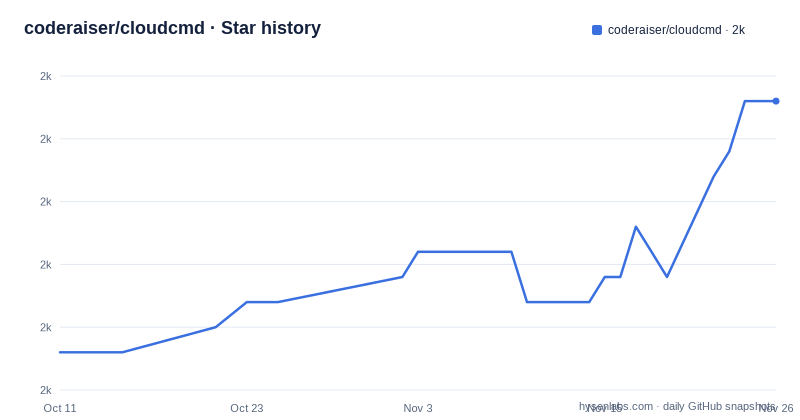
Star history
- coderaiser/cloudcmd2,044 ★ · +10
| Repository | 2026-10-11 | 2026-11-26 |
|---|---|---|
| coderaiser/cloudcmd | 2k | 2k |
10 Stars in the last 46 days, measured from the daily GitHub snapshot. Compare with other projects
Editorial analysis
A browser-based file manager that also serves as Express middleware
Cloud Commander addresses the problem of remote filesystem access without requiring SSH clients, FTP software or VPN software on the connecting machine. Opening a browser to port 8000 shows a dual-panel file manager, a terminal console and a text editor, all running over HTTP and WebSocket connections managed by socket.io.
Primary users are developers who need occasional file access to a remote server, homelab operators who want a graphical interface for a NAS, and teams embedding file management into an existing Node.js application. The middleware path is the distinguishing feature: Cloud Commander can mount inside an Express app rather than running as a standalone process, letting an existing application expose file management on an internal route.
Cloud Commander is listed as an "orthodox" file manager in package.json's keywords, a term for the two-panel layout familiar from Midnight Commander: each panel shows a different directory, and files are copied, moved or renamed between them with keyboard shortcuts rather than drag and drop. Repository topics include linux, macos, windows and android, indicating cross-platform support. Docker images exist for amd64 and arm64 architectures in both linux and linux-alpine variants, and the current version is 19.21.1, published on 2026-09-29. A live demo is available at https://cloudcmd-zdp6.onrender.com.
Installing globally with npm and opening port 8000
Global installation uses a single npm command:
npm i cloudcmd -gAfter installation, starting the server requires one more:
cloudcmdWith the server running, opening http://localhost:8000 in a browser shows the file manager interface. No configuration is required for a local session.
For the middleware path, initializing a new package first with npm init -y, then installing cloudcmd, express and socket.io together works as the README shows:
npm i cloudcmd express socket.io -SSocket.io is listed in the middleware example as required for the console component. Config and Edit also use the socket connection, noted as optional. Running Cloud Commander without socket.io removes those three features from the interface.
Package.json registers cloudcmd as a binary at bin/cloudcmd.js and lists server/cloudcmd.js as the main entry point. Package type is module, meaning all server-side code uses ES module import syntax rather than CommonJS require. Version is 19.21.1 and the package name is cloudcmd.
Embedding Cloud Commander in an Express application with socket.io
Using Cloud Commander as middleware requires connecting an HTTP server, a socket.io server and an Express app in a single index.js file. The README gives a full working example starting with these imports:
import http from 'node:http';
import {cloudcmd} from 'cloudcmd';
import {Server} from 'socket.io';
import express from 'express';

const app = express();
const port = 1337;
const prefix = '/';
const server = http.createServer(app);
const socket = new Server(server, {
    path: `${prefix}socket.io`,
});
server.listen(port);
The cloudcmd export is then passed to app.use with four possible arguments: socket (required for the console), config for configuration data, modules for overriding module settings, and configManager for an external configuration manager. Port 1337 in the README example is the application port, separate from the standalone mode's default port 8000. Changing prefix mounts Cloud Commander under a different route within the same application, which is how you'd share a server with other routes.
The cloudcmd export also exposes createConfigManager and configPath for constructing an external configuration manager. A name field in the config object changes the displayed title inside the interface. The README shows the config set to {name: 'cloudcmd :)'} in the full example. The complete index.js, including all optional arguments and the filePicker module override, is documented on the README.
Docker images for four architecture and type combinations
The project publishes `coderaiser/cloudcmd` Docker images for multiple architectures and includes a Compose example. The upstream example mounts the host root and home directories and publishes port 8000; it is a broad-access demonstration, not a safe default for an exposed server.
For your own deployment, mount only the directories the process needs, run with the least privileges available, restrict the listening interface and network access, and enable and test authentication. Provide TLS for remote access and assess whether the console and terminal are required. Confirm the current image and configuration options in the project documentation before deploying.
Client and server split: separate directories, rspack bundling and Playwright tests
Repository layout separates client and server code explicitly. Server code lives in server/, browser-side code in client/, shared utilities in common/, and templates in html/ and tmpl/. CSS goes in css/, static assets in static/ and fonts in font/.
Bundling configuration appears in both rspack.config.js and webpack.config.js at the repository root, with an additional .rspack/ directory. Rspack is a Rust-based webpack-compatible bundler; the README does not document which is primary for releases.
Test directories are test/ for unit tests and test-e2e/ for end-to-end tests, with playwright.config.js at the root governing the end-to-end suite. Configuration data lives under json/. A .cloudcmd.menu.js file at the root suggests a plugin mechanism for the context menu.
Files app.json and manifest.yml appear at the top level alongside deno.json. The Node.js tooling dominates the configuration, and the repository topics and documentation focus on Node.js, but deno.json's presence suggests some compatibility work exists outside the main Node.js path. Package.json scripts all delegate to madrun, a script runner, rather than calling tools directly.
Authentication and network access
Cloud Commander's separate HELP.md documents optional HTTP authentication, including `--auth`, username and password settings, and configuration-file options. The README's short startup example does not enable those protections by itself. Check the current documentation and verify that authentication works for both the web interface and associated socket connections before allowing remote access.
Use TLS and restrict network access; for example, place the service behind a properly configured authenticated reverse proxy. Run the process with only the filesystem permissions it needs, restrict container mounts, and assess whether the terminal and console should be enabled. A file manager with shell access can affect everything available to its process, even when the interface has a narrower apparent root.
Evaluate the authentication and authorization model against your own multi-user requirements. FileBrowser is another web file manager to compare when individual accounts and permissions are important.
v19.21.1, MIT licence, and funding through Open Collective and Patreon
Current version is v19.21.1, released on 2026-09-29. Preceding releases were v19.21.0 on 2026-09-18 and v19.20.8 on 2026-09-16, a cadence of multiple releases per month. A ChangeLog file at the repository root tracks changes, and the project's blog is at https://blog.cloudcmd.io.
Licence is MIT, per the repository metadata, the README and the LICENSE file at the root. Package.json lists funding at https://opencollective.com/cloudcmd, and the README also links to the author's Patreon at https://patreon.com/coderaiser. Those are the two documented support channels.
Repository includes a CONTRIBUTING.md and a CODE_OF_CONDUCT.md. A community wiki is linked in the README for site translations, hosted on the GitHub wiki. The Gitter channel at https://gitter.im/cloudcmd/hello appears in the README badges for community questions.
Deploy-to-platform support appears through app.json (likely Heroku) and a link to InstaPods in the README badges. The repository includes a HELP.md at the top level for user documentation beyond the README itself.
Editorial conclusion
Cloud Commander suits a developer or small team that needs browser access to a server's filesystem without setting up a full file transfer protocol. Embed it in an existing Express application where socket.io is already in use, or install it globally and run cloudcmd for a quick local session. The separate help document describes optional username/password HTTP authentication; check its suitability for your access-control needs rather than assuming multi-user isolation. Before making the service network-accessible, enable and test authentication, provide TLS, restrict network access and run with minimal filesystem permissions. Review the console and mounted volumes carefully.
Frequently asked questions
What is Cloud Commander?
Cloud Commander is a Node.js application that provides a web-based file manager with a two-panel view, a terminal console and a text editor, accessible from a browser at port 8000. It runs as a standalone global npm package or as Express middleware using socket.io.
How do I install Cloud Commander?
Run npm i cloudcmd -g to install globally, then run cloudcmd to start the server. Open http://localhost:8000 in a browser to reach the file manager. No configuration is required for a local session.
Does Cloud Commander have authentication?
Yes. The project help documents optional HTTP authentication with a username and password, including configuration flags. Enable and test it before exposing the service, use TLS and restrict network and filesystem access; check whether its model meets your multi-user requirements.
Can Cloud Commander run in Docker?
Yes. The repository provides a Docker image at coderaiser/cloudcmd on Docker Hub, with builds for amd64 and arm64 architectures in linux and linux-alpine variants. A docker-compose.yml is included at the repository root.
How do I embed Cloud Commander in an existing Express app?
Install cloudcmd, express and socket.io, then import cloudcmd from 'cloudcmd', create an HTTP server and a socket.io Server, and mount Cloud Commander with app.use. The cloudcmd export accepts socket (required for the console), config, modules and configManager as arguments.
Official sources
Add this badge to your README
If you maintain this project, the badge below links readers to this analysis and shows its maintenance status from the daily GitHub snapshot. Paste the markdown into your README; add ?metric=license or ?metric=stars to the image URL for a different field.

[](https://hysenlabs.com/projects/coderaiser-cloudcmd)Star history chart for your README
[](https://hysenlabs.com/projects/coderaiser-cloudcmd)Was this useful?