Deno for Visual Studio Code: Setup, Language Features, and Configuration
Visual Studio Code plugin for Deno
At a glance
- What is it?
- Deno for Visual Studio Code connects VS Code to `deno lsp`, the Deno language server, for JavaScript and TypeScript editing. It is a good fit for Deno workspaces, but it requires a separately installed Deno CLI and should not be enabled for every JavaScript project by default.
- Who is it for?
- Adopt Deno for Visual Studio Code for a workspace that already depends on the Deno CLI, import maps, Deno linting, or Deno formatting. Do not enable it globally unless every JavaScript and TypeScript workspace uses Deno.
- Can I use it commercially?
- Yes. MIT is a permissive licence: you can use, modify and sell software built on it, as long as you keep its copyright and licence notices.
- Is it still maintained?
- Yes. The repository last received commits 27 days ago.
- What is it written in?
- Mainly TypeScript, according to GitHub's language statistics.
Answers come from the project's GitHub data, last synced on October 23, 2026, and from our analysis. They are not legal advice.
Star history
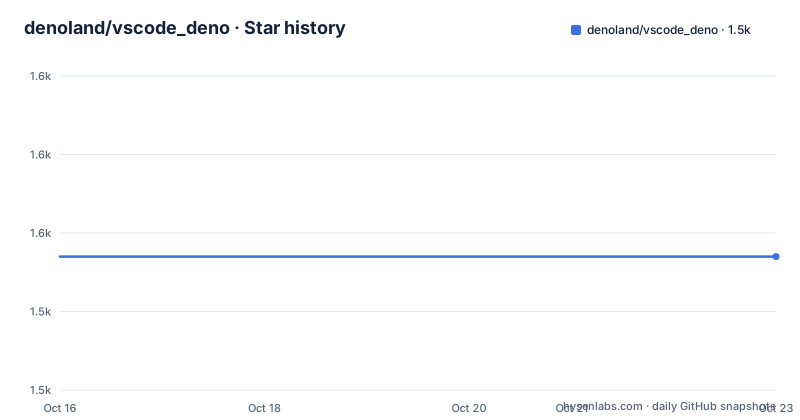
- denoland/vscode_deno1,547 ★ · +0
| Repository | 2026-10-16 | 2026-10-23 |
|---|---|---|
| denoland/vscode_deno | 1.5k | 1.5k |
0 Stars in the last 7 days, measured from the daily GitHub snapshot. Compare with other projects
Editorial analysis
Deno Language Support in VS Code
This extension addresses a specific gap between ordinary Visual Studio Code JavaScript tooling and a Deno project. The extension instead connects the editor to `deno lsp`, the Deno Language Server, while also exposing Deno CLI tasks, formatting, debugging-related contributions, import completion, workspace configuration, and a Testing Code Lens.
The intended users are developers who already work with Deno rather than developers who want to install a separate JavaScript runtime inside VS Code. Deno remains an external dependency. The README requires Deno CLI `v1.13.0` or later, and the extension resolves the `deno` executable from the environment path unless `deno.path` is configured. That distinction matters for adoption: this is an editor integration, not a bundled Deno runtime.
The extension also declares debugger and breakpoint contributions for `typescript`, `javascript`, `typescriptreact`, and `javascriptreact`. Its activation events cover those languages, plus Markdown, JSON, and JSONC. This makes it broader than a narrow type-checking add-on, but the main editing path still depends on the Deno Language Server and the user's local CLI installation.
How `deno lsp` Replaces VS Code Language Services
When `deno.enable` is set to `true`, the extension disables Visual Studio Code's built-in JavaScript and TypeScript language services for the enabled workspace and uses `deno lsp` instead. The design keeps language behavior close to the Deno CLI. Module resolution follows the CLI strategy, so remote modules can use the cache managed by Deno rather than a separate editor-only download path.
The data flow is editor to extension client to Deno Language Server. The extension locates the `deno` executable, starts the language server, and passes the workspace context to it. Diagnostics, hover cards, quick fixes, IntelliSense, lint results, formatting, import completion, and code lenses are therefore driven by Deno tooling rather than only by VS Code's generic TypeScript services. The README specifically describes integration with Deno CLI linting and formatting.
Deno does not automatically fetch every remote dependency. The `Deno: Cache` command fetches dependencies for the current file, and the extension offers a quick fix when missing dependencies are detected. The `Deno: Reload Import Registries Cache` command reloads cached responses from configured import registries. This is a meaningful difference from an editor that assumes all dependencies are immediately available.
Installing Deno and Enabling a Workspace
The project says to install the Deno CLI first, using the Deno runtime installation instructions linked by the README, and then install the extension from its Visual Studio Marketplace page. The README does not provide a shell command for installing the extension, so there is no marketplace command that can be copied here. It requires Deno CLI `v1.13.0` or later.
After installation, make `deno` available through the environment path, or set `deno.path` in Visual Studio Code Settings. Open the Command Palette with `Ctrl+Shift+P` and run `Deno: Enable`. The README also documents `Deno: Initialize Workspace Configuration`, which can enable Deno and initialize the workspace configuration. A root-level `deno.json` or `deno.jsonc` can also enable the extension for that workspace.
The first useful check is the `Deno: Language Server Status` command. It displays information about the Deno Language Server and is the documented starting point for diagnosing server-related problems. The reader should confirm that the extension is enabled for the current workspace rather than assuming that opening a `.ts` file activates it everywhere. The default value of `deno.enable` is `false`.
Formatting Settings for Deno Files
The extension provides formatting for JavaScript, TypeScript, JSX, TSX, JSON, and Markdown. VS Code should list the extension as a formatter option for those file types. The README gives a workspace `settings.json` example that enables Deno, enables linting, formats on save, and assigns `denoland.vscode-deno` as the default formatter for TypeScript files.
Use this configuration when a TypeScript workspace should use Deno formatting on save:
{
  "deno.enable": true,
  "deno.lint": true,
  "editor.formatOnSave": true,
  "[typescript]": { "editor.defaultFormatter": "denoland.vscode-deno" }
}
For a workspace where Deno should be the default formatter overall, the README provides this form:
{
  "deno.enable": true,
  "editor.formatOnSave": true,
  "editor.defaultFormatter": "denoland.vscode-deno"
}
A language-specific user setting can override the general default. The README identifies `[typescript]` with `editor.defaultFormatter` set to `vscode.typescript-language-features` as a setting that may need to be removed. The extension respects formatter settings from `deno.config` or an automatically detected Deno configuration file. It does not currently provide format-on-paste or format-on-type behavior, which rules out workflows that depend on either feature.
Workspace Paths, Imports, Tasks, and Tests
The extension includes settings for limiting Deno support to selected workspace paths. `deno.disablePaths` disables the Deno Language Server for specified paths. `deno.enablePaths` restricts it to specified paths. These controls matter in repositories that contain mixed tooling, generated directories, or embedded Node-oriented projects. They are more precise than enabling Deno for an entire repository and then discovering that unrelated files are being handled by the wrong language server.
Import maps and TypeScript configuration files can be specified for use with the Deno CLI. The repository also documents import completion, workspace folder configuration, Testing Code Lens, and Tasks for the Deno CLI. The `Deno: Cache` command operates on the current open file rather than the entire workspace, so a user working on a large project may need to invoke it on files with unresolved dependencies. The quick fix is the documented path for missing modules.
This approach differs from configuring a JavaScript project only through `tsconfig.json`. Deno's module resolver, remote cache, import registries, linting, and formatting are involved. Projects that depend on `node_modules`, Node-specific editor behavior, or another language server may be better served by a tool aligned with that runtime. Enabling this extension across every JavaScript and TypeScript workspace is explicitly discouraged by the README unless all of those workspaces use Deno.
Compatibility, Maintenance, and Operational Boundaries
The repository is not archived, and the last push was on 2026-09-26. The release list includes version `3.53.1`, released on 2026-09-24, while the repository package also identifies `3.53.1` as the current package version. The project therefore has recent repository activity in the available record, but its upgrade behavior must still be judged against the Deno CLI and Visual Studio Code versions installed by the user.
The extension package declares a Visual Studio Code engine requirement of `^1.91.0`. The README separately requires Deno CLI `v1.13.0` or later. These are separate compatibility boundaries. A developer who updates one component should not assume that the other component has been updated with it.
The license is MIT. That permits use and modification under the license's terms, but the license does not remove the need to review dependencies, project policies, and the terms of separately distributed Deno or VS Code software. The repository layout also includes client code, documentation, schemas, media, and TypeScript configuration, indicating that the extension is a TypeScript codebase with a dedicated `client/` area rather than a collection of loose editor scripts.
A practical failure case is an environment where the extension is enabled but `deno` is missing from the environment path and `deno.path` is incorrect. The README points to `Deno: Language Server Status` for diagnosing the server state. Another boundary is dependency access: because Deno does not automatically fetch remote dependencies, diagnostics can remain unresolved until `Deno: Cache` or its quick fix is used.
Editorial conclusion
Adopt Deno for Visual Studio Code for a workspace that already depends on the Deno CLI, import maps, Deno linting, or Deno formatting. Do not enable it globally unless every JavaScript and TypeScript workspace uses Deno. Verify first that the required `deno` executable is available, then confirm that the workspace configuration and formatter settings match the project files. This judgement is specific to a Deno-backed workspace using VS Code `^1.91.0` and Deno CLI `v1.13.0` or later.
Frequently asked questions
How do I install and enable Deno for Visual Studio Code?
Install Deno CLI `v1.13.0` or later, install the extension, make `deno` available in the environment path or set `deno.path`, then run `Deno: Enable` from the Command Palette. You can also use `Deno: Initialize Workspace Configuration` or create `deno.json` or `deno.jsonc` at the workspace root.
Does the Deno extension enable Deno for every JavaScript and TypeScript project?
No. The setting `deno.enable` defaults to `false`. The README recommends enabling Deno globally only if every JavaScript or TypeScript workspace in Visual Studio Code uses Deno. `deno.disablePaths` and `deno.enablePaths` provide more specific workspace controls.
How does Deno for Visual Studio Code handle remote dependencies?
Module resolution follows the Deno CLI strategy and remote modules can be cached in Deno's cache. Deno does not automatically fetch and cache every remote dependency, so the extension provides `Deno: Cache` and a quick fix for missing dependencies.
Can Deno for Visual Studio Code format files on paste or while typing?
The extension supports formatting JavaScript, TypeScript, JSX, TSX, JSON, and Markdown, and the README documents format-on-save configuration. It does not currently provide format-on-paste or format-on-type capabilities.
What versions of VS Code and Deno CLI are supported?
The extension package declares VS Code `^1.91.0` as its engine requirement. The README requires Deno CLI `v1.13.0` or later. Both requirements should be checked before enabling the language server.
Official sources
Add this badge to your README
If you maintain this project, the badge below links readers to this analysis and shows its maintenance status from the daily GitHub snapshot. Paste the markdown into your README; add ?metric=license or ?metric=stars to the image URL for a different field.

[](https://hysenlabs.com/projects/denoland-vscode-deno)Star history chart for your README
[](https://hysenlabs.com/projects/denoland-vscode-deno)Was this useful?