IPTV Simple: the Kodi PVR client for M3U and XMLTV playlists
IPTV Simple client for Kodi PVR
At a glance
- What is it?
- IPTV Simple is a Kodi PVR add-on that turns an M3U playlist and an XMLTV guide into live TV and radio inside Kodi, with catchup and timeshifting behaviour that depends on which inputstream the provider supports. The add-on does the playlist side of IPTV and leaves the transport side to inputstream.adaptive or inputstream.ffmpegdirect.
- Who is it for?
- IPTV Simple fits a Kodi user who already has an M3U playlist and an XMLTV guide, and it fits a provider whose streams are served over HTTP or UDP with the right inputstream installed, since the add-on selects timeshifting behaviour for those transports by default. It does not fit a setup that expects uniform seeking across live, catchup and video on demand, because the README states that the available options depend on both the provider and the inputstream used.
- Can I use it commercially?
- Yes, with conditions. GPL-2.0 is a copyleft licence: if you distribute software that includes it, you must release that software's source code under the same licence. Running it internally without distributing it does not trigger that obligation.
- Is it still maintained?
- Yes. The repository last received commits 3 days ago.
- What is it written in?
- Mainly C++, according to GitHub's language statistics.
Answers come from the project's GitHub data, last synced on November 7, 2026, and from our analysis. They are not legal advice.
Star history
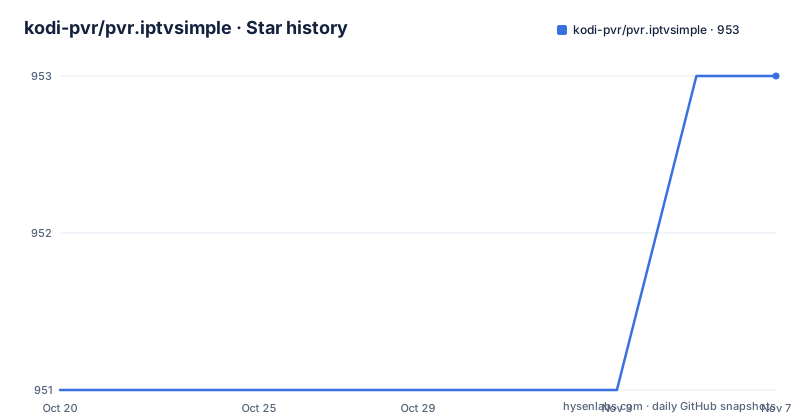
- kodi-pvr/pvr.iptvsimple953 ★ · +2
| Repository | 2026-10-20 | 2026-11-07 |
|---|---|---|
| kodi-pvr/pvr.iptvsimple | 951 | 953 |
2 Stars in the last 18 days, measured from the daily GitHub snapshot. Compare with other projects
Editorial analysis
The add-on parses a playlist, the provider supplies the streams
IPTV Simple is described as an IPTV Live TV and Radio PVR client add-on for Kodi. The scope is narrower than the name suggests, and understanding that boundary is the first step to a sane expectation.
The add-on consumes two artefacts that you already have or can obtain: an M3U playlist that lists the channels, and an XMLTV guide that supplies the programme metadata. It registers as a PVR client inside Kodi, so channels appear in the live TV interface with their guide data, and playback is handed to Kodi's inputstream layer. What the add-on does not do is host, proxy or transcode any stream. The stream URLs come from your provider, and the transport behaviour comes from the inputstream add-on that handles them.
The audience is therefore two-sided. For the end user, it is a way to put an existing IPTV subscription into Kodi with guide data, catchup and timeshifting where the provider allows it. For developers, it is a well-trodden reference implementation of the Kodi PVR client interface, with settings, custom mapping files and build instructions laid out in full.
The add-on is under the GPL-2.0-or-later licence, and the source lives in pvr.iptvsimple/ and src/ in the repository, with CMakeLists.txt, a Jenkinsfile and an azure-pipelines.yml at the top level.
Gzip and XZ compressed XMLTV, and why pairing matters
Two implementation details shape what the add-on can load, and both are easy to miss.
The first is compression. IPTV Simple supports both Gzip and XZ compression of XMLTV, which matters because a full multi-day guide for a large channel list compresses well and providers routinely serve it that way. A client that handles only plain XML either fails on such a feed or has to be given an uncompressed copy.
The second is that M3U and XMLTV come in pairs, and since Kodi 20 (Nexus) the add-on supports multiple pairs of M3U/XML files. The README is explicit about how this is done: visit the add-on settings under Configure and choose new Add add-on configuration. That is a different operation from editing one setting, and it is what allows a Kodi user to hold, for example, a live television playlist and a separate radio or international playlist as independent configurations with independent guides.
The location of the playlist is itself a setting with two branches. Location can be a Local path, which is a path to an M3U file on the device or on the local network, or a Remote path, which is a URL. The paired settings follow: M3U play list path applies when the location is Local path and M3U play list URL applies when it is Remote path. A Remote path can additionally be cached to local storage, which is the setting to enable if your provider throttles repeated playlist fetches or if your network is unreliable.
The inputstream decides what playback options you actually get
This is the part of the add-on that most often confuses users, and the README explains it with unusual clarity.
The available options, such as pause and resume, seeking and timeshifting, depend on both the provider of the streams and the inputstream used. For video on demand, seeking is enabled within the duration of the video regardless of the inputstream, so that case is simple. The differences appear with live and catchup streams, and the README lists the three common inputstreams with their real behaviour.
Kodi's internal ffmpeg inputstream can only play and stop the stream. inputstream.adaptive is used for adaptive formats such as HLS, DASH and Smooth Streaming, and the stream can be paused and resumed, with timeshifting possible within the sliding window of the stream. inputstream.ffmpegdirect plays anything the internal inputstream plays and adds two further modes, Timeshifting and Catchup. Timeshifting mode buffers the stream from the point playback began, which allows seeking to any time since then, and this inputstream and mode are selected by default for HTTP and UDP streams.
So the choice of transport add-on is not cosmetic. Switching from the internal inputstream to inputstream.ffmpegdirect on an HTTP stream changes seeking from unavailable to available across the whole session, and that change happens without touching the playlist.
Catchup is a window the provider grants, not a feature you switch on
The Catchup mode deserves its own reading because the wording matters when you write user documentation about it.
Catchup mode extends the default catchup functionality in IPTV Simple by allowing timeshifting to any time within the catchup or archive window that the stream provider allows. The README gives the example: if a provider supports a 5 days catchup window, the guide or channel menu can be used to jump to any point and traverse channels while constantly playing back the channel as if it were live television. The 5 days figure is an example of a provider's window, not a value the add-on sets.
The mechanism behind that jump lives in the appendices, where catchup format specifiers are documented, and the add-on also supports a Timeshift setting and a Catchup setting in its configuration. A channel without a catchup window in the provider's stream simply has nowhere to jump to, so the feature is only as good as the archive the provider keeps.
The other appendix worth knowing about is the list of supported M3U and XMLTV elements. An M3U file carries far more attributes than any client supports, and the appendix is the authoritative list of which ones this add-on honours, including the catchup attributes and the group attributes used for channel groups. When a channel behaves oddly, that list is where to look before changing any setting.
Building on Linux is five commands and one cmake target
The README documents the build for developers, and the Linux path is the short one. You need a checkout of Kodi itself plus this repository, and then you point the Kodi addon cmake machinery at the add-on source.
The sequence is:
git clone --branch master https://github.com/xbmc/xbmc.git
git clone https://github.com/kodi-pvr/pvr.iptvsimple.git
cd pvr.iptvsimple && mkdir build && cd build
cmake -DADDONS_TO_BUILD=pvr.iptvsimple -DADDON_SRC_PREFIX=../.. -DCMAKE_BUILD_TYPE=Debug -DCMAKE_INSTALL_PREFIX=../../xbmc/addons -DPACKAGE_ZIP=1 ../../xbmc/cmake/addons
make
Read the cmake line rather than pasting it blindly, because three of its variables decide what you get. ADDONS_TO_BUILD names the single add-on to build, ADDON_SRC_PREFIX points at where the source tree sits relative to the Kodi checkout, and CMAKE_INSTALL_PREFIX says where the result is written, here into the addons directory of the Kodi checkout. PACKAGE_ZIP=1 produces a packaged add-on, and CMAKE_BUILD_TYPE=Debug gives you a debug build for development.
The repository is set up for continuous integration in three places at once: a GitHub Actions build and test workflow, an azure-pipelines.yml definition and a Jenkinsfile, with the README badges pointing at each. There is also a debian/ directory and a depends/ directory, and the build pulls in lzma and pugixml through the Findlzma.cmake and Findpugixml.cmake modules, which matches the Gzip and XZ support in the add-on.
macOS needs the Kodi tools built first
The macOS route is genuinely different, and the README says why in plain terms: the same cmake command will not produce an add-on that will run in Kodi on a Mac. The supported path is to build the tools and then the add-on on its own, and copy the add-on into Kodi afterwards. The Kodi source is checked out to a separate directory because that checkout is only used to build the add-on.
First you get both repos and build the Kodi tools:
cd $HOME
git clone https://github.com/xbmc/xbmc xbmc-addon
git clone https://github.com/kodi-pvr/pvr.iptvsimple
cd $HOME/xbmc-addon/tools/depends
./bootstrap
./configure --host=x86_64-apple-darwin --with-platform=macos
make -j$(getconf _NPROCESSORS_ONLN)
Then the add-on itself is built through the binary-addons target:
cd $HOME/xbmc-addon
make -j$(getconf _NPROCESSORS_ONLN) -C tools/depends/target/binary-addons ADDONS="pvr.iptvsimple" ADDON_SRC_PREFIX=$HOME
After that, rebuilding and copying the add-on into Kodi after changes has its own helper script:
cd $HOME/pvr.iptvsimple
./build-install-mac.sh ../xbmc-addon
The README notes that these steps must be performed before the add-on is installed and can be run in Kodi, and that a manual alternative to the helper script is documented in the appendix. Two builds, a tools tree and a copy step is a heavier path than Linux, but it is the supported one, and skipping the tools step is what produces an add-on that will not load.
Maintenance follows the Kodi release branch names
The versioning of this add-on is not arbitrary, and it is the clearest signal of how the project is organised.
The default branch is Piers, and the release tags carry the Kodi release they target: 22.6.1-Piers from 2025-11-09, 22.5.1-Piers from 2025-04-21, and 21.11.0-Omega from 2025-07-01. The numbers are the Kodi version and the codename after it, so an add-on release named for a branch is maintained for that branch of Kodi, and the same add-on is expected to exist in a form matching whatever Kodi release you are running.
That has a direct consequence for upgrade planning. A user on an older Kodi release does not simply install the newest add-on; they need the add-on build that matches their Kodi branch, and the branch names in the tag list are the map. The last push was on 2026-10-18, so the source tree is current, and the three continuous integration systems listed earlier give a reasonable expectation that a given branch still builds.
The GPL-2.0-or-later licence is standard for a Kodi add-on, and it matters if you intend to redistribute a modified build. The README also points to Kodi's PVR user support forum, Kodi's PVR development support forum and the GitHub issue tracker, so the support path is community based rather than a commercial arrangement.
Where IPTV Simple is the wrong tool
There are clear cases where this add-on will not satisfy, and the README itself supplies most of the reasons.
The first is a provider that does not use M3U and XMLTV. The add-on is a client for that playlist format, and a service that delivers only a stream URL with its own app or a proprietary portal is out of scope.
The second is a requirement for uniform playback controls. The README states that options such as pause and resume, seeking and timeshifting depend on both the provider and the inputstream used, and the differences occur with the playback of live and catchup streams. If your users expect the same set of controls on every channel, you need to control the inputstream on every device and confirm each provider supports the modes you rely on. A misconfigured device can end up on Kodi's internal ffmpeg inputstream, where the stream can only be played and stopped.
The third is configuration surface. Settings are organised into levels, Basic, Standard, Advanced and Expert, and the README warns that a setting you cannot find is most likely available only at a higher level. On top of that sit the group settings, genre mapping files, provider name mappings, timeshift and catchup settings, and channel logo handling. That is a lot to explain to a non-technical user, and the add-on does not hide it.
The fourth is a legal one that is yours to handle. The add-on is free software, but the streams, the guide data and the provider account are not, and nothing in the add-on changes the terms under which you use a subscription.
Editorial conclusion
IPTV Simple fits a Kodi user who already has an M3U playlist and an XMLTV guide, and it fits a provider whose streams are served over HTTP or UDP with the right inputstream installed, since the add-on selects timeshifting behaviour for those transports by default. It does not fit a setup that expects uniform seeking across live, catchup and video on demand, because the README states that the available options depend on both the provider and the inputstream used. Before adopting it, add the M3U and XMLTV pair under Configure, then add add-on configuration, confirm the inputstream that is installed on your platform, and check the catchup format specifiers in the appendix against what your provider returns.
Frequently asked questions
How do I add multiple M3U and XMLTV playlist pairs to IPTV Simple?
Multiple pairs of M3U/XML files are supported since Kodi 20 (Nexus). The README instructs you to visit the add-on settings under Configure and choose new Add add-on configuration, which creates an additional configuration rather than editing the existing one.
Does IPTV Simple support compressed XMLTV guides?
Yes. The README states that the add-on supports both Gzip and XZ compression of XMLTV. The playlist location is set to either Local path or Remote path, and a remote playlist can also be cached to local storage.
Why can I not seek in live TV with IPTV Simple?
The available options depend on both the provider of the streams and the inputstream used. Kodi's internal ffmpeg inputstream can only play and stop the stream, while inputstream.ffmpegdirect adds timeshifting and catchup modes and is selected by default for HTTP and UDP streams. inputstream.adaptive handles adaptive formats such as HLS, DASH and Smooth Streaming.
How do I build the IPTV Simple add-on on Linux?
Clone the Kodi repository and the add-on repository, create a build directory inside the add-on, then run the cmake command with ADDONS_TO_BUILD=pvr.iptvsimple and CMAKE_INSTALL_PREFIX pointing at the addons directory of the Kodi checkout, and finish with make. On macOS the README documents a different route in which the Kodi tools are built first and the add-on is copied into Kodi with the build-install-mac.sh script.
Official sources
Add this badge to your README
If you maintain this project, the badge below links readers to this analysis and shows its maintenance status from the daily GitHub snapshot. Paste the markdown into your README; add ?metric=license or ?metric=stars to the image URL for a different field.

[](https://hysenlabs.com/projects/kodi-pvr-pvr-iptvsimple)Star history chart for your README
[](https://hysenlabs.com/projects/kodi-pvr-pvr-iptvsimple)Was this useful?