folderify for Native-Style macOS Folder Icons
:file_folder: Generate pixel-perfect macOS folder icons in the native style. (Now with support for macOS 26 Tahoe!)
At a glance
- What is it?
- folderify is a Rust command-line tool that turns transparent PNG masks into complete macOS folder icons. It fits macOS users who need version-aware, light or dark icons, with Homebrew providing the simplest documented installation route.
- Who is it for?
- Adopt folderify when you need reproducible, version-aware folder icons from PNG masks and work on macOS. Do not adopt it for a single folder icon that must switch automatically with system appearance, or for legacy OS X styles removed in v3.
- Can I use it commercially?
- Yes. MIT is a permissive licence: you can use, modify and sell software built on it, as long as you keep its copyright and licence notices.
- Is it still maintained?
- Yes. The repository last received commits 7 days ago.
- What is it written in?
- Mainly Rust, according to GitHub's language statistics.
Answers come from the project's GitHub data, last synced on October 23, 2026, and from our analysis. They are not legal advice.
Star history
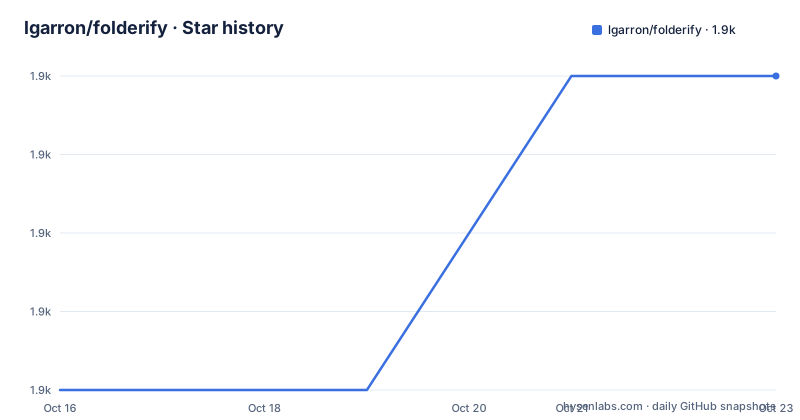
- lgarron/folderify1,949 ★ · +4
| Repository | 2026-10-16 | 2026-10-23 |
|---|---|---|
| lgarron/folderify | 1.9k | 1.9k |
4 Stars in the last 7 days, measured from the daily GitHub snapshot. Compare with other projects
Editorial analysis
Why folderify Exists for macOS Folder Customization
folderify solves a narrow but awkward macOS graphics task: producing a folder icon that follows the appearance of the macOS release on which it was generated. The input is a mask image, not a complete folder icon. The tool combines that design with the appropriate folder artwork and renders every icon size from `16x16` through `512x512@2x`. That distinction matters because manually resizing one image does not reproduce the detailed folder template expected by Finder.
The intended users are macOS users and engineers who need repeatable icon generation from source assets. A designer may keep a transparent PNG in a repository and generate `.iconset` and `.icns` outputs for project folders. A developer may automate folder presentation across several directories. The project also supports specific releases, including Tahoe according to its description, rather than treating every modern macOS folder as one fixed image.
Appearance is selected from the system by default. The same invocation can produce a light or dark result based on the current macOS setting, and `--color-scheme` can force either choice. However, this is generation-time behavior. The README explicitly says there is no simple way for one assigned folder icon to switch automatically when the operating system appearance changes. A folder receives one generated version.
The Mask-to-Icon Rendering Pipeline
The visible workflow begins with a transparent PNG mask containing a solid black design. `folderify` processes that mask, applies it to a native-style macOS folder image, generates the required representations, and either writes the results beside the mask or applies them to a target file or folder. The `.iconset` directory preserves the individual size assets, while the `.icns` file packages those assets for Finder.
The command-line interface is built with `clap`, with completion support supplied by `clap_complete`. Progress reporting comes from `indicatif`, temporary handling is listed through `mktemp`, and `include_dir` can incorporate repository assets into the build. This Rust layout supports a packaged native executable rather than a runtime service or library that applications must embed.
Image processing relies on ImageMagick. The README expects both `magick` and `identify` to be available on the command line. macOS supplies `iconutil`, while `fileicon` is optional. Some operations may also use `sips`, `DeRez`, `Rez`, and `SetFile`; parts of that path require Xcode command line tools. Homebrew is therefore recommended, not merely as a package manager, but because it also installs shell argument completions.
Masks can be trimmed by default, removing transparent margins from all four sides. Passing `--no-trim` preserves those margins. This flag is tied to a precise alignment strategy: a 384px-high image, a width that is a multiple of 128px up to 768px, and a 16px grid. Each `64x64` tile then aligns with one pixel at the smallest folder size. The geometry is documented because small alignment errors become visible when Finder scales the output down.
Homebrew and Cargo Installation Paths
The shortest documented installation path uses Homebrew. This is the recommended option, and the README states that it automatically installs completions for the shell.
brew install folderifyAfter the package manager finishes, `folderify` should be available as a command. Because Homebrew manages completions, users do not need to copy the CLI help output into a shell configuration themselves.
A Rust toolchain and ImageMagick provide the alternative Cargo installation. The binary is installed from the crates.io package with this command:
cargo install folderifyThis path is suitable for systems that already manage command-line tools through Cargo. It does not carry the README's claim that Homebrew automatically installs shell completions. Users who want those completions can request them from the program with `--completions <SHELL>`, but loading and retaining the output remains a separate shell configuration task.
The repository can also be cloned and installed from its local path. The documented source sequence is:
git clone https://github.com/lgarron/folderify && cd folderify
cargo install --path .
The manifest identifies the package as `folderify`, version `4.1.5-dev`, with edition `2021` and an MIT license. The repository also contains JavaScript tooling for development checks, so cloning is more appropriate for contributors than for users who only need the command.
Generating and Applying the First Folder Icon
For a first real use, start with a `.png` mask whose design is solid black over transparency and whose corner pixels remain transparent. Pass the mask and target folder to apply the generated icon directly:
folderify mask.png /path/to/folderThe README explains that the command produces `mask.icns` and `mask.iconset` when no output target is specified. With a target, the generated icon is applied to that target. The exact on-screen result depends on the folder artwork for the detected macOS version.
To generate files without assigning an icon, omit the target:
folderify mask.pngThe results should appear beside the mask. Finder's Get Info interface can then copy the icon from the generated `.icns` file. This manual route is useful when the recipient folder does not yet exist or when the icon will be distributed as an asset.
To force dark appearance regardless of the current system setting, use the documented option:
folderify --color-scheme dark mask.pngThe allowed values are `auto`, `light`, and `dark`, with `auto` as the default. The `--macOS` option accepts a version such as `14.2.1`; without it, `folderify` uses the currently running macOS version. These controls are the main reasons to prefer it over a generic image converter: the output is assembled around macOS-specific folder resources and complete icon-size requirements.
Alignment, Outputs, and Finder Reveal Behavior
For production assets, the documented `--no-trim` workflow matters more than simply disabling automatic cleanup. Prepare the mask at 384px high, use a width that is a multiple of 128px no greater than 768px, and keep the design on a 16px grid. The corner pixels must stay transparent because they define the empty margins.
This command preserves transparent margins and reveals the generated result in Finder. `--reveal` prefers the target, then the `.icns` file, then the `.iconset` folder when more than one result exists. Reviewing the assets in Finder can expose clipping or alignment defects that are hard to judge from the source mask alone.
Output paths can be controlled independently. `--output-icns <ICNS_FILE>` writes the packaged file, while `--output-iconset <ICONSET_FOLDER>` writes the directory of individual representations. These outputs are written even when a target is specified. That separation supports build pipelines that want artifacts without automatically changing Finder metadata.
Folder state also affects the template. `--empty-folder` renders the folder as empty. Badges are available through `--badge`, but the documented values are limited to `alias` and `locked`, and only one badge is supported at a time. For non-interactive automation, `--no-progress` suppresses progress bars, while `--verbose` enables detailed output and also sets `--no-progress`.
Where folderify Is the Wrong Tool
The clearest wrong-tool case is an icon that must follow macOS appearance changes automatically. The README directly states that one folder can only receive one version of the generated icon. Generating both light and dark outputs does not solve that requirement because Finder is not given a documented switch rule by this workflow.
The project also cannot reproduce folder styles that were removed. As of v3, Leopard-style folders for OS X 10.5 through 10.9 and Yosemite-style folders for OS X 10.10 through macOS 10.15 are unsupported. The documentation directs users to `folderify` v2 for those releases. Its legacy example exposes the old `--macOS 10.5` command through a separate `folderify-v2` entry point or the Python module interface.
uvx --from folderify folderify-v2 --macOS 10.5 path/to/icon.pngThis is an older toolchain with different behavior, not a compatibility mode in the current CLI. Teams maintaining old operating-system assets therefore need to retain a separate installation path.
Another limitation is platform scope. The workflow relies on macOS tools such as `iconutil` and on Finder-specific assignment behavior, so it is not a cross-platform icon generator. A user who only needs to resize a PNG can use a general image tool instead, but that alternative will not create a native folder composition or populate the complete macOS iconset range.
Maintenance, License, and Manual Finder Alternative
The repository is not archived, and its last push was on 2026-10-16. Recent releases include `v4.1.4` on 2026-10-02, `v4.1.3` on 2026-02-06, and `v4.1.2` on 2026-02-05. Those records indicate recent project activity, although the README does not provide a compatibility policy for future macOS releases or a long-term support schedule.
Upgrade cost is relatively small for command-line use. Cargo users can update the installed package, while Homebrew users rely on its package workflow. Source contributors face a broader toolchain because `Makefile` targets combine Rust checks with Bun, TypeScript, Biome, and README CLI validation. `make check` runs linting, tests, and a release build, so a contributor update can involve both Rust and JavaScript development dependencies.
The Cargo manifest declares an MIT license, and the repository includes `LICENSE.md`. That designation means the project is offered under the MIT license terms, but users still need to review the actual license file and comply with its notice and disclaimer requirements. This review is an engineering and compliance check, not legal advice.
The practical manual alternative is to obtain or create a complete `.icns`, open its folder in Finder, use Get Info to copy its icon, and paste it onto a target folder. The README confirms the Get Info copying step. That approach avoids generating a source mask and version template, but it does not provide `folderify`'s automated size set, macOS-version selection, trimming, badges, or repeatable asset generation from a repository file.
Editorial conclusion
Adopt folderify when you need reproducible, version-aware folder icons from PNG masks and work on macOS. Do not adopt it for a single folder icon that must switch automatically with system appearance, or for legacy OS X styles removed in v3. Verify first that your target macOS version is supported, that ImageMagick is available outside Homebrew, and that the mask geometry follows the documented 16px grid.
Frequently asked questions
How do I install folderify on macOS?
The recommended documented method is `brew install folderify`. If you already use Rust and ImageMagick, `cargo install folderify` is the alternative shown in the README.
How do I generate a folder icon from a PNG mask?
Run `folderify mask.png /path/to/folder` to apply it, or run `folderify mask.png` to generate `mask.icns` and `mask.iconset` beside the input. Use a solid black PNG design over transparency for best results.
Can a folderify icon switch automatically between light and dark mode?
No. The README says a folder can only be assigned one icon version, so it cannot automatically change when the macOS appearance setting changes. `--color-scheme` selects the version during generation.
Does folderify support old OS X folder styles?
The current tool no longer supports Leopard-style or Yosemite-style folders as of v3. The README directs users to `folderify` v2 for those styles.
Official sources
Add this badge to your README
If you maintain this project, the badge below links readers to this analysis and shows its maintenance status from the daily GitHub snapshot. Paste the markdown into your README; add ?metric=license or ?metric=stars to the image URL for a different field.

[](https://hysenlabs.com/projects/lgarron-folderify)Star history chart for your README
[](https://hysenlabs.com/projects/lgarron-folderify)Was this useful?