Try Omarchy for Windows is QEMU on a Windows hypervisor, not a passthrough VM
Use Omarchy Linux on Windows without any hassle.
At a glance
- What is it?
- Try Omarchy for Windows runs the complete Omarchy desktop inside a window on a Windows machine, so you can try a keyboard first Linux desktop without repartitioning a drive. The interesting engineering is that it borrows the Windows Hypervisor Platform rather than shipping its own, emulates the GPU through a separate runtime with a CPU fallback, and offers a quick start that signs you in as a fixed default account. Three releases landed in about a day.
- Who is it for?
- Try Omarchy for Windows suits someone curious about a keyboard first Linux desktop who does not want to repartition a drive or dual boot, and the value is the migration path: one command moves settings, apps, files, and projects to a real install afterwards. Three things to check before you commit.
- Can I use it commercially?
- Yes. MIT is a permissive licence: you can use, modify and sell software built on it, as long as you keep its copyright and licence notices.
- Is it still maintained?
- Yes. The repository received new commits within the last day.
- What is it written in?
- Mainly Go, according to GitHub's language statistics.
Answers come from the project's GitHub data, last synced on November 15, 2026, and from our analysis. They are not legal advice.
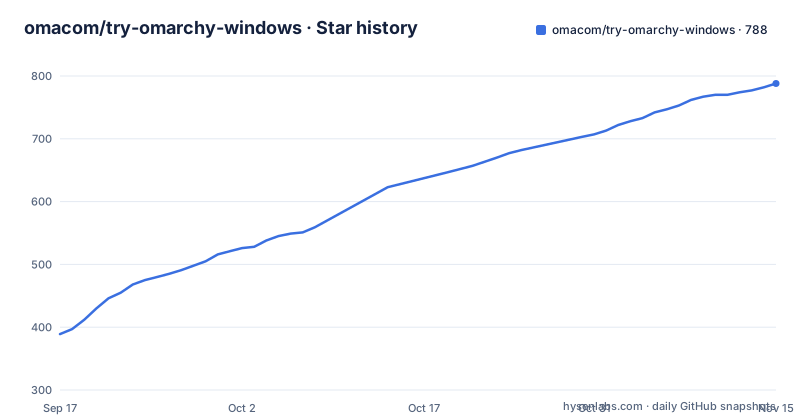
Star history
- omacom/try-omarchy-windows788 ★ · +399
| Repository | 2026-09-17 | 2026-11-15 |
|---|---|---|
| omacom/try-omarchy-windows | 389 | 788 |
399 Stars in the last 59 days, measured from the daily GitHub snapshot. Compare with other projects
Editorial analysis
It borrows the Windows hypervisor instead of shipping one
The virtualisation layer is the decision that shapes everything else about this project.
It does not bundle a hypervisor. It runs QEMU on the Windows Hypervisor Platform, which is the component Microsoft provides and which the setup step may enable for you, requesting one restart when it has to. So the first run of this tool can require a reboot, which is worth knowing before you click through an installer on a laptop mid task.
The guest is an Arch Linux image for the x86_64 architecture, built from source in the repository rather than downloaded from a distribution image server.
Graphics are handled by a separate component. Instead of passing a real GPU through, the project uses a Windows graphics runtime that exposes a virtual device to the guest, which is why the launcher can fall back to CPU rendering when that path is unavailable. Both a VirGL style path and a Vulkan path through Venus are named as the accelerated options.
The Go launcher sits on top of all of this and has four jobs: setup, updates, supervision of the virtual machine, and Windows integration. Those four are the entire feature surface, and the directory layout at the root maps onto them, with the application source, the guest build, the graphics runtime build, and a migration directory side by side.
So this is a packaging project with a virtual machine inside it, written in Go, that owns the whole guest image rather than wrapping an existing distribution.
The quick start signs you in as omarchy
There are two ways past the account screen, and the difference matters more than it looks.
The default path sets up your own account. The guest's own setup then asks you for a username and a password, and that account is yours.
The alternative is a quick start that skips the form entirely and signs in with a fixed username and password, both of the same word, which is written in the readme.
That pair is public. Anyone reading the documentation knows it, and anyone who has run the tool has used it. So the quick start account is a shared account, and it is not the account to put a private key in or a password manager database in.
The same distinction reappears later. Windows Hello for guest privilege escalation is available for personalised accounts, which is to say the biometric unlock for administrative actions inside the Linux guest is a feature of the account you created rather than of the quick start one.
That is a coherent design: the fast path is for evaluating the desktop, and the moment you want the guest's own security features you need the slower path. What is missing is a warning attached to the quick start button itself. The documentation states the credential pair without saying that it is shared.
The GPU is emulated, and the readme says so twice
Graphics performance is where a virtual machine on a desktop OS usually disappoints, and this project is explicit about the mechanism rather than leaving you to find out.
There are two accelerated paths, one built on VirGL and one through Venus for Vulkan, and both are conditioned on the Windows GPU, the driver, and the bundled graphics runtime all being suitable. If they are not, the launcher falls back to rendering on the CPU rather than refusing to start.
The sentence that matters is in the requirements section: this is a virtual GPU, not physical GPU passthrough. That is repeated as part of the prerequisites rather than stated once and left.
It changes what you should expect. Passthrough gives the guest the actual device and therefore its actual performance. A virtual GPU gives the guest a translated device, and the translation cost lands on both sides. Anything that is fill rate bound, or that is sensitive to precise timing, or that talks to the GPU directly rather than through a graphics API, is where you will feel it.
That is why a separate compatibility document exists specifically for graphics paths and application limits, and why the requirements section points at it rather than at a general support page. The application limits are the part to read before you commit to doing real work in here.
x86_64 only, and the disk has to be NTFS or ReFS
The hard requirements are narrow and stated without hedging, and two of them are absolute.
You need a 64 bit Windows 10 or 11 machine with hardware virtualisation enabled. There is no fallback path if virtualisation is off in the firmware, because the whole design depends on the Windows hypervisor being available.
And ARM64 Windows machines are not supported. That is a hard exclusion rather than a future item, which leaves a large and growing class of Windows hardware outside the project entirely.
The storage requirement is more surprising. Standard installs use a local NTFS or ReFS drive, and both the guest and the downloads live in a folder you choose, with the default under the local application data directory for the application.
NTFS and ReFS are both Windows filesystems. ReFS is the newer of the two and is the resilient one, and naming both suggests the project has been exercised on either rather than insisting on one.
The consequence for a user is that the default location is inside the Windows profile rather than on a separate partition or a network share. Combined with the instruction to keep important guest files backed up outside the machine, the picture is a trial environment that assumes you will treat its disk as disposable and migrate rather than depend.
Three releases in about twenty six hours
The release cadence tells you what stage this project is in, and it is a very early one.
Three releases are listed. The earliest is a minor version whose title is a phrase rather than a description, saying it moves the project from a trial to an install. The next is a patch release published about two hours later on the same day. The third is the next minor version, published roughly twenty four hours after that.
So a minor version announcing a stage change, a patch two hours later, and another minor the next day. That is not a mature release train; it is a project shipping as it discovers what needs fixing.
Against that, the download links point at the latest release asset directly rather than at a version, and a checksum file is published next to the executable. So even at this stage the distribution is set up for the day the cadence settles.
The launcher is about ten megabytes and is code signed, with the signer's name published and instructions for checking the signature in the file properties. A named signatory on a ten megabyte installer from a rapidly moving project is a reasonable thing for a user to verify, and the readme tells them to.
The last push to master is dated 2026-10-01, and the repository shows 521 stars with 14 open issues.
Ten megabytes to download, two gigabytes to fetch
The size difference between what you download and what you get is worth stating plainly, because it changes how you read the installer.
The launcher is roughly ten megabytes. It is a single Windows executable with a direct download link and no installer wizard beyond the program's own setup.
The first run then downloads and verifies two further things: the graphics runtime and the guest image, about two gigabytes in total. The verification step is stated as part of the download, not as an optional integrity check, so a corrupted or substituted image is caught before it boots.
After that comes the account decision, described above, and then the desktop starts. The documentation gives the two keys to press once it opens: one for the menu and one for the keybindings, which is the right onboarding for a keyboard first environment where nothing is discoverable by pointing at it.
So the whole flow is a small signed binary that then pulls a two gigabyte image, verifies it, and hands you a desktop. The one thing that can interrupt it is the hypervisor step, which may ask for a restart, and the restart happens after a ten megabyte download has already been run.
Nine documents, a tray menu, and a diagnostics zip
The documentation is unusually well segmented for a project this new, and the segmentation says what the authors expect to go wrong.
There is an index that routes you to help for a specific task, and then separate documents for the user guide, covering setup, keys, settings, storage, updates, SSH, and troubleshooting, for compatibility, covering supported hosts and graphics paths and application limits, for the Windows desktop controls covering display, input, and host integration, and then three more for guest upgrades, for backups, and for moving your data.
Two of those deserve comment. SSH has its own mention inside the user guide, which tells you remote access is a considered use case rather than an accident. And backups are documented as their own document, with an explicit instruction to keep important guest files backed up outside the machine.
Troubleshooting has a mechanism rather than only prose. There is a create diagnostics command in the system tray that produces a zip, and the instruction is to review that zip before sharing it. Given what the tool has access to, a keyboard layout, a machine identifier, and whatever else the guest reports, reading the archive before posting it is the right habit and the documentation says so.
Below the user facing documents there is a technical layer: findings from the reverse engineering work, build instructions for the graphics runtime and for the guest, and a release process document.
MIT covers the scripts, not the desktop
The licensing section is a short paragraph and it does three separate things.
First, the scripts and documentation in this repository are MIT licensed.
Second, the desktop and the guest image carry their own licences, and the project publishes a separate third party notices file for them. So the MIT grant covers the launcher, the build scripts, and the documents, and stops at the boundary of the thing it is packaging.
Third, the application icon uses the official Omarchy mark, which remains subject to that project's trademark rights. A trademark licence is not a copyright licence and does not follow the MIT grant, so a fork cannot take the icon with it.
The credits list the ancestry, which explains why there are three separate guest images in the project's history. It builds on Omarchy itself, on an earlier version of this same trial application, on somebody else's Windows guest builder, on the graphics runtime, and on prior work getting a GPU to render through the Windows hypervisor at all. The Windows development environment is credited to a separate virtual machine project.
The launcher builds with Go, and the build command is worth reading as a whole rather than for the target triple alone, because two of the flags are about the artefact rather than the code:
git clone https://github.com/omacom/try-omarchy-windows
cd try-omarchy-windows/app
GOOS=windows GOARCH=amd64 go build -trimpath -ldflags "-H windowsgui -s -w" -o TryOmarchy.exe .
One suppresses the console window so the program runs as a proper Windows GUI application, and the other pair strips the symbol table and debug information from the binary, which is a large part of why a launcher with a virtual machine client in it is ten megabytes rather than thirty.
Editorial conclusion
Try Omarchy for Windows suits someone curious about a keyboard first Linux desktop who does not want to repartition a drive or dual boot, and the value is the migration path: one command moves settings, apps, files, and projects to a real install afterwards. Three things to check before you commit. Read the graphics limits, because this is an emulated GPU rather than a passthrough device and specific workloads are listed as unsupported, with CPU rendering as the fallback when the accelerated path is unavailable. Keep guest files backed up outside the machine, as the documentation instructs, because a virtual machine disk is not more durable than any other disk. And avoid the quick start account for anything you care about, since it signs you in with a fixed username and password published in the readme, while personalized accounts are the ones that can use Windows Hello for guest privilege escalation.
Frequently asked questions
What does Try Omarchy for Windows actually run?
The full Omarchy desktop inside a window. Try Omarchy runs Omarchy in a virtual machine, using QEMU on the Windows Hypervisor Platform with an x86_64 Arch Linux guest image and a separate Windows graphics runtime, so you can explore the apps, themes, and keyboard first workflow without repartitioning your drive or leaving Windows.
What are the system requirements for Try Omarchy?
A 64 bit Windows 10 or 11 PC with hardware virtualisation enabled, on x86_64. ARM64 Windows machines are not supported. Standard installs need a local NTFS or ReFS drive, and setup may enable the Windows Hypervisor Platform and ask for one restart.
Does Try Omarchy for Windows use the real GPU?
No, it is a virtual GPU rather than physical passthrough, and the readme says so in the requirements. Supported drivers can render through VirGL and through Venus Vulkan, and the launcher falls back to CPU rendering when that accelerated path is unavailable. A compatibility guide lists specific app limits.
What credentials does the Try Omarchy quick start use?
It skips the account form entirely and signs in as omarchy with the password omarchy, both of which are written in the readme. Setting up your own account is the default path instead, and that is the account for which Windows Hello unlock of guest sudo is available.
How do I move from Try Omarchy to a real Omarchy install?
One command brings your settings, apps, files, and projects over from the trial. The migration path is documented separately from the user guide, and there are also dedicated documents for backups and for moving an installation.
Is the Try Omarchy launcher code signed?
Yes. The launcher is about 10 MB and is signed, with the signer's name published, and the readme tells you to check the signature in the file's Properties, Digital Signatures tab. The first run then downloads and verifies the graphics runtime and guest image, roughly 2 GB in total.
Official sources
Where developers are discussing it
Posts on Hacker News, dev.to and Lobsters that link to this repository, found by our scan of those communities. 0 in the last 30 days; newest first.
- Show HN: Try Omarchy for Windows – Full Omarchy Desktop on WindowsHacker News · Sep 20, 2026 · 5 points · 3 comments
Add this badge to your README
If you maintain this project, the badge below links readers to this analysis and shows its maintenance status from the daily GitHub snapshot. Paste the markdown into your README; add ?metric=license or ?metric=stars to the image URL for a different field.

[](https://hysenlabs.com/projects/omacom-try-omarchy-windows)Star history chart for your README
[](https://hysenlabs.com/projects/omacom-try-omarchy-windows)Was this useful?