NeuralScreen: a desktop DLSS overlay where only one card model is validated
DLSS 5 NR on your whole Windows desktop, in real time with Boost, FG, etc. RTX 30/40/50, 12 languages, user presets, recording with audio, one-window mode.
At a glance
- What is it?
- NeuralScreen puts NVIDIA's neural renderer over a whole Windows desktop with a tray menu and numpad hotkeys. Its own support table marks one card as validated, the rest as reported, unverified or known failure, and it bundles NVIDIA runtime files it offers to remove on request.
- Who is it for?
- NeuralScreen is for a specific person: someone on a recent NVIDIA card who wants sharpening and frame generation on non-game windows, and who is willing to read the support table before buying the idea. On a 5070 Ti the paths are marked validated on both features.
- Can I use it commercially?
- Check first. The repository uses a licence we do not classify automatically, so read its LICENSE file before any commercial use.
- Is it still maintained?
- Yes. The repository last received commits 10 days ago.
- What is it written in?
- Mainly Python, according to GitHub's language statistics.
Answers come from the project's GitHub data, last synced on November 25, 2026, and from our analysis. They are not legal advice.
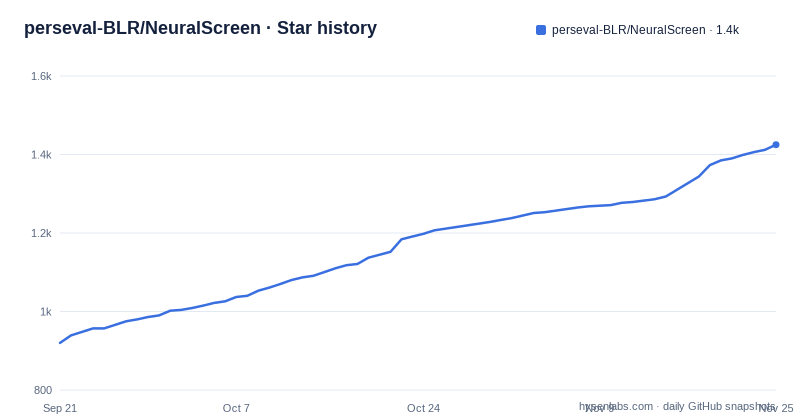
Star history
- perseval-BLR/NeuralScreen1,425 ★ · +505
| Repository | 2026-09-21 | 2026-11-25 |
|---|---|---|
| perseval-BLR/NeuralScreen | 920 | 1.4k |
505 Stars in the last 65 days, measured from the daily GitHub snapshot. Compare with other projects
Editorial analysis
Four status words, and only one card model clears the validated bar
The hardware table is the most useful thing in this project, because it refuses to round anything up. Four labels are defined: validated means reproduced locally, reported means user evidence, unverified means no successful run captured, known failure means the shipped runtime refuses or fails.
| Family | Neural Rendering | Frame Generation |
|---|---|---|
| **RTX 50** | **validated** (5070 Ti) | **validated** (5070 Ti) |
| **RTX 40** | **reported**, unresolved 4060 reports | **reported** (4080 Super ×2; 4060 needs retest) |
| **RTX 30** | **unverified** | **known failure** (below Ada) |
| **RTX 20** | **known failure** | **known failure** (below Ada) |
So of four card families, one is validated, and it is validated on a single model, the 5070 Ti. The RTX 40 row is user reports, and it carries two loose ends in plain sight: unresolved 4060 reports for neural rendering, and a note that the 4060 needs a retest for frame generation. The RTX 30 row is the awkward one: neural rendering is unverified, meaning nobody has captured a run that worked, while frame generation is a documented refusal.
Hybrid laptops and multi-GPU systems are called experimental, with the specific warning that capture may use a slower fallback when the display is attached to the iGPU. Read the table against your own card before anything else.
The archive carries NVIDIA runtime files and the author offers to remove them
The release archive is not self-authored code only. Two NVIDIA runtime libraries, `nvngx_dlssnr.dll` and `nvngx_dlssg.dll`, are included, and the notice at the top of the README is explicit about what they are: NVIDIA's property, included unmodified, for research and educational use only, no warranty, at your own risk. It also states the project is not affiliated with NVIDIA and that DLSS and the NVIDIA logo are NVIDIA Corporation trademarks.
The sentence that follows is unusual. It says the rights holders need only ask, and the next build ships without those files. That is a statement about the author's willingness to comply, not about redistribution rights, and it does not change what the licence terms in the notice permit today.
The rest of the distribution surface is worth mapping before you copy anything around. The repository root carries a `LICENSE` file and a separate `THIRD-PARTY-NOTICES.md`, and the README text states no licence of its own, so the two files are where the terms actually live. `runtime-manifest.json` and `THIRD-PARTY-NOTICES.md` together describe what is bundled, which is the pair to check if you are shipping this inside a product rather than running it on your own machine.
The AMD build has never run on a real Radeon and asks for testers directly
There is a sibling repository, `NeuralScreen-AMD`, carrying the same overlay with the neural pass aimed at RX 7000 and 9000 cards on RDNA3 and RDNA4. The README states the important part in one sentence: it has not run on a real Radeon yet.
That is why the release exists. The call is for testers, and the instructions are specific rather than general. Start with `native/AMD.md`, and if it does not come up, use Settings, then Program, then Create diagnostic package, and open an issue with that single file attached.
What lands in that package is described in detail, which is unusual and useful: the log, the card, the driver version, and the stage at which it stopped, with paths already scrubbed. So a failed AMD attempt produces a report that names the failure point without leaking the machine layout.
Two facts follow for the main build too. The project distinguishes between a build that has been run and a build that has not, and it tells you which one you are looking at. And when a card is listed as unverified, the honest reading is that nobody has yet captured a successful run on it, not that it is waiting on documentation.
No installer, no signature, and one autostart entry written outside the folder
Installation is two steps: download the archive from the releases page, unpack it anywhere, run `NeuralScreen.exe`. There is no installer, and the removal story matches, since deleting the folder is the uninstall.
Two consequences are called out rather than glossed. Windows will probably warn about an unknown publisher, because the program is not signed with a paid certificate, and the suggested path is More info, then Run anyway, or the `NeuralScreen.vbs` file next to the executable. And autostart is the single thing written outside the installation directory, which is why the README tells you to turn it off before you move or delete the folder.
The archive brings its own Python, so there is nothing to install first, which is the point of shipping a zip rather than a setup. In the repository that turns into a Python entry point named `main.py`, an `app/` directory, a `native/` directory, `tests/`, and two scripts at the root: `build_release_zip.py` and `verify_github.py`.
The same section carries the warning that matters most for anyone with a competitive game account: do not use it there, because a fullscreen overlay over a game is what anti-cheat systems look for.
Boost is on by default and its numbers come from one card at 4K
Boost runs the network at a reduced resolution and is enabled by default, with a slider choosing how reduced. The figures given are measured on a 5070 Ti at 4K: 45.7 frames becomes 72.6 at the default step, and 83.4 at the lowest.
So the default is already a trade. The frame rate roughly doubles from the off state at the default step, and the picture is composed onto the original frame rather than replacing it, which is why text and edges are described as keeping full resolution. The cost is in what the network sees, not in what you read.
Under the slider there is NR passes, which repeats the pass rather than increasing it. The README calls that an experiment and prices it in TECHNICAL.md, so treat it as a knob to measure rather than a setting to leave on.
The comparison tool is separate: a Before and after wipe leaves the left part of the screen unprocessed and goes back to 0 when you are done. That, plus turning Boost off, is the fastest way to see what the neural pass is actually doing on your own screen rather than on the author's.
Below Ada the frame generation switch flips itself back off with a notice
Frame Generation is off by default and carries a multiplier of x2, x3 or x4 beside the switch, on the same Num7 hotkey. It is DLSS-G's own desktop build, and the README is candid about the method: the depth is flat and the motion is estimated, there is no engine cooperation, so user interface and text can distort. That is named as the known cost of the approach rather than as a bug.
The header reports two rates when they differ. A reading such as 47 / 111 fps is the network's own output first, then what the presenter actually shows, which is a more useful pair than either number alone.
The hardware floor is enforced visibly. On a card below Ada the runtime refuses, and the switch flips back off with a short notice, described as no silent ON. This is the same boundary that puts RTX 30 and RTX 20 at known failure in the support table, so the refusal you would hit is the documented behaviour rather than a broken install.
Validation for frame generation is on RTX 50 series, and adapters beyond that are described as unconfirmed. Validated on one generation, reported on one other, refused on two.
Model and Profile are different axes, and a saved preset keeps both apart
The menu separates two things that are easy to conflate. Profile controls how strong the effect is, running from Faithful to Extreme with Natural as the default, and the four sliders underneath are the same setting in detail. Model controls which network produces the picture, and there are three of them.
The three models are described as three different outputs rather than three strengths. Default suits a desktop. Natural and Cinematic are tuned for games and soften photographs and small text, with the measurements kept in TECHNICAL.md. That softening is the part to weigh if your desktop is documents rather than a game.
The relationship between the two is stated precisely. A profile moves the sliders only, and the model below stays where you put it. A saved preset stores the current slider values under a name and appears in the Profile list, and a saved preset keeps the model it was saved with. So the preset captures strength and records which network was in use, but the two are not the same setting and switching strength does not move you between networks.
Dark scenes are brightened automatically so shadows keep detail, which is a behaviour you get without asking for it.
Every hotkey sits on the numpad, which means Num Lock has to be on
The whole control surface is the numpad:
| Key | What it does |
|---|---|
| **Num2** | open / close the menu |
| **Num1** | neural rendering on / off |
| **Num7** | frame generation on / off |
| **Num3** | screenshot |
| **Num0** | start / stop recording, with sound |
| **Num4** / **Num6** | processing resolution down / up |
| **Num5** | capture the window under cursor |
| **Ctrl+Alt+Q** | quit |
The catch is stated immediately after: the hotkeys are on the numpad, so Num Lock has to be on. Every one of them can be reassigned in the menu under the sliders icon.
The mouse behaviour is the other half of the design. While the menu is open it takes the mouse and keyboard, so it works on top of a running game; closed, clicks pass straight through it. The dot beside your graphics card is green when neural rendering really runs on that card and red when it does not, which is the project's own report on itself rather than a claim in the documentation.
Window mode keeps that overlay attached. Choosing Window mode opens a list of windows, hovering a row highlights it, and Num5 captures the window under the cursor. The overlay follows the window as it moves, resizing reconfigures the worker in place with no black moment, and minimising pauses processing.
Editorial conclusion
NeuralScreen is for a specific person: someone on a recent NVIDIA card who wants sharpening and frame generation on non-game windows, and who is willing to read the support table before buying the idea. On a 5070 Ti the paths are marked validated on both features. Everywhere else the table says reported, unverified or known failure, and those words mean what they say. Two things to settle first. The archive ships NVIDIA runtime files, `nvngx_dlssnr.dll` and `nvngx_dlssg.dll`, described as NVIDIA property under research and educational terms, and the author states the next build would drop them if the rights holders asked, so check that before redistributing anything. And the project itself says not to use a fullscreen overlay in competitive online games, because that is what anti-cheat systems look for. If you are not on the validated hardware and not willing to file a diagnostic package when it fails, this is not the tool to start with.
Frequently asked questions
Which NVIDIA cards does NeuralScreen actually work on?
Only the RTX 50 on a 5070 Ti is marked validated, for both neural rendering and frame generation. The RTX 40 row is marked reported with unresolved 4060 cases, the RTX 30 row is unverified for neural rendering and a known failure for frame generation, and the RTX 20 row is a known failure for both.
How do I install and remove NeuralScreen?
Unpack the release archive anywhere and run `NeuralScreen.exe`. There is no installer, so deleting the folder removes it, except that autostart is written outside the folder and has to be turned off first. Windows will warn about the unsigned publisher.
Does NeuralScreen bundle NVIDIA runtime files?
Yes. `nvngx_dlssnr.dll` and `nvngx_dlssg.dll` ship in the archive, described as NVIDIA property, included unmodified, for research and educational use only, no warranty. The README states the next build would ship without them if the rights holders asked.
What does the Boost setting actually change?
It runs the network at a reduced resolution and is on by default. Measured on a 5070 Ti at 4K, 45.7 frames becomes 72.6 at the default step and 83.4 at the lowest, with the result composed onto the original frame so text and edges keep full resolution.
Is NeuralScreen safe to use with online games?
The project says not to use it in competitive online games, because a fullscreen overlay over a game is what anti-cheat systems look for. The AMD sibling repository, `NeuralScreen-AMD`, has not run on a real Radeon yet and asks for testers to submit a diagnostic package.
Official sources
Add this badge to your README
If you maintain this project, the badge below links readers to this analysis and shows its maintenance status from the daily GitHub snapshot. Paste the markdown into your README; add ?metric=license or ?metric=stars to the image URL for a different field.

[](https://hysenlabs.com/projects/perseval-blr-neuralscreen)Star history chart for your README
[](https://hysenlabs.com/projects/perseval-blr-neuralscreen)Was this useful?