CAHighFPS rewrites three CoreAnimation frame rate properties, one per iOS era
Makes your CoreAnimation applications use the highest available FPS.
At a glance
- What is it?
- CAHighFPS is a Theos tweak that forces CoreAnimation apps onto the display's highest refresh rate, or onto a custom rate you pick. It works by enforcing frameInterval, then preferredFramesPerSecond, then the iOS 15 CAFrameRateRange, and it needs the app reopened after every change.
- Who is it for?
- CAHighFPS suits a jailbroken device whose apps cap themselves below what the panel can show, and it is cheap to try because the settings live in Settings and the change is reversible by reopening the app. It is the wrong tool on Android or on a stock device, and it is a poor trade on a device you care about battery on, since a forced higher rate means more energy for every frame the app draws.
- Can I use it commercially?
- Yes. MIT is a permissive licence: you can use, modify and sell software built on it, as long as you keep its copyright and licence notices.
- Is it still maintained?
- Yes. The repository last received commits 62 days ago.
- What is it written in?
- Mainly Logos, according to GitHub's language statistics.
Answers come from the project's GitHub data, last synced on October 23, 2026, and from our analysis. They are not legal advice.
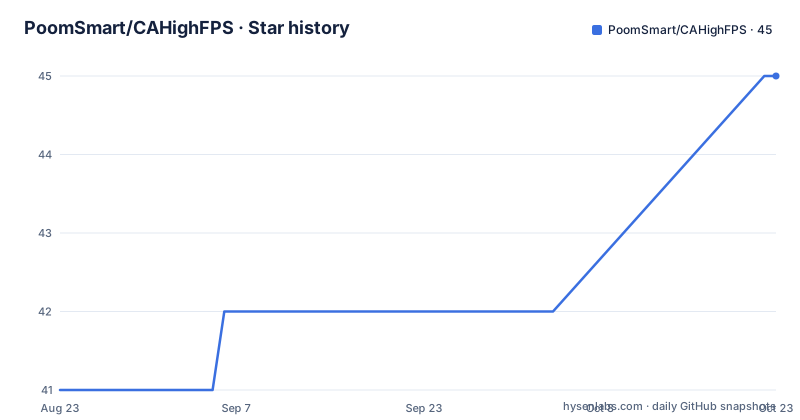
Star history
- PoomSmart/CAHighFPS45 ★ · +4
| Repository | 2026-08-23 | 2026-10-23 |
|---|---|---|
| PoomSmart/CAHighFPS | 41 | 45 |
4 Stars in the last 61 days, measured from the daily GitHub snapshot. Compare with other projects
Editorial analysis
frameInterval of 1 or 2 is the whole game on older systems
CADisplayLink is the timer object that synchronises an app's drawing to the display's refresh rate, and older systems let an app limit itself through a property called `frameInterval`. The README quotes Apple on what that property does: set it to 1 and you get 60 FPS, which is the display's own rate rather than a limit the app chose.
The problem is the apps that set 2. That halves the rate to 60/2 = 30 FPS, a ceiling the author of a game or an animation has no reason to want on a device capable of more. Nothing in the system pushes back on it.
This is the first place CAHighFPS intervenes. It enforces `frameInterval` so the effective rate matches the chosen setting, which is 1 whenever you leave the slider at 0, meaning display maximum. The property is now deprecated, which is why this first mechanism is not where the story ends on a current iOS.
preferredFramesPerSecond takes over from frameInterval until iOS 15
The substitute for the deprecated property is `preferredFramesPerSecond`, and it works differently. Zero is the interesting value: set it to zero and the system tries to match the frame rate to the highest available refresh rate of the device. Any positive number is a request for exactly that many frames per second.
Apps that know their content runs at 30 or 60 set those numbers, which is reasonable for their own sake and wrong on a ProMotion panel. The README points at the underlying setter logic to make the point that a fixed positive value is a ceiling the system will honour.
CAHighFPS enforces `preferredFramesPerSecond` to 0 when you want display maximum, and to your custom FPS otherwise. So the same slider drives both mechanisms across different systems, and the tweak picks the property that the running iOS version actually consults.
From iOS 15 a custom rate pins minimum as well as preferred and maximum
iOS 15 introduced `preferredFrameRateRange`, and the README calls it the main way of dictating effective FPS now. Its type is `CAFrameRateRange`, which carries three values: `minimum`, `preferred` and `maximum`.
By default, `preferred` and `maximum` are set to the highest supported FPS by the device. Note what is not in that sentence. `minimum` is not raised to the display maximum by default, which leaves room for the system to drop frames when it needs to, and it is why a range-based app can still end up below the panel's rate even on capable hardware.
Choosing a custom FPS in CAHighFPS removes that room. The tweak pins all three of `minimum`, `preferred` and `maximum` to your value, which is a stronger instruction than the zero that the older property takes. Pick the number knowing you are also removing the system's own headroom for thermal and power throttling.
CAMetalLayer gets two different overrides than CoreAnimation
Everything above concerns CoreAnimation. Metal apps reach their frame rate through `CAMetalLayer`, and the mechanism there is not a property setter but two method overrides.
The README points at overriding `-[CAMetalLayer maximumDrawableCount]` and `-[CAMetalDrawable presentAfterMinimumDuration:]` as the way to let a Metal app reach ideal ProMotion FPS, citing a ByteDance engineering write-up as the best discussion it found. The logic is that a Metal app's effective rate is bounded by how many drawables it is allowed to hold and how long each is presented for, so a presentation policy tuned for 60 Hz caps a 120 Hz panel.
Metal has been part of iOS since iOS 8, and the README is candid that there is little public discussion of tuning Metal apps for ProMotion displays, which is part of why these two overrides are named explicitly. An app that draws through a custom Metal path therefore needs its own handling rather than the CoreAnimation settings.
The slider goes to 120 and gets clamped to whatever the panel can do
Settings open on a CAHighFPS pane with four controls. FPS is a slider from 0 to 120, where 0, the default, means the highest refresh rate of the device, and any other value is forced for enabled apps and then clamped to the display's maximum. Choosing 120 on a 60 Hz phone therefore does not produce 120 frames, and the README does not pretend otherwise.
Applications is the whitelist consulted when Systemwide is off: only those apps receive the chosen rate. Blacklisted Apps is the skip list consulted when Systemwide is on. The two lists are opposites, and which one matters depends on that switch.
One line in the README governs how all of this lands: reopen an app after changing settings. The tweak writes values that CoreAnimation reads when an app starts its display link, so a running app keeps whatever rate it had until it is relaunched. Expect to switch to the app switcher and back, or force-quit, after each edit.
Systemwide is off by default so existing per-app settings keep working
The Systemwide switch applies the chosen FPS to every app except SpringBoard and whatever is on the Blacklisted Apps list. SpringBoard is excluded because it is the system UI, and a forced rate there would affect the whole device rather than one app.
Its default state is off, and the reason given is preservation rather than caution: existing per-app selections keep working when it is off. That design choice matters more than it sounds. A user who already has a per-app FPS tweak installed for one game, or who relies on an app's own internal rate limit for battery, keeps that behaviour unless they opt into Systemwide.
So there are two distinct operating modes. Off means CAHighFPS manages only the apps on its whitelist, which is the safer mode to start in. On means every app inherits the rate except the blacklist, which is the mode to reach for when an app has no settings screen of its own and no whitelist entry to add.
The Makefile branches on rootless and picks two different toolchains
CAHighFPS is a Theos tweak, and its build file carries the detail that matters for anyone compiling it themselves. One source file, `Tweak.x`, compiled with ARC, plus a `Preferences` subproject that builds the settings pane:
ifeq ($(THEOS_PACKAGE_SCHEME),rootless)
    TARGET = iphone:clang:16.5:15.0
else
    TARGET = iphone:clang:14.5:7.0
    export PREFIX = $(THEOS)/toolchain/Xcode11.xctoolchain/usr/bin/
endif

TWEAK_NAME = CAHighFPS

$(TWEAK_NAME)_FILES = Tweak.x
$(TWEAK_NAME)_CFLAGS = -fobjc-arc

SUBPROJECTS += Preferences
The toolchain differs by package scheme. Rootless builds against clang 16.5 with a 15.0 target, while every other scheme falls back to clang 14.5 with a 7.0 target and explicitly exports the Xcode 11 toolchain prefix, which means a newer Xcode alone is not enough for the classic scheme. The `CAHighFPS_CFLAGS` entry with `-fobjc-arc` is what lets the tweak hold objects under ARC without per-file annotations.
The tree around it is small and typical: `control`, `layout/`, `CAHighFPS.plist`, a `Makefile`, and a MIT `LICENSE`.
Editorial conclusion
CAHighFPS suits a jailbroken device whose apps cap themselves below what the panel can show, and it is cheap to try because the settings live in Settings and the change is reversible by reopening the app. It is the wrong tool on Android or on a stock device, and it is a poor trade on a device you care about battery on, since a forced higher rate means more energy for every frame the app draws. Before applying it system wide, add the apps you care about to the blacklist first, then reopen each one and check that the rate actually moved.
Frequently asked questions
What does CAHighFPS change on an iOS device?
It enforces CoreAnimation's frame rate settings so enabled apps run at the device's highest refresh rate or at a custom FPS you choose. It acts on frameInterval, then preferredFramesPerSecond, and from iOS 15 on the CAFrameRateRange values.
How do I set a custom FPS in CAHighFPS?
Open Settings and go to the CAHighFPS pane, then move the FPS slider, which runs from 0 to 120. Zero, the default, uses the highest refresh rate of the device, and any other value is forced for enabled apps and clamped to the display's maximum. Reopen the app after changing settings.
What does the Systemwide switch do in CAHighFPS?
It applies the chosen FPS to every app except SpringBoard and the apps on the Blacklisted Apps list. It is off by default so existing per-app selections keep working, and with it off only apps on the Applications whitelist receive the rate.
Does CAHighFPS drain the battery?
It can. Because it enforces a higher FPS than an app chose, it consumes more energy, and the README states that draining may be significant, ending with YMMV. No measured figures appear in the documentation.
How is CAHighFPS built?
It is a Theos tweak with Tweak.x as the single source file, compiled with -fobjc-arc, and a Preferences subproject for the settings pane. The Makefile selects iphone:clang:16.5:15.0 when THEOS_PACKAGE_SCHEME is rootless and iphone:clang:14.5:7.0 otherwise, exporting the Xcode 11 toolchain prefix in the latter case.
Official sources
Add this badge to your README
If you maintain this project, the badge below links readers to this analysis and shows its maintenance status from the daily GitHub snapshot. Paste the markdown into your README; add ?metric=license or ?metric=stars to the image URL for a different field.

[](https://hysenlabs.com/projects/poomsmart-cahighfps)Star history chart for your README
[](https://hysenlabs.com/projects/poomsmart-cahighfps)Was this useful?