MooTool ships seven desktop editions and one MCP bridge for AI clients
Handy tool set for developers
At a glance
- What is it?
- MooTool is a single repository holding seven independent desktop product lines, each with its own code, version, data and update channel. The recommended Electron edition is the one documented as an MCP and Skill bridge for Codex, Claude Code and Cursor, and its registration rules out portable builds.
- Who is it for?
- MooTool Next Electron fits a developer who wants one window for JSON, encoding, timestamps, diffs, hashes and Quick Notes and wants Codex, Claude Code or Cursor to reach those tools without installing Node.js. It does not fit someone who needs a documented acceptance path on Windows or Linux today, or who wants to know which product line carries a given tool.
- Can I use it commercially?
- Yes. MIT is a permissive licence: you can use, modify and sell software built on it, as long as you keep its copyright and licence notices.
- Is it still maintained?
- Yes. The repository last received commits 3 days ago.
- What is it written in?
- Mainly Kotlin, according to GitHub's language statistics.
Answers come from the project's GitHub data, last synced on October 23, 2026, and from our analysis. They are not legal advice.
Star history
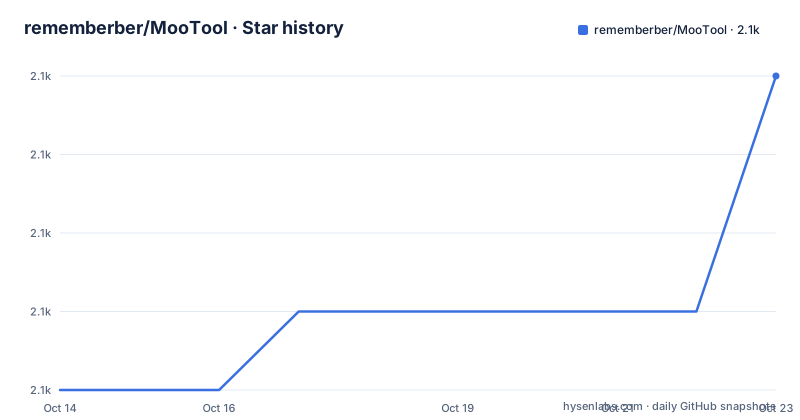
- rememberber/MooTool2,054 ★ · +4
| Repository | 2026-10-14 | 2026-10-23 |
|---|---|---|
| rememberber/MooTool | 2.1k | 2.1k |
4 Stars in the last 9 days, measured from the daily GitHub snapshot. Compare with other projects
Editorial analysis
Small chores gathered into one window: JSON, hosts, hashes, notes
MooTool is a desktop window for the small conversions a developer performs dozens of times a day. The repository topics name the work directly: jsonformat, httprequest, httpclient, switchhost, qrcode, quicknote, swing. The screenshot file names at the root give a finer map of the tabs, and every one of them is a Mac capture: `screen_shoot/quick_note_2_mac.png`, `screen_shoot/quick_replace_mac.png`, `screen_shoot/time_mac_2.png`, `screen_shoot/json_mac_2.png`, `screen_shoot/host_mac_2.png`, `screen_shoot/http_mac_2.png`, `screen_shoot/encode_mac_2.png`, `screen_shoot/qr_code_mac_2.png` and `screen_shoot/crypto_mac_2.png`. Host switching beside JSON formatting beside a hashing tab is the arrangement that matters, because none of it needs a server, an account or a second window. The author built the set for his own daily work, which tells you what shape to expect from the feature list.
Seven product lines share one repository and seven version numbers
This repository does not hold one application. It holds seven, each with its own code, build, version, installation identity, data and update channel, and each installable beside the others. The directories map one to one: `next/` is the Electron edition, `src/` the Java and Swing original, then `next-tauri/`, `next-macos-native/`, `next-flutter/`, `next-compose/` and `next-fx/`. Maturity is uneven across them. MooTool Next Electron and MooTool Java are the two stable lines, at 1.2.8 and 1.8.7. The Tauri line sits at a candidate build, 0.1.0-rc.2, and the macOS native SwiftUI line at 0.8.0. Flutter and Compose are 0.1.0 development builds, and the OpenJFX line is an early 0.1.0-SNAPSHOT build. The Java edition also keeps a second home on Gitee, which matters when GitHub is slow for you. Anyone who arrives expecting one app with one version number will misread the whole layout.
Target platforms are advertised as Windows, Linux and macOS for six of the seven lines, and the macOS native line narrows that to macOS 14+ because it is built on SwiftUI, AppKit and system frameworks. The project warns that editions under development have not completed acceptance on every target platform, and the details back that up. The Flutter line has local run scripts and unsigned packaging scripts. The Compose line has a verified local macOS app-image build and carries its own JVM runtime. The FX line has local macOS app-image packaging, and its JSON vault, encoding, decoding and regex tools sit inside an early application shell.
The recommended edition carries its own Node runtime
MooTool Next Electron is built on Electron, Vite, React and TypeScript, and it is the desktop edition the project currently points people at. Its tools run on a bundled runtime, so no separate Node.js installation is needed. Calls keep working when the MooTool window is closed, which is what separates a usable bridge from one that only answers while a window happens to be open. Three clients appear in a table: Codex and Claude Code take MCP, a Skill, or both, while Cursor takes MCP. Any other local stdio MCP client can be pointed at it with `Copy MCP configuration`. The detail file for the whole path is `next/doc/mootool-ai-integration.md`, covering installation paths, limits, standalone Skill usage and verification records.
Eleven bridge tools against twenty-five in the Tauri line
The bridge surface is counted and small. Eleven tools cover JSON formatting and JSONPath queries, encoding and decoding, timestamps, text diffs, hashes, UUIDs, plus search and read tools for Quick Notes and JSON documents. The Tauri line is described instead as 25 tools with independent storage and updates, built on Tauri 2 and Rust rather than Electron and Node. Those two counts are not measuring the same thing, since one is what an assistant may call and the other is what an application carries, and no mapping between the two lists appears anywhere. The difference that matters when choosing is the substrate, not the count: a bundled Node runtime behind a stable desktop build, or a Rust shell with a wider tool inventory on a candidate build number. No external alternative is named, only a line about many similar tools existing on the web, so any comparison you make from here is internal.
Vault reads are opt-in per vault, and moving a folder revokes them
Document access carries the most deliberate design in the project. Read-only access to saved documents is off by default and takes a separate grant for each vault rather than one global switch. Turning it off takes effect on the next call instead of mid-call, and moving a vault revokes its grant, so a renamed folder cannot carry standing permission to wherever it landed. Reads are paginated and filtered: hidden files, symbolic links and anything ignored by the vault root's `.gitignore` are left out. That filter has a side effect worth planning for. Your `.gitignore` becomes the access control list, so a pattern added for version control quietly removes notes from what an assistant may search. Nothing at the repository root says where the grant is stored, or whether it survives reinstalling the application.
Permanent install path comes before the one-click button
Installation here is a download rather than a package manager command, and the first item is a constraint instead of a step: put MooTool somewhere permanent. The README names macOS Applications, the Windows installer, or a Linux deb, and states that AppImage and Windows portable runtimes cannot be registered for one-click AI integration. A portable Linux user finds that out after installing. With the application in place, open Settings → AI integration, choose the client and the integration mode, read the preview, then click Install in one click. Restart the AI client or reload its MCP and Skills afterwards and enable the tools if prompted. The first request worth making is the one the project hands you.
Use MooTool to sort the keys in this JSON.For saved documents the same settings page carries two toggles, and both start off.
Allow reading Quick Notes
Allow reading JSON documents
The management surface around that button is unusually careful for a desktop utility. You can preview the generated configuration, test the connection, inspect installation status, repair or update, and uninstall. Existing configuration is backed up before anything is changed, and conflicting user edits are reported and kept rather than overwritten. After an upgrade, the AI integration guide is where behaviour gets confirmed, not the screenshots.
Screenshots document the Swing edition, and every image is a Mac capture
The screenshot section carries its own warning: the images show MooTool Java, and each product's own README holds the interface and acceptance records for the rest. Eight modules have no dedicated screenshot at all, among them Translation, UA analysis, Image assistant, PDF, environment variables, system info, config conversion and Protobuf, so their condition on first launch is something you verify after installing. A second contradiction sits higher up. The repository records Kotlin as its primary language, yet the recommended edition is React with TypeScript and the stable original is Java with Swing, and Kotlin belongs to the Compose Multiplatform line at 0.1.0. Read the language label as a pointer to where the newest code lives rather than to what you get from the recommended build. The macOS story keeps a leftover too: `macos/` holds the early SwiftUI prototype while the current native product sits in `next-macos-native/`, so two macOS codebases share one repository.
Swing-era build files sit beside the Electron tree at the root
Root entries still describe the Java desktop application even though the recommended product is a web stack. `pom.xml` is the Maven build, `MooTool.l4j.ini` sits beside the Windows helper `install_local_jar_to_repo.bat`, and `JAVA_STARTUP_RESPONSIVENESS_PLAN.md` is a plan for Swing startup time. `.travis.yml` sits next to `.github/`, which is a pipeline older than the switch. Three readmes sit at the top for English, Japanese and Simplified Chinese, and the product site lives at https://mootool.luoboduner.com/. Data and publishing files sit with them: `download_links.json`, `update-manifest.json`, `download.md`, `contributor.json`, `dau.json`, `grace.json`, `memo.md`, `_config.yml` and `RELEASE_CONVENTIONS.md`. Design sources sit alongside in `psd/`, with `assets/`, `lib/` and `scripts/` holding binaries and helper scripts, and the committed `.idea/` directory still carries editor settings. For an adopter the upgrade cost lands on the folder holding your notes and hosts, not on the source tree. The last push landed on 2026-10-01, the repository is not archived, and the code is under the MIT licence, which asks that the notice in `LICENSE.txt` travel with copies. Electron builds landed three times across 2026-09-30 and 2026-10-01, so a copy installed in September can trail the recommended line within days.
Editorial conclusion
MooTool Next Electron fits a developer who wants one window for JSON, encoding, timestamps, diffs, hashes and Quick Notes and wants Codex, Claude Code or Cursor to reach those tools without installing Node.js. It does not fit someone who needs a documented acceptance path on Windows or Linux today, or who wants to know which product line carries a given tool. Before installing, confirm you have a permanent install path rather than an AppImage or the Windows portable build, since those cannot be registered for one-click AI integration.
Frequently asked questions
Which MooTool edition should I download?
The project points new users at MooTool Next Electron, currently 1.2.8, while MooTool Java is also stable at 1.8.7 and has a Gitee mirror. The Tauri line is at 0.1.0-rc.2, the macOS native line is at 0.8.0 and needs macOS 14+, and the Flutter, Compose and FX lines are development builds.
How do I connect MooTool to Codex or Claude Code?
Open Settings → AI integration, choose the client and the integration mode, review the preview of the generated configuration, then click Install in one click. Restart the AI client or reload its MCP and Skills afterwards, and enable the tools if prompted. Other local stdio MCP clients use Copy MCP configuration instead.
Can I use the MooTool AI integration from a Linux AppImage?
No. One-click AI registration requires a permanent install location, and the README names macOS Applications, the Windows installer, or a Linux deb. AppImage and Windows portable runtimes cannot be registered for that integration.
What can an AI client read out of MooTool?
Only what you grant, and the grant is per vault rather than global. Access is read-only, off by default, paginated, and it excludes hidden files, symbolic links and anything ignored by the vault root's `.gitignore`. Moving a vault revokes its grant, and disabling access takes effect on the next call.
Do I need Node.js installed for MooTool Next Electron?
No. The tools use the bundled runtime, so no separate Node.js installation is required, and calls keep working with the MooTool window closed.
Is there a log of which Quick Notes or JSON files an AI client read?
The README does not document one. It describes configuration preview, a connection test, installation status, repair or update, and uninstall, but no audit log of vault reads appears at the repository root.
Official sources
Add this badge to your README
If you maintain this project, the badge below links readers to this analysis and shows its maintenance status from the daily GitHub snapshot. Paste the markdown into your README; add ?metric=license or ?metric=stars to the image URL for a different field.

[](https://hysenlabs.com/projects/rememberber-mootool)Star history chart for your README
[](https://hysenlabs.com/projects/rememberber-mootool)Was this useful?