YouTubePlayerKit: a SwiftUI view that embeds the real iFrame player
A Swift Package to easily play YouTube videos 📺
At a glance
- What is it?
- YouTubePlayerKit is a Swift Package that wraps the native YouTube iFrame API in a SwiftUI view, a UIKit and AppKit view controller, and a hosting view, while staying inside the limits the YouTube terms of service impose on embedders.
- Who is it for?
- YouTubePlayerKit fits an iOS, macOS or visionOS app that needs to show a YouTube video inline and wants the native iFrame API rather than a web view of a share page, and it does not fit a background audio player, a 360 degree video viewer, or a product that needs two videos playing at once.
- Can I use it commercially?
- Yes. MIT is a permissive licence: you can use, modify and sell software built on it, as long as you keep its copyright and licence notices.
- Is it still maintained?
- Yes. The repository last received commits 48 days ago.
- What is it written in?
- Mainly Swift, according to GitHub's language statistics.
Answers come from the project's GitHub data, last synced on November 7, 2026, and from our analysis. They are not legal advice.
Star history
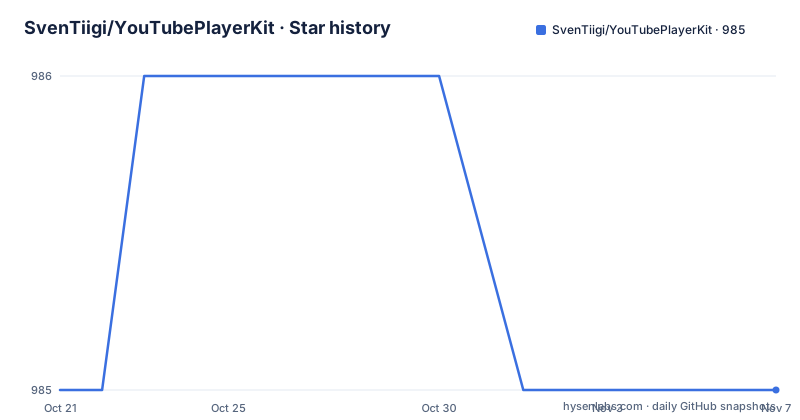
- SvenTiigi/YouTubePlayerKit985 ★ · +0
| Repository | 2026-10-21 | 2026-11-07 |
|---|---|---|
| SvenTiigi/YouTubePlayerKit | 985 | 985 |
0 Stars in the last 17 days, measured from the daily GitHub snapshot. Compare with other projects
Editorial analysis
One SwiftUI line embeds the native iFrame player
Most apps that want to show a YouTube video reach for a web view pointing at a share page, and inherit the pop-ups, the cookie banner and the login prompts that come with it. YouTubePlayerKit takes a different route. It wraps the native YouTube iFrame API, so the video renders in the player YouTube itself provides, and it exposes that as a SwiftUI view. The shortest possible usage is one view and one URL string.
import SwiftUI
import YouTubePlayerKit

struct ContentView: View {

    var body: some View {
        //  WWDC 2019 Keynote
        YouTubePlayerView(
            "https://youtube.com/watch?v=psL_5RIBqnY"
        )
    }

}
The feature list claims access to all the native YouTube iFrame APIs, and the implementation is described as compliant with the YouTube terms of service. That combination is the reason to pick this package over a web view: the terms of service are the constraint that shapes most YouTube embed integrations, and the package treats that as a design requirement rather than a disclaimer.
SwiftUI, UIKit and AppKit targets are all first class
The package is not SwiftUI only. Support is listed for SwiftUI, UIKit and AppKit, and the three targets run on iOS, macOS and visionOS. For SwiftUI you use YouTubePlayerView. For UIKit and AppKit there are two counterparts, YouTubePlayerViewController and YouTubePlayerHostingView, and both are initialised the same way, with the player passed in.
import UIKit
import YouTubePlayerKit

let youTubePlayerViewController = YouTubePlayerViewController(
    player: "https://youtube.com/watch?v=psL_5RIBqnY"
)

let youTubePlayerHostingView = YouTubePlayerHostingView(
    player: "https://youtube.com/watch?v=psL_5RIBqnY"
)
A hosting view is the piece that lets a UIKit or AppKit app embed the SwiftUI player without rewriting the view hierarchy, which is why both classes exist in parallel. The macOS and Mac Catalyst case carries one requirement that is easy to miss: the Outgoing Connections (Client) capability has to be enabled under Signing & Capabilities, because the player loads remote content rather than a bundled resource.
The player state is a switch you can draw an overlay for
The SwiftUI view takes a trailing closure that receives the current state of the player, which is where you build your own loading and error UI. The state machine is small: idle, ready and error. The example that ships with the package switches over those three cases, showing a ProgressView while idle, an empty view once ready, and a ContentUnavailableView carrying the error when the player could not be loaded. Because the closure is a plain SwiftUI view builder, your overlay is ordinary SwiftUI rather than a separate delegate or a storyboard. The same object also publishes specific events. The example reacts to fullscreenStatePublisher and checks the isFullscreen flag, and the player can be marked with @StateObject or @ObservedObject so the view updates when the source, the parameters or the isLoggingEnabled flag change.
A string is shorthand for a source, parameters and configuration
Initialising a player from a string literal is the shorthand, not the whole model. The central object is YouTubePlayer, which is described as the way to play a certain video and to interact with the underlying iFrame API, and for full control it can be initialised with three separate pieces: YouTubePlayer.Source, YouTubePlayer.Parameters and YouTubePlayer.Configuration. The repository layout shows where each of those lives, with Source and Parameters in the Sources/Models directory as separate files. The distinction matters in practice. A source is which video is loaded, parameters are the options passed to the player such as playback behaviour, and configuration covers the player setup itself, including the logging switch mentioned earlier. The string initialiser is sugar over that trio, and the documentation link in the README points to the DocC site for the full set of options.
Three limitations come straight from the YouTube terms
The limitations section is short and each entry has a reason behind it. Audio background playback is not supported, because it violates the YouTube terms of service. Simultaneous playback of multiple YouTube players is not supported. Controlling playback of 360 degree videos is not supported, which the README links to the spherical video controls section of the YouTube iFrame API reference. That third one is the one that bites hardest, because a 360 degree viewer is exactly the kind of app people reach for an embed kit to build, and here the controls are simply not exposed. The simultaneous playback limit rules out a common pattern too: two clips playing side by side to line up a comparison, which cannot be done with two live YouTube players in one screen. None of these are bugs to be filed, they are the boundary of what the package is allowed to offer.
App Store review needs the terms of service link in the notes
If you ship an app that embeds YouTubePlayerKit, there is a review step that has nothing to do with code. When submitting to the App Store, you are asked to add a link to the YouTube API terms of service in the review notes, and the URL to paste is short enough to keep next to your release checklist.
https://developers.google.com/youtube/terms/api-services-terms-of-serviceThis is the visible end of the terms of service compliance the feature list claims. An implementation that follows the iFrame API rather than loading the site in a web view is what makes that compliance claim plausible, and the review note is what makes it visible to the reviewer. Set up a separate view controller for YouTube content if you also show your own video, so the review note and the implementation stay aligned.
SPM dependency, a sample app and a DocC site
Integration goes through Swift Package Manager, and the dependency entry is one line in Package.swift.
dependencies: [
    .package(url: "https://github.com/SvenTiigi/YouTubePlayerKit.git", from: "2.0.0")
]
The version floor is 2.0.0, which matches the major version line the project is on. You can also add it from Xcode by selecting Swift Packages and searching for YouTubePlayerKit. To see the package in action without writing anything, open Example/Example.xcodeproj and run the Example scheme. Documentation is generated with DocC and published at sventiigi.github.io/YouTubePlayerKit, with the tutorial videos and the iFrame API reference linked from the README as the deeper sources. The repository carries Sources and Tests directories, and the README links a build and test workflow badge, so the package is set up for continuous integration rather than for manual drag and drop into a project.
Editorial conclusion
YouTubePlayerKit fits an iOS, macOS or visionOS app that needs to show a YouTube video inline and wants the native iFrame API rather than a web view of a share page, and it does not fit a background audio player, a 360 degree video viewer, or a product that needs two videos playing at once. Verify three things before shipping: that the Outgoing Connections (Client) entitlement is enabled for macOS and Mac Catalyst targets, that the review notes carry the YouTube API terms of service link, and that the version you pin still matches the YouTubePlayerView initialiser you copied. The licence is MIT, the newest release is 2.0.5 from 2025-11-30, and the last push was on 2026-09-20.
Frequently asked questions
How do I add YouTubePlayerKit to a Swift project?
Add the Swift Package Manager dependency to your Package.swift with .package(url: "https://github.com/SvenTiigi/YouTubePlayerKit.git", from: "2.0.0"), or add it from Xcode by selecting Swift Packages and searching for YouTubePlayerKit.
Does YouTubePlayerKit support background audio playback?
No. Audio background playback is not supported because it violates the YouTube terms of service. Simultaneous playback of multiple players and controlling 360 degree videos are also not supported.
Which platforms and UI frameworks does YouTubePlayerKit support?
It supports SwiftUI, UIKit and AppKit, and runs on iOS, macOS and visionOS. UIKit and AppKit code uses YouTubePlayerViewController or YouTubePlayerHostingView.
What do I need to configure before shipping a YouTubePlayerKit app?
Enable the Outgoing Connections (Client) capability for macOS and Mac Catalyst targets, and add a link to the YouTube API terms of service in the App Store review notes.
Official sources
Add this badge to your README
If you maintain this project, the badge below links readers to this analysis and shows its maintenance status from the daily GitHub snapshot. Paste the markdown into your README; add ?metric=license or ?metric=stars to the image URL for a different field.

[](https://hysenlabs.com/projects/sventiigi-youtubeplayerkit)Star history chart for your README
[](https://hysenlabs.com/projects/sventiigi-youtubeplayerkit)Was this useful?