SwiftGen: five ways to install it, one configuration file to get wrong
The Swift code generator for your assets, storyboards, Localizable.strings, … — Get rid of all String-based APIs!
At a glance
- What is it?
- SwiftGen turns asset catalogs, strings, and plists into typed Swift constants through Stencil templates driven by a configuration file. The generator side is settled; the install route, the version pin, and the migration between releases are where projects actually stall.
- Who is it for?
- SwiftGen earns its place in a team that treats generated constants as committed build output and wants asset names and localized strings to fail at compile time instead of at runtime. It does not earn its place for a single developer on one machine, and it does nothing for a project without asset catalogs or string files, since the nine template kinds all have to match something you actually own.
- Can I use it commercially?
- Yes. MIT is a permissive licence: you can use, modify and sell software built on it, as long as you keep its copyright and licence notices.
- Is it still maintained?
- Yes. The repository last received commits 2 days ago.
- What is it written in?
- Mainly Swift, according to GitHub's language statistics.
Answers come from the project's GitHub data, last synced on November 15, 2026, and from our analysis. They are not legal advice.
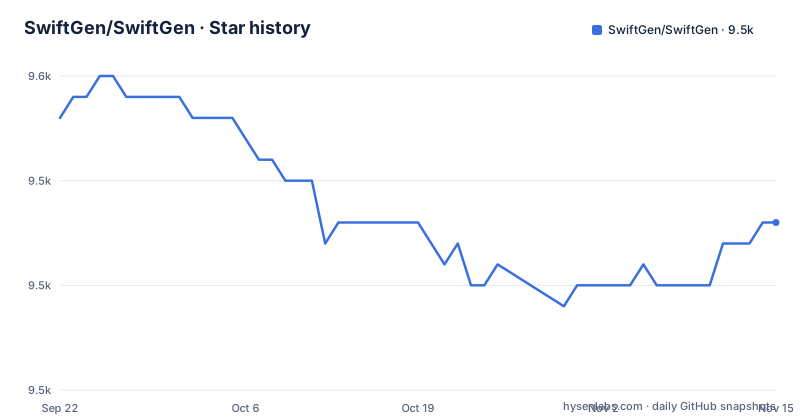
Star history
- SwiftGen/SwiftGen9,543 ★ · -5
| Repository | 2026-09-22 | 2026-11-15 |
|---|---|---|
| SwiftGen/SwiftGen | 9.5k | 9.5k |
-5 Stars in the last 54 days, measured from the daily GitHub snapshot. Compare with other projects
Editorial analysis
Five install routes, five answers to which version built the file
SwiftGen is distributed through five channels, and each one pins the binary somewhere different. The release ZIP is extracted into your project directory and committed. CocoaPods drops the binary in `Pods/SwiftGen/bin/swiftgen`. Homebrew and Mint both install system-wide onto `$PATH`. Compiling from source puts it wherever `rake cli:install` is told to put it.
That variety is the first thing to settle in a team, because the answer to which SwiftGen generated a committed file differs per channel. The ZIP and CocoaPods routes are per-project and therefore reproducible. Homebrew and Mint are per-machine, so the same commit can produce different generated constants on a laptop and on a build agent. Pick the per-project route before the first generated file lands, because switching later means every developer and every CI machine has to change in the same commit.
The CocoaPods route installs no Swift module at all
The CocoaPods route is described as a trick. SwiftGen is not a library your code depends on at runtime, so the pod exists only to place the binaries in the Pods/ folder. The stated consequence is that the `Pods/SwiftGen` group in Xcode's `Pods.xcodeproj` contains no Swift files, while the binary is still sitting in that folder in the Finder. The documentation says that is normal.
What it means for you is that there is no module to import and no pod target to link against. SwiftGen runs as a build step, not as a dependency your compiler sees. If your onboarding notes tell a new developer to import SwiftGen, that instruction is wrong, and the failure arrives as a missing module rather than as anything SwiftGen reports about itself. Check the docs for a generated-file example before writing the import yourself.
A missing binary becomes a warning only because of a shell guard
The CocoaPods instructions do not invoke the binary directly. They wrap the call in a guard that checks for the binary first and falls back to a warning:
if [[ -f "${PODS_ROOT}/SwiftGen/bin/swiftgen" ]]; then
  "${PODS_ROOT}/SwiftGen/bin/swiftgen" …
else
  echo "warning: SwiftGen is not installed. Run 'pod install --repo-update' to install it."
fi
The guard exists because the common failure is an absent installation rather than a SwiftGen crash: someone clones the project and builds before running `pod install --repo-update`. Without the check that surfaces as a shell error inside the build phase. With it, the build continues and leaves a warning someone has to notice.
The same caveat applies to the rest of the documentation, which uses a bare `swiftgen` in most command examples. In a project installed through CocoaPods, use the full `Pods/SwiftGen/bin/swiftgen` path, or a machine without SwiftGen on `$PATH` fails the build instead of warning.
System-wide installs make your generated code depend on the machine
Homebrew and Mint are the two system-wide routes. Homebrew is two commands:
$ brew update
$ brew install swiftgen
Mint needs SwiftGen 6.0 or higher and is a single command:
$ mint install SwiftGen/SwiftGenThe stated drawback is version drift. One Homebrew install serves every project on the machine, so two projects pinned to different SwiftGen releases end up sharing one binary, and a `brew upgrade` changes generated output underneath both at once. The documentation is direct about the remedy for a team: make sure all your coworkers have the same version installed. That is a human process rather than a lockfile, which is why the ZIP route recommends committing its contents to git so that everyone uses the same version for the project.
Source builds need a Ruby toolchain before they need Swift
Compiling from source is recommended only when you need features from the `stable` branch or want to test a pull request. The Homebrew route for that is one command, `brew install swiftgen --HEAD`, which builds and installs the latest commit. The alternative is cloning the repository and using rake.
The rake route needs Ruby before it needs Swift. The build uses Ruby tools, the system Ruby works well on a recent macOS, and if you use rbenv you are told to run `rbenv install` so a matching version is present. Then the gems:
# Install bundle if it isn't installed
gem install bundle
# Install the Ruby gems from Gemfile
bundle install
The install location is a parameter, defaulting to `./.build/swiftgen/bin` with an explicit path available elsewhere:
$ rake cli:install
# OR -
$ rake cli:install[~/swiftgen/bin]
So a source build drags two versioned toolchains, `.ruby-version` and `.swift-version`, into your environment. That is a fine setup for testing a branch and a poor default for a team that only wants generated constants.
One dyld symbol error gates every macOS image older than 10.14.4
There is a documented failure mode with an exact string. Starting with SwiftGen 6.2.1, running the binary on an older macOS can produce `dyld: Symbol not found: _$s11SubSequenceSlTl`, and the fix is the Swift 5 Runtime Support for Command Line Tools.
Three alternatives are offered: update to macOS 10.14.4 or later, install Xcode 10.2 or later at `/Applications/Xcode.app`, or rebuild SwiftGen from source using Xcode 10.2 or later. All three are environment changes rather than configuration changes, and none of them live inside the tool.
The practical consequence is about build images. A macOS version pinned below 10.14.4, or an image without a full Xcode at the expected path, cannot run the binary at all, and the error surfaces as a linker message that never names SwiftGen. If you maintain legacy CI images, check the OS version and the Xcode path before suspecting the generator or your templates.
Nine resource kinds become typed constants, chosen by a config file
SwiftGen generates constants for nine kinds of resource: asset catalogs, colors, Core Data models, files, fonts, Interface Builder files, JSON and YAML files, plists, and localized strings. Each kind is a Stencil template, and because they are templates you can replace the shipped set with your own that fits your guidelines.
Selection is not automatic. The tool is a single command-line tool driven by a configuration file, and that file is what tells it which outputs to produce and where to put them. This indirection is where upgrade cost lands: the documentation sends migrating users to a separate Migration Guide, because a configuration file written for an older SwiftGen is not guaranteed to behave the same in a newer one.
The payoff the project puts first is compile-time checking rather than autocomplete. A name missing from the catalog fails the build instead of returning nil at runtime, and a typo becomes a compiler error. That guarantee only holds if generated code is regenerated and committed whenever a resource changes, which makes the configuration file part of your review surface rather than a local preference.
The stable branch moves, but the last tagged release is from 2024
The default branch is `stable`, and the last push to the repository is dated 2026-10-15. The newest tagged release is 6.6.3 from 2024-03-02, with 6.6.2 from 2022-08-13 and 6.6.1 from 2022-07-31 before it. Commits and releases therefore run on different clocks, and the distribution routes expose opposite ends of that gap.
The ZIP from the GitHub releases page gives you 6.6.3. A source build gives you the tip of `stable`, which the documentation presents as the way to reach features that have not been released yet, and `brew install swiftgen --HEAD` does the same through Homebrew. A CocoaPods constraint of `~> 6.0` resolves inside the 6.x line, so it tracks releases rather than branch commits.
For a team that commits generated code, treat 6.6.3 as the version you can name in a lockfile and the stable branch as something you test on purpose. Pin the release, read the Migration Guide before crossing a major version, and treat `--HEAD` as a deliberate experiment rather than a default, because nothing in the repository pins a stable branch commit for you.
Editorial conclusion
SwiftGen earns its place in a team that treats generated constants as committed build output and wants asset names and localized strings to fail at compile time instead of at runtime. It does not earn its place for a single developer on one machine, and it does nothing for a project without asset catalogs or string files, since the nine template kinds all have to match something you actually own. Before adopting it, decide how the binary is versioned across machines, prefer the per-project install over the system-wide one, and read the Migration Guide before crossing a major version, because the newest tagged release is 6.6.3 from 2024-03-02 while the last push to the repository is dated 2026-10-15.
Frequently asked questions
how to install swiftgen
You can extract the release ZIP into your project and commit it, add `pod 'SwiftGen', '~> 6.0'` to the Podfile, run `brew install swiftgen` for a system-wide install, run `mint install SwiftGen/SwiftGen` which requires 6.0 or higher, or compile from source with rake.
how to use swiftgen
SwiftGen is a single command-line tool driven by a configuration file that decides which outputs are generated. It ships Stencil templates for asset catalogs, colors, Core Data, files, fonts, Interface Builder files, JSON and YAML, plists, and localized strings, and you can supply your own templates.
what is swiftgen
SwiftGen automatically generates Swift code for project resources such as images and localized strings so they can be used type-safely. The stated benefits are avoiding typos in string names, free auto-completion, avoiding non-existent asset names, and letting the compiler catch mistakes that would otherwise crash at runtime.
Official sources
Add this badge to your README
If you maintain this project, the badge below links readers to this analysis and shows its maintenance status from the daily GitHub snapshot. Paste the markdown into your README; add ?metric=license or ?metric=stars to the image URL for a different field.

[](https://hysenlabs.com/projects/swiftgen-swiftgen)Star history chart for your README
[](https://hysenlabs.com/projects/swiftgen-swiftgen)Was this useful?