tldraw offline: local files that carry their own scripts, and a repository that is only a readme
A desktop app for using tldraw with local files.
At a glance
- What is it?
- tldraw offline is a desktop whiteboard built on tldraw's canvas that keeps documents as portable local files with no account and no server. It is also the part of tldraw that is not open source, and its GitHub repository contains three entries: a readme, a workflow directory and logo assets.
- Who is it for?
- tldraw offline suits someone who wants an infinite-canvas whiteboard that keeps its files on their own disk and will point a coding agent at them. Before you adopt it, understand what a document file can do: it can carry an embedded script that runs when the file opens, so a file from someone else is executable content and the project's own advice is to open only files you trust.
- Can I use it commercially?
- Not without permission. GitHub finds no licence file in the repository, and without a licence all rights are reserved by default: you may read the code but not reuse it. Check the README, or ask the authors, before using it.
- Is it still maintained?
- Yes. The repository last received commits 2 days ago.
- What is it written in?
- GitHub does not report a main language for this repository.
Answers come from the project's GitHub data, last synced on November 14, 2026, and from our analysis. They are not legal advice.
Star history
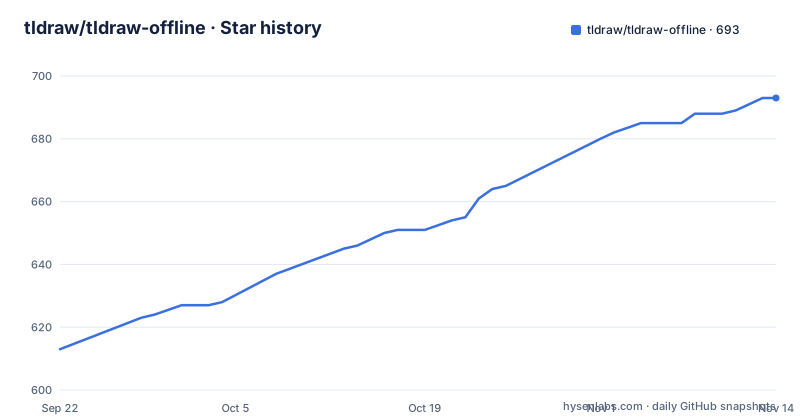
- tldraw/tldraw-offline693 ★ · +80
| Repository | 2026-09-22 | 2026-11-14 |
|---|---|---|
| tldraw/tldraw-offline | 613 | 693 |
80 Stars in the last 53 days, measured from the daily GitHub snapshot. Compare with other projects
Editorial analysis
The public repository holds a readme and two logos
The most surprising fact about this project is what is not in it. The repository contains three top-level entries: the readme, a workflow directory, and an assets folder holding the logo files the readme embeds for light and dark display. There is no source, no build configuration, no issue tracker template and no changelog. The licence section says it plainly: the application is not open source and all rights reserved. That is a deliberate split rather than an omission. The company publishes a separate software development kit for building your own canvas application, and the readme points at it, so the extension path is open while the shipped desktop app is not. It also means the readme is the entire public documentation, which pushes the detail somewhere else: installation instructions, file management, shortcuts, troubleshooting and agent setup all live in a user manual hosted on a third-party note-taking site rather than in the repository.
A document file can carry a script that runs when it opens
The format does more than store shapes. A file contains the canvas, its pages and stored media, and an embedded document script, and that script is executed when the file is opened. The project presents this as deliberate rather than incidental: an agent can inspect an open canvas, change it, and create reusable document scripts that add new behaviour to a file. In other words, a whiteboard document is a container for both data and behaviour, which makes it closer to an application format than to a picture of a canvas. The warning that follows in the readme is correspondingly direct. An agent with access to the app can read and edit your documents, and so can a file you were sent, so only grant access to agents you trust and only open files from sources you trust. That is the single most important thing to know about sharing a .tldraw file.
Each document gets its own window and a working copy
Windowing and saving are described separately, and both matter for how the app behaves when something goes wrong. Every document opens in its own window rather than as a tab in a single shell, which is what makes the four-step flow in the readme make sense: create a new file, draw or add text and media or build a diagram, choose Save and give it a name and location, then reopen it from the home screen, the application menu or the system file browser. Underneath, open documents are kept as working copies automatically, and unsaved work can be restored after an unexpected exit. The readme is careful about what that means, stating that recovery is not a replacement for saving and backing up your files. So there are two layers of protection and only one of them is automatic.
Nothing merges edits made from outside the app
One callout is marked important and it is about conflict handling. The application does not merge changes made to an open file by another program, by a sync client, by a Git operation or by another computer. The instruction that follows is procedural: close the document before replacing it externally, then reopen it. That is a stronger constraint than it first appears, because the file format is portable and cross-platform, which makes it natural to keep documents in a synced folder or under version control. A file that moves under the app while it is open will not be reconciled. If you want that workflow, the cost is closing the window first, every time, and treating the app as the only writer rather than as one of several.
Two formats, and the older one opens as a new unsaved document
There are two file formats and their relationship is asymmetric. The current extension is the native and preferred one, and the readme describes its contents precisely: the canvas, its pages, stored media and any embedded document script. Those files work across all three desktop platforms, which is the property that makes the format portable rather than merely local. The older extension can still be opened and exported, but opening one imports it into the application as a new, unsaved document and leaves the original file untouched on disk. That is a deliberate non-destructive path: you get a converted document in the app and a copy of the original that nothing has modified. The export route matters if you are migrating, since it is the only documented way out of the legacy format.
Three desktop platforms and five build artefacts
The download table is small and specific. macOS gets one universal disk image covering both Apple silicon and Intel. Windows gets an installer for either 64-bit architecture. Linux gets two forms, an AppImage for either 64-bit architecture and a Debian package for the 64-bit build only, so a Linux user on Arm has one option rather than two package formats. On macOS there is a second route through a package manager:
brew install --cask tldrawUpdates are handled by the application itself, which checks for them at startup, and there is also a manual check in the application menu. That is a meaningful difference from a self-hosted tool: the update path is not a package manager you control, so a change in behaviour arrives when the app decides to fetch it rather than when you choose to upgrade.
Weekly tags, and the readme describes the current build
Release cadence is fast and regular. Three of the most recent tags are a patch, a minor and a minor again, one week apart: v1.19.1 on 2026-09-16, v1.20.0 on 2026-09-23 and v1.21.0 on 2026-09-30, and the last push to the default branch came on the same day as the newest tag. Combined with the in-app updater, that means the version you run is often newer than the documentation you read, and the readme in this repository is whatever the current text says rather than a per-version snapshot. The user manual is the place to look for the details that change: installation steps, file management, keyboard shortcuts, troubleshooting and the agent setup that the readme promises but does not spell out. There is no changelog in the repository to tell you what a given minor actually changed.
Editorial conclusion
tldraw offline suits someone who wants an infinite-canvas whiteboard that keeps its files on their own disk and will point a coding agent at them. Before you adopt it, understand what a document file can do: it can carry an embedded script that runs when the file opens, so a file from someone else is executable content and the project's own advice is to open only files you trust. Keep the save habit, because crash recovery exists but is described as no substitute for backing up, and close a document before editing it from outside, since nothing is merged for you. And read the licensing line plainly, because this component is closed source even though its repository is public.
Frequently asked questions
Is tldraw offline open source?
No. The readme states that the application is not open source and all rights reserved, and the repository itself contains only the readme, a workflow directory and logo assets. The separate canvas SDK is the open part.
What file format does tldraw offline use?
The current format is native and preferred, holding the canvas, its pages, stored media and any embedded document script, and it works across macOS, Windows and Linux. The older format can still be opened and exported, importing as a new unsaved document.
Can a coding agent edit a tldraw offline document?
Yes. The app is described as working with several coding agents, which can inspect an open canvas, change it, and write reusable document scripts that add behaviour to a file.
What happens if I edit a tldraw file outside the app?
Nothing merges automatically. The application does not reconcile changes made by another program, a sync client, a Git operation or another computer, so you should close the document before replacing it externally and reopen it afterwards.
Official sources
Add this badge to your README
If you maintain this project, the badge below links readers to this analysis and shows its maintenance status from the daily GitHub snapshot. Paste the markdown into your README; add ?metric=license or ?metric=stars to the image URL for a different field.

[](https://hysenlabs.com/projects/tldraw-tldraw-offline)Star history chart for your README
[](https://hysenlabs.com/projects/tldraw-tldraw-offline)Was this useful?