RegionToShare: Share a Screen Region When the Meeting App Only Shares Windows
Helper app to share only a part of a screen via video conference apps
At a glance
- What is it?
- RegionToShare is a small Windows helper that mirrors a chosen rectangle of your screen into a hidden window, so a conference app that can only share a full screen or a single window can share just that rectangle. It has no idea what the meeting app does with the window, which is both its strength and its limit.
- Who is it for?
- RegionToShare fits a Windows user whose conference app refuses to share part of a screen, because the rectangle is produced by the operating system rather than by the app that captures it, and it is a poor fit if you are on macOS or Linux, since the app is Windows only and needs Windows 10 or 11.
- Can I use it commercially?
- Yes, with conditions. GPL-3.0 is a copyleft licence: if you distribute software that includes it, you must release that software's source code under the same licence. Running it internally without distributing it does not trigger that obligation.
- Is it still maintained?
- Yes. The repository last received commits 24 days ago.
- What is it written in?
- Mainly C#, according to GitHub's language statistics.
Answers come from the project's GitHub data, last synced on November 7, 2026, and from our analysis. They are not legal advice.
Star history
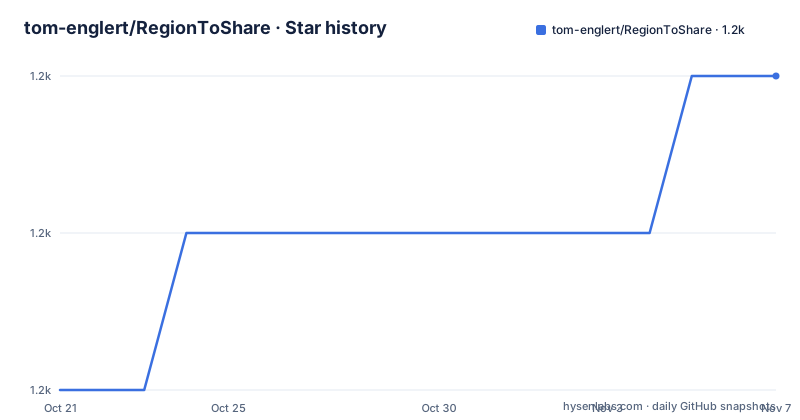
- tom-englert/RegionToShare1,165 ★ · +2
| Repository | 2026-10-21 | 2026-11-07 |
|---|---|---|
| tom-englert/RegionToShare | 1.2k | 1.2k |
2 Stars in the last 17 days, measured from the daily GitHub snapshot. Compare with other projects
Editorial analysis
A Window That Becomes a Crop of Your Screen
RegionToShare is a Windows helper app to share only a part of a screen via video conference apps that only support either full screen or single window, for example Teams or WebEx.
The mechanism is deliberately simple. The tool mirrors the content of a screen region into a hidden window, and in your meeting app you can then just share the content of that hidden window.
That is the entire trick, and it works because both halves of the problem are solved by different software. The meeting app does not need to support partial screen sharing, because it is sharing a normal window. The screen region is produced by the operating system's own compositing, so whatever is underneath, including other applications, appears inside the window you are sharing.
So the user flow is: start the RegionToShare app, move the window to the region you want to share, and in the meeting app start sharing the window called RegionToShare. Then you click the RegionToShare window to start sharing the selected region, at which point the window changes to the region selection frame, and what other people see is what is inside that frame. Closing the region frame stops showing the region without stopping the share, which is the useful part, because you can talk about something else on the rest of your screen and then bring the region back.
A tutorial video by James Montemagno is linked from the README.
The Meeting App Is Not Involved, and That Is the Design
One line in the README does more work than the rest of the documentation, and it is worth quoting in full: Region to Share is not aware of your meeting app nor what the meeting app is doing with the content of the window.
It is up to your meeting app whether it properly shares this hidden window's content or not, and if it is not working as expected, there is nothing Region to Share can do about it.
That is a boundary statement, and it is the honest architecture of the tool. There is no hooking into the conference application, no screen capture API negotiation, no per-application special casing. The tool creates a window and gets out of the way.
The consequence is a clean split of responsibility. Region to Share owns the rectangle, and the meeting app owns whether the window is captured. If a conference app enumerates windows and skips ones that are hidden, or captures a window by a rule that excludes this one, the symptom is a black rectangle in the meeting, and the fix is in that application rather than here.
It also means the tool is not tied to any particular conferencing software, and it works with anything that can share a single window, which is a larger set than the full-screen-plus-window apps named in the README.
Picking the Region: Frame, Size and Aspect Ratio
Once the window is being shared, the region is controlled by the frame drawn over it, and three settings shape it.
The frame can be resized by dragging the edges or corners, and the size of the region is shown in the toolbar. A set of predefined sizes can be selected from the toolbar, and the list of selectable sizes can be changed in the settings.
The aspect ratio is the more interesting control, because it is the one that stops a rectangle from drifting out of shape while you drag it. The available ratios are 4:3, 5:4, 16:9 and 16:10, and they are picked in the toolbar or from the menu button of the region frame. The width is kept and the height is adjusted, and while a ratio is selected, resizing keeps it. Choosing Free lets you resize freely again, and the list of selectable aspect ratios can be changed in the settings.
So the region is either free-form or locked to one of four shapes, and either way the toolbar tells you the current size. That combination is what makes the tool usable in a live meeting, where you want to enlarge a region quickly while keeping the proportions of what you are presenting.
Fitting the Active Window Into the Shared Region
There is one shortcut that does the work for you. Press Win+Ctrl+W to move and resize the active window so it exactly fills the shared region, and the hotkey can be changed in the settings.
This is the feature that turns the tool from a cropping utility into a presentation tool. The common workflow is that you have an application open, you want to show a specific part of it, and you would rather not drag the application's edges around by hand to match a rectangle you have already drawn. The hotkey instead takes the active window and fits it into the region exactly.
Because the region is defined in screen coordinates and the window is moved and resized into it, the result is a clean frame with no window chrome inside the shared area, which is what a viewer expects to see.
The hotkey is configurable because Win+Ctrl+W is a combination that other tools may want, and a shared shortcut in a screen sharing tool is a good reason to make it a setting rather than a constant.
The Mouse Highlighter and the Settings Behind It
The mouse highlighter is the feature that a presenter notices. A double ring around the mouse cursor shows where you are pointing, and the inner ring is more transparent than the outer one, so the pointer stays visible without the ring hiding what is under it.
Left and right clicks briefly change the colour of the ring and play a sound. The highlighter is off by default, and once turned on in the settings it is active all the time, not only while sharing. The colour, the opacity, the size, the click colours, the sounds and the volume can all be adjusted in the settings, and the ring can be shown on your own screen, in the shared region, or both.
That last option is the thoughtful one. Showing the ring on your own screen only helps the presenter, showing it in the shared region only helps the audience, and showing both is what most people want, since the presenter's own pointer is the one that leaves the shared area.
The settings are opened with the gear button in the toolbar or from the menu button of the region frame, and changes apply immediately. The app is available in English and German, and it follows the Windows display language by default, which is a sensible default for a tool whose audience is mostly not reading the documentation.
Installing and Where the Project Stands
The prerequisites are short: Windows 10 or 11. There are three ways to install it, and the README lists all three.
You can download and install the app from the Windows Store, you can install it via WinGet with `winget install TomEnglert.RegionToShare`, or you can pick the latest binaries from the release page, which is the option for a machine where the Store is not available or where you want a portable copy.
The repository layout is consistent with a desktop application written in C#. The src/ directory holds the project and its assets, there is an azure-pipelines.yml for the build, a WinGetCreateManifest.ps1 and a WinGetUpdate.cmd for the package manager integration, an UpdateNotice.cmd, and then the documents a user might look for: ReleaseNotes.md, a PrivacyPolicy.md and a NOTICE.TXT.
The release cadence has picked up after a long gap. The versions are 1.12.0 from 2026-10-14, 1.11.0 from 2024-11-01 and 1.10 from 2024-01-03, and the older tags carry a build number, 1.11.6454 and 1.10.6178, which is a common way of dating a build in a desktop app that updates itself.
So the project spent most of its life on a slow track and has recently moved to regular releases. The licence is GPL-3.0, the repository is not archived, and the last push was on 2026-10-15.
Editorial conclusion
RegionToShare fits a Windows user whose conference app refuses to share part of a screen, because the rectangle is produced by the operating system rather than by the app that captures it, and it is a poor fit if you are on macOS or Linux, since the app is Windows only and needs Windows 10 or 11. Before installing, check that your meeting app actually shares the hidden window, because the README is explicit that the tool is not aware of the meeting app and cannot fix an app that declines to capture it. Note also that the mouse highlighter is off by default and stays active for as long as it is enabled, not only while sharing, so it is worth turning on only when you want it. The project is GPL-3.0 licensed, the newest release is 1.12.0 from 2026-10-14, and the last push was on 2026-10-15.
Frequently asked questions
What does RegionToShare do?
It mirrors the content of a screen region into a hidden window, so you can share that window in a meeting app. You start the app, move the window to the region, share the RegionToShare window in your meeting app, then click it to show the selected region inside a frame.
Does RegionToShare work with any video conference app?
It works with anything that can share a single window, but the README is explicit that the tool is not aware of your meeting app nor what it does with the window content, and that if the sharing does not work as expected there is nothing Region to Share can do about it.
How do I install RegionToShare?
From the Windows Store, with `winget install TomEnglert.RegionToShare`, or by taking the latest binaries from the release page. Windows 10 or 11 is required.
What can I configure in RegionToShare?
The list of predefined frame sizes and the list of selectable aspect ratios, both changed in the settings, along with the hotkey that fits the active window into the region and every parameter of the mouse highlighter including colour, opacity, size, click colours, sounds and volume. Changes apply immediately.
Is the mouse highlighter always on?
No, it is off by default, and once turned on in the settings it is active all the time rather than only while you are sharing. The ring can be shown on your own screen, in the shared region, or both.
Official sources
Add this badge to your README
If you maintain this project, the badge below links readers to this analysis and shows its maintenance status from the daily GitHub snapshot. Paste the markdown into your README; add ?metric=license or ?metric=stars to the image URL for a different field.

[](https://hysenlabs.com/projects/tom-englert-regiontoshare)Star history chart for your README
[](https://hysenlabs.com/projects/tom-englert-regiontoshare)Was this useful?