trmnl-display: a C client that paints TRMNL images onto a framebuffer or an SPI e-paper hat
Embedded ePaper friendly Linux client for displaying TRMNL screens
At a glance
- What is it?
- usetrmnl/trmnl-display is a Linux command line client written mostly in C, with a small C++ main, that fetches rendered images from the TRMNL API and draws them onto an HDMI framebuffer or one of four supported e-paper devices. The install is a build script that asks which display you have and writes two JSON config files under your home directory.
- Who is it for?
- This client is worth using if you already have a TRMNL account and a spare single board computer, because it removes the need for a desktop environment on a device with none, and because the e-paper path treats a 1-bit panel as a first class target rather than an emulation. The dark mode flag inverts every pixel, which is exactly right for the black and white panels most of these devices use.
- Can I use it commercially?
- Yes. MIT is a permissive licence: you can use, modify and sell software built on it, as long as you keep its copyright and licence notices.
- Is it still maintained?
- Yes. The repository last received commits 50 days ago.
- What is it written in?
- Mainly C, according to GitHub's language statistics.
Answers come from the project's GitHub data, last synced on October 21, 2026, and from our analysis. They are not legal advice.
Star history
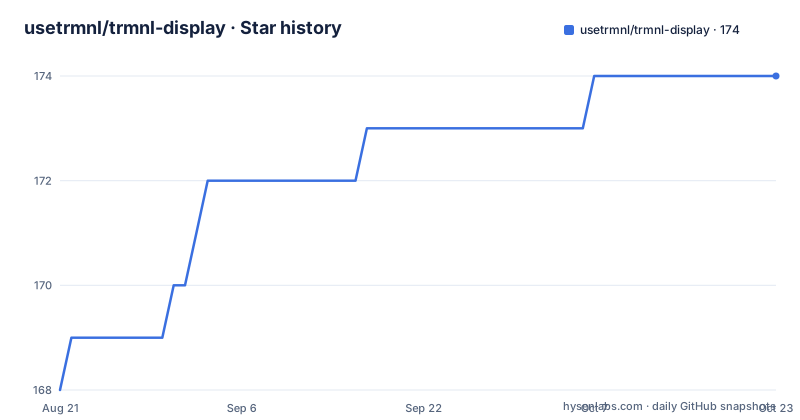
- usetrmnl/trmnl-display174 ★ · +6
| Repository | 2026-08-21 | 2026-10-21 |
|---|---|---|
| usetrmnl/trmnl-display | 168 | 174 |
6 Stars in the last 61 days, measured from the daily GitHub snapshot. Compare with other projects
Editorial analysis
Five displays in the install menu, and the binary only knows those
The build script's first question is the one that determines whether the rest of the setup works, because the answer is baked into how the program is linked. The menu offers five options: framebuffer for HDMI or LCD, a Waveshare SPI e-paper HAT, a Pimoroni Inky Impression Spectra 7.3, a Pimoroni Inky Impression Spectra 13.3, and a Waveshare IT8951 in 7.8 or 10.3 inch at 1872x1440. That is a closed list rather than a general driver, and the Makefile explains why. On Linux the link line pulls in FastEPD, a library named trmnl, an e-paper library, gpiod for the general purpose IO pins that SPI hats need, PNG and JPEG decoders, a temperature library, curl, and SDL2. Each display family needs its own library, so a panel outside the menu is not a matter of finding the right resolution. The Raspberry Pi subdirectory at the top of the repository, alongside the vendored cJSON sources, is where the hardware specific pieces sit.
The install script is interactive, and it writes show_img.json for you
Installation is a clone and a script, with the configuration work folded into the script rather than left to a settings file. After ./build.sh compiles the application and installs its dependent libraries, it prints the display menu, then asks for the Device API key. The two paths to that key differ depending on what you are running. For the native application it is at trmnl.com/devices/current/edit, and for a self-hosted BYOS implementation it comes from that implementation's own settings screen, and the base_url in the configuration then has to point at your own server instead. The script finishes by copying the trmnl_display binary to /usr/local/bin, which is why the usage section says you can run it from anywhere. It also creates show_img.json, the file holding the e-paper or framebuffer device configuration, as one of its final steps. So the display choice made at the menu is recorded on disk during install rather than asked for at every launch.
Two JSON files under the home directory hold everything
Configuration lives in two files, both under a trmnl directory inside your XDG config path. config.json stores the Device API key and other preferences, and show_img.json stores the configuration for the e-paper or framebuffer device. The first has a field worth knowing about even if you never use it: a device_id key holding your MAC address, which BYOS clients require in order to be paired with an API key in the request headers. That pairing requirement is the reason a self-hosted setup needs more than a copied key. The alternative to editing these files is the environment variable route, since the features section says configuration is available through environment variables or through interactive prompts, though the variable names themselves are not enumerated in the text, so a reader has to inspect the binary or the script to find them. The playlist that the client fetches is configured server side rather than in either file.
ENTER advances the playlist and ESC leaves, and there is one flag
The runtime surface is small. The only documented key bindings are ENTER to skip to the next item in the playlist and ESC to exit the program, and the only documented flag is -d, which enables dark mode by inverting all pixels. That inversion is the interesting one for e-paper, where the panel is monochrome and where a light theme on a white background and a dark theme on the same panel are not the same amount of ink. The refresh rate is described as configurable but the setting is not shown, which leaves it in the server side configuration rather than the client. The output the program writes is worth recognising because it is how you confirm a fetch worked: a line saying the keypress skipped to the next update, a line naming the path it displayed, and a line confirming the EPD update completed. The displayed path in the example is under /tmp with a numeric suffix, so the image is staged on disk before it reaches the panel.
Staying resident means nohup, and staying resident after reboot means crontab
There is no service unit, no systemd file and no daemon mode in the repository, so keeping the client on screen is done with shell tools. In the foreground it just runs as trmnl_display. To leave it running after you close the session, the background section uses nohup with an ampersand, so ctrl+c and logging out do not take the display down. To bring it back after a power cycle, the crontab is edited with crontab -e and given one line:
@reboot sleep 15 && nohup trmnl_display > /home/$(whoami)/.config/trmnl/logfile.log 2>&1 &The sleep 15 is deliberate and explained: it gives the network configuration time to come up before the client makes its HTTP request to the playlist. The output is redirected into a logfile inside the same config directory, which is where you would look after a reboot that did not produce a refresh. The verification step given is a sudo reboot that should momentarily trigger an automatic screen refresh. One inconsistency is worth knowing before you paste that line: the background section writes nohup ./trmnl-display, using a hyphen, while the binary the build installs and every other command use is trmnl_display with an underscore.
Vendored cJSON, a C++ main, and a compiler flag that never turns off
The source layout explains the language mix. The repository is counted as C, and the bulk of it is a vendored JSON library with its own utility layer, four files named cJSON.c, cJSON.h, cJSON_Utils.c and cJSON_Utils.h, compiled into the binary by their own Makefile rules alongside main.cpp. So JSON parsing is not a dependency to install; it is checked in, which is why the link line does not mention a JSON library. The C++ file is the program itself, compiled with the C compiler driver via a separate rule. Two details in the Makefile are worth flagging. The link line branches on uname, and the non-Linux branch links curl from a Homebrew prefix under /opt/homebrew, so a macOS build is anticipated even though the requirements ask for a single board computer on Linux. The compile flags, however, include -D__LINUX__ unconditionally, with no equivalent branch, so the macro is defined in both cases and the platform test only covers which libraries are linked.
Three tags, and the device list grew with the releases
The release history explains the menu better than the documentation does. Version 0.1.0 appeared in November 2025, version 0.1.1 in December 2025 with a title introducing the Pimoroni Inky Impression, and version 0.1.2 in August 2026 titled for the Inky Impression 13.3 inch and the Waveshare 7.8 and 10.3 inch panels. So support was added display by display, and the two most recent additions correspond to the last two numbered options in the install menu. That is the shape of a project where a new panel means a new library link and a new menu entry rather than a configuration change, and it is a reasonable reason to expect the closed list to grow. The most recent push is dated 2026-09-02, the project is MIT licensed, and the homepage for the hardware side is a blog post about running TRMNL on a Raspberry Pi. There is no changelog file in the repository, so the release titles are the only record of what each version added.
Editorial conclusion
This client is worth using if you already have a TRMNL account and a spare single board computer, because it removes the need for a desktop environment on a device with none, and because the e-paper path treats a 1-bit panel as a first class target rather than an emulation. The dark mode flag inverts every pixel, which is exactly right for the black and white panels most of these devices use. It is not the right choice if you want a managed dashboard service, if your display is one of the many models not in the five option list, or if you need scheduled refreshes, since the only scheduling described is a crontab entry that runs the client at boot and then relies on the playlist's own refresh setting. Before you build it, check three things: that your panel is one of the five the install menu names, because the list is a closed enumeration and the binary is compiled against display specific libraries; that the dependent libraries are present, since the Makefile links against FastEPD, a trmnl library, an e-paper library, gpiod, PNG and JPEG decoders, a temperature library, curl and SDL2, all of which build.sh installs; and whether the HTTP or native client is your target, since the API key URL differs between the two and a self-hosted server also needs base_url changed in config.json.
Frequently asked questions
What is TRMNL display?
TRMNL Display is a lightweight Linux command line application that displays dynamic images directly on LCD and HDMI screens and on SPI e-paper displays such as the one in the TRMNL OG. It fetches images from the TRMNL API or from a self-hosted server and renders them without a desktop environment.
How do I install usetrmnl/trmnl-display on a Raspberry Pi?
Clone the repository and run ./build.sh, which installs the dependent libraries, compiles the application, asks you to pick a display and enter a Device API key, and copies the trmnl_display binary to /usr/local/bin. It finishes by printing Build complete. Run trmnl_display to start.
Which e-paper displays does trmnl-display support?
The install menu lists five options: framebuffer for HDMI or LCD, a Waveshare SPI e-paper HAT, a Pimoroni Inky Impression Spectra 7.3, a Pimoroni Inky Impression Spectra 13.3, and a Waveshare IT8951 7.8 or 10.3 inch at 1872x1440. The list is closed because each family needs its own library linked in.
Where does trmnl-display store its configuration?
In two files under ~/.config/trmnl. config.json holds the Device API key and preferences, including a device_id MAC address that BYOS clients need paired with the key in request headers, and show_img.json holds the display device configuration, created during installation.
How do I keep the TRMNL display client running in the background?
Use nohup with an ampersand so logging out does not stop it, and for a restart after power on add a crontab entry. The documented line is @reboot sleep 15 && nohup trmnl_display, with the sleep so the network is ready before the HTTP request.
What does the dark mode flag do in trmnl-display?
The -d flag enables dark mode by inverting all pixels, which suits monochrome e-paper panels where a light and a dark theme do not use the same amount of ink. ENTER skips to the next playlist item and ESC exits the program.
Official sources
Add this badge to your README
If you maintain this project, the badge below links readers to this analysis and shows its maintenance status from the daily GitHub snapshot. Paste the markdown into your README; add ?metric=license or ?metric=stars to the image URL for a different field.

[](https://hysenlabs.com/projects/usetrmnl-trmnl-display)Star history chart for your README
[](https://hysenlabs.com/projects/usetrmnl-trmnl-display)