The WikiTree extension builds for Chrome with Safari checks attached
Browser extension that adds advanced features to WikiTree.com.
At a glance
- What is it?
- wikitree/wikitree-browser-extension is a JavaScript browser extension for WikiTree.com, built with webpack and shipped through the Chrome, Firefox and Safari stores. Its package scripts are the interesting part: a Chrome build runs the Safari and palette checks, packaging needs Python, and the manifest version does not match the release tag.
- Who is it for?
- The WikiTree extension is a good fit for someone working inside WikiTree.com daily who wants the site's own tooling without leaving the tab, and a poor fit if you need an iOS or Android build, since the documented Safari target is iOS and Mac through the Mac App Store listing rather than a mobile package of its own.
- Can I use it commercially?
- Yes. MIT is a permissive licence: you can use, modify and sell software built on it, as long as you keep its copyright and licence notices.
- Is it still maintained?
- Yes. The repository received new commits within the last day.
- What is it written in?
- Mainly JavaScript, according to GitHub's language statistics.
Answers come from the project's GitHub data, last synced on October 22, 2026, and from our analysis. They are not legal advice.
Star history
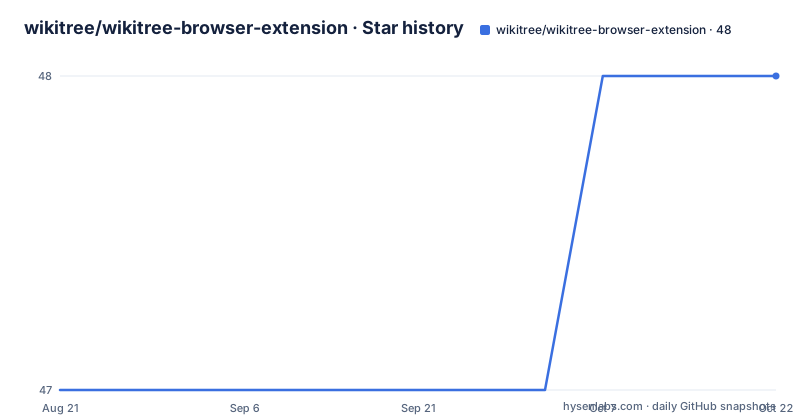
- wikitree/wikitree-browser-extension48 ★ · +1
| Repository | 2026-08-21 | 2026-10-22 |
|---|---|---|
| wikitree/wikitree-browser-extension | 47 | 48 |
1 Stars in the last 62 days, measured from the daily GitHub snapshot. Compare with other projects
Editorial analysis
Three stores, and two Chrome listings
Distribution is ordinary until you count the listings. For end users the README points at the Chrome Web Store, at Firefox addons for Firefox, and at the Apple App Store listing for Safari on iOS and Mac. The badge row at the top of the README, however, links two different Chrome Web Store entries rather than one, with distinct listing identifiers, while the installation section names only the second of them. That is worth knowing before you go looking for the wrong one. The repository also carries two release channels as tags rather than versions: a stable tag and a preview tag, each pointing at a build for your browser. So there are three browser targets, two update channels, and more than one store page, which is more surface area than a user who just wants the feature has to think about.
Nothing is enabled until you pick the components
One instruction appears in the tester instructions and is easy to skim past. After loading the unpacked extension, the first thing to do is go to the extension Options and select which components you want to use. So the extension does not arrive with a fixed feature set switched on; it ships with a set of components you opt into. For an extension that injects behaviour into someone else's website, that is the right default direction, because the person using the tool decides what runs rather than the installer. It also means a first run can look broken: an empty interface is the expected state until the Options page is configured, not a failed install. The tester instructions get to that page only after four separate steps, which is the main reason testers are told to load the extension unpacked from a release zip rather than from a store.
A Chrome build still runs the Safari checks
The package scripts are the most revealing part of the repository. The Chrome build does not simply bundle:
npm run buildInternally that script runs a check for undefined globals, then webpack with the production config and the chrome browser target, then two further steps named check-legacy-safari and check-palette. The Firefox build is the same sequence with the firefox target substituted, and the development variants swap the production config for the dev config without dropping any of the checks. So a build that will never touch Safari still validates legacy Safari compatibility, which tells you the project treats Safari as a first-class target even when it is not the one being produced. The palette check runs in the same position, so a colour token problem fails the Chrome build too.
Firefox loads a file, Chrome loads a folder
The two loading routes differ in a way that trips up people coming from one browser to the other. On Chrome you open chrome://extensions, turn on Developer mode in the top right corner, click Load unpacked and select the wikitree-browser-extension/dist folder. On Firefox you open about:debugging, click This Firefox on the left, click Load Temporary Add-on and choose a file from the dist folder. One loads a directory, the other loads a single file, and the Firefox route is temporary by construction. For source builds the dist folder is the artefact both routes consume, produced by the corresponding build script:
npm run build-firefoxThere is also a combined convenience target for Windows that builds the Firefox development variant and then launches the browser already pointed at the runtime debugging page, though it hardcodes a Program Files path for the Firefox executable and so only works on a default install.
The manifest version and the release tag disagree
The package manifest declares version 1.2.0, while the two release tags read stable-v2.18.1 and preview-v2.18.1.8. Those numbers are two orders of magnitude apart, which means the version in the manifest is not the version a user sees in a store listing, and the repository maintains both without reconciling them in the files a reader would look at first. This is common in extensions, where the store assigns its own version independently of the source tree, but it has a practical consequence for anyone testing a build: the tag tells you which channel and roughly when it shipped, while the manifest tells you what the bundle claims internally. If you are comparing a local build against an installed one, compare behaviour rather than expecting the version strings to line up.
Two channels, unpacked by hand
Testers are pointed at the release tags rather than at a store listing. Download the zip for your browser from the stable tag or the preview tag, unpack it somewhere on the computer, then load the unpacked folder through the browser's extension page. There is no self-update step in that path, which is the point: the point of loading a zip is to test exactly what was tagged, on exactly the machine you choose, without a store in the loop. Preview is the faster-moving of the two, and the README does not describe a policy for how often each channel is cut, so a tester who needs a reproducible environment should pin to the stable tag. The default branch is development rather than main, which is the other signal about how the project separates work in progress from what gets tagged.
Feature ideas go to a wiki page with two tags
The project's routes for input are split in a way that tells you how it is organised. A full list of features is not in the README; it lives on the WikiTree Browser Extension page inside WikiTree itself, which means the user-facing documentation is part of the wiki rather than the repository. Feature requests do not go to the issue tracker either. The instruction is to post in WikiTree G2G using the wt_apps and the improvements tags. Bugs and pull requests go through the repository, with contributing.md and tutorial.md in the docs directory as the entry points. The default branch named development, a CODE_OF_CONDUCT.md at the root, and a GitHub Actions workflow for tests round out a repository whose community process is spread across a wiki, a discussion space and the tracker.
The build tree carries a Safari project and a manual API script
The top level explains the rest of the pipeline. Webpack configuration lives in a webpack directory with separate dev and prod configs, which is what the browser and environment flags in the scripts select between. An xcode directory holds the Safari side, and a build-safari-dev script chains the development build into node scripts/build-safari-dev.mjs, so Safari output is a transformation of the Chrome output rather than a separate bundle from scratch. Packaging is where the toolchain gets less tidy: both zip scripts run the template download, a clean, and the build, then use bestzip to write the archive, and the script that zips both and renames them shells out to python through scripts/name_zip.py. Testing is jest, configured in jest.config.js, with update-test-pages pulling test fixtures through src/testing. And test_dna_api.js sits at the repository root, outside the test directory, which is where the manual API checks live.
Editorial conclusion
The WikiTree extension is a good fit for someone working inside WikiTree.com daily who wants the site's own tooling without leaving the tab, and a poor fit if you need an iOS or Android build, since the documented Safari target is iOS and Mac through the Mac App Store listing rather than a mobile package of its own. Before installing it, check three things: that you want the components it enables by default, which you select yourself on the Options page, whether you prefer the stable or the preview channel, and what permissions the store listing asks for, which the README does not enumerate.
Frequently asked questions
What is a browser extension, in the case of WikiTree?
It is a JavaScript extension that adds advanced features to WikiTree.com. The project is described exactly that way, and it is built with webpack from a src directory into a dist folder that a browser loads.
How do I install the WikiTree browser extension as an end user?
From your browser's app store. The README links the Chrome Web Store, the Firefox add-ons listing, and the Apple App Store listing for Safari on iOS and Mac. The README does not enumerate the permissions each listing requests.
How do I test a downloaded build of the WikiTree extension?
Download the zip for your browser from either the stable or the preview release tag, unpack it, open chrome://extensions, turn on Developer mode in the top right corner, click Load unpacked and select the unpacked folder. Then open the extension Options and select which components you want to use.
How do I build the WikiTree browser extension from source?
Clone the repository, install Node and npm, run npm install, then npm run build for Chrome or npm run build-firefox for Firefox. Chrome loads the wikitree-browser-extension/dist folder unpacked; Firefox loads a file from dist through about:debugging, then This Firefox, then Load Temporary Add-on.
Official sources
Add this badge to your README
If you maintain this project, the badge below links readers to this analysis and shows its maintenance status from the daily GitHub snapshot. Paste the markdown into your README; add ?metric=license or ?metric=stars to the image URL for a different field.

[](https://hysenlabs.com/projects/wikitree-wikitree-browser-extension)Star history chart for your README
[](https://hysenlabs.com/projects/wikitree-wikitree-browser-extension)