Twinkle Tray: one tray slider for every DDC/CI monitor
Easily manage the brightness of your monitors in Windows from the system tray
At a glance
- What is it?
- Twinkle Tray adds a brightness flyout to the Windows system tray and talks to monitors over DDC/CI and WMI, the job Windows itself does not do for external displays. It also accepts brightness requests from the command line, but only while the tray app is already running.
- Who is it for?
- Twinkle Tray fits anyone driving external monitors on Windows who wants one tray slider instead of a per-monitor menu walk, especially if the clock or idle state should also handle brightness. It is the wrong tool when a display has DDC/CI switched off, when your setup runs through a dock or VGA, or when you need a calibrated brightness value rather than a percentage.
- Can I use it commercially?
- Yes. MIT is a permissive licence: you can use, modify and sell software built on it, as long as you keep its copyright and licence notices.
- Is it still maintained?
- Yes. The repository last received commits 25 days ago.
- What is it written in?
- Mainly JavaScript, according to GitHub's language statistics.
Answers come from the project's GitHub data, last synced on November 14, 2026, and from our analysis. They are not legal advice.
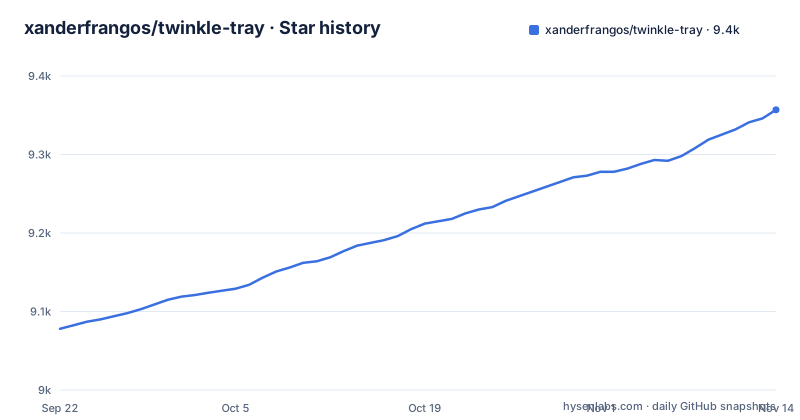
Star history
- xanderfrangos/twinkle-tray9,357 ★ · +279
| Repository | 2026-09-22 | 2026-11-14 |
|---|---|---|
| xanderfrangos/twinkle-tray | 9.1k | 9.4k |
279 Stars in the last 53 days, measured from the daily GitHub snapshot. Compare with other projects
Editorial analysis
The gap is external monitors and more than one display
Windows exposes monitor-control APIs, but its built-in brightness interface does not provide the same convenient controls for all external or multiple displays. The Windows API can set brightness on compatible physical monitors; support varies by monitor. Twinkle Tray fills that gap by inserting a new icon into the system tray: clicking it gives instant access to the brightness of all compatible displays. Twinkle Tray uses DDC/CI for compatible external displays and WMI for supported built-in displays. That channel belongs to the monitor rather than to the app, and it is often switched off in the display's own settings. The compatibility notes tell you to enable the appropriate option on your monitor and consult its user manual, which means the first thing that can go wrong lives in hardware the software never touches.
Install with winget, then click the tray icon
The Windows Package Manager route uses a publisher-prefixed id rather than the app's name:
winget install xanderfrangos.twinkletrayYou can also download the installer EXE from twinkletray.com or the GitHub Releases page, and there is a Microsoft Store listing for people who prefer it. After installation the icon appears in the system tray; click it to bring up the Adjust Brightness flyout, move a slider, and click away to hide the flyout again. Right-click the icon to quit. The app starts with Windows, reads your Personalization settings so the tray matches your taskbar, and offers options to select the Windows version and theme yourself.
Only the winget package belongs to this repository
Three package managers carry Twinkle Tray and two of them are maintained elsewhere. Chocolatey ships a `twinkle-tray` package described as unofficial:
choco install twinkle-trayScoop does the same and needs the extras bucket added first:
scoop bucket add extras
scoop install extras/twinkle-tray
Both pages say plainly that the package is not maintained at this repository, so a broken install report belongs on the Chocolatey package page under its triage process or in the ScoopInstaller/Extras tracker, not in this project's issue list. Both also offer an upgrade command that delivers the latest approved package version, and approved here means something narrower than the newest tag: the two most recent releases are betas, v1.18.0-beta2 on 2026-08-13 and v1.18.0-beta1 on 2026-07-20, sitting ahead of v1.17.2 from 2025-12-25. Expect a package manager install to trail the repository until each build is approved.
Command line control requires the tray app to already run
Brightness can be requested from a shell, but the request is a message to a process that is already running, not a launch of a new one. One monitor argument and one brightness argument are required, and when several are supplied they override each other. The documented call adjusts monitor number 1 down by 30:
"%LocalAppData%\Programs\twinkle-tray\Twinkle Tray.exe" --MonitorNum=1 --Offset=-30Two consequences follow for anyone scripting this. A scheduled task that fires before the tray app has started has nothing to send that message to, and the documentation does not say what the command does in that case. And the path shown lives under the per-user LocalAppData\Programs directory of an installer install, so a script with that path hardcoded only works for that layout. The Microsoft Store version is reachable through the alias Twinkle-Tray.exe since v1.17.1.
Every argument does one job, and several of them override
The argument set is small and explicit. `--List` enumerates displays and arrived in v1.14.0. `--MonitorNum` picks one by number starting at 1, `--MonitorID` picks one by internal ID and accepts partial or whole matches such as `--MonitorID="UID2353"`, and `--All` selects every monitor at once. `--Set=95` assigns an absolute percentage while `--Offset=-20` nudges whatever the display is showing now. `--VCP="0xD6:5"` leaves brightness aside entirely and sends a DDC/CI VCP code with a value, available since v1.14.4, which is how contrast and other non-brightness features are reached. `--Overlay` and `--Panel` decide where the new level is shown. One limit matters: arguments override each other and the precedence between a `--Set` value and an `--Offset` is not documented.
Docks, VGA and the Radeon control panel break it from the outside
Twinkle Tray cannot talk to hardware that refuses to answer. Four known issues are named, and none of them is a setting inside the app. The AMD Radeon Control Panel can interfere with it, and the fix sits on the driver side: ensure Custom Colors is not enabled. VGA and DVI connections may not be compatible at all. USB, Thunderbolt and Surface docks carrying HDMI or DisplayPort may not be compatible either. And DDC/CI features such as brightness control and power state can make certain monitor models behave poorly, a caveat the documentation applies to any DDC/CI software rather than to this project alone. The practical result is that brightness control can stop working after a driver update or a different adapter, with no change to Twinkle Tray at all, and displays that are never detected have their own troubleshooting page in the project wiki.
Clock and idle automation explain a brightness that moves on its own
More sits behind the slider than manual adjustment. Brightness can change automatically depending on the time of day or when the machine is idle, backlight can be normalized across different monitors so they match, DDC/CI features such as contrast can be controlled, hotkeys can be bound to a specific display or to all of them, and the app can start with Windows. Automation is also the first answer to a common complaint: if the brightness changes without anyone touching anything, the scheduled adjustment is the thing to inspect, not a driver fault. The trade-off is that a script which sets an absolute percentage will fight that schedule. What is missing is the schedule itself: the documentation names the feature but not its granularity or the idle threshold, so you read those values out of the app instead of a document.
Electron, node-gyp and six build targets in package.json
The build stack is visible in package.json rather than described in prose. The main entry point is src/electron.js, the start and dev scripts run electron with a dev flag, the interface is built by node src/parcel.js in dev or build mode, and electron-builder produces the artifacts. Separate targets exist for a Store appx, an unsigned appx, a portable zip, an arm64 build and an arm64 appx, with build-all chaining them together. Native work shows up in two more scripts: postinstall runs electron-builder install-app-deps, and rebuild-ddcci-dev rebuilds @hensm/ddcci, the piece that speaks to the displays. Contributors are told to install the node-gyp build tools before running npm install, which is what a native dependency costs. For anyone repackaging it themselves, that means a compiler toolchain on Windows, and signing stays a separate step from building since the store and unsigned appx targets are distinct.
Editorial conclusion
Twinkle Tray fits anyone driving external monitors on Windows who wants one tray slider instead of a per-monitor menu walk, especially if the clock or idle state should also handle brightness. It is the wrong tool when a display has DDC/CI switched off, when your setup runs through a dock or VGA, or when you need a calibrated brightness value rather than a percentage. Before adopting it, check three things: that DDC/CI is enabled in each monitor's own menu, whether you install through winget or through one of the unofficial Chocolatey and Scoop packages that lag the repository's own betas, and whether the executable path your scripts use matches where the installer actually put the binary.
Frequently asked questions
What is Twinkle Tray?
A system tray app for Windows 10 and 11 that controls the brightness of external monitors using DDC/CI and WMI, which Windows does not support natively. It adds brightness sliders to the tray and can change them on a schedule or when the machine is idle.
Is Twinkle Tray safe?
It is MIT licensed and published as an installer EXE on twinkletray.com and the GitHub Releases page, with a Microsoft Store listing as well. Note that the Chocolatey and Scoop packages are marked unofficial and are not maintained at this repository, so issues with those installs go to their own trackers.
Why does my brightness keep changing?
Twinkle Tray can automatically change monitor brightness depending on the time of day or when idle, so a change nobody requested is often the scheduled adjustment rather than a driver fault. The documentation names the feature but does not give its schedule or idle threshold.
How do I get a brightness slider on my taskbar?
Twinkle Tray adds brightness sliders to the system tray, laid out like the built-in Windows volume flyout. Click the tray icon to bring up the Adjust Brightness flyout, and click away to hide it.
How do I get my brightness slider back?
Right-click the system tray icon to quit, start the app again from the installer EXE or your package manager, and click the tray icon to reopen the flyout. If a display is not detected at all, the project wiki has a display detection and support issues page for that case.
Official sources
Add this badge to your README
If you maintain this project, the badge below links readers to this analysis and shows its maintenance status from the daily GitHub snapshot. Paste the markdown into your README; add ?metric=license or ?metric=stars to the image URL for a different field.

[](https://hysenlabs.com/projects/xanderfrangos-twinkle-tray)Star history chart for your README
[](https://hysenlabs.com/projects/xanderfrangos-twinkle-tray)Was this useful?