UnityAssetUsageDetector: reverse reference search with one blind spot
Find usages of the selected asset(s) and/or Object(s) in your Unity project, i.e. list the objects that refer to them
At a glance
- What is it?
- YasirKula's UnityAssetUsageDetector is a Unity editor plugin that lists the assets and scene objects referring to whatever you select, and its Scripting API can rewrite those matches while the search is still running. The interesting part is what the results window shows afterwards, plus the five kinds of reference the tool says it cannot see.
- Who is it for?
- Adopt it if your Unity work involves retiring shared assets, because the context menu entry Search For References answers that question in one click and the Scripting API folds the same sweep into an editor script. Leave it alone if your project loads things at runtime through Resources.Load or statics, since those never reach the output.
- Can I use it commercially?
- Yes. MIT is a permissive licence: you can use, modify and sell software built on it, as long as you keep its copyright and licence notices.
- Is it still maintained?
- Yes. The repository last received commits 6 days ago.
- What is it written in?
- Mainly C#, according to GitHub's language statistics.
Answers come from the project's GitHub data, last synced on October 22, 2026, and from our analysis. They are not legal advice.
Star history
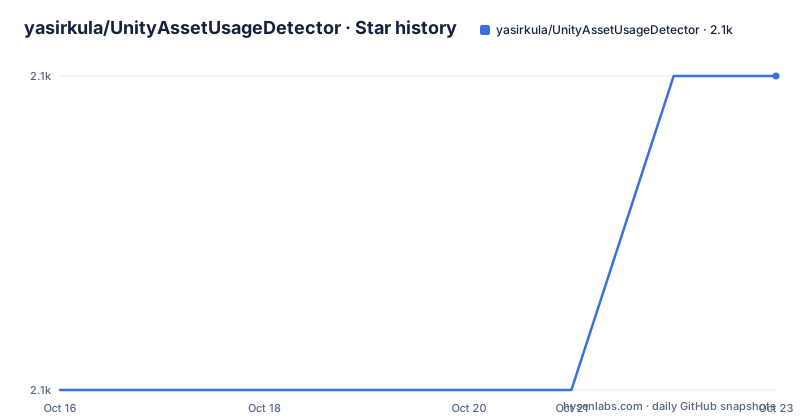
- yasirkula/UnityAssetUsageDetector2,059 ★ · +1
| Repository | 2026-10-16 | 2026-10-22 |
|---|---|---|
| yasirkula/UnityAssetUsageDetector | 2.1k | 2.1k |
1 Stars in the last 6 days, measured from the daily GitHub snapshot. Compare with other projects
Editorial analysis
Reverse reference search instead of forward dependency listing
The Project window in a Unity editor already answers one direction of the dependency question: open a material and you see what is inside it. UnityAssetUsageDetector answers the other direction. Select an asset or a scene object, run a search, and you get the list of objects that refer to it, which is the question you actually have when a shared font, a texture or a shader is being retired and nobody can say what would break. The scope is narrow and stated up front: references can be searched in the Assets folder, in the scene or scenes of the project, or in both, and a search can be run while the editor is in Play mode. That last capability is more than a convenience, because in Play mode the scene under inspection is the one the running game actually holds rather than the last copy saved to disk. Even the name is scoped, with the README headline calling it an Asset Usage Detector for Unity 3D while the package manifest shortens its displayName to Asset Usage Detector.
Five install routes and two different plugin layouts
The README counts 5 ways to install this plugin, and they are not equivalent. Three of them register a package: the Unity Package Manager plus button pointed at the git URL `https://github.com/yasirkula/UnityAssetUsageDetector.git`, OpenUPM after openupm-cli is installed, and the Asset Store listing. Two do not. One imports `AssetUsageDetector.unitypackage` through Assets-Import Package, the other asks you to download the archive and move the repository's Plugins folder into your own Assets folder. That second route explains the repository root, where `package.json`, `package.json.meta`, `LICENSE.txt` and `Plugins/` sit side by side. The same file reports version 2.6.3, and the last push on 2026-09-12 came after 2.6.2 on 2026-04-04 and 2.6.1 on 2026-03-19, under an MIT licence.
With openupm-cli on the path, the OpenUPM route is a single command:
openupm add com.yasirkula.assetusagedetectorAfter any of the five routes what you get is an editor window, not a toolbar button and not a build step, and the documentation describes no build-time behaviour for any of them. Choosing between the routes matters for one more reason: the two non-package routes leave the plugin's assembly layout up to you, while the Package Manager and OpenUPM routes resolve it for you, and the scripting API below depends on which one you picked.
Project Settings or Preferences for the same knobs
Every setting and colour the window exposes can be changed outside it, on the Project Settings/yasirkula/Asset Usage Detector page. On older Unity versions that same page sits in the Preferences window instead, so a settings path copied out of a colleague's project can point at a page that does not exist in your editor. The documentation names no command line and no config file override, which makes that page the only configuration surface it describes, and therefore the first thing to check when the same plugin behaves differently on two machines.
The window is opened from Window, Asset Usage Detector, and the second entry point is the object context menu, where Search For References runs a search on whatever is selected without opening the configuration at all. That shortcut is the fastest path to understanding why the colours exist: every match is reported with both the source object and the value it holds, so the palette is how you tell a GameObject referring to a font apart from a prefab instance doing the same thing.
Assets folder, scene, or both in a single pass
The window configures what the search walks. Scope is either the Assets folder as the Project view presents it, or the scene or scenes of the project, or both in one pass, and Lazy Scene Search is a separate switch whose meaning is practical rather than cosmetic: with it enabled the scene portion of the search is deferred, and the documentation advises disabling it when you intend to edit matches as they are found. Searching while in Play mode is listed as a supported mode, so a scene that only exists at runtime can still be swept.
What the window shows afterwards is documented somewhere other than where most readers look. The README sends you to a README.txt shipped inside the plugin folder, at Plugins/AssetUsageDetector/README.txt, for how to interpret the results and for further instructions, and that file is not part of the repository's top-level text. So the exact columns, their sorting and any filtering controls are things you cannot check before installing, and you should expect to read that file after the first run rather than before it.
Driving the same search from an editor script
The window is only one caller. A script placed in an Editor folder, or a script whose Assembly Definition File adds `AssetUsageDetector.Editor` as a reference, can construct `AssetUsageDetectorNamespace.AssetUsageDetector` and call its Run method, or call `AssetUsageDetectorNamespace.AssetUsageDetectorWindow.ShowAndSearch` to open the window and start a search from code. Run takes a Parameters object, and two of its fields decide what happens next: `objectsToSearch`, an Object array holding what you are hunting referrers for, and `searchRefactoring`, the callback that does the actual work.
void ReplaceFontUsages( Font from, Font to )
{
	AssetUsageDetector assetUsageDetector = new AssetUsageDetector();
	assetUsageDetector.Run( new AssetUsageDetector.Parameters()
	{
		objectsToSearch = new Object[] { from },
		lazySceneSearch = false,
		searchRefactoring = ( searchMatch ) =>
		{
			Debug.LogFormat( "Found a {0} reference from {1} to {2}", searchMatch.GetType().Name, searchMatch.Source, searchMatch.Value );
			searchMatch.ChangeValue( to );
		}
	} );
}
The sample is a font swap, and the swap is not restricted to another asset. Passing null as the replacement changes every usage to null instead, which is how a removal gets done mechanically rather than by hand. Note that the sample also sets `lazySceneSearch` to false, matching the advice given for refactoring work rather than leaving the default alone.
The results window keeps pre-refactor references on screen
This is the part a skim misses. Search refactoring fires the callback while the search is still walking, and the sample uses ChangeValue to rewrite each match as it arrives, which reads like a batch edit you can trust. The note that follows says otherwise: refactored references are not reflected in the returned search results, and the old references keep being displayed. The window you are looking at after a successful sweep is a record of what was true before the callback ran, not what is on disk now, and even the rewritten scenes only match reality once you save them. Verification is a manual three-step routine instead of an automatic confirmation: save the modified scenes, initiate another search, and only then read the results as current. A second note asks you to run a normal search after refactoring precisely to catch references that were not refactored even though they could have been, and asks for a report when that happens.
Two reference types never reach the callback at all. Assembly Definition File references and Shader Graph references are named as unsupported for the in-search notification, so a project leaning on either can finish a font swap with a tidy window and untouched references on disk. That gap is also why the documentation recommends backing up the project before using the feature and disabling Lazy Scene Search so scene matches are visited immediately.
Five reference kinds the detector cannot resolve
The limitations list has 5 entries, and every one of them is a way Unity resolves something without a serialized field you could point at. `static` variables are not searched, because the value lives in the assembly rather than in an asset. `Resources.Load` usages cannot be found, because the argument is a path string rather than a link. `ref struct` types cannot be searched at all. GUIText materials are skipped, and so are textures in Lens Flares.
Two of those five cover the most common runtime loading routes in a Unity project, so a clean result means clean serialized references rather than clean code, and no dynamic lookup will ever surface in the window or the callback. The documentation also describes no export format, no exit code and no headless mode, which leaves you no machine-readable output to diff between runs unless your own script writes one. For a project that needs an audit trail, that is a real gap, not a detail.
Batching Run calls instead of one search at a time
The alternative to installing this plugin is not a better tool but the other direction of the same work. Everything above is one-directional: a search enumerates referrers of a selection and says nothing about what the selection itself points at. A teardown audit therefore has to run one object at a time, while the forward view the editor already gives you costs nothing at all. The two approaches answer different questions and neither replaces the other.
The batch path is what the documentation actually enables. Because Run is a plain method taking an Object array, an editor script can walk a folder, feed the detector batches of objects, and log referrer counts without a human clicking GO! for every selection. The price of leaving the window is the price of leaving the window: no colour palette, no per-match view, and results living wherever the script puts them. A team that wants an inventory of every shared font across its projects gets more out of that script than out of the window, from the same entry point.
Editorial conclusion
Adopt it if your Unity work involves retiring shared assets, because the context menu entry Search For References answers that question in one click and the Scripting API folds the same sweep into an editor script. Leave it alone if your project loads things at runtime through Resources.Load or statics, since those never reach the output. Before trusting any sweep, save the modified scenes and read the second result set, not the first, and keep the Assembly Definition File and Shader Graph blind spots as a manual checklist.
Frequently asked questions
Is UnityAssetUsageDetector only for Unity 3D projects?
The README title calls it an Asset Usage Detector for Unity 3D, while the package manifest's displayName is plain Asset Usage Detector with no version qualifier. Neither the README nor package.json states a minimum editor version. The only version signal is indirect, in the note that the settings page sits under Preferences on older versions and under Project Settings on newer ones.
Can UnityAssetUsageDetector find references loaded with Resources.Load?
No. Resources.Load usages cannot be found, and static variables are not searched either, so neither of those appears in the results or in the searchRefactoring callback. The same applies to ref structs, GUIText materials and textures in Lens Flares.
How do I install UnityAssetUsageDetector through the Unity Package Manager?
Click the + button in Package Manager and install the package from the git URL https://github.com/yasirkula/UnityAssetUsageDetector.git. OpenUPM users install openupm-cli first, then run openupm add com.yasirkula.assetusagedetector. Moving the repository's Plugins folder into your Assets folder is a fifth option that registers no package at all.
Does UnityAssetUsageDetector rewrite references automatically?
Through the searchRefactoring callback, yes, using searchMatch.ChangeValue to point every match at another object or at null. The callback does not fire for Assembly Definition File references or Shader Graph references, and the README advises backing up the project and disabling Lazy Scene Search before using the feature.
How current is UnityAssetUsageDetector?
The last push was on 2026-09-12, the same date as the v2.6.3 entry, with v2.6.2 dated 2026-04-04 and v2.6.1 dated 2026-03-19. The repository is not archived, and package.json carries the same 2.6.3 version string.
Official sources
Add this badge to your README
If you maintain this project, the badge below links readers to this analysis and shows its maintenance status from the daily GitHub snapshot. Paste the markdown into your README; add ?metric=license or ?metric=stars to the image URL for a different field.

[](https://hysenlabs.com/projects/yasirkula-unityassetusagedetector)Star history chart for your README
[](https://hysenlabs.com/projects/yasirkula-unityassetusagedetector)