Krita Vision Tools: machine learning masks inside Krita
Krita plugin which adds selection tools to mask objects with a single click, or by drawing a bounding box.
At a glance
- What is it?
- Krita Vision Tools is a GPL-3.0 Krita plugin that adds point and box segmentation, a background removal filter and an alternative Smart Patch, with the segmentation models running locally through vision.cpp. The trade-off is version pinning: the plugin is built for Krita 5.2.13 and may crash on other versions.
- Who is it for?
- Adopt Krita Vision Tools if you paint in Krita and want a click or a dragged box to become a selection mask without leaving the application, and if you are on Windows or Linux with Krita 5.2.13 or 5.2.14. Skip it if you are on macOS, on a different Krita version, or if a hosted service with a stable API is a better fit for your pipeline.
- Can I use it commercially?
- Yes, with conditions. GPL-3.0 is a copyleft licence: if you distribute software that includes it, you must release that software's source code under the same licence. Running it internally without distributing it does not trigger that obligation.
- Is it still maintained?
- Yes. The repository last received commits 156 days ago.
- What is it written in?
- Mainly C++, according to GitHub's language statistics.
Answers come from the project's GitHub data, last synced on November 7, 2026, and from our analysis. They are not legal advice.
Star history
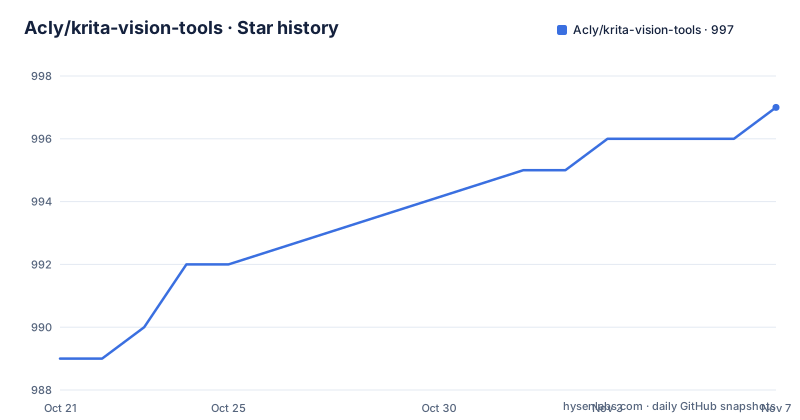
- Acly/krita-vision-tools997 ★ · +8
| Repository | 2026-10-21 | 2026-11-07 |
|---|---|---|
| Acly/krita-vision-tools | 989 | 997 |
8 Stars in the last 17 days, measured from the daily GitHub snapshot. Compare with other projects
Editorial analysis
Turning a click or a dragged box into a selection mask
Masking an object in Krita normally means painting a selection by hand, tracing an edge with the brush, or building a shape from vector paths. Krita Vision Tools adds a different route: machine learning segmentation that produces the mask for you. The plugin ships two selection tools. Select Segment from Point does what the name says, you click on a thing in the image and the tool selects it. Select Segment from Box asks you to draw a rectangle around the region of interest and selects the things inside it. Both end in the same place, a selection you can use as a mask, a filter source or a paint selection. The plugin also adds a Background Removal filter and an alternative Smart Patch for filling or smoothing small areas. It is written in C++ and packaged as a Krita extension, so it sits inside the editor rather than being a separate application you export files to.
Precise mode and what the box tool actually extracts
The tool options carry a Precise mode, and the distinction matters more than the marketing name suggests. Turning it on gives better quality masks, and the README is blunt about the cost: depending on the hardware the operation can take several seconds. The second difference is about semantics. The default box mode is happy to pull out one specific object, the one you framed. Precise mode behaves differently: the model typically extracts all foreground objects in the area, rather than one specific object that happens to sit entirely inside the box. That is a real change in what a selection contains, and it is the kind of detail that surprises people who draw a loose rectangle around a small detail in a busy scene. If you need a single element, keep the default mode. If you want everything in a region cleaned out at once, Precise mode is the one that behaves the way you expect.
Background Removal as a filter rather than a selection
Background removal is offered as a filter, not as a selection tool, and the difference in workflow is worth noting. The filter sits at Filters › Other › Background Removal..., and what it produces is a layer whose colors belong to the foreground objects. Read that description carefully, because it is narrower than the name suggests: the filter extracts the colors that belong to the foreground and leaves the rest of the layer transparent, rather than handing you a selection you can carry into other operations. For a painter who wants a cut-out sprite on a transparent layer, that is the operation they wanted anyway. For someone who wants to reuse the mask as a basis for further editing, the selection tools are the better starting point, since a selection can drive many other Krita operations while a filter result is a layer you now own.
The model stack: SAM, MobileSAM, BiRefNet and MI-GAN over vision.cpp
The plugin is mostly an integration layer, and the technical choices are visible in its technology section. Inference runs through vision.cpp, the same author's inference implementation, which is what makes local execution on a desktop feasible. Object detection is handled by the Segment Anything Model and by MobileSAM, the smaller member of that family, which is what the point and box selection tools sit on top of. Dichotomous segmentation, the split between foreground and background that the Background Removal filter needs, comes from BiRefNet. Inpainting, the work behind the alternative Smart Patch, is handled by MI-GAN. Separating detection from dichotomous segmentation is the interesting part of the design: a box prompt is a detection problem, while producing a clean cut-out edge is a segmentation problem, and the plugin uses a different network for each rather than forcing one model to do both jobs.
Installing the prebuilt plugin as a Python extension
Since version 2.0 the plugin installs as a Python extension rather than being copied into a plugin folder by hand. You download the latest archive from the project's releases page, and the file you want is a .zip. In Krita you open Tools › Scripts › Import Python Plugin from File..., select the .zip, accept the prompt and restart Krita. After the restart the tools appear in the tool bar. There is one warning to honour first: if an older version from before 2.0 is already installed, remove it, and the README suggests the easiest route is reinstalling the latest Krita, which keeps your settings. The plugin ships with a default machine learning model for each task, so a fresh install is immediately usable, and the release page for the project is linked from the README even though the repository is named krita-vision-tools.
Building the plugin inside the Krita source tree
Building is a different path from installing, and it exists because the plugin is native code that has to be compiled against the host. The README is explicit that the plugin must be part of the Krita source tree and built alongside it, so the environment setup comes from the Krita documentation for building Krita from source. After checking out the Krita sources, you move into the plugins folder and clone the plugin with its submodules, because the inference implementation is a submodule of its own:
cd krita/plugins
git clone --recurse-submodules https://github.com/Acly/krita-vision-tools.git
You then add one line to the CMakeLists.txt in the same folder so the build system descends into the plugin directory:
add_subdirectory( krita-vision-tools )From there you build and install Krita as the official instructions describe, and the plugin comes along with it. Skipping the recurse-submodules flag leaves you without the inference code and the build fails.
Version pinning, platform limits and the price of bigger models
Three constraints decide whether this plugin will work for you. The first is the Krita version: the current version of the plugin is built for Krita 5.2.13 and has been tested with Krita 5.2.14, and using it with other versions may lead to crashes. The second is the platform: currently Windows and Linux are supported, so a macOS user has no path here. The third is the model you choose. The plugin comes with a default model per task, and alternative models are offered for the background removal task, distributed as .gguf files that you place in the directory shown by the Folder button in the Background Removal filter dialog. Those alternatives can yield higher precision and better results, but usually at the cost of running slower and needing more memory. Precise mode adds to the same bill by taking several seconds. A reviewer on a modest laptop should measure the interactive cost before committing to the larger models.
Editorial conclusion
Adopt Krita Vision Tools if you paint in Krita and want a click or a dragged box to become a selection mask without leaving the application, and if you are on Windows or Linux with Krita 5.2.13 or 5.2.14. Skip it if you are on macOS, on a different Krita version, or if a hosted service with a stable API is a better fit for your pipeline. Before installing, check that the release you download matches your Krita build, and remove any pre-2.0 copy of the plugin first.
Frequently asked questions
How do I install Krita Vision Tools on Windows or Linux?
Download the latest .zip from the project's releases page, then in Krita choose Tools › Scripts › Import Python Plugin from File..., select the .zip, accept it and restart Krita. The tools appear in the tool bar after the restart, and a pre-2.0 copy of the plugin should be removed first.
Which Krita versions does Krita Vision Tools support?
The current plugin is built for Krita 5.2.13 and has been tested with Krita 5.2.14. The README warns that using it with other versions may lead to crashes, and only Windows and Linux are supported.
What does Precise mode change about a box selection?
It produces better quality masks but can take several seconds depending on the hardware. It also extracts all foreground objects in the area, rather than one specific object that is contained entirely in the box.
Can I use my own segmentation models with Krita Vision Tools?
Yes. Model files use the .gguf extension, and you place them in the directory shown by the Folder button in the Background Removal filter dialog. The plugin ships a default model for each task, and the alternative models trade speed and memory for higher precision.
Official sources
Add this badge to your README
If you maintain this project, the badge below links readers to this analysis and shows its maintenance status from the daily GitHub snapshot. Paste the markdown into your README; add ?metric=license or ?metric=stars to the image URL for a different field.

[](https://hysenlabs.com/projects/acly-krita-vision-tools)Star history chart for your README
[](https://hysenlabs.com/projects/acly-krita-vision-tools)Was this useful?