AlexxIT/WebRTC: a Home Assistant camera card that hands all the work to go2rtc
Home Assistant custom component for real-time viewing of almost any camera stream using WebRTC and other technologies.
At a glance
- What is it?
- AlexxIT/WebRTC is a Home Assistant custom component that adds a Lovelace card for live camera streams. Since version 3 the streaming itself is done by go2rtc, which decides what you can watch, how fast, and who else can see it.
- Who is it for?
- Use it if you run Home Assistant and want a low-latency live camera card fed by RTSP, HomeKit, USB or an existing Hass camera entity. Skip it if you need cameras to appear as devices and entities, or if you cannot keep port 1984 away from untrusted machines on your network.
- Can I use it commercially?
- Yes. MIT is a permissive licence: you can use, modify and sell software built on it, as long as you keep its copyright and licence notices.
- Is it still maintained?
- Yes. The repository last received commits 42 days ago.
- What is it written in?
- Mainly JavaScript, according to GitHub's language statistics.
Answers come from the project's GitHub data, last synced on November 26, 2026, and from our analysis. They are not legal advice.
Star history
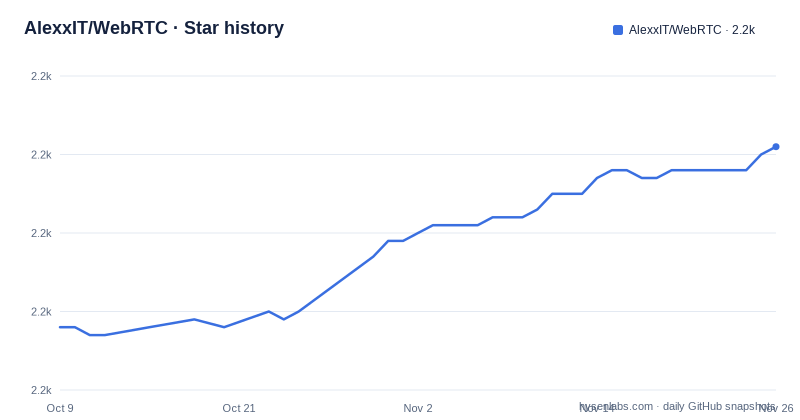
- AlexxIT/WebRTC2,211 ★ · +23
| Repository | 2026-10-09 | 2026-11-26 |
|---|---|---|
| AlexxIT/WebRTC | 2.2k | 2.2k |
23 Stars in the last 48 days, measured from the daily GitHub snapshot. Compare with other projects
Editorial analysis
The component adds no devices or entities, only two services and a card
AlexxIT/WebRTC is a Home Assistant custom component written mostly in JavaScript under the MIT license. Its README is blunt about the scope: the component does not create devices and entities. It creates only two services and a Lovelace custom card, named custom:webrtc-camera.
The consequence is practical. After you add the integration through Settings > Devices & Services > Add Integration > WebRTC, nothing new shows up in your entity list. Anything in your setup that expects a camera entity, such as an automation that targets one, has to keep using the camera you already have. This project only gives you a better way to look at a stream on a dashboard. If you were hoping it would register your RTSP camera as a Hass camera, it will not.
Version 3 swapped RTSPtoWebRTC for go2rtc, and go2rtc is where the capabilities live
Starting with version 3 the streaming server changed from RTSPtoWebRTC to go2rtc. That matters because almost everything the card can do is really a go2rtc feature. The README lists the lowest possible streaming latency for many protocols, input from RTSP, RTMP, HTTP (FLV, MJPEG, JPEG), HomeKit cameras and USB cameras, and output to RTSP, WebRTC, MSE/MP4 or MJPEG. It handles H264/H265, AAC, PCMU/PCMA and OPUS, and transcodes unsupported codecs on the fly through FFmpeg.
The card picks the streaming technology automatically from the stream codecs, the browser's capabilities and the network configuration. When a camera misbehaves, you are therefore debugging go2rtc and your codecs more than this repository. The project's own detailed documentation for the streaming side lives in the go2rtc repository, and the README tells you to read it there.
Three ways to run go2rtc, from automatic download to a server elsewhere on the LAN
The README splits users into three groups. Basic users do nothing: the component downloads and runs the latest version of go2rtc by itself. Advanced users install the go2rtc Home Assistant add-on or the Frigate 12+ add-on. The third group installs go2rtc as a binary or in Docker on any server in the LAN.
The cost of the first option is control. You get whatever the latest go2rtc is at the time, and settings are changed by adding a go2rtc.yaml file to the Hass configuration folder. If go2rtc runs elsewhere, the card has a server option that points at it:
server: http://192.168.1.123:1984/ # custom go2rtc server address, default emptyThe default is empty, which means the card talks to the go2rtc that the component manages.
Port 1984 serves the stream list with no password
This is the sharpest edge in the README, and it marks it Important. go2rtc runs its own web interface on port 1984 without a password. That interface shows the list of active camera streams, and anyone on your LAN can open those streams without a password. The README says you can disable this in the go2rtc config.
For a home network with only trusted devices this may be acceptable. For a network with guests, IoT devices you do not trust, or a flat office LAN, it means every camera you add to the card is also visible to every other machine that can reach that port. Nothing in the component closes it for you, so the step of editing go2rtc.yaml is yours to take before you point a camera at the integration.
The card takes a url, an entity or a list of streams, and each has its own rules
Only one of url, entity or streams is required; every other setting is optional. A url can be any protocol go2rtc supports (rtsp, rtmp, http, onvif, dvrip, homekit, roborock and others), a stream name from the go2rtc config, or a Jinja2 template that renders one of those. An entity can be almost any camera from Hass, not literally all of them. The shortest forms are:
type: 'custom:webrtc-camera'
url: 'camera1' # stream name from go2rtc.yamltype: 'custom:webrtc-camera'
entity: camera.generic_stream # change to your camera entity_idThe streams form lets you list several sources, each with optional name, mode and media. You switch between them by clicking the mode label, or by clicking the stream name when ui: true is set. The mode option defaults to all of webrtc, webrtc/tcp, mse, hls and mjpeg, and media defaults to both video and audio.
A poster has stricter rules than a url. An http link must be publicly available, so a snapshot behind your own login will not load. Otherwise a poster can be a Hass camera entity, a go2rtc stream name or a Jinja2 template. To show a poster and not start playing, use an empty url:
type: custom:webrtc-camera
poster: dahua1-snap  # stream name from go2rtc.yaml (http-snapshot)
streams:
  - url: ''          # empty url, so only poster will be shown
  - url: dahua1      # stream name from go2rtc.yaml (rtsp-stream)
Layout changes are raw CSS in a style string, and rotation has a server-side price
There are no dedicated options for hiding buttons or moving controls. Everything is done by injecting CSS through the style key. Hiding the screenshot button, for example, is:
style: '.screenshot {display: none}'The same pattern hides the mode label, the fullscreen button and the picture-in-picture button, and other selectors such as .shortcuts, .ptz and .header move those parts around. The aspect ratio fix for a stretched picture is style: "video {aspect-ratio: 16/9; object-fit: fill;}". The consequence is that you need to know the class names and write valid CSS yourself, and a typo simply does nothing.
Rotation shows the tradeoff clearly. Rotating on the client with video {transform: rotate(90deg); aspect-ratio: 1} costs no server CPU. Rotating on the server through FFmpeg transcoding in go2rtc has a high CPU cost. Digital zoom and pan are separate: the digital_ptz block has switches such as mouse_drag_pan, mouse_wheel_zoom and touch_drag_pan, all true by default. Real pan, tilt and zoom control for a camera is configured separately, with examples on the project wiki.
YAML-mode dashboards need a manual resource, and the README admits a cache problem
The custom card is registered with the Home Assistant UI automatically, with one exception: if you manage the UI in YAML mode, you must add the resource yourself, then refresh the browser:
url: /webrtc/webrtc-camera.js
type: module
Installation otherwise has two routes. Through HACS you go to Integrations, press Plus, pick WebRTC and install. Manually, you copy the webrtc folder from the latest release into /config/custom_components. If WebRTC is missing from the list of integrations after install, the README says to clear the browser cache.
On upkeep, the repository is not archived and the last push was 2026-10-15. The latest release is v3.6.1 from 2025-08-13, preceded by v3.6.0 on 2024-10-12, which introduced templates for the shortcuts, style and ptz card options, and v3.5.2 on 2024-04-07. The README also has sections on two-way audio, snapshots to Telegram, casting or sharing a stream, streaming to a camera, a FAQ, debugging and a list of known working cameras, which is where to look when a particular model fails.
Editorial conclusion
Use it if you run Home Assistant and want a low-latency live camera card fed by RTSP, HomeKit, USB or an existing Hass camera entity. Skip it if you need cameras to appear as devices and entities, or if you cannot keep port 1984 away from untrusted machines on your network. Before installing, decide which of the three go2rtc setups you want, and check whether your dashboards are in YAML mode, because that needs a manual resource entry.
Frequently asked questions
How to use WebRTC in Home Assistant with AlexxIT/WebRTC?
Add the integration under Settings > Devices & Services > Add Integration > WebRTC, then put a custom:webrtc-camera card on a dashboard with a url, an entity or a streams list. The url can be a go2rtc stream name or any protocol go2rtc supports.
How to install AlexxIT/WebRTC in Home Assistant?
Either use HACS > Integrations > Plus > WebRTC > Install, or copy the webrtc folder from the latest release into /config/custom_components. If you manage the UI in YAML mode, also add /webrtc/webrtc-camera.js as a module resource.
Is WebRTC a security risk when used through AlexxIT/WebRTC?
The risk the README names is go2rtc's web interface on port 1984, which has no password and lets anyone on your LAN open the active camera streams. You can disable it in the go2rtc config.
Official sources
Add this badge to your README
If you maintain this project, the badge below links readers to this analysis and shows its maintenance status from the daily GitHub snapshot. Paste the markdown into your README; add ?metric=license or ?metric=stars to the image URL for a different field.

[](https://hysenlabs.com/projects/alexxit-webrtc)Star history chart for your README
[](https://hysenlabs.com/projects/alexxit-webrtc)Was this useful?