TRex turns a screen selection into clipboard text, offline, with no window
Copy any text on your screen, stop retyping.
At a glance
- What is it?
- TRex is a Swift menu bar app for macOS that runs OCR over a region you drag out and drops the recognized text on the clipboard, with a CLI, URL scheme and Alfred and Raycast integrations. The App Store copy is paid; the source is MIT.
- Who is it for?
- TRex suits a macOS user who regularly needs text out of PDFs with non-selectable text, video frames, screen shares and images, and who will accept an OCR approximation instead of selectable text.
- Can I use it commercially?
- Yes. MIT is a permissive licence: you can use, modify and sell software built on it, as long as you keep its copyright and licence notices.
- Is it still maintained?
- Yes. The repository last received commits 39 days ago.
- What is it written in?
- Mainly Swift, according to GitHub's language statistics.
Answers come from the project's GitHub data, last synced on November 7, 2026, and from our analysis. They are not legal advice.
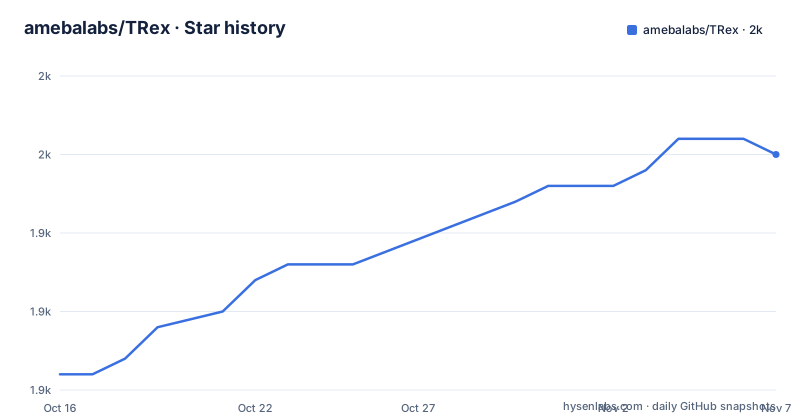
Star history
- amebalabs/TRex1,950 ★ · +14
| Repository | 2026-10-16 | 2026-11-07 |
|---|---|---|
| amebalabs/TRex | 1.9k | 2k |
14 Stars in the last 22 days, measured from the daily GitHub snapshot. Compare with other projects
Editorial analysis
Three steps, and the third one is the clipboard
TRex exists for the case where you can read text on your screen but cannot select it. A PDF with non-selectable text, a screenshot, a YouTube video, a Zoom screen share. The interaction is deliberately as short as a screenshot: invoke Capture from the menu bar or through a configurable global shortcut, drag a region, and the recognized text is already on the clipboard. There is no third action, no paste dialog, no window.
The design constraint that produces this is stated plainly in the README: TRex is designed to be invisible and has no UI beyond the menu bar app and preferences. That is why the project pairs with other apps rather than trying to be one. The demo GIF even shows a text editor on the right, and the README notes it is not part of TRex, it is Tot, so the workflow of pasting into an editor is assumed to happen elsewhere.
Every feature works offline, with no internet connection required. For a tool that reads your screen, that is not a small claim: it means the OCR and the automation actions do not call out to a service. The README also says recognition language is configurable, and there is a custom words list for vocabulary the recognizer keeps getting wrong.
The repository is Swift, licensed MIT, with the Xcode project at TRex.xcodeproj, the app sources under TRex/, a Formula/ directory for the Homebrew cask, and a CHANGELOG.md. The last push was on 2026-09-29 and the repository is not archived.
Offline OCR also means offline QR and barcode handling
The recognition work does not stop at text. TRex reads QR codes and barcodes in the same capture, and then acts on what it found rather than just copying it. The automation actions list is the interesting part, because it turns a capture from a read-only operation into a trigger.
Open URLs found in QR codes. Detect and open URLs found in captured text. Run a Shortcut from Shortcuts.app. Trigger a user defined URL scheme, which is the hook for integrating with other apps that register one. Those four actions mean TRex can sit in front of a workflow: capture a code on a screen and land in the app it points at.
The trade-off is visible from the feature list. There is no documented confidence threshold, no preview window to correct a bad recognition, and no way to edit text inside TRex before it lands on the clipboard. What you get is whatever the recognizer produced, and correcting it is someone else's job. The README does not document a list of supported barcode symbologies either, so the practical check is whether your specific code type reads correctly in a capture.
Getting TRex, and the price difference between the two channels
There are three acquisition paths and they are not equivalent. The App Store listing is a purchase: the README says to buy TRex from the App Store. GitHub Releases offers a download. Homebrew installs the cask:
brew install --cask trexThat command is the shortest path for anyone who wants to try it without spending anything. The Homebrew formula lives in the repository's Formula/ directory, so the version you get is whatever that cask pins at the time you run it.
The README states the app runs on macOS Big Sur (11.0) and up. There is no build-from-source instruction in the README, though the Swift project is in the tree, so compiling it needs an Xcode toolchain and the package dependencies under Packages/ resolved by Xcode itself.
Current tags are all prerelease for the 2.0 line: v2.0.1-beta.3 on 2026-09-29, v2.0.1-beta.2 on 2026-09-27, and v2.0.1-beta.1 on 2026-07-12. The README badge for the latest release points at whatever GitHub considers latest, so a Homebrew install may land you on a beta. The README does not say which line is the stable one, and CHANGELOG.md is where you would look.
The bundled CLI at /Applications/TRex.app/Contents/MacOS/cli/trex
TRex ships a command line tool inside the app bundle rather than as a separate installable formula, and its path is stated in the feature list:
/Applications/TRex.app/Contents/MacOS/cli/trexThat path has consequences. The README does not document how to make the bundled CLI convenient to invoke from scripts. It also means uninstalling the app removes the CLI with it, since it lives under Contents/MacOS.
The README lists the CLI as a feature but does not document its flags, its output format, or its exit codes. There is no man page and no usage example in the documentation. If you plan to drive TRex from scripts, that gap has to be closed by inspecting the binary rather than by reading docs, and the fact that the tool is versioned with the app bundle means its interface may shift between beta tags.
For automation that does not need a terminal, the URL scheme is the documented route, and the README lists all six endpoints.
Six URL endpoints, which is the documented scripting surface
The URL scheme is where the project documents its triggers properly, and it is more capable than the CLI documentation. The endpoints are:
trex://capture
trex://captureclipboard
trex://captureautomation
trex://captureclipboardautomation
trex://shortcut?name=
trex://showPreferences
The pairing is the useful part. capture and captureautomation both act on the screen, captureclipboard and captureclipboardautomation act on the clipboard, so you can run recognition on content you already copied without a region selection. The name parameter on trex://shortcut sets which Shortcut the Run Shortcut action invokes, which means the Shortcut is chosen at call time rather than fixed in preferences.
What is missing is equally clear. No parameter is documented for specifying a language for a single call, no output parameter for writing somewhere other than the clipboard, and no result payload. Every one of these endpoints is a trigger, not a query, so the useful composition is trigger plus app, not trigger plus program that consumes a return value. That is fine for a menu bar utility and wrong for building on top of it.
Alfred and Raycast both take it as a dropped-in command
Both launcher integrations are file drops rather than plugins with settings. Alfred users download the official workflow, a .alfredworkflow file served from the repository's Resources directory. Raycast users download the repository as a ZIP, unzip it, then add a script directory.
The README then walks through the Raycast side: open Raycast Settings, go to Script Commands, click Add Script Directory, and select Resources/Raycast/TRex Commands from the unzipped folder. After that you search Raycast for "Capture Text" to run it or assign a shortcut.
The difference between the two is worth noting for anyone choosing. The Alfred workflow is one file you open once. The Raycast integration requires pointing Raycast at a directory that came out of a ZIP download of the whole repository, so it is tied to the branch you downloaded and to the path you unzipped it to. Neither integration is documented as auto-updating, and the README gives no command to refresh them, which means an upgrade likely means repeating the download.
Also worth knowing: the app can hide its menu bar item, and the same preferences hold the global shortcut, recognition language, and custom words list.
What TRex is not, next to the tools it is compared with
The README points at SwiftBar and Esse as neighbouring projects, and both sit in different territory. SwiftBar is described as a macOS menu bar customization tool, while TRex focuses on OCR capture. Esse is described as a text transformation tool for iOS and macOS.
The real alternative for extraction is doing nothing clever: Cmd+A, Cmd+C. Where TRex earns its place is specifically text that will not select, and the README names those cases precisely, including PDFs with non-selectable text, a screenshot, a YouTube video, and a Zoom call screen share. Against a plain text editor with OCR support, TRex's advantage is the three-step flow and the offline guarantee, not recognition breadth, which the README does not quantify.
The licence is MIT, which covers the source in the repository, including the LaunchAtLogin and KeyboardShortcuts work by Sindre Sorhus that the README acknowledges. Whether the MIT terms on the repository grant you redistribution rights over a binary you would have to build from the App Store release is a separate question the README does not address.
Editorial conclusion
TRex suits a macOS user who regularly needs text out of PDFs with non-selectable text, video frames, screen shares and images, and who will accept an OCR approximation instead of selectable text. It is the wrong choice if your texts are already selectable, since the App Store version is paid while the Homebrew cask installs the free build, or if you need to script recognition on Linux, since the CLI ships inside the macOS app bundle at /Applications/TRex.app/Contents/MacOS/cli/trex. Before adopting it, run brew install --cask trex and check recognition quality on your own document mix, then decide whether the trex:// URL scheme or the CLI fits your automation better.
Frequently asked questions
Does TRex need an internet connection to run?
No. The README states that every feature in TRex works offline and no internet is needed.
How do I install TRex on macOS without the App Store?
Run brew install --cask trex, or download a build from GitHub Releases. The app requires macOS Big Sur (11.0) or later.
Can TRex be triggered from a script or a shortcut app?
Yes. The URL scheme offers trex://capture, trex://captureclipboard, trex://captureautomation, trex://captureclipboardautomation, trex://shortcut?name= and trex://showPreferences, and a CLI ships inside the app bundle at /Applications/TRex.app/Contents/MacOS/cli/trex.
Official sources
Add this badge to your README
If you maintain this project, the badge below links readers to this analysis and shows its maintenance status from the daily GitHub snapshot. Paste the markdown into your README; add ?metric=license or ?metric=stars to the image URL for a different field.

[](https://hysenlabs.com/projects/amebalabs-trex)Star history chart for your README
[](https://hysenlabs.com/projects/amebalabs-trex)Was this useful?