Back In Time: incremental rsync backups with hard links, on Linux
A comfortable and well-configurable graphical Frontend for incremental backups, with a command-line version also available. Modified files are transferred, while unchanged files are linked to the new folder using rsync's hard link feature, saving storage space. Restoring is straightforward via file manager, command line or Back In Time itself.
At a glance
- What is it?
- Back In Time is a Qt frontend and CLI for rsync-based snapshot backups on GNU/Linux. It saves space by hard-linking unchanged files, and its own README lists two open problems in the current stable release.
- Who is it for?
- Adopt Back In Time if you already know rsync, want snapshot folders you can browse without a special tool, and are willing to read the Known Problems section before trusting it with permissions-sensitive data. Do not adopt it if you need deduplication across machines, encryption, or a GUI that is currently free of known defects; the README itself points to a files view bug and a permissions change that can make the first backup after upgrading larger and slower.
- Can I use it commercially?
- Not without permission. GitHub finds no licence file in the repository, and without a licence all rights are reserved by default: you may read the code but not reuse it. Check the README, or ask the authors, before using it.
- Is it still maintained?
- Yes. The repository last received commits 4 days ago.
- What is it written in?
- Mainly Python, according to GitHub's language statistics.
Answers come from the project's GitHub data, last synced on November 22, 2026, and from our analysis. They are not legal advice.
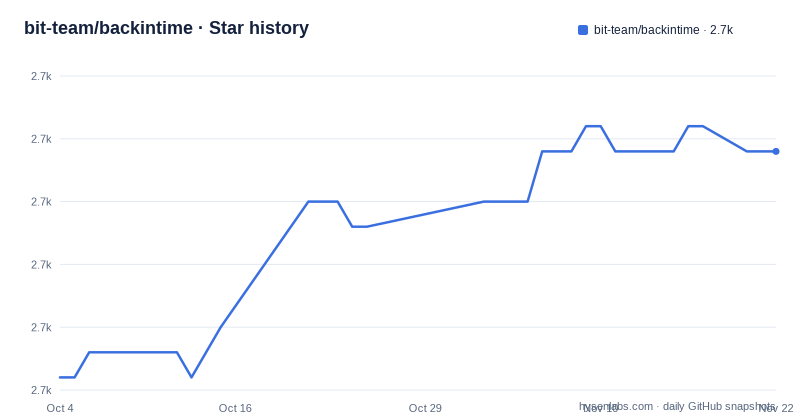
Star history
- bit-team/backintime2,682 ★ · +9
| Repository | 2026-10-04 | 2026-11-22 |
|---|---|---|
| bit-team/backintime | 2.7k | 2.7k |
9 Stars in the last 49 days, measured from the daily GitHub snapshot. Compare with other projects
Editorial analysis
What Back In Time solves, and who it is actually for
Back In Time targets a narrow but common situation: a GNU/Linux desktop or workstation where you want periodic snapshots of your home directory onto a second disk or a remote host, without learning a snapshot filesystem or a content-addressed store. The README describes it as a comfortable and well-configurable graphical frontend for incremental backups using rsync, with a command-line version also available. That sentence is the whole product thesis. The GUI is the differentiator; rsync is the engine.
The audience follows from that. Someone who already runs rsync by hand and wants a timeline they can click through will find the model familiar. Someone who wants application-consistent database backups, or who expects a single binary with no Python runtime, is in the wrong place. The README states it is written in Python3 and available for all major GNU/Linux distributions as command line tool backintime and GUI backintime-qt, which tells you the supported platform is Linux, not macOS or Windows.
How the hard-link snapshot mechanism works
Each backup run produces a new directory. Files whose contents changed since the previous run are transferred into it; files that did not change are linked to the copy in the previous directory using rsync's hard link feature. The README states this directly: modified files are transferred, while unchanged files are linked to the new directory using rsync's hard link feature, saving storage space.
The practical consequence is that every snapshot directory looks complete. You can open it in a file manager, copy a single file out of it, or point a command-line tool at it, and you see a full tree rather than a chain of deltas that needs reassembly. The cost is that the snapshots are only as portable as the filesystem underneath: hard links are a property of one filesystem, so the snapshot history has to live together on the target. That is a design trade-off, not a defect, but it rules out splitting a single backup profile across two mounted volumes.
The README also notes backups can be scheduled and stored locally or remotely through SSH. Scheduling and remote transfer are therefore part of the same configuration surface as the snapshot layout.
Installing Back In Time on Ubuntu or Linux Mint
The README does not give a package command. It says Back In Time is included in many GNU/Linux distributions and that you should use their repositories to install it. For Debian-derived systems such as Ubuntu and Linux Mint that normally means the distribution package, which provides the backintime CLI and the backintime-qt GUI as separate packages. The README does not name the package to install, so check what your repository actually carries before assuming a version.
This matters because the latest stable release listed in the repository is v1.6.1 from 2026-02-10, while v2.0.0-rc1 and v2.0.0-rc2 are release candidates, not final releases. If your distribution offers something older than 1.6.1, you are running code from before the current stable line.
If you want the development version instead, the README points to the Build & Install section of CONTRIBUTING.md and says the dependencies are described there. It does not reproduce those steps in the README, so treat that file as the source of truth rather than improvising a pip install.
For a first real use, launch the GUI and create a profile with a source directory and a destination. The README's own description of restoring is the useful part here: restoring is straightforward via file manager, command line or Back In Time itself. So the first meaningful check after your initial run is to open the snapshot directory in your file manager and confirm the tree is there, rather than trusting the GUI timeline alone.
Two known problems in the current stable release
The README has a Known Problems and Workarounds section, and it lists exactly two entries for the latest stable release. Neither is cosmetic.
The first is a files view widget that does not display files or directories when a backup is selected in the timeline widget. According to the README, the widget shows anything but the root directory. The documented workaround is to toggle the Show hidden files button in the files view's own toolbar. The README says the problem might have been introduced in version 1.5.* or 1.6.*, that there is no clear solution, that the real cause is still unknown, and that the plan is to rewrite the widget from scratch, referencing issue #2567. A backup tool whose browsing pane can silently show an empty view is a real usability hazard: an empty-looking snapshot is easy to misread as a failed or empty backup.
The second concerns file permissions. In versions up to and including 1.1.24, all file permissions in the backup target were set to -rw-r--r--. From version 1.2.0 onward, rsync runs with the --perms option, which preserves source permissions. The README states plainly that backups can therefore be larger and slower, especially the first backup after upgrading to a version at or above 1.2.0. It also gives the escape hatch: Expert Options, then Paste additional options to rsync, where you can add --no-perms. That is a genuine trade-off rather than a bug, but it means an upgrade can change both your storage consumption and what your restored files look like.
Where Back In Time is the wrong tool
The hard-link model needs the previous snapshot to be intact and on the same filesystem as the new one. If you delete an intermediate snapshot directory by hand, you break the chain that later snapshots depend on for their unchanged files. The README does not document a rollback or integrity-repair procedure for that situation, and it does not document pruning semantics, so anyone who plans to script deletion of old snapshots is working outside what the project documents.
There is no mention of encryption, deduplication across independent backup sets, or application-aware quiescing. If your requirement is an encrypted, deduplicated repository that multiple machines push into, this is not that product. If your requirement is a browsable folder tree on a disk you control, it is.
Platform is the other boundary. The README scopes the project to GNU/Linux. Running it on a non-Linux system is not a supported configuration according to the README.
Back In Time compared with Timeshift and Borg
The comparison that matters is about what a snapshot is made of. Timeshift, the system-restore tool common on Linux desktops, is built around system snapshots and typically relies on filesystem-level or rsync-based snapshots of the system, with restore aimed at returning an OS to an earlier state. Back In Time is aimed at user data: the README's framing is a backup frontend with a timeline you browse and restore individual files from, via file manager, command line, or the application itself. If you want to roll back a broken system update, that is a different job from recovering a document you deleted last Tuesday.
Borg takes the opposite architectural route to Back In Time's hard links. Borg repositories are deduplicated and content-addressed, which means snapshots are not plain directories you can browse without the tool. Back In Time's README makes the plain-directory property explicit as a benefit of the hard-link approach: unchanged files are linked into the new directory, so the result is a normal tree. The trade is that Back In Time cannot deduplicate identical file contents that appear at different paths, and it cannot compress or encrypt a repository in the way a content-addressed store can. LuckyBackup and Pika Backup occupy adjacent ground; the README does not discuss either, so any comparison there would go beyond what the project documents.
Maintenance, releases and licence
The repository is not archived and the last push was on 2026-09-23. The README states the project has been in active development since the current team joined in summer 2022, and that since around 2024 @buhtz has been the sole maintainer, handling code analysis, documentation, issue resolution and feature implementation, working voluntarily in spare time. The README also states the current focus is on fixing major issues rather than implementing new features, and on stabilizing the code base and its test suite.
That has a direct upgrade-cost implication. A single volunteer maintainer with a fix-first policy means new features should not be expected on a schedule, and the release candidates for 2.0.0 (v2.0.0-rc1 on 2026-08-12 and v2.0.0-rc2 on 2026-09-02) are candidates, not stable releases. If you install from a distribution repository you inherit that distribution's packaging and version, which is the path the README recommends.
On licensing, the README's own header carries an SPDX identifier of GPL-2.0-or-later and states the program is released under GNU General Public License v2 (GPLv2), pointing to the LICENSES directory for the full text. The repository also carries a LICENSES.md file and a REUSE.toml, which suggests REUSE-style licence metadata is maintained. The README does not state a licence for every bundled asset, so if you plan to redistribute Back In Time or ship it inside a product, read the LICENSES directory and LICENSES.md yourself rather than relying on the README header alone. This is a description of what the files say, not legal advice.
Editorial conclusion
Adopt Back In Time if you already know rsync, want snapshot folders you can browse without a special tool, and are willing to read the Known Problems section before trusting it with permissions-sensitive data. Do not adopt it if you need deduplication across machines, encryption, or a GUI that is currently free of known defects; the README itself points to a files view bug and a permissions change that can make the first backup after upgrading larger and slower. Before relying on it, verify on your own distribution whether the packaged version is 1.6.1 or a 2.0.0 release candidate, and read FAQ.md plus the linked issue #2567 so you know which of the two known problems applies to your build.
Frequently asked questions
How do I install Back In Time on Ubuntu?
The README says Back In Time is included in many GNU/Linux distributions and that you should use their repositories to install it, which on Ubuntu means the distribution packages for the backintime command line tool and the backintime-qt GUI. The README does not list an apt command, so check your repository's candidate version before installing.
How do I use Back In Time?
You configure a profile with a source and a destination, then run a backup; modified files are transferred and unchanged files are linked into the new directory using rsync's hard link feature. Restoring is done via file manager, command line, or Back In Time itself, according to the README.
What is Back In Time?
It is a graphical frontend for incremental backups using rsync, with a command-line version also available, written in Python3 and distributed for GNU/Linux as backintime and backintime-qt. Backups can be scheduled and stored locally or remotely through SSH.
How does Back In Time compare with Timeshift?
Back In Time is presented in its README as a backup frontend whose snapshots are browsable directory trees you restore individual files from, using rsync hard links to avoid duplicating unchanged files. Timeshift is not discussed in the README, so the project does not document a comparison.
What are the alternatives to Back In Time?
Borg is the clearest architectural contrast: it uses a deduplicated, content-addressed repository rather than hard-linked plain directories, so its snapshots are not browsable as ordinary folders. The Back In Time README does not discuss alternatives, so any other comparison is not documented by the project.
Official sources
Add this badge to your README
If you maintain this project, the badge below links readers to this analysis and shows its maintenance status from the daily GitHub snapshot. Paste the markdown into your README; add ?metric=license or ?metric=stars to the image URL for a different field.

[](https://hysenlabs.com/projects/bit-team-backintime)Star history chart for your README
[](https://hysenlabs.com/projects/bit-team-backintime)Was this useful?