libinput-gestures: Mapping Touchpad Swipes to Shell Commands on Linux
GitHub describes it as Actions gestures on your touchpad using libinput. The repository metadata lists Python as its primary language. This article stays within the project description and details documented in the GitHub repository README.
At a glance
- What is it?
- libinput-gestures reads libinput gesture events from your touchpad and runs configured shell commands, typically xdotool, to control windows and apps. It works on Xorg and partially on Wayland, but its dependence on parsing libinput output makes it fragile across versions.
- Who is it for?
- Adopt libinput-gestures if you run a Linux desktop with a touchpad, want to bind three-finger swipes to workspace or browser actions, and are comfortable editing a config file. Do not use it for touchscreens, since libinput does not expose gestures for them, and be cautious on Wayland where it works only partially via XWayland.
- Can I use it commercially?
- Not without permission. GitHub finds no licence file in the repository, and without a licence all rights are reserved by default: you may read the code but not reuse it. Check the README, or ask the authors, before using it.
- Is it still maintained?
- Yes. The repository last received commits 67 days ago.
- What is it written in?
- Mainly Python, according to GitHub's language statistics.
Answers come from the project's GitHub data, last synced on October 22, 2026, and from our analysis. They are not legal advice.
Star history
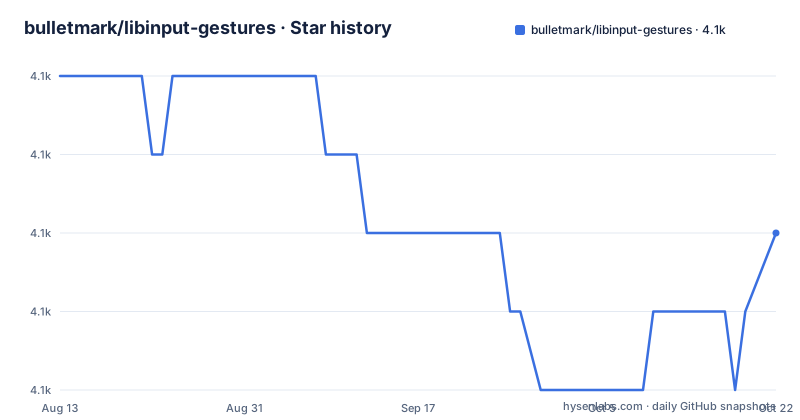
- bulletmark/libinput-gestures4,133 ★ · -2
| Repository | 2026-08-13 | 2026-10-22 |
|---|---|---|
| bulletmark/libinput-gestures | 4.1k | 4.1k |
-2 Stars in the last 70 days, measured from the daily GitHub snapshot. Compare with other projects
Editorial analysis
The Problem: Touchpads Do More Than Scroll
Modern touchpads can detect multi-finger swipes and pinches, but the Linux desktop does not always expose those events to user-level configuration. libinput, the input stack used by most distributions, recognizes gestures but leaves the interpretation to the compositor or window manager. If you want a three-finger swipe up to switch workspaces or a three-finger swipe left to go back in a browser, you need a tool that bridges the gap. libinput-gestures fills that role by reading libinput's gesture events and mapping them to shell commands. It is aimed at users who want to customize touchpad gestures beyond what their desktop environment provides, particularly those running GNOME or KDE on Xorg. The README states that the author's motivation was to use triple swipe up/down for workspace switching and triple swipe left/right for browser navigation, and the default configuration reflects that.
How It Works: Parsing libinput Output
The mechanism is indirect. libinput-gestures does not hook into libinput's API directly. Instead, it runs the `libinput list-devices` and `libinput debug-events` utilities and parses their text output. It identifies the touchpad device and then reads gesture events as they are emitted. Each gesture, such as `swipe up` or `pinch in`, is matched against a configuration file that maps it to a command. The command is typically an `xdotool` invocation that simulates keyboard shortcuts or mouse actions. For example, a swipe up might run `xdotool key super+Page_Down` to move to the next workspace. The README warns that this parsing approach is fragile: "a little fragile to any version changes in their output format." That is a real constraint. If libinput changes its debug output format, the tool may break until updated. It is developed and tested on Arch Linux with GNOME 3 on Xorg and Wayland, and reported to work with KDE, but the author is unsure about other systems.
Installation and Setup Steps
The README gives concrete commands. You need Python 3.8 or later and the `libinput` package. On systems where tools are packaged separately, you also need `libinput-tools`. You must add your user to the `input` group to read the touchpad device: `sudo gpasswd -a $USER input`, then reboot. The README notes a security risk: this makes all `/dev/input` devices readable by your user, and suggests a udev rule as an alternative if that concerns you. Most users will also want `wmctrl` and `xdotool`, though they are not formal dependencies. On Arch, install via `sudo pacman -S wmctrl xdotool`; on Debian, `sudo apt-get install wmctrl xdotool`; on Fedora, `sudo dnf install wmctrl xdotool`. Then install the software: `git clone https://github.com/bulletmark/libinput-gestures.git`, `cd libinput-gestures`, and `sudo ./libinput-gestures-setup install`. Arch users can install from the AUR instead. After installation, either use the default configuration with `libinput-gestures-setup autostart start`, or copy `/etc/libinput-gestures.conf` to `~/.config/libinput-gestures.conf` and edit it.
Configuration Syntax and Gesture Types
The configuration file defines gesture-to-command mappings. Available gestures include `swipe up`, `swipe down`, `swipe left`, `swipe right`, diagonal swipes like `swipe left_up`, `pinch in`, `pinch out`, `pinch clockwise`, `pinch anticlockwise`, and `hold on` gestures. The default mappings use GNOME/KDE workspace switches and browser navigation. You can specify a finger count, such as `swipe up 3` to trigger only with three fingers. If no finger count is given, the gesture fires with any number of fingers. Gestures with a finger count take priority over the same gesture without one. The README notes that two-finger swipes and taps are already used by the desktop for scrolling, so you typically configure three or more fingers. Commands are not run under a shell, so shell substitutions and expansions are not parsed. You must specify the full path to any command, and environment variable and `~` substitutions are supported. This is a deliberate design choice for efficiency, but it means you cannot write complex pipelines directly in the config. For that, the README suggests putting commands in an executable script.
Testing and Debugging Your Gestures
Before relying on the configuration, the README instructs you to test. Stop the service with `libinput-gestures-setup stop`, then run `libinput-gestures -d` in debug mode. This prints the commands that would be executed for each gesture, without actually running them. You can then confirm that a three-finger swipe up reports the workspace-switching command, and that pinch gestures report the expected commands. The debug output also surfaces errors in your custom gestures or missing packages. This is a practical step that catches misconfigurations early. If a gesture does not appear, you may need to check that your touchpad supports the number of fingers, or that libinput is emitting the event at all. The README points to a TROUBLESHOOTING section for further issues, though that section is not included in the provided material.
Known Limitations and Wrong Tool Cases
The most obvious limitation is touchscreens. libinput does not interpret gestures for touchscreens, so this utility cannot work with them. It is strictly for touchpads. Another limitation is Wayland support. The README says it "works somewhat incompletely on Wayland (via XWayland)." That means gestures may work for XWayland applications but not for native Wayland windows, depending on your compositor. If you are on a pure Wayland session with no XWayland, this tool may be useless. The fragility to libinput output format changes is a maintenance concern: any libinput update could break parsing until the project releases a fix. Also, the requirement to join the `input` group exposes all input devices to your user, which is a security trade-off. If you need gestures on a touchscreen, or you require robust Wayland support, this is the wrong tool. For those cases, you would need a compositor that natively supports gestures, such as a Wayland compositor with built-in gesture configuration.
Alternatives and Maintenance Considerations
A direct alternative is to use your desktop environment's built-in gesture support. GNOME on Wayland has its own gesture handling, and KDE has added touchpad gesture settings in recent versions. The difference is that those are integrated into the compositor, so they work natively on Wayland and do not require parsing libinput output. However, they may not offer the same flexibility to bind arbitrary shell commands. Another alternative is `fusuma`, a Ruby-based gesture tool that also reads libinput events, but it is not mentioned in the README, so I cannot compare it from this material. The maintenance cost of libinput-gestures is tied to its parsing approach. You should monitor libinput updates and test after each one. The project is not archived, but the last push and release information is unknown, so you should verify whether it is actively maintained before adopting it. The license is listed as unknown, which is a red flag for a project you might bundle or redistribute. Check the repository for a license file before using it in a commercial product.
Editorial conclusion
Adopt libinput-gestures if you run a Linux desktop with a touchpad, want to bind three-finger swipes to workspace or browser actions, and are comfortable editing a config file. Do not use it for touchscreens, since libinput does not expose gestures for them, and be cautious on Wayland where it works only partially via XWayland. Before relying on it, verify that your libinput version's output format matches what the tool parses, test with `libinput-gestures -d` to confirm your gestures fire the intended commands, and check whether your distribution packages it separately, as Arch does with the AUR package.
Frequently asked questions
How do I install libinput gestures?
On the distribution whose package is linked at the top of the readme, install it from the user repository and skip to configuration. Otherwise clone the repository and run the bundled setup script with elevated rights, which installs the program, its configuration file, a desktop entry and a service unit. Python 3.8 or later is required, and Python 2 is not supported.
How do I use libinput gestures once it is installed?
Run the setup script's autostart and start commands to use the shipped configuration as it is. To customise, copy the system configuration file into your own configuration directory and edit it, where each gesture is mapped to a command. The readme suggests testing with the debug flag, which prints the commands that would be executed instead of running them.
Why do I need to join the input group?
Because reading the touchpad device requires it. The readme warns that membership makes every raw input device on the system readable by your account, and it offers a device rule with a per user access list as an alternative for anyone who considers that a risk. A reboot is required after changing the group.
Does libinput-gestures work on a touchscreen?
No. The readme states that the input library does not interpret gestures for touchscreens, so the utility can only be used with a touchpad. It also says the tool works somewhat incompletely on the newer display server through its compatibility layer, and that it has been reported to work with a second desktop environment.
Why do my gesture commands need a full path?
Because the configured command is not run under a shell, so nothing expands arguments and the search path is not consulted. The readme gives the reason, efficiency and the fact that most configurations do not need a shell, and the answer for anything more complicated is to write a script and configure that instead.
Official sources
Add this badge to your README
If you maintain this project, the badge below links readers to this analysis and shows its maintenance status from the daily GitHub snapshot. Paste the markdown into your README; add ?metric=license or ?metric=stars to the image URL for a different field.

[](https://hysenlabs.com/projects/bulletmark-libinput-gestures)Star history chart for your README
[](https://hysenlabs.com/projects/bulletmark-libinput-gestures)