Libretto: giving a coding agent a browser it can inspect and record
The AI toolkit for building reliable browser automations
At a glance
- What is it?
- Libretto is a TypeScript toolkit that hands a coding agent a live browser and a token-efficient CLI, so it can read pages, capture network traffic, record a human workflow and replay it as a script. It ships agent skills, a Chromium download and a Playwright-backed runtime, and it was built at Saffron Health to maintain healthcare software integrations.
- Who is it for?
- Libretto suits a team maintaining integrations against third-party web applications where there is no API to call, because the recording and traffic capture loop turns a hand-performed workflow into a script an agent can then repair. It does not suit a team whose integrations could be built against a documented API, since the documentation is direct about preferring direct network calls over UI automation, and the browser is only the right tool when there is no alternative.
- Can I use it commercially?
- Yes. MIT is a permissive licence: you can use, modify and sell software built on it, as long as you keep its copyright and licence notices.
- Is it still maintained?
- Yes. The repository last received commits 79 days ago.
- What is it written in?
- Mainly TypeScript, according to GitHub's language statistics.
Answers come from the project's GitHub data, last synced on November 7, 2026, and from our analysis. They are not legal advice.
Star history
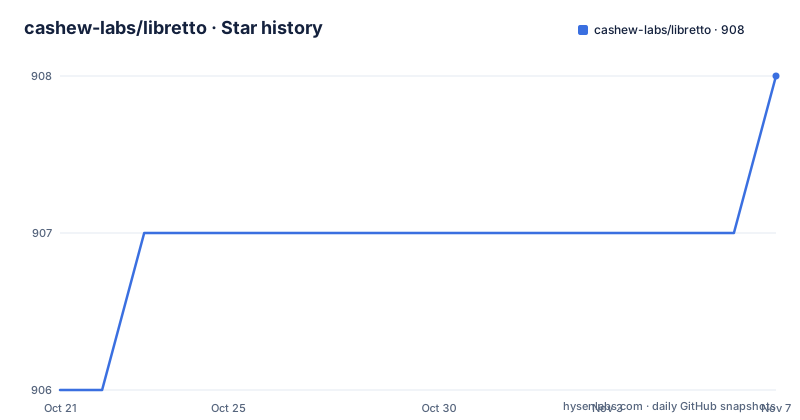
- cashew-labs/libretto908 ★ · +2
| Repository | 2026-10-21 | 2026-11-07 |
|---|---|---|
| cashew-labs/libretto | 906 | 908 |
2 Stars in the last 17 days, measured from the daily GitHub snapshot. Compare with other projects
Editorial analysis
Four capabilities aimed at one problem: scripts that break
Libretto is described as a toolkit for building robust web integrations, and it gives your coding agent a live browser and a token-efficient CLI to do four things.
Inspect live pages with minimal context overhead. Capture network traffic to reverse-engineer site APIs. Record user actions and replay them as automation scripts. Debug broken workflows interactively against the real site.
The origin explains the emphasis. The project was built at Saffron Health to help maintain browser integrations to common healthcare software, and it is open sourced so other teams have an easier time doing the same thing. The integrations in question are things like eligibility checks in an EHR and pulling a primary insurance ID from a patient record, which is the kind of workflow with no API, no documentation and a login page in the way.
The token-efficient part is the interesting engineering claim. An agent driving a browser by taking screenshots and reading them burns context on every step. Libretto's answer is a compact accessibility tree rather than pixels, and a CLI that returns structured text.
npx libretto snapshot --session <name> # capture a screenshot and compact accessibility treeThat snapshot command returns both, so the agent can look at the picture when the tree is ambiguous and fall back on the tree when it is not.
The other structural decision is that this is designed to be used as a skill through your coding agent, not as a library you call from your own code. The examples in the documentation are all prompts you give to an agent, and the CLI exists so the agent has something token-efficient to call.
Recording a human workflow and turning it into a script
The interactive script building example is the clearest description of the intended workflow.
You tell the agent you are going to show it a workflow, in this case in the eclinicalworks EHR to get a patient's primary insurance ID, and ask it to turn the workflow into a Playwright script that takes patient name and date of birth as input and returns the insurance ID.
The mechanism is that Libretto can read the actions you perform in the browser, so you can perform a workflow and then ask it to use your actions to rebuild the workflow.
That is a genuinely different way of writing an integration. The usual approach is to open the site, work out the selectors by hand, write the script, run it, watch it fail on a slightly different record, and fix the selector. Here, the human performs the workflow once against real data, and the agent derives the script from what happened.
The one-shot variant is the same idea with less human involvement. Ask the agent to go to LinkedIn and scrape the first ten posts for content, who posted it, the number of reactions, the first twenty five comments and the first twenty five reposts, and your coding agent opens a window for you to log into LinkedIn and then automatically starts exploring.
That login step is worth noting as a design decision. The agent does not have your credentials. You log in yourself in a real browser window, the session persists, and the agent works with the authenticated session afterwards. That keeps passwords out of the agent's context and out of any generated script.
From UI automation to direct network calls
The third example is the one that tells you the project has an opinion about how these integrations should end up.
You have a browser script at ./integration.ts that automates going to Hacker News and getting the first ten posts, and you ask the agent to convert it to direct network scripts. Libretto reads the network requests from the browser and uses them to reverse engineer the API, producing a script that calls those requests directly.
The documentation states the reasoning: directly making API calls is faster and more reliable than UI automation.
So the workflow is two stage. You start with a browser script because that is the only thing that works when there is no API. Once you have it working, you capture what the page actually does over the network and replace the UI automation with direct requests. The end state is a script that does not depend on a selector surviving a redesign.
There is a security angle to this too, and the documentation mentions it. You can ask Libretto to conduct a security analysis which analyses the requests for common security cookies, so you can understand whether a network request approach will be safe.
That is the right question to ask, because a request captured in an authenticated browser session often carries cookies that were meant for the browser and are not appropriate to replay from a script. A tool that lets you read the requests and see what they carry is more useful than one that silently converts them into a script you ship.
The repair example completes the picture. A script that is supposed to perform an eligibility check against Availity fails with a broken selector error, and you ask the agent to fix it. Agents can reproduce the failure, pause the workflow at any point, inspect the live page, and fix issues, all autonomously.
A daemon-backed CLI where sessions stay inspectable
The CLI is the second way in, and its design has a few details worth reading.
All commands accept --session <name> to target a specific session.
npx libretto open <url>                    # launch browser and open a URL
npx libretto run ./integration.ts --headless # run a workflow and close on success
npx libretto run ./integration.ts --headless --stay-open-on-success # keep a successful run inspectable
npx libretto snapshot --session <name>     # capture a screenshot and compact accessibility tree
npx libretto exec "<code>"                 # execute Playwright TypeScript against the open page
npx libretto close                         # close the browser
The behaviour of run is the interesting part. Run sessions are inspectable through the same daemon-backed commands as open sessions. Successful runs close the browser by default, and you pass --stay-open-on-success to keep it open for pages, snapshot and exec.
That default is a deliberate choice about where to spend attention. A run that succeeded probably does not need inspection, so the browser is closed and the resources are freed. A run that failed or was paused keeps the browser open so you can inspect the exact page state before fixing or resuming.
The exec command executes Playwright TypeScript against the already open page, which is how you poke at the live DOM in the same session the workflow was using. Since the session is daemon-backed, an open browser persists between separate CLI invocations, which is what makes open, snapshot and exec a sequence rather than three separate launches.
All of the project state lives in a .libretto/ directory at your project root, and the configuration docs cover config files, sessions and profiles. The setup command creates that directory, installs the agent skills and downloads Chromium, and you can check readiness at any time with npx libretto status.
Telemetry that lists exactly what leaves your machine
The telemetry section is worth reading closely, because for a tool that drives authenticated browsers, the trust question is the first question.
Libretto records CLI telemetry to help understand CLI usage and help prioritise improvements. Each resolved command can send an install id, a timestamp, a command event name such as libretto run, an error boolean, the package version, a build channel of node_modules, source or unknown, and, when signed into Libretto Cloud, the configured cloud user id.
The list of what is not sent is the more informative half. Libretto does not send command arguments, URLs, project paths, session cookies, API keys, error messages or details, or emails.
That is a sensible boundary for a browser tool. Command arguments would carry the URL you were visiting and the code you were executing, and error messages would carry page content. Excluding them means the telemetry answers the question the maintainers actually have, which is which commands are used and how often, without recording anything about what the commands did.
The install id is stored in the telemetry file at ~/.libretto/telemetry.json, and the implementation is at packages/libretto/src/cli/core/telemetry.ts, so it is in the repository rather than behind a binary.
There are four documented ways to disable it: set LIBRETTO_TELEMETRY_DISABLED=1, set DO_NOT_TRACK=1, run with CI=1, or edit ~/.libretto/telemetry.json and set "enabled" to false. The CI=1 option is the one most likely to matter to you, since it is a single environment variable and the usual way to make a build deterministic.
A monorepo with skills, mirrors and an eval harness
The repository is a pnpm monorepo on turbo, and its layout tells you how the project is organised.
The published package source layout inside packages/libretto/src/ is split into cli/ for the CLI commands, runtime/ for the browser runtime covering network, recovery and downloads, and shared/ for shared utilities including config, the LLM client, logging and state.
The top level is more revealing. There are apps/ for applications, packages/ for the packages, docs/, evals/ with a runner script, benchmarks/, specs/, and scripts/. There are also.claude/,.cursor/,.opencode/,.agents/ and.claude-plugin/ directories, plus skills-lock.json, which shows the project publishing agent skills into several coding agent ecosystems rather than one.
The package.json gives the toolchain. pnpm 11.1.1 is the package manager and turbo runs the build. The build is turbo run build, lint is oxlint with type-aware checking plus fallow, type-check is turbo run type-check, and test is turbo run test:vitest with grouped log ordering. Playwright comes from a catalog reference, and the AI SDK packages for Anthropic, Google, Google Vertex and OpenAI are all in devDependencies, which is consistent with a tool whose main consumer is a coding agent rather than a human running a script.
The scripts are also revealing about how the project is released and mirrored. sync:mirrors and check:mirrors keep packages in step across the repositories the README links to, and the README banner itself is generated from packages/libretto/README.template.md by pnpm sync:mirrors, with a comment saying not to edit it directly. The GitHub Discussions badge points at saffron-health/libretto while the repository is cashew-labs/libretto, so the project moved and the badges and links still point at the old location.
Release automation has both a prepare-release script and a publish:experimental script, and the published versions v0.6.43, v0.6.44 and v0.6.45 came out within four days in August 2026. A 0.x line with daily tags means the API is still moving.
Editorial conclusion
Libretto suits a team maintaining integrations against third-party web applications where there is no API to call, because the recording and traffic capture loop turns a hand-performed workflow into a script an agent can then repair. It does not suit a team whose integrations could be built against a documented API, since the documentation is direct about preferring direct network calls over UI automation, and the browser is only the right tool when there is no alternative. Before adopting it, read the telemetry section, because the CLI records usage by default and the opt-outs are documented, and confirm that a Chromium download and a persistent browser session fit your development environment and your security posture around credentials in a live browser.
Frequently asked questions
What is Libretto and what does it do?
It is a TypeScript toolkit for building robust web integrations that gives a coding agent a live browser and a token-efficient CLI. It can inspect live pages with minimal context overhead, capture network traffic to reverse-engineer site APIs, record user actions and replay them as automation scripts, and debug broken workflows against the real site.
How do I install Libretto?
Run npm install libretto, which requires Node.js and npm, then run npx libretto setup for first-time onboarding. Setup creates the .libretto/ directory, installs the agent skills and downloads Chromium unless you pass --skip-browsers, and npx libretto status checks workspace readiness at any time.
Does Libretto send my data to a server?
The CLI telemetry sends an install id, timestamp, command event name, an error boolean, the package version, the build channel and, if signed in to Libretto Cloud, the cloud user id. It does not send command arguments, URLs, project paths, session cookies, API keys, error messages or details, or emails. You can disable it with LIBRETTO_TELEMETRY_DISABLED=1, DO_NOT_TRACK=1, CI=1, or by setting enabled to false in ~/.libretto/telemetry.json.
Should a browser automation script stay as browser automation?
The documentation argues not. Libretto can read the network requests from the browser and reverse-engineer the API, and the stated reason is that directly making API calls is faster and more reliable than UI automation. It also supports a security analysis of the captured requests for common security cookies, so you can judge whether replaying them is safe.
What licence is Libretto released under?
MIT, with the LICENSE file at the repository root, and the documentation states it can be used freely in commercial and open-source projects. The project was built at Saffron Health and is published on npm as libretto.
Official sources
Add this badge to your README
If you maintain this project, the badge below links readers to this analysis and shows its maintenance status from the daily GitHub snapshot. Paste the markdown into your README; add ?metric=license or ?metric=stars to the image URL for a different field.

[](https://hysenlabs.com/projects/cashew-labs-libretto)Star history chart for your README
[](https://hysenlabs.com/projects/cashew-labs-libretto)Was this useful?