file-icons/atom: File-Specific Icons for Atom
Atom file-specific icons for improved visual grepping.
At a glance
- What is it?
- file-icons/atom assigns file extension icons and colors across Atom's tree view, tabs, search interfaces, and archive viewer. It is most relevant to developers still using Atom who want visual file identification plus a documented API for custom packages.
- Who is it for?
- Adopt file-icons/atom if your team still works in Atom and values file-type recognition across several built-in interfaces. Do not choose it for a new editor built around a different extension model, or if you require evidence that its released package line has been upgraded alongside Atom itself.
- Can I use it commercially?
- Yes. MIT is a permissive licence: you can use, modify and sell software built on it, as long as you keep its copyright and licence notices.
- Is it still maintained?
- Yes. The repository last received commits 15 days ago.
- What is it written in?
- Mainly JavaScript, according to GitHub's language statistics.
Answers come from the project's GitHub data, last synced on November 6, 2026, and from our analysis. They are not legal advice.
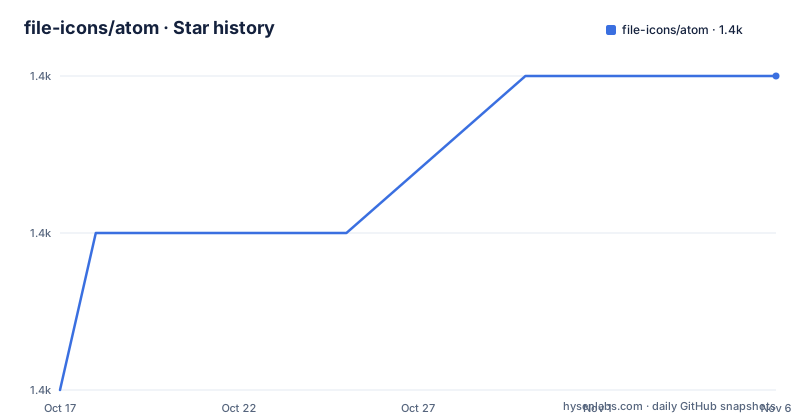
Star history
- file-icons/atom1,375 ★ · +2
| Repository | 2026-10-17 | 2026-11-06 |
|---|---|---|
| file-icons/atom | 1.4k | 1.4k |
2 Stars in the last 20 days, measured from the daily GitHub snapshot. Compare with other projects
Editorial analysis
Why file-icons/atom Targets Visual File Recognition
file-icons/atom solves a narrow but persistent editor problem: filenames communicate their purpose more slowly than file extensions and colors do. A tree containing HTML, JavaScript, configuration, source, and image files can become difficult to scan when every entry uses a generic document symbol. The package assigns extension-specific icons and colors so developers can locate relevant entries by shape before reading every path.
The intended users are Atom users working in file-heavy projects, especially those who browse the project tree, open many tabs, or search for files through Atom interfaces. The README lists direct support for `tree-view`, `tabs`, `fuzzy-finder`, `find-and-replace`, and `archive-view`. That breadth matters because the value is not limited to one sidebar. The same visual vocabulary can appear across navigation and search views.
The package is aimed at developers who also want to alter the presentation. Its configuration exposes colored icons, change-only coloring, tab-pane icons, and a default icon class. Its stylesheet model permits users to replace icons or adjust colors for a specific file type. Package authors have a separate integration route through Atom's services API.
This is an editor-layer package rather than a language server or syntax highlighter. It does not determine whether a file is valid, select a parser, or diagnose code. It changes visual metadata so a human can scan file categories more quickly. That distinction keeps the project relevant even to people who do not want additional language tooling.
How File Icon Matching Reaches Atom Views
The visible mechanism is class assignment combined with packaged icon and color stylesheets. File paths are matched against icon definitions, then an icon class is attached to the relevant DOM element. The stylesheets translate those classes into font families and glyph content. The repository includes `fonts/`, `lib/`, and `styles/`, while `config.cson` serves as an input to the icon database generation target in the `Makefile`.
The package exposes a `file-icons.element-icons` service at version `1.0.0`. A consuming package receives a function named in its service configuration. Calling that function with a DOM element and a path applies the icon state for that path. The function returns an Atom `Disposable`, allowing the consumer to clear the icon registration when its element is destroyed.
This service design is more explicit than relying on undocumented DOM selectors. The integration example removes a default class such as `icon-file-text` before adding the File-Icons presentation. That detail matters because two styling systems can otherwise compete for the same icon element.
The package metadata also provides `atom.file-icons` version `1.0.0` with `suppressFOUC` as its implementation. The name indicates that the service relates to suppressing a flash of unstyled content, although the README does not explain its internal timing or behavior. Based on the documented configuration, colored icons are enabled by default, changed files are colored only when `onChanges` is enabled, and icons appear in file tabs when `tabPaneIcon` is enabled.
Installing File-Icons and Reloading Atom
The documented installation path is Atom's package interface. Open Settings, select Install, and search for `file-icons`. This is the least ambiguous option because it does not require the reader to resolve a command-line installation path first.
For command-line installation, the README provides the following `apm` command:
apm install --production file-iconsAfter installation, the README says to reload the Atom window or restart Atom. A restart is specifically required if installation produces `Cannot read property 'onDidChangeIcon' of undefined`, because the README identifies that error as an incomplete-install condition that a restart resolves.
If installation stops with `npm ERR! cb() never called!`, the README attributes the failure to a corrupted local download cache. Its documented recovery removes the Atom package-manager cache and repeats the installation:
rm -rf ~/.atom/.apm
apm install --production file-icons
That cache deletion is destructive to the contents of `~/.atom/.apm`, so the command is a troubleshooting step rather than part of routine setup. If icons appear stale, Atom's command palette provides `file-icons:clear-cache`. Run it, then reload the window or restart Atom. These steps make the first-use verification straightforward: install, restart, inspect the supported views, and clear the package cache only if an icon stops updating.
Customizing Icons Through File-Icons CSS Selectors
File-Icons is customizable through CSS classes rather than a separate icon editor. The README points users to `styles/icons.less`, `styles/colours.less`, and `styles/fonts.less` to inspect the available class names, color rules, and font declarations. This is a practical strength because the customization mechanism can target either broad file categories or a narrow path suffix.
The README shows how to resize an icon globally and only within the tab pane:
.html5-icon:before{
	font-size: 18px;
}

.tab > .html5-icon:before{
	font-size: 18px;
	top: 3px;
}
The second rule is the more important example because it demonstrates context-specific styling. A user can retain one icon size in the tree while changing its tab appearance without rebuilding the icon data.
Path-based assignments use attribute selectors. For example, the following rule changes the `.js` file icon by matching `data-name` values ending in `.js`:
.icon[data-name$=".js"]:before{
	font-family: Devicons;
	content: "\E64E";
}
Directory icons can be customized with a nested selector. The example targets a path ending in `.atom/packages`. This approach is exact, but it also transfers responsibility to the user. Font names, escape sequences, path suffixes, and element structure must all be correct. The README's references to File-Icons, FontAwesome 4.7.0, Mfizz, and Devicons provide source material for available glyph conventions, but a stylesheet still has to reference the appropriate font.
Adding File-Icons to a Custom Atom Package
Package authors can consume the service through `consumedServices` in `package.json`. Declare the service version and the local function that will receive the icon callback:
"consumedServices": {
	"file-icons.element-icons": {
		"versions": {
			"1.0.0": "consumeElementIcons"
		}
	}
}
The main export stores the supplied function. The function name must match the value declared in the service configuration, unless it has been deliberately changed in both places:
let addIconToElement;
module.exports.consumeElementIcons = function(func){
	addIconToElement = func;
};
The consumer can then select an icon element, pass it with a file path, and retain the returned `Disposable`:
const fileIcon = document.querySelector("li.file-entry > span.icon");
const disposable = addIconToElement(fileIcon, "/path/to/file.txt");
fileIcon.onDestroy(() => disposable.dispose());
The README includes a specific warning that default icon classes must be removed before calling the service. Its example uses `fileIcon.classList.remove("icon-file-text")`. Omitting that step can leave the original document styling active alongside the assigned icon styling.
This API is narrower than a general icon registry. It expects the caller to locate a DOM element, provide a path, and dispose the registration at the correct lifecycle point. A package with virtual list rows, rapidly recycled elements, or nonstandard DOM structure must map its own state onto that contract carefully.
Compatibility Traps in File-Icons v2 and Cache State
The main compatibility warning concerns custom stylesheets written for versions before File-Icons v2. The README states that v2.0 displays icons through classes instead of mixins. Older stylesheets that imported icon and item mixins, referenced `@pane-tab-selector`, or used removed classes can fail or stop matching the current DOM.
The migration guidance is specific. Instead of a mixin such as `.git-icon`, a stylesheet can set the font family and `content` directly. Instead of pane selector variables, it can use `.tab > .icon[data-path]`. It also tells users to remove `.file-icons-force-show-icons`, `.file-icons-tab-pane-icon`, and `.file-icons-on-changes`, because those classes are no longer used.
Ruby rendering can also conflict with `language-ethereum`. The README calls that a known issue with a package it says is no longer maintained. Its documented response is to remove `language-ethereum`; for Solidity support, the README points to `linter-solidity` or `language-solidity`. If `language-ethereum` is not installed, the README asks the user to follow its issue-reporting steps instead.
Compared with manually styling a small number of file extensions, File-Icons offers broader built-in view coverage, generated icon data, service integration, caching behavior, and change-state configuration. The tradeoff is version-sensitive styling. An installation that visually conflicts with a custom stylesheet may require migration rather than configuration. Verify existing custom rules first, especially any rules inherited from pre-v2.0 File-Icons.
Release History, MIT Terms, and File-Icons Upgrade Work
The repository was last pushed on 2026-09-16 and is not archived. That indicates recent repository activity, but it should not be confused with a recent published package release. The listed releases are `v2.1.47` from 2021-03-12, `v2.1.46` from 2020-12-14, and `v2.1.45` from 2020-12-07. The listed release history therefore leaves a substantial gap between the most recent listed release and the last push.
The `package.json` requires Atom `>=1.25.0` and identifies the package version as `2.1.47`. That declared engine range matters for adoption because File-Icons is tied to Atom package behavior, Atom services, `apm`, and Atom's editor DOM. A project moving to another editor would need a package with compatible APIs rather than a direct port based only on the CSS examples.
The repository is licensed under MIT. The package metadata and `LICENSE.md` identify that license, so users can inspect the repository's license text when evaluating permitted use, modification, and distribution. This review does not interpret legal obligations.
Upgrade effort appears modest for a stock installation but higher for customized deployments. The package exposes configuration through `configSchema`, while the README documents stylesheet migration from v2.0. Package consumers must also retain the service contract and dispose registrations correctly. Before updating, inspect custom styles for removed mixins and classes, then verify every host Atom package after reloading. The concrete boundary is Atom itself: recent repository work does not make this package relevant outside an Atom-compatible environment.
Editorial conclusion
Adopt file-icons/atom if your team still works in Atom and values file-type recognition across several built-in interfaces. Do not choose it for a new editor built around a different extension model, or if you require evidence that its released package line has been upgraded alongside Atom itself. Before adoption, verify the package in the target Atom installation, reload the window, and confirm that your stylesheets do not depend on pre-v2.0 mixins or removed classes.
Frequently asked questions
How do I install file-icons in Atom?
Open Settings, select Install, and search for `file-icons`, or run `apm install --production file-icons`. The README says to reload the Atom window or restart Atom after installation.
How can I customize a file icon in file-icons/atom?
Use a stylesheet and target the icon's CSS class. The README also shows path-based selectors such as `.icon[data-name$=".js"]:before` for assigning an icon by file extension.
What should I do if a file icon stops updating?
Run `file-icons:clear-cache` from Atom's command palette, then reload the window or restart Atom. The README identifies caching as the likely cause of this symptom.
Can an Atom package use the file-icons element icon service?
Yes. Declare `file-icons.element-icons` version `1.0.0` under `consumedServices`, receive the supplied function, call it with an element and path, and dispose the returned value when the element is destroyed.
Official sources
Add this badge to your README
If you maintain this project, the badge below links readers to this analysis and shows its maintenance status from the daily GitHub snapshot. Paste the markdown into your README; add ?metric=license or ?metric=stars to the image URL for a different field.

[](https://hysenlabs.com/projects/file-icons-atom)Star history chart for your README
[](https://hysenlabs.com/projects/file-icons-atom)Was this useful?