Files for Windows: A community-built file manager that trades classic Explorer habits for tabs, tags, and a modern UI
A modern file manager that helps users organize their files and folders.
At a glance
- What is it?
- Files is an open-source, C# file manager for Windows that replaces the classic Explorer experience with tabs, file tags, and deep integrations. It is a solid choice for users who want a modern interface, but it is Windows-only and asks you to depend on a third-party app for core file operations.
- Who is it for?
- Adopt Files if you are a Windows user who wants a tabbed, tag-based file manager with a modern look and community-driven development, and you are willing to buy through the Microsoft Store or use the classic installer. Do not adopt it if you need a lightweight, minimal tool or if you cannot accept depending on a third-party app for core file operations.
- Can I use it commercially?
- Yes. MIT is a permissive licence: you can use, modify and sell software built on it, as long as you keep its copyright and licence notices.
- Is it still maintained?
- Yes. The repository received new commits within the last day.
- What is it written in?
- Mainly C#, according to GitHub's language statistics.
Answers come from the project's GitHub data, last synced on November 13, 2026, and from our analysis. They are not legal advice.
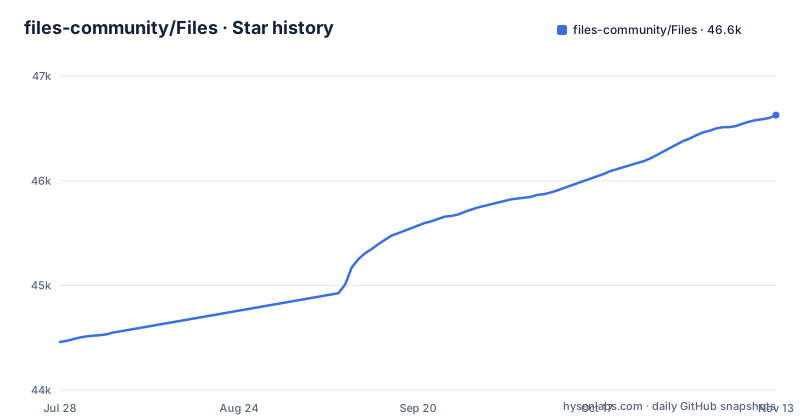
Star history
- files-community/Files46,626 ★ · +2,167
| Repository | 2026-07-28 | 2026-11-13 |
|---|---|---|
| files-community/Files | 44.5k | 46.6k |
2,167 Stars in the last 108 days, measured from the daily GitHub snapshot. Compare with other projects
Editorial analysis
What Files actually replaces
Files is a file manager for Windows, written in C#, that aims to replace the built-in File Explorer. The README describes it as a modern file manager that helps users organize files and folders, with a mission to build the best file manager for Windows. The key differentiator is not just a new coat of paint: it promises multitasking experiences, file tags, deep integrations, and an intuitive design. That means it targets users who find the default Explorer too basic or too cluttered. It is for people who want tabs, tags, and a UI that feels more like a modern app than a legacy shell component. The project is open source under the MIT license, so it is free to use and modify. The community aspect is central: user feedback shapes features, and bug reports drive reliability. If you are a developer, you can build it from source, but the README points to a separate documentation site for those instructions, so the source build path is not fully described there.
How it works: tabs, tags, and deep integrations
Files is a Windows application written in C#. The multitasking experiences likely refer to tabbed browsing, which is a common feature in file managers that replace Explorer. File tags are a specific mechanism: they let you label files with custom metadata, which the app can then use for sorting and searching. The README lists deep integrations without saying which ones. The community feedback loop is a real mechanism: issues and pull requests on GitHub shape the feature set, and the task board lets contributors sort tasks by size and priority. That is a concrete part of how the project evolves.
Getting it running: Store, installer, or source
The README gives three ways to get Files. The primary recommendation is to purchase it through the Microsoft Store, which suggests a paid model for the stable release, though the exact pricing is not stated. There is also a classic installer available from files.community/download, and the README explicitly asks users to consider supporting the project on GitHub if they use that installer. That implies the classic installer is free, but the Store version may be paid to support development. The third option is building from source, but the README only links to a documentation site for instructions, so the actual commands are not in the README. For most users, the Store version is the simplest path, because it handles updates and integration with Windows. The preview version is also mentioned: you can run it alongside the stable release to get early access to new features. That is a concrete workflow: install the stable version, then add the preview build, and test new features without losing your stable setup. The README does not list system requirements, so you should check the Store listing or the docs for that.
The catch: performance, bloat, and Windows lock-in
Files is not a lightweight tool. A modern file manager with tabs, tags, and deep integrations comes with overhead. The README does not provide performance metrics, but the feature set implies a heavier footprint than the default Explorer. The project is also tied to Windows; it is not cross-platform, so if you use macOS or Linux, this is not an option. The README does not mention any known limitations, but the fact that it is a replacement for Explorer means you are betting on a third-party project to handle core file operations. If the project stalls or the community loses interest, you are left with a file manager that may not receive updates. The MIT license mitigates that risk, because you can fork it, but that requires development effort.
A real alternative: the built-in File Explorer
The most direct alternative to Files is the built-in File Explorer that ships with Windows. The difference in approach is stark: Explorer is a native, lightweight component that is deeply integrated with the OS, but it is a plainer interface than Files. Files adds those features, but it does so by layering a new app on top of the same file system APIs. That means you get a richer interface, but you also get a dependency on the app's own code for rendering and interaction. Explorer is always there, uses minimal resources, and is guaranteed to work with every Windows update. Files is a separate application that must be installed, updated, and maintained. For users who only need basic file operations, Explorer is the safer choice. For users who want tags and tabs, Files offers a distinct value proposition. The trade-off is clear: convenience and features versus simplicity and OS integration.
Maintenance and upgrade cost
The project is actively maintained, with the latest release v4.3 published on 2026-10-11, after v4.2.9 on 2026-08-19 and v4.2.7 on 2026-08-16. That suggests a healthy maintenance cycle. The MIT license means you can use, modify, and distribute the code freely, but it comes with no warranty, so you are responsible for any issues. The upgrade path is straightforward: the Microsoft Store handles updates automatically, and the classic installer likely requires manual updates. The preview channel is a separate install, so you can test new versions without affecting your stable setup. The documentation site provides building-from-source instructions, but the README does not detail the upgrade process for source builds. For most users, the Store version is the lowest-maintenance option. The community contribution model means you can file issues or submit pull requests, but that is a time investment. The task board is a concrete tool for finding work, so if you want to contribute, you can start there. Overall, the maintenance cost is low for end users, but the project's evolution depends on community involvement, so you should expect occasional changes in features and behavior.
Editorial conclusion
Adopt Files if you are a Windows user who wants a tabbed, tag-based file manager with a modern look and community-driven development, and you are willing to buy through the Microsoft Store or use the classic installer. Do not adopt it if you need a lightweight, minimal tool or if you cannot accept depending on a third-party app for core file operations. Before committing, verify that the specific features you rely on, such as file tags or the deep integrations you need, work with your Windows version and that the preview channel does not introduce instability for your daily workflow.
Frequently asked questions
How do I install Files on Windows?
There are two routes. The Microsoft Store listing is at apps.microsoft.com/detail/9NGHP3DX8HDX, and a classic installer is at files.community/download. The project asks you to purchase through the Store, or to support it on GitHub if you use the classic installer, and a preview version can be installed alongside the stable release.
Is Files open source?
Yes, with a caveat worth reading. The repository carries two licence files, LICENSE-MIT and LICENSE-MPL, and the metadata records the project as MIT, but the README does not say which files fall under which licence. MPL is a file-level copyleft licence, so that boundary matters if you plan to reuse source in a closed-source product.
Can I build Files from source?
Yes, but the instructions are not in the repository. The README points to files.community/docs/contributing/building-from-source, while the root holds Files.slnx, global.json, nuget.config, Directory.Build.props, Directory.Packages.props, .editorconfig, Settings.XamlStyler, src/ and tests/.
How do I contribute to Files?
Open an issue first to communicate your intent, then send the pull request, and read .github/CONTRIBUTING.md for the coding conventions. If you want a scoped first task, the task board at github.com/orgs/files-community/projects/3/views/2 can be sorted by size and priority.
Does Files run on macOS or Linux?
No platform other than Windows is documented. The stated mission is to build the best file manager for Windows, and the root configuration of global.json, Directory.Build.props, Directory.Packages.props and a XAML formatting setup is all consistent with a Windows-only target.
Official sources
Add this badge to your README
If you maintain this project, the badge below links readers to this analysis and shows its maintenance status from the daily GitHub snapshot. Paste the markdown into your README; add ?metric=license or ?metric=stars to the image URL for a different field.

[](https://hysenlabs.com/projects/files-community-files)Star history chart for your README
[](https://hysenlabs.com/projects/files-community-files)Was this useful?