The Terraform VS Code extension is a language server with a settings panel
HashiCorp Terraform VSCode extension
At a glance
- What is it?
- HashiCorp's Terraform extension for Visual Studio Code is mostly a front end to the Terraform Language Server, and that explains its behaviour. It adds IntelliSense, syntax validation, navigation, formatting and a module explorer across Terraform, Stacks, Search and Policy files, and it is packaged as a workspace extension with pinned language server and syntax versions.
- Who is it for?
- Terraform in VS Code fits a team whose configuration is the main artefact they edit, since the extension covers the newer file families as well as plain .tf, and it fits anyone who wants terraform fmt applied on save without a separate command.
- Can I use it commercially?
- Yes, with conditions. MPL-2.0 is a weak copyleft licence: you can use it inside commercial and closed-source software, but if you distribute changes to its own files, you must publish those changes under the same licence.
- Is it still maintained?
- Yes. The repository last received commits 4 days ago.
- What is it written in?
- Mainly TypeScript, according to GitHub's language statistics.
Answers come from the project's GitHub data, last synced on November 7, 2026, and from our analysis. They are not legal advice.
Star history
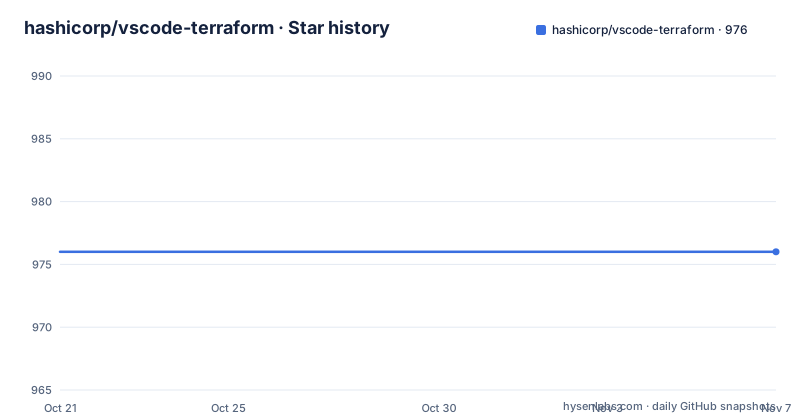
- hashicorp/vscode-terraform976 ★ · +0
| Repository | 2026-10-21 | 2026-11-07 |
|---|---|---|
| hashicorp/vscode-terraform | 976 | 976 |
0 Stars in the last 17 days, measured from the daily GitHub snapshot. Compare with other projects
Editorial analysis
A front end to the Terraform Language Server
The extension description is more revealing than it first looks. It is the HashiCorp Terraform Extension for Visual Studio Code together with the Terraform Language Server, and it adds editing features for Terraform, Terraform Stacks, Terraform Search and Terraform Policy files, such as syntax highlighting, IntelliSense, code navigation, code formatting, a module explorer and more. The language server is the substance and the extension is the shell, which is why the manifest pins a langServer version of 0.39.0 and a syntax version of 0.7.1 as separate components. That structure has consequences for anyone operating it. The completion behaviour, the validation rules and the navigation come from the language server, so a change in the server changes the editor experience without the extension changing, and the extension's own job is activation, settings, the command palette entries and the explorer views. It is also why the extension is a workspace extension, with extensionKind set to workspace, since it needs the whole folder to resolve modules and providers.
Four file families, one extension
The feature list covers Terraform, Terraform Stacks, Terraform Search and Terraform Policy, and the activation events in the package manifest show how the extension knows which files to watch for. They include workspaceContains patterns for .tf and .tfvars, for the Stacks files .tfcomponent.hcl and .tfdeploy.hcl, for .tftest.hcl and .tfmock.hcl, for the Search file .tfquery.hcl and for .policy.hcl. For most features the support for Stacks, Search and Policy is implied, with specific functionality called out where it is not. The practical difference shows up in IntelliSense. For Terraform constructs like resource and data, labels, blocks and attributes are completed both at the root of the document and inside other blocks, and the same holds for modules installed in the workspace. For Stacks, the constructs are component and resource. For Search files the extension completes search specific blocks and attributes so you can find resources across a codebase, and for Policy files it completes policy specific blocks in .policy.hcl and .policytest.hcl files.
Completions that depend on where the cursor is
The IntelliSense section explains the mechanics in a way that is useful if you are trying to work out why a completion is missing. IntelliSense is a general term covering code completion, parameter info, quick info and member lists, and the results depend on where the cursor is placed. If the cursor is at the beginning of a line and no other characters are present, a list of constructs such as data, provider and resource is shown. If the cursor is inside a set of quotes or inside a block, the completions are specific to that location, and inside a resource block the attributes for a given provider are listed. There is also a second layer, since combining the editor.suggest.preview setting with the pre-fill required fields setting gives inline snippet suggestions for blocks of code, and completing the snippet lets you tab through each attribute and block. The documented caveat is the one that trips people up. If there are syntax errors present in the document upon opening, IntelliSense may not provide all completions, and the fix is to correct the errors and reload the document.
Validation you can switch off
Validation runs when a file is opened and on change, and invalid code is marked with diagnostics. The base layer is an HCL syntax check, which catches missing control characters like a brace or a quote in the wrong place. On top of that there is enhanced validation of selected Terraform language constructs in .tf and .tfvars files, based on the detected Terraform version and the provider versions, and it extends to the Search, Stacks and Policy file types. What it can highlight is the useful part: deprecations, missing required attributes or blocks, and references to undeclared variables. The feature is enabled by default and can be turned off with one setting:
"terraform.validation.enableEnhancedValidation": falseThe reason that switch exists is worth understanding. Enhanced validation depends on the detected Terraform version and on provider schemas, so on a large workspace with many providers it can be slow, and on a project with an unusual provider setup it can produce diagnostics that are wrong. Being able to turn it off without uninstalling the extension is the difference between a tool people keep and a tool people disable.
The rest of the editing surface
Beyond completion and validation, the feature list covers the rest of an editor workflow. Syntax highlighting covers Terraform 0.12 through 1.X as well as the Stacks, Search and Policy files. Code navigation is Go to Definition and Symbol support across the codebase. Code formatting is done with terraform fmt automatically, which is the setting most teams notice first, since it means saving a file reformats it the same way the CLI would. Code snippets cover common constructs like for_each and variable. The HCP Terraform integration lets you view HCP Terraform workspaces and run details inside VS Code. The Terraform Module Explorer shows all modules and providers referenced in the currently open document, which is a quick way to see what a file pulls in. And the Terraform commands entry exposes commands such as terraform init and terraform plan directly from the VS Code Command Palette, which saves a terminal round trip for the two commands you run most often.
What the manifest pins, and what it sends
The package manifest is short and tells you the constraints of the extension. The engines section is the part to read first:
  "engines": {
    "npm": "^11.0.0",
    "node": "^24.0.0",
    "vscode": "^1.92.2"
  },
That means npm 11 or newer, Node 24 or newer, and VS Code 1.92.2 or newer, which is a demanding floor for an editor extension and worth checking against a locked down corporate image. The categories list is Programming Languages, Other, Formatters and Linters, which is the Marketplace classification rather than a description of the code, and the language server and syntax versions are pinned separately as noted earlier. Two entries in the manifest deserve a second look. The extension is private, which is normal for a Marketplace build, and it carries an appInsightsKey, so the extension ships with application instrumentation configured. The rest of the manifest is ordinary: a bugs URL and an email address, the repository link, a qna pointer to a discussion forum thread about editor integrations, and a gallery banner. The licence is MPL-2.0, the source lives in this repository, and the tree shows a TypeScript source directory with esbuild, eslint and prettier configuration, plus a .changes directory with a changie configuration for the changelog.
Getting started and the release rhythm
The quick start is three steps, and the first one is not about the extension at all. If you have not done so already, install Terraform itself, then install the extension, and then open any folder or VS Code workspace containing Terraform, Stacks, Search or Policy files to activate it. Once activated, the Terraform language indicator appears in the bottom right corner of the window, and that indicator is how you tell whether the extension is running at all, which is the first question the Troubleshooting Guide addresses. The release history is a steady stream of patch versions, with 2.40.0 published on 2026-07-27, a dated 2.39.2026071014 build on 2026-07-10 and 2.39.4 on 2026-07-02, and the last push to the repository on 2026-10-14. The tree also has DEVELOPMENT.md for contributors, a .vscode-test.mjs and a .vscode-uitest.mjs for the extension test harnesses, a language-configuration.json, and a .copywrite.hcl file for the copyright headers, which is a small sign of a team that automates its own housekeeping.
Editorial conclusion
Terraform in VS Code fits a team whose configuration is the main artefact they edit, since the extension covers the newer file families as well as plain .tf, and it fits anyone who wants terraform fmt applied on save without a separate command. It does not fit a user on an older VS Code or Node, because the manifest requires VS Code 1.92.2 and Node 24, and it does not fit a team that wants to run the language server against a different editor, since this package is bound to the editor. Before you install it, install Terraform itself first, as the quick start requires, and check the Troubleshooting Guide, because the extension degrades in specific ways, most visibly when a document has syntax errors on open and IntelliSense stops offering completions until you fix them and reload.
Frequently asked questions
What does the Terraform VS Code extension add?
It adds IntelliSense, syntax validation, syntax highlighting, code navigation with Go to Definition and symbol support, terraform fmt formatting, snippets, an HCP Terraform integration, a module and provider explorer, and Terraform commands from the command palette, across Terraform, Stacks, Search and Policy files.
How do I install and activate the Terraform extension?
Install Terraform first, then the extension from the Marketplace, then open a folder or workspace containing tf, tfvars, Stacks, Search or Policy files. The Terraform language indicator in the bottom right corner of the VS Code window shows that the extension is active.
Why does IntelliSense stop working in a file?
If the document has syntax errors when it is opened, IntelliSense may not provide all completions. Fixing the errors and reloading the document restores it, and the extension points at the hcl-lang issue 57 for the background.
Can I turn off the enhanced validation?
Yes. It is enabled by default and is disabled by setting terraform.validation.enableEnhancedValidation to false in the extension settings, which is useful when provider schema resolution is slow or noisy.
What are the requirements for the Terraform extension?
The manifest requires VS Code 1.92.2 or newer, Node 24 or newer and npm 11 or newer, and it pins the Terraform Language Server at version 0.39.0 and the syntax component at 0.7.1.
Official sources
Add this badge to your README
If you maintain this project, the badge below links readers to this analysis and shows its maintenance status from the daily GitHub snapshot. Paste the markdown into your README; add ?metric=license or ?metric=stars to the image URL for a different field.

[](https://hysenlabs.com/projects/hashicorp-vscode-terraform)Star history chart for your README
[](https://hysenlabs.com/projects/hashicorp-vscode-terraform)Was this useful?