ExHyperV: A WPF Front End for Hyper-V Settings the Manager Never Exposed
The Excalibur of Hyper-V.
At a glance
- What is it?
- ExHyperV is a C# WPF application that wraps Hyper-V WMI and HCS so advanced VM settings become GUI fields. It targets Windows users who already run Hyper-V and want the options Hyper-V Manager hides.
- Who is it for?
- Adopt ExHyperV if you already run Hyper-V on Windows and want a GUI for scheduler, memory and passthrough settings that Hyper-V Manager does not surface. Do not adopt it if you need a headless or cross-platform management path, or if you cannot tolerate a project whose README warns that untested scenarios and bugs may exist.
- Can I use it commercially?
- Yes, with conditions. GPL-3.0 is a copyleft licence: if you distribute software that includes it, you must release that software's source code under the same licence. Running it internally without distributing it does not trigger that obligation.
- Is it still maintained?
- Yes. The repository last received commits 1 day ago.
- What is it written in?
- Mainly C#, according to GitHub's language statistics.
Answers come from the project's GitHub data, last synced on November 15, 2026, and from our analysis. They are not legal advice.
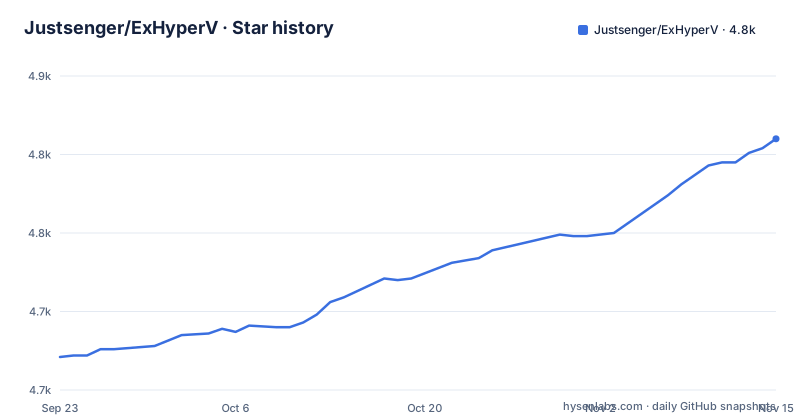
Star history
- Justsenger/ExHyperV4,810 ★ · +139
| Repository | 2026-09-23 | 2026-11-15 |
|---|---|---|
| Justsenger/ExHyperV | 4.7k | 4.8k |
139 Stars in the last 53 days, measured from the daily GitHub snapshot. Compare with other projects
Editorial analysis
The gap ExHyperV fills between Hyper-V Manager and raw WMI
Hyper-V Manager covers the common path: create a VM, attach a disk, set memory and network. The settings that matter for tuning, such as which scheduler the host uses or how PCIe passthrough behaves, sit behind WMI classes and the Host Compute Service. The README states the project exists to expose those advanced features through a graphical interface, and it names the sources it draws on: Hyper-V documentation, the author's HyperV-WMI-Documentation repository, and the HCS API overview on Microsoft Learn.
The audience is narrow and specific. You need Windows with the Hyper-V role enabled, which the README notes requires Pro or Server edition. You need to be comfortable running a portable executable. In exchange you get a WPF window instead of a PowerShell session or a WMI explorer. The README is blunt about the trade-off: it says that due to limited personal time and energy, the project may contain untested scenarios or bugs, and it asks users to file hardware and software issues on the tracker.
How ExHyperV talks to Hyper-V: WMI, HCS and a WPF shell
The architecture is a desktop client, not a service. The UI is built with WPF-UI, which the README says provides a modern interface with sci-fi visual effects and dark and light themes that switch automatically with the system theme. The repository layout matches that: a src/ directory holding the Visual Studio solution, plus doc/ and img/ at the top level.
Underneath the interface, the README says the project digs into Hyper-V documentation, WMI and HCS.
The README also includes a technical section it says will be maintained long term, covering Hyper-V itself. That section describes Hyper-V as a Type-1 hypervisor, explains the root partition and child partitions, and walks through the Classic, Core and Root schedulers. It is documentation for the user, not for the code, and the README admits it may contain inaccuracies.
Installing ExHyperV and making a first change
There is no installer and no package manager entry. The README's Quick Start says to download the latest release from the Releases page, extract the archive, and run ExHyperV.exe directly. The binary is portable in the sense that it runs from the extracted folder.
If you prefer to build from source, the README gives two routes. The first is Visual Studio with the .NET desktop development workload, opening /src/ExHyperV.sln. The second uses the .NET SDK from the project directory:
cd src
dotnet build
The command changes into the src directory and compiles the solution. Check the build log for where the executable lands.
Before ExHyperV can do anything, Hyper-V itself must be enabled. The README offers the PowerShell route, which it notes requires Pro or Server edition, followed by a reboot:
Enable-WindowsOptionalFeature -Online -FeatureName Microsoft-Hyper-V -AllAfter the reboot the README says processes such as vmms.exe, vmcompute.exe and vmmem run in the background and the Hyper-V Manager icon appears in the Start menu. That is the state ExHyperV expects. Launch ExHyperV.exe once Hyper-V is live, pick a VM, and change one setting at a time so you can attribute any regression to a single edit.
Where ExHyperV is the wrong tool
The README's own warning about untested scenarios means you should assume the safe route is a VM you can rebuild from scratch, not a production workload.
Platform scope is the second constraint. This is a Windows-only WPF application. If your Hyper-V hosts are managed from Linux, from a CI pipeline, or through configuration management, ExHyperV has nothing to offer, because the documented interface is a desktop executable.
The README also flags a hazard specific to PCIe passthrough: it notes that when FLR is not supported, restarting a VM may restart the host. That is a Hyper-V behaviour rather than an ExHyperV bug, but it is exactly the class of setting this tool makes easier to reach, which raises the cost of a careless click.
ExHyperV versus the built-in Hyper-V Manager
The obvious alternative is Hyper-V Manager, which ships with the role and costs nothing extra to trust. The difference is coverage, not polish. Hyper-V Manager exposes the mainstream VM lifecycle: creation, disks, switches, checkpoints, basic memory and processor counts. It does not present the scheduler choice or the deeper WMI-backed knobs that the README describes ExHyperV as targeting.
For a team that only ever creates and deletes VMs, Hyper-V Manager is the correct answer and ExHyperV adds surface area for no benefit. For someone specifically chasing a scheduler setting, a memory configuration or a passthrough option, the alternative is not another GUI but a hand-written WMI query or a PowerShell script against the Hyper-V module. ExHyperV's proposition is that you trade the auditability of a script for a form with labelled fields. Whether that trade is worth it depends on how often you make the change and how well you understand the underlying property.
Maintenance, releases and what GPL-3.0 means here
The last push to the default branch was on 2026-10-24, and the most recent release listed is V1.5.2 from 2026-10-24, following V1.5.2-Beta1016 on 2026-10-16 and V1.5.1 on 2026-08-15. The repository is not archived.
The README's Quick Start is to download the latest release, extract the archive and run ExHyperV.exe directly.
The licence is GPL-3.0. If you use ExHyperV internally to manage your own hosts, that is ordinary use. If you want to ship a derivative product or bundle the binary into something you distribute, the copyleft terms attach to that distribution. This is a description of the licence, not legal advice.
Editorial conclusion
Adopt ExHyperV if you already run Hyper-V on Windows and want a GUI for scheduler, memory and passthrough settings that Hyper-V Manager does not surface. Do not adopt it if you need a headless or cross-platform management path, or if you cannot tolerate a project whose README warns that untested scenarios and bugs may exist. Before relying on it, read the doc/ folder, check whether the setting you need is covered, and test the change on a VM you can rebuild.
Frequently asked questions
Is Hyper-V still used?
The README treats Hyper-V as a current Type-1 hypervisor and builds ExHyperV on top of its WMI and HCS interfaces.
What is replacing Hyper-V?
The README groups Hyper-V with Proxmox (KVM), VMware ESXi (VMkernel) and Xen as Type-1 virtualization technologies, and ExHyperV itself is built to manage Hyper-V.
Can you explain Hyper-V in a simple way?
The README describes Hyper-V as a Type-1 hypervisor where the host becomes a privileged virtual machine in the root partition and created VMs are child partitions that are isolated from each other. It compares them to isolated rooms for running untrusted programs or testing system functions.
Why do I have a Hyper-V virtual Ethernet adapter?
The README's Hyper-V introduction notes that after Hyper-V is enabled, processes such as vmms.exe, vmcompute.exe and vmmem run in the background and the Hyper-V Manager icon appears in the Start menu.
Official sources
Add this badge to your README
If you maintain this project, the badge below links readers to this analysis and shows its maintenance status from the daily GitHub snapshot. Paste the markdown into your README; add ?metric=license or ?metric=stars to the image URL for a different field.

[](https://hysenlabs.com/projects/justsenger-exhyperv)Star history chart for your README
[](https://hysenlabs.com/projects/justsenger-exhyperv)Was this useful?