ComfyUI-VideoHelperSuite for video import, batching, previews, and output
Nodes related to video workflows
At a glance
- What is it?
- ComfyUI-VideoHelperSuite adds video and image-sequence I/O to ComfyUI workflows. It is most useful for creators who need frame selection, batch manipulation, video assembly, optional audio, and browser previews without building custom nodes.
- Who is it for?
- Adopt this extension if your ComfyUI workflow begins with video files or image sequences, or ends by assembling frames into a playable file. Do not adopt it if a general-purpose media editor is required, because the documented scope is a collection of ComfyUI nodes.
- Can I use it commercially?
- Yes, with conditions. GPL-3.0 is a copyleft licence: if you distribute software that includes it, you must release that software's source code under the same licence. Running it internally without distributing it does not trigger that obligation.
- Is it still maintained?
- Yes. The repository last received commits 51 days ago.
- What is it written in?
- Mainly Python, according to GitHub's language statistics.
Answers come from the project's GitHub data, last synced on October 23, 2026, and from our analysis. They are not legal advice.
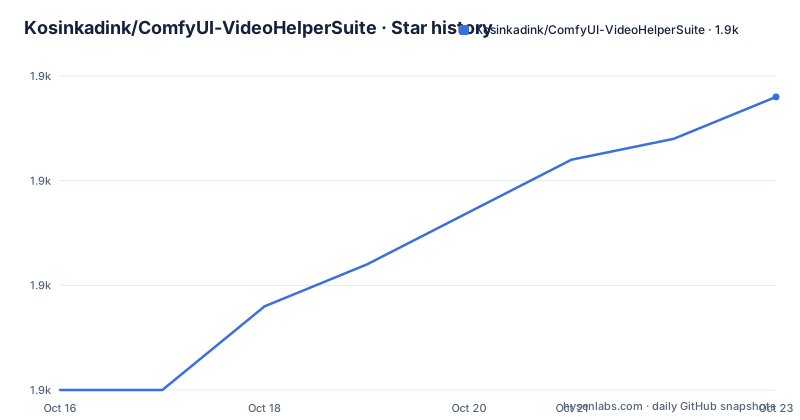
Star history
- Kosinkadink/ComfyUI-VideoHelperSuite1,894 ★ · +14
| Repository | 2026-10-16 | 2026-10-23 |
|---|---|---|
| Kosinkadink/ComfyUI-VideoHelperSuite | 1.9k | 1.9k |
14 Stars in the last 7 days, measured from the daily GitHub snapshot. Compare with other projects
Editorial analysis
Loading Video Frames Into ComfyUI Workflows
ComfyUI-VideoHelperSuite addresses a specific boundary in ComfyUI workflows: moving video into the image-oriented graph environment and returning video or audio as workflow outputs. Its Load Video node converts a video file into a series of images that can pass through downstream processing. A separate Load Video path variant accepts files from external paths, which matters when the input is not uploaded through the ComfyUI interface.
The frame controls make this more than a basic decoder wrapper. The `force_rate` setting discards or duplicates frames to reach a selected frame rate, while setting it to `0` disables that adjustment. This gives workflow authors a direct way to match a target rate, including the `8 fps` used by AnimateDiff according to the README. `frame_load_cap` limits the returned frames and effectively limits the batch size. For sequential processing, increasing `skip_first_frames` by the value of `frame_load_cap` moves the next chunk to a later point in the same video.
Two additional controls address different sampling needs. `skip_first_frames` operates after any forced-rate conversion, whereas `select_every_nth` skips frames without first changing the base rate and without creating duplicate frames for rate matching. The README specifically identifies that mode as useful for animated GIF workflows. `force_size` offers predefined resizing choices, including options that set one dimension and derive the other from the source aspect ratio.
If Advanced Previews is enabled, the preview is documented to reflect the current Load Video settings. That matters when selecting an exact source segment because the preview can correspond to the same frame cap and skip settings sent into the graph. The repository does not document a command-line interface for loading video, so this node-based workflow is the documented interface.
Image Sequence and Latent Batch Operations
Load Image Sequence provides a second ingestion path for workflows whose inputs already exist as separate images. It loads image files from a subfolder and exposes controls similar to those of Load Video, but its caps and offsets refer to images rather than decoded video frames. `image_load_cap` limits the returned batch. Incrementing `skip_first_images` by `image_load_cap` divides a long sequence into successive batches, while `select_every_nth` reduces the set by retaining every nth image. As with Load Video, the repository includes a path-based variant.
The utility nodes operate on either latents or images through corresponding node pairs. Split Batch divides its input at `split_index`. The first portion goes to output A, and the remainder goes to output B. If the input contains fewer items than `split_index`, all items go to A and B remains empty. This explicit edge-case definition is useful when connected to variable-length sequences, although callers must still account for an empty branch downstream.
Merge Batch performs the inverse operation while preserving order. Its output contains all items from A followed by all items from B. If the groups differ in size, the node offers latent rescaling before merging. Select Every Nth keeps the first item and then every nth item, discarding the others. Get Count exposes the number of items, and Duplicate Batch duplicates the input batch.
These operations sit between media I/O and processing nodes. For example, a long source can be capped, advanced through a second batch, processed as latents or images, then reassembled with Merge Batch. The documented ordering rule is clear, but the README does not explain how downstream nodes should handle incompatible image dimensions or latent sizes after independent batch processing. That compatibility check remains part of workflow design rather than an advertised guarantee from this extension.
Encoding Frames with Video Combine
Video Combine accepts a series of images and encodes them as a video. It can also combine an optional audio input into the output. Its `frame_rate` control sets how many input frames are displayed each second. The README makes an important playback point: increasing this value makes the video play faster and reduces its duration. It advises keeping the rate at `8` for AnimateDiff or matching it to the `force_rate` used by Load Video.
Several controls affect output naming and repetition. `loop_count` specifies how many additional repetitions are created. `pingpong` plays the input backward to create a loop. `filename_prefix` sets the base output name and supports a path such as `subfolder/video`. It also supports timestamp formatting, with the README giving `%date:yyyy-MM-ddThh:mm:ss%` as an example. The `save_output` setting controls whether the result goes to ComfyUI's output directory or temporary directory.
The node returns `VHS_FILENAMES`. According to the README, this consists of a boolean that records whether `save_output` is enabled and a list containing the full paths of generated outputs in creation order. Since repetition can create multiple files, `output[1][-1]` is documented as the most complete output.
Codec-specific options appear according to the selected format. `crf` changes the size and quality trade-off, with lower values generally producing larger, higher-quality files and higher values producing smaller, lower-quality files. The README says visually lossless output generally occurs around `20`, but notes that scaling varies by codec. `save_metadata` embeds a copy of the workflow in the video. `pix_fmt` controls pixel storage, and the documented `yuv420p10le` option offers higher color quality but will not work on every device.
Extending Video Combine Through JSON Format Definitions
Video Combine is not limited to the formats shipped in the repository's `video_formats` directories. The README says users familiar with FFmpeg can add JSON files there to define additional output types. Each definition can specify separate encoding passes, an output extension, and format-specific environment variables. This is a direct extension mechanism, but codec behavior depends on the supplied arguments and the availability of the referenced FFmpeg encoder.
The repository includes this example definition for `av1-webm`:
{
  "main_pass":
  [
    "-n", "-c:v", "libsvtav1",
    "-pix_fmt", "yuv420p10le",
    "-crf", ["crf", "INT", {"default": 23, "min": 0, "max": 100, "step": 1}]
  ],
  "audio_pass": ["-c:a", "libopus"],
  "extension": "webm",
  "environment": {"SVT_LOG": "1"}
}
This example selects `libsvtav1` for video and `libopus` for audio, writes a `webm` file, and exposes an integer `crf` control ranging from `0` to `100`. The `"environment"` object sets `SVT_LOG` to `"1"` for the encoding process. Adding such a file is appropriate for users who already understand FFmpeg command arguments. The README does not claim that every FFmpeg build includes `libsvtav1`, so codec availability is an external execution condition rather than a guarantee made by the JSON definition.
Advanced Video Previews and Their Cost
Upload and path variants of Load Video, Load Images, and Video Combine provide animated previews. Their context menu offers Open preview, Save preview, Pause preview, Hide preview, and Sync preview. The README associates pausing and hiding with better performance for large videos, while Sync preview restarts all previews for side-by-side comparison.
Advanced Previews must be enabled manually by opening the settings gear next to Queue Prompt and checking `VHS Advanced Previews`. When active, displayed videos are converted with FFmpeg on request. The documented benefits include source previews that reflect node settings, lower bandwidth for a remotely hosted server, reduced browser load through downsizing, and rendering of videos that a browser might not play directly. The `VHS_STRICT_PATHS` environment variable can limit conversion to subdirectories of ComfyUI.
The same documentation is direct about the drawbacks. Conversion introduces a delay before a video appears, and that delay can become substantial for long inputs. Generated previews also have lower quality than the original. Open preview is the documented route to the higher-quality source. For large or frequently inspected inputs, Advanced Previews may therefore save browser resources while making inspection slower. For short clips on a local interface, its principal advantages may not justify that delay.
The preview feature is not required for decoding or encoding. It changes how video is presented in the interface, not how Load Video populates its outputs or how Video Combine writes a final file.
Installing ComfyUI-VideoHelperSuite and Starting a Video Workflow
The README does not provide installation steps, a Comfy Manager command, or a documented manual directory layout. It therefore does not establish a safe installation command that can be copied without guessing. The repository does show Python project metadata and lists two runtime dependencies in both `pyproject.toml` and `requirements.txt`. It also contains `videohelpersuite/`, `web/`, `__init__.py`, and `video_formats/`, but it does not explicitly document the directory into which those files should be copied.
The package metadata identifies the project as `comfyui-videohelpersuite`, version `1.7.9`, and declares these dependencies:
[project]
name = "comfyui-videohelpersuite"
description = "Nodes related to video workflows"
version = "1.7.9"
license = { file = "LICENSE" }
dependencies = ["opencv-python", "imageio-ffmpeg"]
For a first workflow, use the documented interface rather than inventing configuration. Add Load Video, connect its image output into the processing portion of the graph, and use controls suited to the source. Set `force_rate` to `0` to retain the source frame rate, or choose a target such as `8` when the downstream workflow expects it. Set `frame_load_cap` to keep processing bounded, then use `skip_first_frames` for the next segment. If Advanced Previews has been enabled, compare the preview with Open preview before committing to a frame range.
To encode the processed frames, connect the image series to Video Combine and optionally connect audio. Match `frame_rate` to the input adjustment, select a filename prefix and output directory, and review any codec-specific `crf` and `pix_fmt` controls. Load Audio is available for standalone files and accepts `seek_seconds` as an optional start position.
Maintenance, Dependencies, and GPL-3.0 Distribution Boundaries
The repository is not archived, and its last push was on 2026-09-02. That is the latest maintenance date stated by the repository record. It does not establish compatibility with every ComfyUI release or every FFmpeg build. The repository has no GitHub releases, so the `1.7.9` version visible in `pyproject.toml` is the concrete version documented by repository metadata rather than evidence of a published GitHub release.
The declared Python dependencies are `opencv-python` and `imageio-ffmpeg`. These names identify the two central runtime areas, video frame handling and FFmpeg access, but the README does not document pinned versions or supported Python ranges. The `libsvtav1` format example further demonstrates why codec availability must be checked independently of the base package installation.
The project uses GPL-3.0. That license can affect how modified versions are conveyed, but this review does not provide legal advice. Engineers distributing the extension or bundled modifications should review the repository's `LICENSE` and determine whether their distribution model satisfies its terms. Embedded workflow metadata created by `save_metadata` is a separate output concern because the option copies a workflow into the encoded video. The README does not explain how that embedded workflow is licensed or whether it retains links and other identifying information, so that metadata should be checked before public distribution.
Editorial conclusion
Adopt this extension if your ComfyUI workflow begins with video files or image sequences, or ends by assembling frames into a playable file. Do not adopt it if a general-purpose media editor is required, because the documented scope is a collection of ComfyUI nodes. Verify the installation method in your ComfyUI environment first, then confirm FFmpeg support, preview behavior, codec availability, and GPL-3.0 compatibility with the way you distribute the extension or workflows.
Frequently asked questions
How do I install ComfyUI-VideoHelperSuite?
The README does not document an installation command or the destination directory for the repository files. Its `pyproject.toml` identifies the package as `comfyui-videohelpersuite` and declares `opencv-python` and `imageio-ffmpeg` as dependencies.
How do I process only part of a video in ComfyUI-VideoHelperSuite?
Use `frame_load_cap` to limit the batch and `skip_first_frames` to move the starting point. The README says incrementing `skip_first_frames` by `frame_load_cap` makes it convenient to process a longer input in successive parts.
Does ComfyUI-VideoHelperSuite combine audio with exported video?
Yes. Video Combine accepts optional audio and combines it with the image sequence when that input is connected. The node also has a separate Load Audio option with a `seek_seconds` control for standalone audio files.
Why is a ComfyUI-VideoHelperSuite preview delayed or lower quality?
Advanced Previews converts displayed videos with FFmpeg on request. The README documents both an initial delay, which can be substantial for long videos, and lower preview quality. Opening the preview directly provides access to the original.
Can I add an output format to Video Combine?
The README documents adding JSON definitions to the `video_formats` folders. Each definition can contain FFmpeg arguments, an extension, and environment variables, subject to the codecs available in the FFmpeg environment.
Official sources
Add this badge to your README
If you maintain this project, the badge below links readers to this analysis and shows its maintenance status from the daily GitHub snapshot. Paste the markdown into your README; add ?metric=license or ?metric=stars to the image URL for a different field.

[](https://hysenlabs.com/projects/kosinkadink-comfyui-videohelpersuite)Star history chart for your README
[](https://hysenlabs.com/projects/kosinkadink-comfyui-videohelpersuite)Was this useful?