Open Notebook: A Self-Hosted Notebook LM Alternative with Provider Choice and Local AI
An Open Source implementation of Notebook LM with more flexibility and features
At a glance
- What is it?
- Open Notebook is an open source, MIT-licensed implementation of Google's Notebook LM that runs locally via Docker, supports 20+ AI providers including Ollama, and adds multi-speaker podcasts and a REST API. The trade-off is setup complexity and the maintenance you take on by self-hosting.
- Who is it for?
- Adopt Open Notebook if you need data sovereignty, want to avoid vendor lock-in, or need to run AI locally with Ollama for cost or privacy reasons. Skip it if you want a zero-config hosted service.
- Can I use it commercially?
- Yes. MIT is a permissive licence: you can use, modify and sell software built on it, as long as you keep its copyright and licence notices.
- Is it still maintained?
- Yes. The repository received new commits within the last day.
- What is it written in?
- Mainly TypeScript, according to GitHub's language statistics.
Answers come from the project's GitHub data, last synced on November 15, 2026, and from our analysis. They are not legal advice.
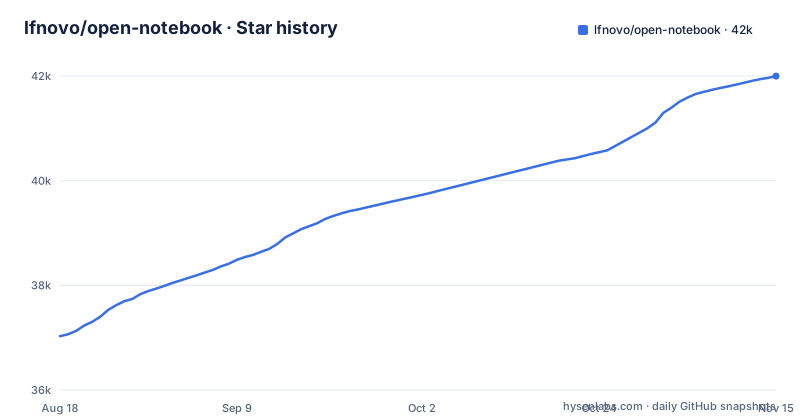
Star history
- lfnovo/open-notebook41,999 ★ · +4,971
| Repository | 2026-08-18 | 2026-11-15 |
|---|---|---|
| lfnovo/open-notebook | 37k | 42k |
4,971 Stars in the last 89 days, measured from the daily GitHub snapshot. Compare with other projects
Editorial analysis
What Open Notebook Actually Solves
Open Notebook targets a specific gap left by Google's Notebook LM: you cannot control where your research data goes, which AI models process it, or how the output is generated. Google hosts everything and restricts you to Google models. Open Notebook is a self-hosted application that keeps your documents, embeddings, and conversations on your own machine or server. The README frames it as a privacy-focused alternative, and the architecture backs that up. You deploy it with Docker, and nothing leaves your infrastructure unless you configure a remote AI provider. This matters for researchers, legal teams, or anyone handling confidential material who still wants the notebook-style workflow: upload sources, ask questions, generate summaries, and produce podcasts. The project also claims a full REST API, which Notebook LM does not offer, so automation and integration with other tools become possible. That combination of self-hosting, provider neutrality, and API access is the core value proposition, not just a clone of the Google product.
How the Data Flow Works
The repository layout shows a clear separation between the frontend and backend. The README lists Next.js and React for the UI, Python and LangChain for the backend, and SurrealDB as the database. LangChain is the orchestration layer that ties document ingestion, vector search, and model calls together. When you upload a PDF, video, audio file, or web page, the system processes it into a searchable form. The README mentions both full-text and vector search across all content, which implies two indexing paths: one for lexical matches and one for semantic similarity. The vector search likely uses embeddings generated by one of your configured AI providers. SurrealDB stores the notebooks, sources, and conversation state. The encryption key in the docker-compose file, OPEN_NOTEBOOK_ENCRYPTION_KEY, encrypts the API keys stored in the database, according to the compose file and README, so treat it as protection for credentials rather than a full data-at-rest guarantee. The podcast generation feature is more advanced than Notebook LM's: the README claims one to four speakers with custom profiles, while Google offers two fixed speakers. That means the pipeline includes a script generation step and a text-to-speech step, likely using provider-specific audio models.
Getting It Running: Docker and Provider Setup
The quick start is a four-step process, all documented in the README. First, you download the docker-compose.yml file with curl from the repository's main branch, or you create it manually. The compose file defines two services: SurrealDB and the open_notebook application. Second, you edit the encryption key line. The default value is change-me-to-a-secret-string, and the README explicitly tells you to replace it. This is not optional; if you leave it, anyone who knows the default can potentially decrypt your data. Third, you run docker compose up -d and wait about 30 seconds before opening http://localhost:8502. Fourth, you configure an AI provider through the UI. The steps are: go to Models, click Add Configuration, paste your API key, click Test, then open Models, choose a Model Type, tick the models to add and click Add, with at least one Language model and one Embedding model. Finally, you assign default models for different tasks, either manually or with the Auto-Assign Defaults button. The README also points to an example compose file for Ollama, which runs models locally and avoids API costs entirely. That example is at examples/docker-compose-ollama.yml, and it is the recommended path if you want free local AI. The quick start assumes Docker is already installed: Docker Desktop on macOS and Windows, or Docker Engine with the Compose plugin on Linux.
Where It Falls Short: Citations and Operational Risk
The README's comparison table describes Open Notebook's citations as answers that cite the sources, notes and insights they used, against Google's 'Comprehensive with sources'. For academic or investigative work, where provenance is the whole point, test whether that is enough before relying on it. The other limitation is operational. Self-hosting means you own the maintenance burden. The docker-compose file uses SurrealDB with default root:root credentials, and the compose file comments warn you to change them before exposing the instance to a network. That is a real failure mode, and the README adds that the UI (8502) and API (5055) are published on all network interfaces with no password by default, so on a shared network bind those ports to 127.0.0.1 or set OPEN_NOTEBOOK_PASSWORD. The encryption key is another operational risk; the README gives a clear instruction, but it is easy to skip. There is also the question of model availability. The README lists 20+ providers, but the actual quality of the experience depends on each provider's API stability and the LangChain integrations. The release notes mention Hardened Provider Connections in v1.14.0. If you rely on a niche provider, verify that it works before committing your workflow.
The Alternative: Google Notebook LM and Its Constraints
The direct alternative is Google's Notebook LM, and the comparison is not one-sided. Notebook LM is hosted, which means zero setup, automatic updates, and no infrastructure to maintain. The README's comparison table lists its citations as 'Comprehensive with sources'. For a user who just wants to upload a few PDFs and get a podcast, Notebook LM is the easier choice. The trade-off is that you have no control over the data, no choice of AI models, and no API. Google's podcast feature is limited to two speakers with a fixed deep-dive format; Open Notebook offers script control and up to four speakers. If your work demands customization, automation, or data privacy, those constraints become deal-breakers, and Open Notebook's self-hosted model is the deliberate alternative. The README's comparison table lays this out clearly, and the advantage column shows where each product wins. There is no middle ground here: you choose between Google's convenience and Open Notebook's control.
Maintenance, Upgrades, and License Implications
The project is under active development. The recent releases show a steady cadence: v1.13.0 was a major content-processing upgrade called Content Core 2.0, v1.14.0 added new providers and hardened provider connections, and v1.15.0 in October 2026 brought new providers and sturdier ingestion. That activity suggests the project is not abandoned, but it also means the API and configuration may shift between versions. You should read the release notes before upgrading, especially for major versions like the 2.0 content core. The MIT license is permissive: you can modify, distribute, and use the software commercially without paying fees, and you are not required to open-source your changes. The only obligation is to include the original copyright notice. This is a low-license-risk project for most organizations. However, the MIT license does not cover the AI models you connect. Each provider has its own terms, and running local models via Ollama still involves model licenses. So check the provider and model terms separately. The maintenance cost is real: you must keep the Docker images updated, monitor the SurrealDB instance, and manage encryption keys. Because you self-host, all of that falls on you.
Who Should Adopt It and What to Verify First
Open Notebook is the right tool for a specific profile: a technical user or team that already runs Docker, values data control, and wants to avoid being locked into Google's ecosystem. It is also a strong fit for anyone who wants to run AI locally with Ollama to cut costs or work offline. The REST API is a differentiator for developers who want to build automation on top of a notebook system. Before you commit, verify three things. First, confirm that your preferred AI provider works with the current version, especially if it is not one of the big names like OpenAI or Anthropic. Second, test the citation quality on your own documents; do not assume it meets academic standards. Third, check the upgrade path from v1.15.0 to future releases, since the project is moving quickly and breaking changes are plausible. If you need a polished, zero-maintenance notebook tool with robust citations, stick with Google. If you need sovereignty, flexibility, and automation, Open Notebook is a credible foundation, but it asks for your operational attention in return.
Editorial conclusion
Adopt Open Notebook if you need data sovereignty, want to avoid vendor lock-in, or need to run AI locally with Ollama for cost or privacy reasons. Skip it if you want a zero-config hosted service. Before deploying, verify your AI provider's API compatibility, set a strong OPEN_NOTEBOOK_ENCRYPTION_KEY, and change the default SurrealDB credentials if you expose the instance to a network.
Frequently asked questions
How to install open notebook AI?
Docker is the main prerequisite (Docker Desktop on macOS and Windows, Docker Engine with the Compose plugin on Linux), plus an API key or a local model server such as Ollama. Download docker-compose.yml with curl, replace OPEN_NOTEBOOK_ENCRYPTION_KEY with your own secret string, run docker compose up -d, wait about 30 seconds, and open http://localhost:8502, then add provider keys under Models.
is open notebook free
The project is MIT licensed and self hosted, and its comparison table lists cost as paying only for AI usage. examples/docker-compose-ollama.yml is the documented path for running models locally.
Is an open notebook as good as a NotebookLM?
The project's own table claims advantages in privacy, provider choice, podcast speakers, API access, deployment, and customization, and for citations it says answers cite the sources, notes and insights they used, against Google's 'Comprehensive with sources'.
how to install open notebook on mac
The README lists Docker Desktop as the prerequisite for macOS, and the documented path is the same docker compose up -d quick start, and the Dockerfile also has a single container target that bundles the application with SurrealDB instead of running them as separate services.
anythingllm vs open notebook
The feature table in the README compares Open Notebook only against Google Notebook LM, across privacy, provider choice, podcast speakers, content transformations, API access, deployment, citations, customization, and cost.
Official sources
Add this badge to your README
If you maintain this project, the badge below links readers to this analysis and shows its maintenance status from the daily GitHub snapshot. Paste the markdown into your README; add ?metric=license or ?metric=stars to the image URL for a different field.

[](https://hysenlabs.com/projects/lfnovo-open-notebook)Star history chart for your README
[](https://hysenlabs.com/projects/lfnovo-open-notebook)Was this useful?