gmailctl: Gmail filters as a Jsonnet file, applied through the API with a diff first
Declarative configuration for Gmail filters
At a glance
- What is it?
- gmailctl turns a pile of hand-made Gmail filters into one Jsonnet config you edit, review as a diff and push through the Gmail API. This piece covers setup, the first-apply wipe, the download command's rough output and the limits of the approach.
- Who is it for?
- Use gmailctl if you maintain more than a handful of Gmail filters and want them reviewable like code, with a diff before anything changes. Avoid it if you only have two or three filters, or if you are unwilling to let a tool replace your whole filter set on the first apply.
- Can I use it commercially?
- Yes. MIT is a permissive licence: you can use, modify and sell software built on it, as long as you keep its copyright and licence notices.
- Is it still maintained?
- Yes. The repository last received commits 58 days ago.
- What is it written in?
- Mainly Go, according to GitHub's language statistics.
Answers come from the project's GitHub data, last synced on November 25, 2026, and from our analysis. They are not legal advice.
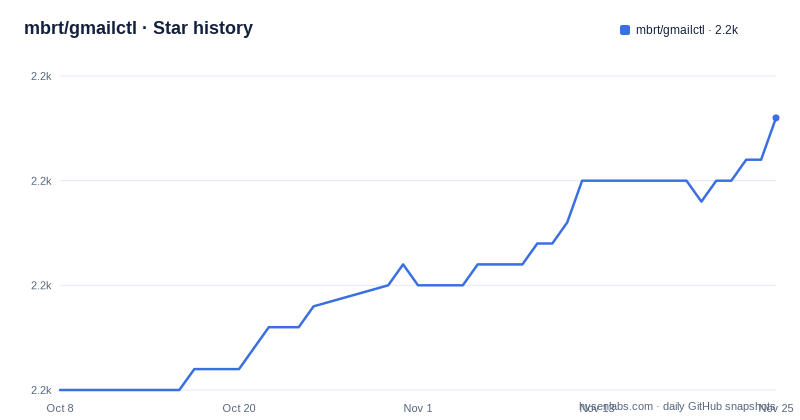
Star history
- mbrt/gmailctl2,218 ★ · +13
| Repository | 2026-10-08 | 2026-11-25 |
|---|---|---|
| mbrt/gmailctl | 2.2k | 2.2k |
13 Stars in the last 48 days, measured from the daily GitHub snapshot. Compare with other projects
Editorial analysis
Jsonnet replaces the Gmail filter screen, and the Gmail API replaces the XML import
gmailctl helps you generate and maintain Gmail filters in a declarative way. Its configuration file is Jsonnet, which the README says aims to be simpler to write and maintain than the Gmail web interface for categorizing, labelling, archiving and managing your inbox.
The project's motivation is a familiar mess: a very long list of filters, a message that got mislabelled, and no way to find and replace, test or refactor. Gmail can import and export filters as XML, and the README names antifuchs/gmail-britta as the popular tool that generates XML you still import by hand. gmailctl skips that last manual step. Gmail has an API, and gmailctl uses it to apply the settings itself.
The README lists five things the project provides: maintainability, a declarative composable language, a builtin query simplifier, the ability to review changes before applying, and automatic update of the settings in seconds. It is written in Go, with google.golang.org/api and go-jsonnet among its dependencies.
The query simplifier exists because Gmail caps a filter at 1500 characters
A single Gmail filter has a limit of 1500 characters. A config that expresses many conditions with nested or and and operators can generate an expression longer than that, and the builtin query simplifier keeps the size down.
This is the detail that justifies a compiler over a hand-written file. You write composable conditions, such as an or list of from entries, and the tool decides how to emit them for Gmail. The README does not say what happens if a filter still exceeds the cap after simplification, so test large rules with gmailctl diff and watch for errors.
The Jsonnet approach also means ordinary programming features: variables and functions let you name a set of senders once and reuse it across several rules. The README's config format section is linked as Configuration, and the repository ships example.jsonnet at its root, which is the quickest way to see a full file.
Setup needs a Google Desktop OAuth client, not just a binary
Pre-built binaries for Linux, macOS and Windows, in amd64 and arm64, are on the GitHub releases page. Download the archive, extract it and put the gmailctl binary in your PATH. With Go installed you can build from source:
go install github.com/mbrt/gmailctl/cmd/gmailctl@latestOther routes exist: brew install gmailctl on macOS, sudo port install gmailctl for Macports, sudo dnf install gmailctl on Fedora, and sudo snap install gmailctl. The go.mod declares go 1.25.0 with toolchain go1.26.1, so a source build needs a recent Go.
The snap needs one more step: configure xdg-mime so the config file opens in your editor, for example xdg-mime default vim.desktop text/x-csrc. On Windows, set the EDITOR variable, for example setx EDITOR "code --wait" in PowerShell.
Then run:
gmailctl initFollow the instructions to enable the Gmail API and configure a Desktop app OAuth client in Google Auth Platform. Save the downloaded client JSON file at the path gmailctl prints, then run gmailctl init again to authorize access. You need a Google Cloud project of your own for this.
The first apply wipes your existing filters and replaces them
The easiest way to use gmailctl is gmailctl edit. It opens the local config file in your editor, and after you exit the editor the configuration is applied to Gmail. This is the recommended route if you want to start from scratch.
The README's warning is the one to heed: back up your current configuration before you apply the generated one for the first time. Your current filters will be wiped and replaced with the ones in the config file. The diff on the first run will probably be pretty big, but afterwards every change should produce a small diff that is easy to review.
That means an empty or partial config applied to a real mailbox deletes filters you may have forgotten about. Gmail's own XML export is a sensible backup.
Configuration and credentials live in $XDG_CONFIG_HOME/gmailctl, which is ~/.config/gmailctl on Linux and ~/Library/Application Support/gmailctl on macOS when XDG_CONFIG_HOME is unset. The old ~/.gmailctl is still used if it exists, and --config sets a custom location. Run gmailctl --help to see the exact path.
download recreates your filters, but the config it writes is ugly
To keep your current filters and migrate gradually, use the download command. It reads the filters in Gmail and tries to write a matching config. The README flags it as experimental and says the file will be quite ugly, because expressions are not reconstructed properly.
The suggested flow:
# download the filters to the default configuration file
mkdir -p ~/.config/gmailctl
gmailctl download > ~/.config/gmailctl/config.jsonnet
# check that the diff is empty and no errors are present
gmailctl diff
# happy editing!
gmailctl edit
Check that the diff is empty before you edit. Pass --include-labels=false if you prefer to keep managing labels through the Gmail interface.
Expect imported filters carrying isEscaped: true. That marker tells gmailctl not to escape or quote the expression because it may contain Gmail operators that must be interpreted as is, and it appears when download could not map the filter to native expressions. The README advises porting them by hand before changing anything. Its example turns from: "{foo bar baz}" with isEscaped into an or list of three from entries.
Eight commands cover diffing, debugging and exporting
The README lists the available commands, which you can also see with gmailctl help. Visible ones are apply, to apply a configuration file to Gmail settings; debug, which shows an annotated version of the configuration; diff, between the local configuration and Gmail settings; download; edit, which edits and applies; and export. The list is cut off after export, so check gmailctl help for the rest.
The workflow that matters is diff before apply. The diff compares your local file with what is live in Gmail, so it also catches changes you made in the Gmail web interface behind the tool's back. If someone adds a filter in the browser, the next apply from your config removes it.
The debug command is the answer to the README's mislabelled-message story. An annotated view of the config helps you see how each rule was interpreted when you are tracing why a message got a label.
The repository has integration_test.go, a testdata directory and a docs directory, though the README text visible here does not describe them.
One file manages one account's filters and nothing else about the mailbox
gmailctl handles filters, and labels through the download option and config. It does not touch other Gmail settings, search your mail or move existing messages in a way the README describes. If you wanted to know whether past mail would be matched, the README does not say.
It also assumes you own the whole filter set. Because apply replaces what is in Gmail, mixing browser-made filters with gmailctl-managed ones does not work. Pick one place to edit.
The latest release is v0.13.0 on 2026-09-28, following v0.12.0 on 2026-05-19 and v0.11.0 on 2025-01-19. The last push was on 2026-09-29 and the repository is not archived. The license is MIT. Version numbers below 1.0 mean the interface can change, which matters for the experimental download command in particular.
The README's Install text also points to the Go toolchain version in go.mod, so check it if go install fails on an older Go.
Editorial conclusion
Use gmailctl if you maintain more than a handful of Gmail filters and want them reviewable like code, with a diff before anything changes. Avoid it if you only have two or three filters, or if you are unwilling to let a tool replace your whole filter set on the first apply. Before running edit for the first time, back up your current filters and run download followed by diff to confirm the config matches Gmail.
Frequently asked questions
How do I run my Gmail filters from a config file with gmailctl?
Run gmailctl edit to open the config in your editor and apply it to Gmail on exit, or use gmailctl diff to review changes and gmailctl apply to push a config file.
Where can I find my email filters with gmailctl?
Run gmailctl download to read the filters currently in Gmail and write them to a local Jsonnet config file. The config lives in $XDG_CONFIG_HOME/gmailctl, or ~/.config/gmailctl on Linux.
Is gmailctl the best spam blocker for Gmail?
The project does not claim that. It manages the filters you write, which can label, archive and get rid of messages, and Gmail applies them. It does not include a spam classifier of its own.
Official sources
Add this badge to your README
If you maintain this project, the badge below links readers to this analysis and shows its maintenance status from the daily GitHub snapshot. Paste the markdown into your README; add ?metric=license or ?metric=stars to the image URL for a different field.

[](https://hysenlabs.com/projects/mbrt-gmailctl)Star history chart for your README
[](https://hysenlabs.com/projects/mbrt-gmailctl)Was this useful?