nextcloud/docker: the community micro-image for self-hosted Nextcloud, and what it does not do for you
A community maintained docker micro-image for deploying Nextcloud on container platforms
At a glance
- What is it?
- nextcloud/docker packages Nextcloud as an Apache or FPM container with environment-variable auto-configuration. It is built for operators who already run Docker and a database, and it deliberately stops short of being a turnkey appliance.
- Who is it for?
- Adopt nextcloud/docker if you already run a database and a reverse proxy and want Nextcloud as one more container you configure through environment variables. Skip it if you expect a single command to produce a working, HTTPS-served Nextcloud with all Hub features; the README points that audience to the All-in-One container instead.
- Can I use it commercially?
- Yes, with strict conditions. AGPL-3.0 is a network copyleft licence: if people use a modified version over a network, for example as a hosted service, you must offer them its source code under the same licence.
- Is it still maintained?
- Yes. The repository last received commits 1 day ago.
- What is it written in?
- Mainly Shell, according to GitHub's language statistics.
Answers come from the project's GitHub data, last synced on November 13, 2026, and from our analysis. They are not legal advice.
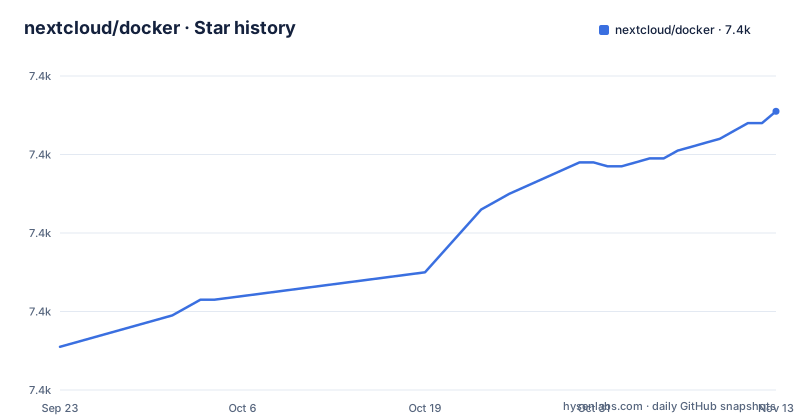
Star history
- nextcloud/docker7,431 ★ · +60
| Repository | 2026-09-23 | 2026-11-13 |
|---|---|---|
| nextcloud/docker | 7.4k | 7.4k |
60 Stars in the last 51 days, measured from the daily GitHub snapshot. Compare with other projects
Editorial analysis
The gap nextcloud/docker fills between a tarball install and a full appliance
Nextcloud is PHP software with a web server, a database, a data directory and a background job runner. Installing it by hand means matching PHP extensions, web server configuration and file permissions across every machine you deploy to. nextcloud/docker collapses that into a container image you can pin by tag, so the web server, PHP and the Nextcloud code tree travel together.
The README is explicit about the audience. The image is, in its own words, "maintained by community volunteers and designed for expert use." It is aimed at people who already have a database running somewhere and a reverse proxy in front, and who want Nextcloud as one more service in that arrangement. It is not aimed at someone who wants to click through a setup wizard and get a working server. The README redirects that reader to the Nextcloud All-in-One docker container, which is maintained by Nextcloud GmbH and supports the full set of Nextcloud Hub features.
That split matters when you evaluate the project. You are not choosing between a good and a bad image. You are choosing how much of the stack you want to own. This image owns the application layer and the web server. You own the database, the TLS termination, the persistence and the upgrade sequence.
apache versus fpm: two images, two different deployment shapes
The repository ships two variants. The apache tag contains a full Nextcloud installation including an Apache web server, and the README describes it as the easy option that gets you running quickly. It is also the default for the latest tag and for version tags that are not further specified.
The fpm variant is based on the php-fpm image and runs a FastCGI process that serves Nextcloud pages. It must be combined with a web server that can proxy HTTP requests to the FastCGI port of the container. The practical difference is where the HTTP layer lives. With apache, the container terminates plain HTTP and you put a proxy in front for TLS. With fpm, you supply the whole web server, which gives you control over headers, caching and static file handling but adds a component you must configure and keep in sync with the container's FastCGI socket.
The repository layout reflects this. There are Dockerfile-alpine.template and Dockerfile-debian.template files at the top level, alongside numbered directories such as 32, 33, 34 and 35, and a versions.json file. The image build is generated from templates rather than hand-maintained per version, which is how the project tracks upstream Nextcloud releases.
One consequence the README addresses directly: migrating from a non-Alpine image to an Alpine image is treated as its own topic in the table of contents. If you start on one base and move to the other, that is not a tag swap.
Installing nextcloud/docker and getting a first instance talking to a database
The README's compose examples are the shortest path to a running instance, and the repository ships a stack.yml at the top level. The safest first step is to read the compose section of the README and the stack.yml file rather than copying a file from somewhere else. The variables the image reads are documented there in groups: database parameters, initial admin account, custom data directory, trusted domains, image specific settings, Redis memory caching, SMTP configuration, object storage as primary storage, PHP configuration and Apache configuration.
For a non-interactive first boot, the initial admin account and database parameters are the ones that matter. The README warns about a specific failure mode: if the configuration file at /var/www/html/config differs from the version shipped in the image at /usr/src/nextcloud/config, you get a warning about auto-configuration and Nextcloud updates.
Once the container is running, administrative tasks go through occ, the Nextcloud command-line interface. The README has a section on accessing it, and a separate section on viewing the configuration file config.php. Persistent state lives in volumes; the README covers the main /var/www/html mount, additional volumes and custom volumes separately, and file permissions when running as an arbitrary user are their own section because the default container user can be changed.
If you want to try the image without wiring up your own database first, the README links a Play With Docker stack at stack.yml. For limited testing, the README also gives a one-command start: docker run -d -p 8080:80 nextcloud.
What the image will not do: database, TLS, and the app store
The most common wrong turn is expecting this image to be a complete Nextcloud deployment. It is not. The image defaults to SQLite; the setup wizard can instead connect to an existing MySQL/MariaDB or PostgreSQL database. Choose the database according to the workload and Nextcloud's deployment guidance. It does not terminate TLS; the section on running behind a reverse proxy and specifying the server host and protocol exists precisely because the container needs to be told what the outside world sees.
There is a second limitation in the update path. The README covers updating to a newer version and adding features as separate topics, and the auto-configuration warning described above is the mechanism by which config drift becomes visible. The image does not resolve that drift for you. If you have edited config.php through the web interface or by hand, upgrading the image means reconciling your file with the one shipped in the new image.
A third case where this is the wrong tool: if you want the full set of Nextcloud Hub features without assembling the surrounding pieces, the README's own recommendation is the All-in-One container. The community image is for operators who want the parts exposed. That is a design position, not a defect, but it decides the audience. Someone who wants a working server by the end of an afternoon should read the All-in-One README first.
How nextcloud/docker differs from the All-in-One container
The README names the alternative directly, so the comparison is not guesswork. The Nextcloud All-in-One docker container is maintained by Nextcloud GmbH and is presented as the route to quick and easy deployment that supports the full set of Nextcloud Hub features. This image is maintained by community volunteers and is described as designed for expert use.
The difference is not just who maintains it. It is what is inside the box. All-in-One is presented as quick and easy deployment that supports the full set of Nextcloud Hub features. The Apache variant includes the application and web server, while the FPM variant needs a separate web server. SQLite is available by default; operators must arrange any external database, reverse proxy and TLS configuration they choose. If you already run those, the community image is the smaller, more predictable component. If you do not, All-in-One removes work you would otherwise do yourself.
The maintenance model follows from that. The repository's last push was on 2026-10-23, and the most recent releases listed are v2026.6.2 on 2026-06-11 and v2026.6.1 on 2026-06-09. The version directories and versions.json indicate the image tracks upstream Nextcloud releases, so your upgrade cadence is tied to Nextcloud's, not to a separate product schedule. For a container you pin in production, that is the relevant clock.
Licence and the cost of keeping the image current
The repository is licensed AGPL-3.0. That is the same licence family as Nextcloud itself, and it is a copyleft licence. The AGPL includes conditions for distribution and for users interacting over a network with modified covered software. Review the licence and the relevant components with qualified counsel when modifying or providing the software as a service.
The upgrade cost is the more practical concern. Because the image is generated from templates and version directories, moving to a new Nextcloud major version means changing the tag and then dealing with whatever the auto-configuration warning surfaces. The README treats migration of an existing installation as a topic in its own right, including the Alpine transition case. Budget for reading the release notes for the specific version you are moving to, and for a maintenance window where you can roll the database forward alongside the container.
Editorial conclusion
Adopt nextcloud/docker if you already run a database and a reverse proxy and want Nextcloud as one more container you configure through environment variables. Skip it if you expect a single command to produce a working, HTTPS-served Nextcloud with all Hub features; the README points that audience to the All-in-One container instead. Before committing, verify which tag you are pulling (apache or fpm), where /var/www/html and your data directory are mounted, and which database environment variables your compose file sets.
Frequently asked questions
What is the difference between the apache and fpm tags in nextcloud/docker?
The apache tag includes a full Nextcloud installation with an Apache web server and is the default for the latest tag. The fpm tag runs a FastCGI process and must be combined with a separate web server that proxies requests to the container's FastCGI port.
Does nextcloud/docker include a database?
No. The README has a section on using an external database. You supply the database and its connection parameters through environment variables.
How do I run Nextcloud commands like occ inside the nextcloud/docker container?
The README has a dedicated section on accessing the Nextcloud command-line interface, occ.
Why does nextcloud/docker warn that config.php differs from the image version?
The warning appears when /var/www/html/config differs from the copy shipped at /usr/src/nextcloud/config. The README treats this as the point where auto-configuration meets Nextcloud updates.
Is nextcloud/docker the right choice if I want a quick Nextcloud setup?
The README says the image is maintained by community volunteers and designed for expert use, and points readers who want quick deployment with the full set of Nextcloud Hub features to the Nextcloud All-in-One docker container instead.
Official sources
Add this badge to your README
If you maintain this project, the badge below links readers to this analysis and shows its maintenance status from the daily GitHub snapshot. Paste the markdown into your README; add ?metric=license or ?metric=stars to the image URL for a different field.

[](https://hysenlabs.com/projects/nextcloud-docker)Star history chart for your README
[](https://hysenlabs.com/projects/nextcloud-docker)Was this useful?