OneMoreGres/ScreenTranslator: a tray application that OCRs and translates any region of the screen
Screen capture, OCR and translation tool.
At a glance
- What is it?
- ScreenTranslator is an MIT licensed C++ and Qt 5 application that combines screen capture, Tesseract OCR and online translation services into a tray-only tool you drive with a hotkey. Its own README opens by saying the project is almost abandoned and that the author can only fix minor issues, and the last tagged release dates from 2022.
- Who is it for?
- Adopt ScreenTranslator if you need to read foreign text on a screen, in a game or in a video, and you are content to install a language pack and to send the recognised text to an online translation service. Do not adopt it for text that must not leave the machine, because the translation step goes through online services and the recognised text is what gets sent.
- Can I use it commercially?
- Yes. MIT is a permissive licence: you can use, modify and sell software built on it, as long as you keep its copyright and licence notices.
- Is it still maintained?
- Yes. The repository last received commits 67 days ago.
- What is it written in?
- Mainly C++, according to GitHub's language statistics.
Answers come from the project's GitHub data, last synced on November 6, 2026, and from our analysis. They are not legal advice.
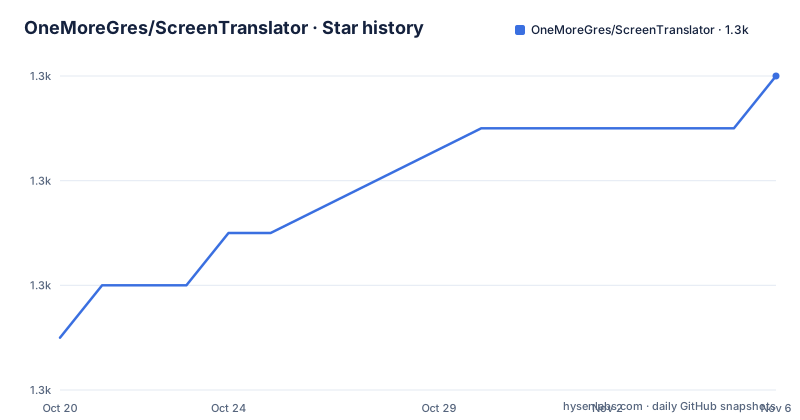
Star history
- OneMoreGres/ScreenTranslator1,304 ★ · +5
| Repository | 2026-10-20 | 2026-11-06 |
|---|---|---|
| OneMoreGres/ScreenTranslator | 1.3k | 1.3k |
5 Stars in the last 17 days, measured from the daily GitHub snapshot. Compare with other projects
Editorial analysis
The first line of the README is the review
The project starts with a warning that is unusual enough to be the most useful sentence in the document. The project is almost abandoned. The author does not have time for it and can only fix minor issues.
That single line should govern every other decision about this repository, and it is worth reading next to the release history. The tags are 3.2.2 on 2022-02-05, 3.2.3 on 2022-05-22 and 3.3.0 on 2022-07-30, while the last push to the repository was on 2026-09-02. So commits continue to land, presumably small ones, but the project has not cut a release since the summer of 2022, which is a long time for a desktop application that talks to online services and depends on other people's translation APIs.
The application itself is a combination of screen capture, OCR and translation tools, and the translation is done via online services. The dependencies section names them: Qt 5, Tesseract for OCR, Leptonica, and several online translation services.
So the shape of the tool is a small native application that grabs a rectangle of the screen, runs OCR over the pixels, sends the resulting text to a translation service, and shows you the result. Nothing about that is complicated, which is why the abandonment matters more here than it would in a bigger codebase.
No main window, only a tray icon
The design decision that surprises people is that the application has no main window. After start it shows only the tray icon, and the entire interface lives in the settings window that you open from the tray.
That has consequences for how errors are reported, and the README is specific about it. If the app detects invalid settings, it shows the error message via the system tray, and it highlights the section name in red on the left panel of the settings window. Clicking that section name shows a more detailed error message in the right panel, also in red. And after you fix everything, all sections in the left panel should be black, and then you can click Ok to close the settings.
The red-to-black convention is a small piece of interface design that carries a lot of information. It means the application is always telling you what state it is in, without a window to look at, and it means a first time user who has not configured anything sees a settings window full of red section names.
The other consequence of the tray design is that the hotkey is the primary interface, not a click target.
Installation, and the resources that are not in the package
Installation is straightforward on the two supported platforms. On Windows you download an archive from the GitHub releases page, extract it and run the exe file, and if the app fails to start complaining about missing dlls, or if there are update errors related to SSL or TLS, you install or repair the `vs_redist*.exe` from the release archive. On Linux you download the AppImage, make it executable with `chmod +x` and run it. On macOS, currently not supported.
The part that catches people is the resources. The packages downloaded from the release page do not include resources, such as recognition language packs or scripts to interact with online translation services.
So there is a second installation step, inside the application. You open the settings window, go to the Update section, expand the `recognizers` and `translators` sections in the right panel, select the items you prefer, right click and choose Install/Update, and after the progress bar reaches 100% the resource's state changes to `Up to Date`. You must download at least one recognizers resource and one translators resource.
Then the configuration itself. You go to the Recognition section and set the default recognition language, the source to be translated, then to the Translation section, set the default translation language, the language to be translated into, and enable some or all translation services, which you can also reorder by dragging.
That is a lot of steps before the first translation, and the reason it is worth reading carefully is that a missing language pack and a missing translator both look like a broken application.
The workflow is four actions
Once it is configured, the usage list is five steps. Run the program, noting that it does not have a main window. Press the capture hotkey. Select the region on screen, and customise it if needed. Get the translation of the recognised text. And then, if something is not working, check for updates.
That last step is in the list for a reason, because the resources are versioned separately from the application and an outdated language pack or translator script is a plausible cause of a bad result.
The FAQ covers the remaining operational details. By default the resources are downloaded to one of the user's folders, and if the Portable setting in the General section is checked, they are downloaded to the application's own folder instead. And if the application fails to start due to a crash, you set the `QTWEBENGINE_DISABLE_SANDBOX=1` environment variable, which is the usual remedy for a Qt WebEngine sandbox problem in a container or an unusual environment.
The project also lists its limitations, and there is only one: it cannot capture some dynamic web pages and full screen applications. That is the direct consequence of a screen capture model, since a page that repaints itself continuously and an application that owns the whole display do not present a stable image to grab, and it is the practical boundary to check before you plan to use this on a particular application.
There is a third party enhancement section for translating with online AI services through external scripts, and the README is careful to label it as not tested or reviewed by the author. It also points at a Hebrew translation of the application interface, which is a `.qm` file placed in the translations folder next to the executable.
Building it, and what the repository tells you
The build from source instructions are short, which is consistent with a project of this age and a build system that has not changed in a long time. Look at the Python 3 scripts in the `share/ci` folder, where you normally only need to edit the `config.py` file, then build the dependencies first and then build the app.
The repository layout confirms the stack. There is a `screen-translator.pro` file, which is a qmake project file, a `src/` directory for the C++ sources, a `translators/` directory for the translation files, a `tests/` directory, an `external/` directory for vendored dependencies, a `recources.qrc` Qt resource file, and an `updates.json` that drives the resource downloader. The `.clang-format` file is at the root, so the code is formatted with a style file rather than by convention.
The attribution section credits the icons to Smashicons and Freepik from Flaticon, which is the kind of detail that is easy to overlook and that has to be right for a project with an MIT licence and a mix of borrowed assets.
The project also names an alternative, Translumo, described as an advanced real-time screen translator for games, hardcoded subtitles in videos, static text and the like. That is a fair pointer for anyone who finds the real-time behaviour of this tool too slow, since the trade-off in this application is that the OCR and translation happen after the capture rather than during playback.
On the state of the project, the repository is not archived, the licence is MIT, the last push was on 2026-09-02, and the most recent release is 3.3.0 from 2022-07-30.
Editorial conclusion
Adopt ScreenTranslator if you need to read foreign text on a screen, in a game or in a video, and you are content to install a language pack and to send the recognised text to an online translation service. Do not adopt it for text that must not leave the machine, because the translation step goes through online services and the recognised text is what gets sent. Do not expect a maintained project, since the README says outright that it is almost abandoned and that only minor issues get fixed, and the newest release tag is from 2022. Verify first that your platform is supported, Windows or Linux with the AppImage, since macOS is currently not supported, and that the recognition language pack and at least one translator resource have been downloaded before you conclude the application is broken.
Frequently asked questions
Is ScreenTranslator still maintained?
The project says it is almost abandoned and that the author can only fix minor issues. The last release tag is 3.3.0 from 2022-07-30, while the last push to the repository was on 2026-09-02.
How do I install ScreenTranslator?
On Windows, download the archive from the releases page, extract it and run the exe, installing the bundled `vs_redist*.exe` if you hit missing dlls or SSL and TLS update errors. On Linux, download the AppImage, make it executable with `chmod +x` and run it. macOS is currently not supported.
Why does ScreenTranslator show no text after I install it?
The release packages do not include the recognition language packs or the scripts for the online translation services. You have to open the settings window, go to the Update section, expand the recognizers and translators sections, select the items you want, right click and choose Install/Update, and download at least one resource of each kind before setting the default recognition and translation languages.
What does ScreenTranslator depend on?
Qt 5, Tesseract for OCR, Leptonica, and several online translation services. It can be built from source with the Python 3 scripts in the `share/ci` folder, where you normally only need to edit the `config.py` file, after which you build the dependencies and then the app.
What are the limitations of ScreenTranslator?
The documented limitation is that it cannot capture some dynamic web pages and full screen applications. There is also a FAQ note that if the application fails to start due to a crash, you should set the `QTWEBENGINE_DISABLE_SANDBOX=1` environment variable, and that resources are downloaded to a user folder unless the Portable setting in the General section is checked.
Official sources
Add this badge to your README
If you maintain this project, the badge below links readers to this analysis and shows its maintenance status from the daily GitHub snapshot. Paste the markdown into your README; add ?metric=license or ?metric=stars to the image URL for a different field.

[](https://hysenlabs.com/projects/onemoregres-screentranslator)Star history chart for your README
[](https://hysenlabs.com/projects/onemoregres-screentranslator)Was this useful?