AI Manager puts ten AI command-line tools behind one Tauri window
AI Manager desktop application for AI coding tools
At a glance
- What is it?
- AI Manager is a local-first Tauri 2 desktop application that installs, updates, configures and repairs ten AI coding command-line tools without touching shell profiles or PATH. Its Software tab stays inside the npm, pnpm, bun or Volta layer that already owns each tool, while desktop applications are only detected.
- Who is it for?
- AI Manager earns a place on a machine where several AI coding tools are installed through different package managers and someone has to keep their endpoints and MCP entries in sync. It is the wrong choice for a desktop-app user, since Codex App, Claude Desktop, Cursor, ZCode and Cherry Studio are detected but left to their vendor channels, and for an ARM or rpm target, which the project does not build.
- Can I use it commercially?
- Yes, with strict conditions. AGPL-3.0 is a network copyleft licence: if people use a modified version over a network, for example as a hosted service, you must offer them its source code under the same licence.
- Is it still maintained?
- Yes. The repository last received commits 4 days ago.
- What is it written in?
- Mainly Rust, according to GitHub's language statistics.
Answers come from the project's GitHub data, last synced on October 23, 2026, and from our analysis. They are not legal advice.
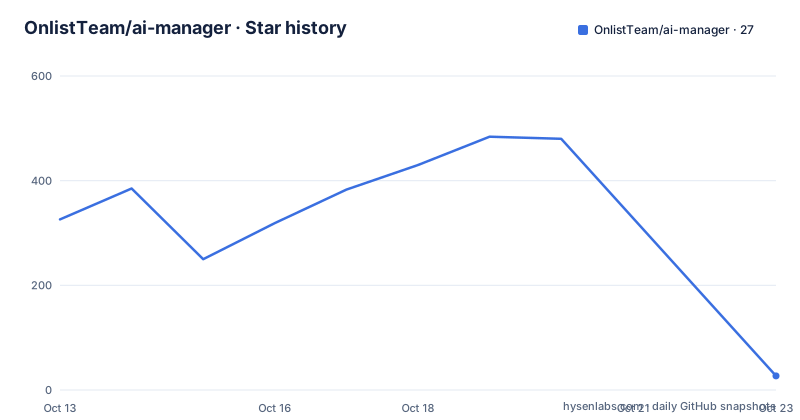
Star history
- OnlistTeam/ai-manager27 ★ · -299
| Repository | 2026-10-13 | 2026-10-23 |
|---|---|---|
| OnlistTeam/ai-manager | 326 | 27 |
-299 Stars in the last 10 days, measured from the daily GitHub snapshot. Compare with other projects
Editorial analysis
Installs stay inside the package manager that already owns the tool
Software is the tab that does the real work: it detects, installs, updates and repairs ten command-line tools, namely Claude Code, Codex, OpenCode, Gemini CLI, Grok Build, OpenClaw, Hermes, Pi, Kimi Code and DeepSeek Harness (DSH). The governing constraint is ownership rather than convenience. An install never crosses away from the npm, pnpm, bun or Volta owner that already manages that tool, so the app does not strand a version in a directory another package manager owns. Downloads are official-first, and a recoverable network failure gets one process-scoped retry before the attempt is reported as failed. A local download proxy sits in Settings for machines behind a filtered network.
What you see during an operation is bounded, redacted process output instead of the raw shell stream. That choice matters most when something hangs, since a raw terminal dump is hard to read and easy to paste into a bug report by accident. Each completed install, update or repair is recorded against the version it produced, which gives you a trail when an upgrade breaks a working tool.
Quick Check rechecks on request and admits when it has no signal
Home is a summary page, and its Quick Check is deliberately quiet. It rechecks the service addresses you have already saved, and only when you ask it to. It does not claim that a process is healthy when no local signal exists for that process. That is a narrower promise than most dashboards make, and it changes what the page can tell you: a tool listed as installed is a statement about files on disk, while a service showing as reachable is a statement about an address you asked it to contact again.
The same restraint runs through the rest of the application. Session content loads only after you select a session, so browsing does not pull every stored conversation into memory at once.
Endpoint testing sends one real request so a rejected key stops looking healthy
API Endpoints connects a tool to an AI service from a reviewed preset catalogue or from a custom HTTPS endpoint. Once connected, the tab shows the effective connection: the endpoint the tool will really use, and the reason, including any environment variable override that wins. Your shell environment is never edited, so the value shown on screen is the value the tool resolves, not a value the app wrote somewhere on your behalf.
Testing a service is the part with teeth. It reads the models the service actually serves, sends one real request to the model you pick, and then shows the reply or the generated image. A key that has expired or been revoked therefore stops reading as a healthy address, because the failure arrives as content rather than as an absence of information. Local Routing and a 30 day local usage overview are secondary tabs inside the same destination rather than separate entries in the sidebar.
A capability registry decides which controls a tool is offered
Per-tool behaviour comes from a capability registry rather than from conditionals scattered across the renderer. The visible consequence is subtraction. A tool that has no notion of a current service does not get the service picker at all, so the interface you see for Gemini CLI and the interface you see for OpenCode differ because the underlying capabilities differ.
That design has a cost worth naming. The README does not publish the registry contents, so there is no way to check from outside which capability each of the ten tools declares. A missing control can mean the tool has no such concept or that the registry entry lags behind a newer build, and the interface does not distinguish the two cases.
Skills, MCP, Global Prompts and Sessions all edit files the tools already own
Skills scans every supported local scope in a single overview, installs from trusted GitHub catalogues or from a local ZIP, copies a Skill from one tool to another, and keeps recovery copies before removing anything. The recovery step is the detail that makes removal safe: a Skill is often the only copy of a prompt fragment you wrote yourself.
MCP adds stdio, HTTP and SSE connections without pasting JSON into a file, and each connection can be enabled or disabled per tool. Adopting servers a tool already uses never rewrites live configuration, which avoids the failure mode where a manager silently replaces a working entry with its own idea of it. Global Prompts creates, edits, imports and switches prompts without opening a configuration file, and reveals where each one lives. Sessions browses and searches local sessions, and supported sessions resume in a terminal through a command line built in the backend rather than in the renderer.
Windows and Linux carry a checksum where macOS carries a signature
Every installer comes from the project Releases page. macOS Apple Silicon and macOS Intel get signed, notarized DMGs. Windows x64 gets an MSI, and Linux x64 gets an AppImage and a deb, both published with a SHA-256.
The signing story is uneven, and the documentation says so directly. Windows installers are not Authenticode-signed, so SmartScreen shows an unknown publisher warning on first run, and the published SHA-256 is what you check. Linux has no cross-distribution equivalent of platform signing, and the same two pieces of evidence, the minisign signature on updates and the published checksum, carry the integrity load on both platforms. The in-app updater verifies a minisign signature against a public key embedded in the application before anything is installed, and Settings holds that fail-closed updater alongside language, appearance, desktop behaviour, database backups and configuration import and export.
Read closely, the install table and the note above it do not agree in strength. The note claims every installer on that page passes the signing and verification gates set out in the project's runbook, yet the same section states the Windows installer carries no Authenticode signature and Linux has no cross-distribution equivalent. The table also lists Minisign-signed MSI and Minisign-signed AppImage in its automatic updates column, so on Windows and Linux minisign signs the update artifact rather than the installer a person downloads. Linux ARM, Windows ARM, rpm, universal macOS builds, the Mac App Store and the Microsoft Store sit outside what the project currently builds. The README's project structure section also ends mid-link at docs/product/design-spec.md, so the layout description is incomplete as published.
Four pnpm scripts cover the whole build path
Building from source needs Node.js 20 or newer, with .node-version recording the version used locally, pnpm 10.12.3 as pinned by packageManager, and the Rust toolchain pinned by rust-toolchain.toml, plus the platform packages from the Tauri 2 prerequisites guide.
pnpm install --frozen-lockfile
pnpm dev            # desktop application with hot reload (tauri dev)
pnpm dev:renderer   # renderer only, in the browser (vite)
pnpm build          # production bundle for the current platform (tauri build)
pnpm dev gives you the whole desktop application, pnpm dev:renderer gives you only the React renderer in a browser when you are working on interface code, and pnpm build produces a production bundle for the platform you are on. The design-system gallery is development-only, reachable at http://localhost:3000/?gallery and excluded from production bundles.
The repository splits into a React renderer under src/, a Rust backend under src-tauri/src/ holding commands, application, domain, adapters, repositories, platform and infrastructure, plus a compat/ccswitch compatibility layer, a docs/ tree of architecture notes and ADRs, Vitest suites under tests/, and publishing, brand and boundary scripts. The backend builds the resume command line for Sessions itself, which keeps terminal construction out of the renderer. package.json also exposes check:boundaries for the layering rules, and CONTRIBUTING.md lists what to run before opening a pull request.
Where it is the wrong tool: desktop apps, ARM targets and hand-managed setups
Five desktop applications appear in the supported list, namely Codex App, Claude Desktop, Cursor, ZCode and Cherry Studio, and the documentation is plain about the boundary: desktop apps are detected separately, and installing and updating those stays with each vendor's signed channel. The opening claim that you never have to touch shell profiles, PATH or hand-edited configuration files therefore holds for the ten command-line tools and stops at the desktop row of the table. Nothing in the app replaces a vendor desktop updater.
The alternative approach it argues against is the one many people already use: editing the same configuration files, environment variables and package manager state directly, tool by tool. The difference is not capability. It is that the manual route has no single view of which service each tool resolves to, no per-tool MCP toggle and no recovery copy before a Skill is deleted. What you give up for that is direct control of the files themselves, and the registry is not published, so the set of supported capabilities per tool is something you discover by looking at the interface. The last push was on 2026-10-05, and the repository is not archived.
Editorial conclusion
AI Manager earns a place on a machine where several AI coding tools are installed through different package managers and someone has to keep their endpoints and MCP entries in sync. It is the wrong choice for a desktop-app user, since Codex App, Claude Desktop, Cursor, ZCode and Cherry Studio are detected but left to their vendor channels, and for an ARM or rpm target, which the project does not build. Verify two things before trusting it with real credentials: that the endpoint test sends a real request rather than confirming the address, and that the published checksum or minisign signature on your platform matches what the updater checks. The code is AGPL-3.0-or-later, so anyone who ships a modified desktop build inherits the same copyleft obligation.
Frequently asked questions
Does AI Manager edit my shell profile or PATH?
The README states the app installs, updates, configures and repairs AI coding command-line tools so you do not have to touch shell profiles, PATH or hand-edited configuration files, and the API Endpoints section says your shell environment is never edited. The tab instead shows the endpoint the tool will really use and why, including environment variable overrides.
Which platforms does AI Manager publish an installer for?
macOS Apple Silicon and macOS Intel get signed, notarized DMGs, Windows x64 gets an MSI, and Linux x64 gets an AppImage and a deb. Linux ARM, Windows ARM, rpm, universal macOS builds, the Mac App Store and the Microsoft Store are outside the current release scope.
Can AI Manager update the desktop version of Codex or Cursor?
No. Desktop apps are detected separately, and installing and updating them stays with each vendor's signed channel.
Does the AI Manager updater check what it downloads?
Yes. The in-app updater verifies a minisign signature against the public key embedded in the application before anything is installed. On Windows and Linux, where installers have no Authenticode signature or cross-distribution platform signing, the minisign signature on updates and the published SHA-256 are the integrity evidence.
Can I add an MCP server in AI Manager without writing JSON?
Yes. The MCP tab adds stdio, HTTP and SSE connections without pasting JSON, and each connection can be enabled or disabled per tool. Adopting servers that a tool already uses never rewrites live configuration.
Official sources
Add this badge to your README
If you maintain this project, the badge below links readers to this analysis and shows its maintenance status from the daily GitHub snapshot. Paste the markdown into your README; add ?metric=license or ?metric=stars to the image URL for a different field.

[](https://hysenlabs.com/projects/onlistteam-ai-manager)Star history chart for your README
[](https://hysenlabs.com/projects/onlistteam-ai-manager)Was this useful?