OpenDisplay turns a spare iPhone into a real second monitor for your Mac
Free, open-source Sidecar/Duet alternative — use your iPhone, iPad or Mac as a true second monitor for your primary Mac over USB or WiFi. Low latency H.264, Retina HiDPI, touch input.
At a glance
- What is it?
- OpenDisplay is a GPLv3 Swift project that turns an iPhone, iPad or spare Mac into an extended display for a Mac over a USB cable or WiFi, with touch input and no account. It also names what it leaves out: audio, input at the receiving Mac, an Apple Pencil, and 60 fps on a 5K panel.
- Who is it for?
- OpenDisplay suits anyone who already owns an iPhone or iPad, wants it as a genuine extended display, and would rather not pay a subscription or plug in a dongle. Walk away if your plan needs sound, a keyboard and mouse at the receiving Mac, stylus input, or 60 fps on a 5K panel, since those are documented as unsupported or roadmap items.
- Can I use it commercially?
- Yes, with conditions. GPL-3.0 is a copyleft licence: if you distribute software that includes it, you must release that software's source code under the same licence. Running it internally without distributing it does not trigger that obligation.
- Is it still maintained?
- Yes. The repository last received commits 1 day ago.
- What is it written in?
- Mainly Swift, according to GitHub's language statistics.
Answers come from the project's GitHub data, last synced on November 15, 2026, and from our analysis. They are not legal advice.
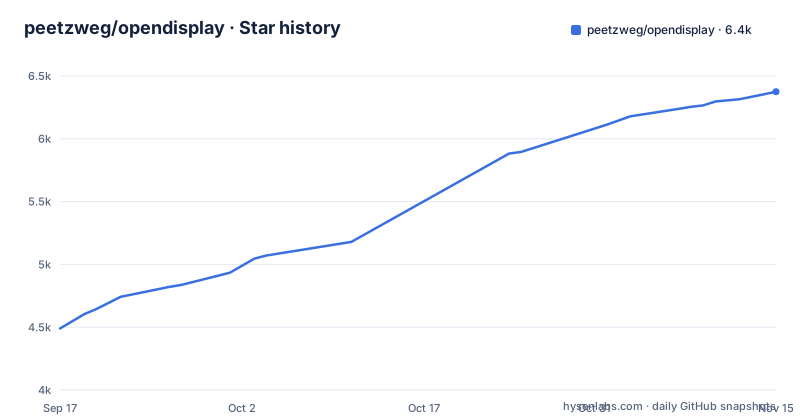
Star history
- peetzweg/opendisplay6,375 ★ · +1,885
| Repository | 2026-09-17 | 2026-11-15 |
|---|---|---|
| peetzweg/opendisplay | 4.5k | 6.4k |
1,885 Stars in the last 59 days, measured from the daily GitHub snapshot. Compare with other projects
Editorial analysis
The cable carries video through usbmuxd, not a USB video device
OpenDisplay does not register itself with macOS as a USB video class device. It opens a TCP connection relayed by usbmuxd, the multiplexer built into macOS that iPhones already use for backup and developer traffic. A charge-only cable carries no data and will not work at all. Two consequences follow. No network is involved on this path, so WiFi jitter never enters the picture. And when the image stalls, the suspects are the cable and the port, not the router.
Bonjour discovery fails silently without Local Network permission
The wireless path looks automatic because the iPhone advertises itself over Bonjour and the Mac shows it in a dropdown. Both devices need Local Network permission, and both fail silently without it: an empty menu rather than an error. That silence sends people hunting a discovery bug when the fix is one permission toggle. Check Privacy & Security, then Local Network, on the Mac and again on the iPhone, put both on the same WiFi network, and keep the iPhone app in the foreground so its advertisement stays visible. USB mode is unaffected, which makes the cable a handy diagnostic, since a picture over USB confirms the two apps work and puts the fault on network permissions.
Hardware H.264 or HEVC, no B-frames, keyframes after drops
Latency comes from a set of separate decisions rather than one clever idea. Encoding runs in VideoToolbox in real-time mode with B-frames disabled, and you choose between H.264 and HEVC. TCP_NODELAY is set so a small frame is not held while the stack looks for more data to bundle with it. When frames cannot be produced quickly enough, the pipeline drops them and uses that as backpressure instead of building a backlog, then waits for the next keyframe to recover. Decoding and rendering run through AVSampleBufferDisplayLayer, the compositor-facing path for video frames, so frames are not copied through a drawing loop. Each choice shows up in how the screen feels. Text stays sharp because the virtual display matches the panel pixel-for-pixel at 2x. Pointer input stays responsive because no queue grows between the two machines. One thing is not in the pipeline: Apple Pencil support, which is on the roadmap rather than shipped.
Rotating the device rebuilds the virtual display at native resolution
The virtual display is created to match the panel exactly, at 2x, which is why the result is described as Retina sharp rather than upscaled from something smaller. Orientation is handled by recreating that display. Turn the phone and macOS sees the same screen return as a vertical monitor at native resolution, so a window parked on the device follows the rotation instead of shrinking into letterboxed bars. You arrange the result in System Settings like any other monitor, and the device also works in mirroring mode, where it simply copies the main screen.
Touch means tap, drag and two-finger scroll, with no Apple Pencil
The iPhone and iPad act as touchscreens for macOS rather than inert panels, with three documented gestures: tap to click, drag to drag, and a two-finger scroll compared to a trackpad. Apple Pencil support sits on the roadmap, so a stylus does nothing on an iPad today. Read this as pointing and scrolling with a touchscreen, not as a graphics tablet. A visual consequence applies to every app that captures the screen: macOS shows a purple screen-recording indicator in the menu bar, and an app cannot hide it, because it is how the system reports a running capture. Duet, Luna, OBS and Zoom all trigger the same indicator. Sidecar does not, and the stated reason is that it lives inside the OS rather than on public capture APIs.
The receiving Mac gets no keyboard, no mouse and no audio
This is the gap to understand before building a two-Mac desk. In the project comparison, a keyboard and mouse at the receiving Mac is marked unsupported, with the feature listed as planned on issue 16, and audio is marked unsupported too. AirPlay to Mac, TargetBridge, Sharp and RetinaRelay all carry audio instead. One sender-side control does work: shutting the receiving Mac down from the sender, and that works over a cable rather than over WiFi. The result is that the second machine shares its display and nothing else. You cannot type into it, click its own interface, or hear sound from it, so an old Mac becomes a third monitor that happens to run an operating system rather than a workstation you can sit down at. If you need to work on that Mac directly, keep a keyboard within reach, because input is not sent there yet.
A 5K iMac receiver is documented at about 30 fps
One performance figure appears in the comparison table, and it deserves a close read: on a 5K iMac, OpenDisplay runs at roughly 30 fps. The same table lists RetinaRelay at 60 fps, TargetBridge at 48 fps with 60 marked experimental, and Sharp as experimental with 1440p as its default. AirPlay to Mac carries no documented figure for that case. Two other rows favor OpenDisplay. Intel Macs work as the sender, where TargetBridge is marked Apple silicon only. And the cable choices are wider than Sharp, which is Ethernet only: OpenDisplay lists Thunderbolt, USB-C and Ethernet, while RetinaRelay lists Thunderbolt, USB 3 and Ethernet. WiFi works for OpenDisplay and TargetBridge, where it is marked experimental, while Sharp marks WiFi unsupported and RetinaRelay calls it a fallback. Named nearby are Target Display Mode, which works only on non-Retina iMacs from 2009 to 2014, and Phoenix Display, whose App Store version mirrors only. If frame rate on a big panel matters more than price, RetinaRelay is the row claiming more, at 49 dollars one time.
Two Swift apps, a shared folder, and a Vite site for the page
The tree shows how the work divides: Mac/ for the sender, MacReceiver/ for the receiving app that needs macOS 12 or newer, iOS/ for the device client, Shared/ for code both sides use, and MacTests/ for the tests. project.yml describes the Xcode project, run.sh and generate.sh are shell entry points, and fastlane/ sits beside a Gemfile for release work. PROTOCOL.md, COMPATIBILITY.md, AGENTS.md, CHANGELOG.md and RELEASING.md cover the wire format, hardware compatibility, contribution rules and releases. The landing page is a separate concern: package.json names it opendisplay-site and calls it a Vite, React and motion build that outputs into `docs/` for GitHub Pages. Part of the top level reads:
.github/ .gitignore AGENTS.md CHANGELOG.md COMPATIBILITY.md Gemfile
Gemfile.lock LICENSE Mac/ MacReceiver/ MacTests/ PROTOCOL.md README.md
RELEASING.md Shared/ assets/ fastlane/ generate.sh iOS/ index.html
package.json pnpm-lock.yaml project.yml public/ research/ run.sh src/
tools/ tsconfig.json vite.config.ts
The site has its own package manifest:
"packageManager": "[email protected]",
"scripts": {
  "dev": "vite",
  "build": "vite build && vite build --ssr src/entry-server.tsx --outDir dist-ssr --emptyOutDir && node tools/prerender.mjs && node tools/docs.mjs",
  "preview": "vite preview"
},
`dev` serves it, `build` renders a client bundle then a server bundle into `dist-ssr` and then runs `tools/prerender.mjs` and `tools/docs.mjs`, and `preview` serves the built output. The applications are published as tagged releases: v1.30.1 on 2026-10-29, after v1.30.0 and v1.29.0 on 2026-10-27, with the last push to main dated 2026-11-01. The dependencies are react and react-dom at ^19.2.7, motion at ^12.42.0, and the GPL-3.0 license covers the whole tree.
Editorial conclusion
OpenDisplay suits anyone who already owns an iPhone or iPad, wants it as a genuine extended display, and would rather not pay a subscription or plug in a dongle. Walk away if your plan needs sound, a keyboard and mouse at the receiving Mac, stylus input, or 60 fps on a 5K panel, since those are documented as unsupported or roadmap items. Before the first session, confirm your USB cable carries data, turn on Local Network permission on both devices for the wireless path, and read COMPATIBILITY.md for your exact hardware pair, because the receiving side needs macOS 12 or newer.
Frequently asked questions
How can I use my iPhone as a second monitor on my Mac?
OpenDisplay does it with two apps and one connection. The Mac creates a virtual display that macOS treats as a real second monitor at the panel's native resolution, and the iPhone then either extends onto it or mirrors it. Join the pair with a data-capable USB cable through usbmuxd for the lowest latency, or let the iPhone advertise itself over Bonjour and pick it from the Connection dropdown. Touch on the device acts as tap, drag and two-finger scroll, and rotating the phone rebuilds the display as a vertical monitor.
What are some alternatives to Luna display?
The project lines up against Apple Sidecar, Duet Display, Duet Air, AirPlay to Mac, TargetBridge, Sharp and RetinaRelay. Luna Display costs 89.99 dollars plus a dongle and takes an iPad but not an iPhone as a display. Sidecar is free yet rejects iPhones, requires both devices on one Apple ID, and only supports certain hardware pairs. Duet moved to a subscription and Duet Air needs an account. OpenDisplay is free, GPLv3, and needs no account or dongle, but it carries no audio and no keyboard or mouse at the receiving Mac.
what is open display
OpenDisplay is a free, open-source alternative to Apple Sidecar, Duet Display and Luna Display, written in Swift and released under GPL-3.0. It turns an iPhone, iPad or spare Mac into an extended display for a Mac over USB or WiFi, with Retina HiDPI resolution, touch and scroll input, and hardware H.264 or HEVC encoding through VideoToolbox in real-time mode with no B-frames. Everything runs between two small apps over one TCP connection. The most recent tagged release is v1.30.1, dated 2026-10-29.
Official sources
Where developers are discussing it
Posts on Hacker News, dev.to and Lobsters that link to this repository, found by our scan of those communities. 0 in the last 30 days; newest first.
- Turn your spare Apple devices into second monitors for your MacHacker News · Sep 15, 2026 · 2 points · 0 comments
- OpenDisplay – open-source Sidecar for Mac to iPhone/iPadHacker News · Sep 15, 2026 · 4 points · 0 comments
Add this badge to your README
If you maintain this project, the badge below links readers to this analysis and shows its maintenance status from the daily GitHub snapshot. Paste the markdown into your README; add ?metric=license or ?metric=stars to the image URL for a different field.

[](https://hysenlabs.com/projects/peetzweg-opendisplay)Star history chart for your README
[](https://hysenlabs.com/projects/peetzweg-opendisplay)Was this useful?