Quest settings from 0 to 5, game backups with OBB files, and a locked-down kiosk
The Ocular Migraine {Dev Mode} Master Control Program - This is a program that runs on your Quest and give you access to many features otherwise not available.
At a glance
- What is it?
- The Ocular Migraine is an Android APK for Oculus and Meta Quest headsets that exposes the developer-mode style controls the stock interface hides, and it ships as a numbered release artifact rather than a package. It covers performance sliders, per-game resolution profiles, full game backups, recording profiles, video repair, kiosk lockdown, access lists, and a small HTTP file server.
- Who is it for?
- The Ocular Migraine suits Quest owners who have already enabled developer mode and want per-game resolution profiles, backups that include OBB files, and a kiosk or access list that is actually enforced. Skip it if you need a reproducible build pipeline, because the README carries no install command and the newest tagged build is 1380 from November 2025 while commits continue.
- Can I use it commercially?
- Yes, with conditions. GPL-3.0 is a copyleft licence: if you distribute software that includes it, you must release that software's source code under the same licence. Running it internally without distributing it does not trigger that obligation.
- Is it still maintained?
- Yes. The repository received new commits within the last day.
- What is it written in?
- Mainly Python, according to GitHub's language statistics.
Answers come from the project's GitHub data, last synced on October 22, 2026, and from our analysis. They are not legal advice.
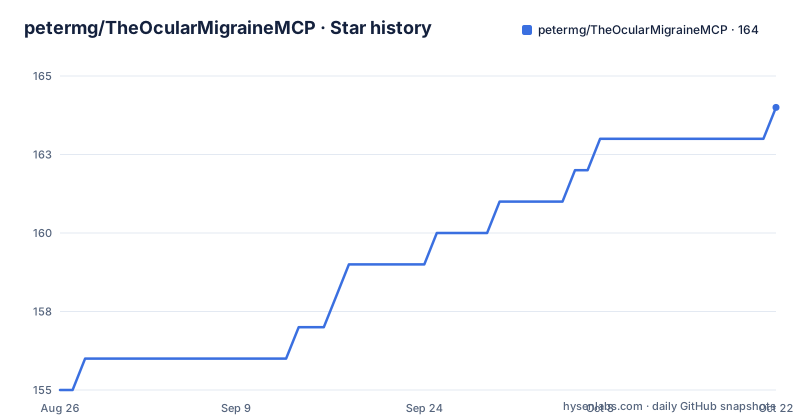
Star history
- petermg/TheOcularMigraineMCP164 ★ · +9
| Repository | 2026-08-26 | 2026-10-22 |
|---|---|---|
| petermg/TheOcularMigraineMCP | 155 | 164 |
9 Stars in the last 57 days, measured from the daily GitHub snapshot. Compare with other projects
Editorial analysis
The deliverable is an APK on a releases page, with numeric tags
There is no install command, no package manager entry, and no build recipe here. The two badges at the top of the README are the whole distribution story: one links to the releases page, the other goes straight to a file called TheOcularMigraine.apk in the latest release. The tags are bare numbers rather than versions with a prefix, and the recent ones are 1380, described only as another update, 1368 for updated start up actions, and 1353 for an alternate Android settings access method for v81 firmware. That last title is the clearest statement of the project's premise: it changes Android internals the normal settings app will not reach. The gap between the two dates is worth noting. The newest release is dated November 11, 2025, while the last push to the repository is September 30, 2026, so commits have continued for roughly ten months past the latest published APK. Licensing sits in a LICENSE.txt at the root under GPL-3.0.
Four screens split into top, middle, and bottom bands
The table of contents is organised by screen first and by vertical position second, which tells you the app is laid out as a long scroll rather than a tab bar with submenus. There are four screens: Main, Recording, Tools, and Misc. Each is divided into a Top, Middle, and Bottom section, and the anchors are generated for every individual control. The Main screen carries the statistics readout, an about page, a font size adjustment, the resolution slider, the foveated rendering level, and the CPU and GPU levels in its top band, then display frequency, default display settings, a reset for all settings, and game profile management in the middle, with user defined resolution presets and a disable control at the bottom. The pattern repeats on the other three screens, so a feature's location is predictable once you know which screen owns it.
Three performance sliders, each with a static or dynamic switch
The headline capability is that the processor, the graphics processor, and the foveated renderer can be pinned by hand. CPU level takes a value from 0 to 5, GPU level takes a value from 0 to 5, and Fixed Foveated Rendering takes a value from 0 to 4, and each of the three can be set either as a static value or as a dynamic one. That is a meaningful difference from a single performance mode, because a static lock holds the level while a dynamic setting lets the system move it. Headset resolution has its own slider, and display frequency sits in the middle band of the same screen next to the default display settings control and a reset that returns everything to default. A statistics readout and a font size adjustment share the top band, which suggests the author expects people running this to be reading numbers off the headset while they experiment.
Resolution profiles attach themselves to a game at launch
The per-game feature is the one the README compares to another product, naming Quest Games Optimizer as the thing it behaves like. You create a detailed custom resolution profile for a game, and that profile is applied automatically when the game launches, rather than being something you set once and forget. The controls for this sit in the middle and bottom bands of the Main screen: manage game profiles, save game profile, and a separate set of user defined resolution presets that apply across games rather than to one title. The Recording screen has its own parallel structure, with resolution presets and a custom resolution field, which means display settings for playing and settings for capturing are two different profiles with two different scopes.
A full backup is the APK, the OBB, and the Android data folder
The backup menu is split into what gets captured and what gets put back, and the two lists are not the same length. On the capture side there is Game plus Data, which the README calls the full game backup, and a narrower Game Data Only option. What the full capture contains is spelled out: the APK, the OBB files if the game has any, and the data files and folders sitting under /sdcard/Android/data/. Restore offers three choices, Full Game, Game ONLY, and Game Data, so you can put back everything, only the installed package, or only the data. There are two restore routes. One restores straight from the backup folder on the headset, and the other is for backups you have already moved to your PC, which is done with a bat file included in the backup folder. That second route is a Windows batch file, so the PC side of the workflow assumes Windows rather than macOS or Linux.
Recording settings are profile shaped, and audio drift is the reason
Recording is configured as a profile you can save and load per application, which is the same idea as the game resolution profiles applied to capture instead of display. The editable values are bitrate, resolution, frame rate, rendering area, and recording eye, with a field for a custom resolution, a field of view crop, and a swap interval control. Stereo audio is called out for the Quest 2 and Quest 3, with the Quest Pro left as a maybe in the wording. The video editing half exists because of a specific complaint: the Quest has problems with out of sync audio in its recordings. The fix is an adjustable audio offset, plus speed and tempo control for stretching or compressing the audio, and trimming of both the start and the end. Two finishing steps sit alongside it, processing 2D video and injecting 3D metadata so a recording is ready to upload to YouTube.
Kiosk mode, access lists, and an HTTP server share one menu
The lockdown features are the ones with the most specific behaviour. Kiosk mode makes one application the only thing that can be launched and prevents the user from exiting it, and it is password protected. Access control lists are a separate mechanism with a different shape: you create a white list or a black list, and enabling one list disables the other, so the two are mutually exclusive states rather than a combined policy, with an enforcement method chosen separately and both lists disableable or deletable. The web server is independent of both, offering HTTP file sharing for a folder you select and HTTP uploading to the headset, and the README stresses that those two options do not depend on each other. The rest of the Tools and Misc screens are ADB plumbing: install APK via ADB, an input field for an arbitrary ADB command, an ADB shell command, a console output screen, user defined ADB commands, install and launch for SideQuest, F-Droid, and File Manager +, an OVR Metrics Tool overlay, battery optimisation and all file access toggles, and notifications. The first feature on the list is the one that makes the rest work: ADB permissions survive a reboot.
The tree does not look like an Android application
The primary language is recorded as Python, yet the top level of the repository is nine entries with no application source directory among them: .github/, LICENSE.txt, README.md, SQDescriptionTest.md, Url1, etc/, metadata/, tools/, and a file called version. So the published artifact is an APK built elsewhere, and what is versioned here is documentation, metadata, and tooling. SQDescriptionTest.md is the most telling name, since SQ is the prefix used for SideQuest elsewhere in the same README, which suggests that file is about the store listing rather than about code. The repository name also ends in MCP, while the README describes an Android app and a YouTube walkthrough at youtu.be/ystP0EeDLag, with no mention of a protocol or a server anywhere in it. There are 16 open issues on the repository, which is a lot of signal for a project whose install path is one download link.
Editorial conclusion
The Ocular Migraine suits Quest owners who have already enabled developer mode and want per-game resolution profiles, backups that include OBB files, and a kiosk or access list that is actually enforced. Skip it if you need a reproducible build pipeline, because the README carries no install command and the newest tagged build is 1380 from November 2025 while commits continue. Before installing, confirm your headset is one of the four named models, then read the access list enforcement method and the kiosk password, because both decide what the user can reach.
Frequently asked questions
How do you download ocular migraine?
The two badges at the top of the README link to the releases page and to a direct download of TheOcularMigraine.apk from the latest release. Builds are tagged with bare numbers, with 1380, 1368, and 1353 among the recent ones, and the README gives no install command or build recipe.
Which Quest headsets does The Ocular Migraine support?
The original Oculus Quest, Oculus / Meta Quest 2, Meta Quest Pro, and Meta Quest 3. Stereo audio recording is named for the Quest 2 and Quest 3, with the Quest Pro left as a maybe in the README wording.
What can The Ocular Migraine change on a headset?
Headset resolution, CPU level from 0 to 5, GPU level from 0 to 5, and Fixed Foveated Rendering from 0 to 4, each of the last three settable as static or dynamic, plus display frequency. A reset control on the Main screen returns all settings to default.
What does a full game backup include?
The APK, the OBB files if the game has any, and the data files and folders under /sdcard/Android/data/. There is also a Game Data Only option for capture, and three restore choices: Full Game, Game ONLY, and Game Data.
How do the access control lists work?
You create a white list or a black list, and enabling one list disables the other. An enforcement method is selected separately, and both lists can be disabled or deleted outright from the Tools screen.
Why does The Ocular Migraine include video editing?
Because the Quest has problems with out of sync audio in its recordings. You can adjust the audio offset, change speed and tempo by stretching or compressing, trim the start and end, and inject 3D metadata to make a recording ready to upload to YouTube.
Official sources
Add this badge to your README
If you maintain this project, the badge below links readers to this analysis and shows its maintenance status from the daily GitHub snapshot. Paste the markdown into your README; add ?metric=license or ?metric=stars to the image URL for a different field.

[](https://hysenlabs.com/projects/petermg-theocularmigrainemcp)Star history chart for your README
[](https://hysenlabs.com/projects/petermg-theocularmigrainemcp)