ChatGPT Exporter: the format list names five options and the bulk dialog offers four, and two examples are empty
Export and Share your ChatGPT conversation history
At a glance
- What is it?
- A Tampermonkey userscript that exports your own ChatGPT conversations as text, HTML, Markdown, a screenshot or raw JSON. Its two format lists disagree with each other, two of its five examples contain nothing at all, and the same dialog that exports conversations also archives and deletes them.
- Who is it for?
- Use this when you want your own conversation history out of ChatGPT in a form you control, and pick the single conversation export path if you want the screenshot or plain text output, since the bulk dialog does not offer those. Two things to know before you install it.
- Can I use it commercially?
- Yes. MIT is a permissive licence: you can use, modify and sell software built on it, as long as you keep its copyright and licence notices.
- Is it still maintained?
- Yes. The repository last received commits 5 days ago.
- What is it written in?
- Mainly TypeScript, according to GitHub's language statistics.
Answers come from the project's GitHub data, last synced on October 22, 2026, and from our analysis. They are not legal advice.
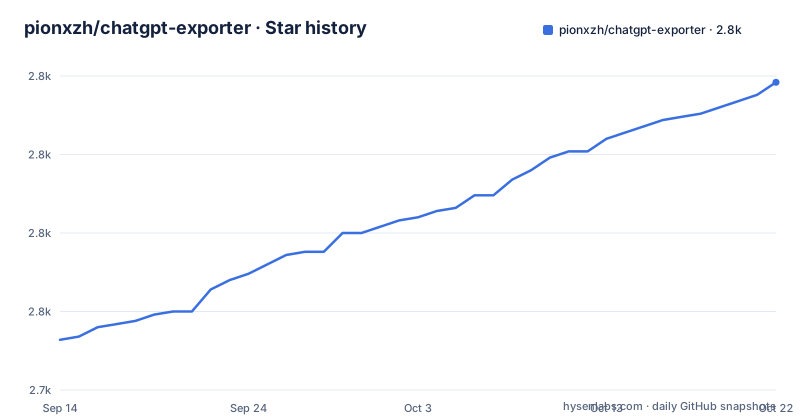
Star history
- pionxzh/chatgpt-exporter2,823 ★ · +82
| Repository | 2026-09-14 | 2026-10-22 |
|---|---|---|
| pionxzh/chatgpt-exporter | 2.7k | 2.8k |
82 Stars in the last 38 days, measured from the daily GitHub snapshot. Compare with other projects
Editorial analysis
The format list names five options and the export dialog offers four
The documentation keeps two separate lists of what you can export and they do not match. The supported formats section names five: text, HTML, Markdown, a PNG screenshot, and JSON. The dropdown at the bottom of the Export Conversations dialog, the one reached from the Export All button, names four: Markdown, HTML, JSON, and JSON in a zip archive. The differences run in both directions. The screenshot and the plain text format are documented as supported but are not in the bulk dialog's list, and the zip variant appears only in the bulk dialog and not in the formats section. So the two screens are describing different things and neither is labelled as a subset of the other, which means a reader planning a bulk export of screenshots has to discover the limit by trying it.
Two of the five format examples contain no example
Each format in that list is supposed to be illustrated, and three of the five are. Text has a sample exchange, Markdown has a sample document, JSON has a sample object behind a click to expand. The HTML heading is followed by an empty centred div and nothing else, and the Screenshot heading is followed by exactly the same empty centred div. So a third of the examples are placeholders. Two details from the examples that do exist are worth noting. The Markdown output opens with a front matter block:
---
title: ChatGPT Exporter Creation
source: https://chat.openai.com/c/cf3f8850-1d69-43c8-b99b-affd0de4e76f
author: ChatGPT
---
That source address points at a conversation host under the older domain rather than the one the project links to at the top of its own README. The JSON output is described as the raw content from a backend API path keyed by conversation id, so the JSON export is not a rendering of the page but the underlying response.
The export dialog can also archive and delete conversations
The Export Conversations dialog offers three actions on the selected conversations, and only one of them exports. There is Export, which writes the selection in the chosen format. There is Archive, which the documentation explains moves the sessions out of the sidebar and into ChatGPT's own settings, with a link to an issue for the details. And there is Delete, which removes the selected conversations. That is a destructive control sitting in the same row as an export control, in a tool whose name promises one thing. The select all checkbox applies to every conversation in the list, and it is the same control used to select conversations for export, so a user reaching for the export button after ticking everything is one misclick away from deleting the history they were trying to keep.
One install path serves a versioned release and the other serves a branch
There are two ways to install the script and they deliver different things. One button goes to the script's page on GreasyFork, where the version is a published release with a number. The other points at a raw file address on the master branch, which is the built userscript fetched directly from the head of the repository's default branch. That branch is named master rather than main. So the GreasyFork route gives you a fixed, identifiable version, while the GitHub route gives you whatever the last commit produced, with no version marker in the address. The release list shows why that matters: three releases went out on 25 and 26 September 2026 within about a day and a half of each other, so the difference between the two paths is measured in hours.
Allow User Scripts is the setting that decides whether it runs
The single prerequisite is a userscript manager, with install links for the Chrome Web Store, Firefox Add-ons and Edge Add-ons all pointing at the same manager, Tampermonkey. The documentation then adds a condition that is easy to skim past: the allow user scripts setting has to be enabled in the manager's own settings for the browser. That setting is the switch that permits a user script to execute on a page rather than merely being installed, so it is the single toggle between a script that is present and a script that runs against the conversation data on screen. The note links to the manager's own documentation for the question. Nothing in the repository describes what the script sends anywhere, and the two install buttons point at a script hosting site and a raw file on GitHub respectively.
The dependency list carries both preact and react
The runtime dependencies contain three UI libraries at once: preact at a caret range near 10, and both react and react-dom at 18.3.1. A userscript of this kind injects a small interface into the page, and carrying two view libraries for one interface is either a deliberate compatibility choice for the host page's own framework or a leftover. The development side leans the same way, since the Vite preset in the development dependencies is the Preact one while react and react-dom sit in the runtime list rather than the development list. The rest of the dependency set is more explicable by function. The markdown tree, with mdast and its from-markdown, front matter, gfm, to-hast and to-markdown utilities plus micromark and its gfm extension, is a full markdown parser and serialiser, which is what makes the front matter block in the output possible at all.
Two dependencies are pinned to an exact version while the rest float
Pinning style is mixed inside one dependency block. Two entries carry an exact version with no range operator at all: the DOM snapshot library at 2.24.10 and the zip library at 3.9.1. Everything else uses a caret. The zip library is the one you can connect to the bulk dialog's JSON in a zip archive format, so the exactness is aimed at output you can rely on being byte compatible, and the snapshot library is what produces the PNG screenshot format, where a change in how a node is serialised would change the file. The rest, including the markdown tree and the sanitising filename helper, are free to take minor upgrades. The filename helper is the one worth knowing about in that list, because it exists to strip characters that a filesystem would reject when a conversation title becomes part of an exported filename.
The package is marked private and its localised fields target languages with no README
The manifest declares a scoped name, but it also carries a private flag set to true, which means the package is never published to a registry and that name is only an internal identifier. The version in the manifest is 2.36.3 and the newest release tag repeats it with a prefix naming the artefact, so the tag and the package version are not the same string even though the numbers match. The localisation is asymmetric in an interesting way. The manifest carries translated title and description fields for simplified and traditional Chinese, while the README translations in the repository are for French, Indonesian, Korean and Turkish. So the two languages with package metadata have no translated README, and the four with translated READMEs have no translated package metadata.
Editorial conclusion
Use this when you want your own conversation history out of ChatGPT in a form you control, and pick the single conversation export path if you want the screenshot or plain text output, since the bulk dialog does not offer those. Two things to know before you install it. It needs a userscript manager with the allow user scripts setting turned on, which is what grants a script of this kind access to the page. And the dialog that exports is the same dialog that archives and deletes, so treat the select all checkbox carefully on a long history.
Frequently asked questions
Is chatgpt exporter safe to install?
The repository describes it as a userscript distributed through a script hosting site or as a raw file from the repository, licensed MIT, requiring the Tampermonkey manager with its allow user scripts setting enabled. The same dialog that exports also offers archive and delete for the selected conversations, and the built script is committed to the repository under a dist directory.
What formats can pionxzh/chatgpt-exporter export?
The supported formats section names text, HTML, Markdown, a PNG screenshot and JSON. The dropdown in the bulk export dialog lists only Markdown, HTML, JSON and JSON in a zip archive.
Do I need a ChatGPT Exporter extension or a userscript manager?
A userscript manager. The documented prerequisite is Tampermonkey, with install links for Chrome, Firefox and Edge, and a note that the allow user scripts setting has to be enabled in that manager's settings for the script to run.
How does pionxzh/chatgpt-exporter handle bulk exports?
The Export All button opens the Export Conversations dialog, where you either upload a JSON file of conversations such as one downloaded from OpenAI, or select conversations from the list with a select all checkbox, choose a format from the dropdown and press one of three buttons: Archive, Delete or Export.
Does pionxzh/chatgpt-exporter have a related project?
Yes. The README points at DeepSeek Exporter as the sister project by the same author, which brings the same one-click export to DeepSeek and additionally includes DeepThink reasoning and web search sources.
Official sources
Add this badge to your README
If you maintain this project, the badge below links readers to this analysis and shows its maintenance status from the daily GitHub snapshot. Paste the markdown into your README; add ?metric=license or ?metric=stars to the image URL for a different field.

[](https://hysenlabs.com/projects/pionxzh-chatgpt-exporter)Star history chart for your README
[](https://hysenlabs.com/projects/pionxzh-chatgpt-exporter)