Pritunl Client for OpenVPN and WireGuard on Linux and macOS
Pritunl OpenVPN and WireGuard client
At a glance
- What is it?
- Pritunl Client is an open source VPN client with OpenVPN, WireGuard, CLI, service, and platform-specific components. Its README documents source installation on macOS and Linux, but leaves connection setup and upgrade procedures unspecified.
- Who is it for?
- Adopt Pritunl Client when you need the specific OpenVPN and WireGuard client and service structure exposed by this repository. Do not assume it is a generic VPN configuration tool, because the README does not document server provisioning, profile import, credential storage, or rollback.
- Can I use it commercially?
- Check first. The repository uses a licence we do not classify automatically, so read its LICENSE file before any commercial use.
- Is it still maintained?
- Yes. The repository last received commits 13 days ago.
- What is it written in?
- Mainly Go, according to GitHub's language statistics.
Answers come from the project's GitHub data, last synced on November 7, 2026, and from our analysis. They are not legal advice.
Star history
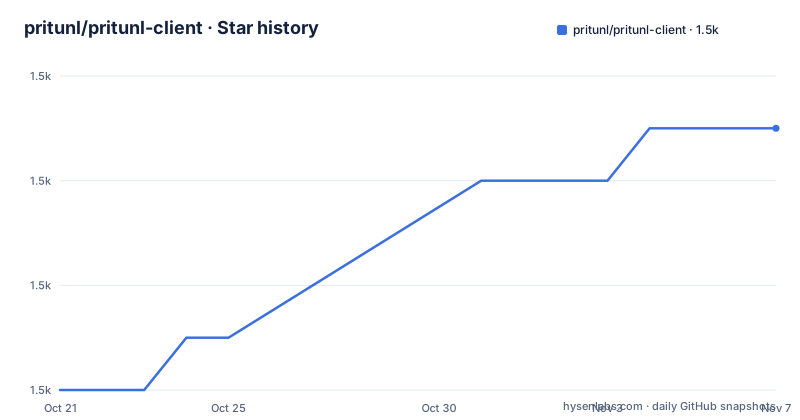
- pritunl/pritunl-client1,473 ★ · +5
| Repository | 2026-10-21 | 2026-11-07 |
|---|---|---|
| pritunl/pritunl-client | 1.5k | 1.5k |
5 Stars in the last 17 days, measured from the daily GitHub snapshot. Compare with other projects
Editorial analysis
What Pritunl Client Handles
Pritunl Client is intended for people who need a desktop VPN client associated with Pritunl infrastructure or its supported OpenVPN and WireGuard workflows. The repository description identifies it as a "Pritunl OpenVPN and WireGuard client." The README describes the project as an "open source openvpn client" and links to the Pritunl Client home page. These statements establish the client scope, but they do not document a general-purpose VPN profile editor, a standalone server, or a replacement for every VPN client.
The repository layout reflects a multi-part client rather than a single Go executable. Top-level entries include `cli/`, `client/`, `service/`, `service_macos/`, `openvpn_macos/`, `openvpn_win/`, `wireguard_macos/`, `wireguard_win/`, and `tuntap_win/`. Platform packaging also appears in `flatpak/`, `resources_linux/`, `resources_macos/`, `resources_win/`, and `winget/`. That layout suggests platform-specific networking and packaging work, but the README does not define the boundaries between those components.
The practical target is a user who can install a native client and interact with a Pritunl service. The Linux instructions require administrative package installation and systemd. The macOS instructions instead depend on Homebrew with Git, Go, and Node. Those are different deployment models, so the platform choice matters before attempting a source build.
Repository Structure and Component Boundaries
The most concrete architectural evidence is the directory layout. `cli/` and `service/` are the two Go components explicitly installed in the Linux tutorial. The build command installs the service package with `@latest`, installs the CLI package with `@latest`, copies the resulting binaries to `/usr/bin/pritunl-client-service` and `/usr/bin/pritunl-client`, and then copies a service unit from the module cache.
The `client/` directory is separate from the documented CLI and service packages. `service_macos/`, `openvpn_macos/`, and `wireguard_macos/` indicate macOS-specific service and tunnel components, while `openvpn_win/`, `wireguard_win/`, and `tuntap_win/` serve Windows-specific implementation areas. The repository also contains signing-related files named `pritunl_pub.asc`, `SHA256`, and `SHA512`. Their presence does not establish the release verification process because the README does not explain how they are used.
This structure is useful for engineers deciding whether the project fits an existing desktop VPN stack. A team looking for one small Linux command may need to account for a separately installed background service. A team targeting macOS or Windows cannot infer behavior solely from the Linux tutorial, since the README provides only a macOS source installation path and the repository has platform-specific directories.
Linux Source Installation and First Command
The Linux tutorial begins by installing the packages needed for Git, WireGuard, and OpenVPN. It also installs Go `1.27.1` under `/usr/local` and adds Go paths to `~/.bashrc`. After sourcing the shell file, the service and CLI packages are installed with `go install`.
The documented dependency command is:
sudo dnf -y install git-core wireguard-tools openvpnThe README then installs the two Go packages and copies their binaries into `/usr/bin`:
go install github.com/pritunl/pritunl-client/service@latest
go install github.com/pritunl/pritunl-client/cli@latest
sudo cp ~/go/bin/service /usr/bin/pritunl-client-service
sudo cp ~/go/bin/cli /usr/bin/pritunl-client
The service unit is copied from the downloaded module cache, and systemd is instructed to load and start it:
sudo cp "$(ls -td ~/go/pkg/mod/github.com/pritunl/pritunl-client@*/ | head -n1)/resources_linux/pritunl-client.service" /etc/systemd/system/pritunl-client.service
sudo systemctl daemon-reload
sudo systemctl enable --now pritunl-client.service
The final documented command is:
pritunl-clientThe README does not describe the first-use interface, login sequence, server address input, VPN profile selection, or connection confirmation. A new user should not assume that invoking the CLI is sufficient to establish a tunnel without additional Pritunl Client documentation.
macOS Source Installation and Removal
The macOS instructions use a different distribution path. The README says that Homebrew must provide Git, Go, and Node, and that an existing Pritunl package should be removed first. It does not publish individual Homebrew installation commands for those prerequisites, so only the documented commands should be used.
The documented source installation command is:
brew install git go node
bash <(curl -s https://raw.githubusercontent.com/pritunl/pritunl-client/master/tools/install_macos.sh)
The script is fetched from the repository's `master` branch and executed through Bash. The README does not describe the script's contents, supported macOS versions, signing behavior, or whether it installs OpenVPN, WireGuard, or both on a particular machine. That is a meaningful documentation gap for source-build users.
Removal is documented as a separate operation:
bash <(curl -s https://raw.githubusercontent.com/pritunl/pritunl-client/master/tools/uninstall_macos.sh)This uninstall path is also remote-script based. The README does not say whether the script removes user configuration, credentials, or certificates, so the source does not support a claim that uninstall is complete or reversible.
Protocol Support and Platform Boundaries
The repository description says the client covers OpenVPN and WireGuard. The directory names include separate OpenVPN and WireGuard implementations for macOS and Windows. The Linux installation command explicitly installs `wireguard-tools` and `openvpn`. This is enough to say that both protocol toolchains are relevant to at least the documented Linux setup.
The README does not explain how a user selects OpenVPN versus WireGuard, whether both can be configured simultaneously, or how the client obtains its server settings. It also does not document Windows installation steps, despite the repository containing Windows-specific directories and packaging entries. The `winget/` directory suggests a Windows distribution path, but no package identifier or command is provided here.
The macOS and Windows directories should not be treated as interchangeable implementations. `wireguard_win/`, `openvpn_win/`, and `tuntap_win/` indicate separate platform concerns, while `resources_macos/` and `resources_win/` contain platform resources. Without API documentation or protocol-level documentation, engineers cannot use the repository layout alone to determine whether a particular operating system supports every feature.
Maintenance, Licensing, and Upgrade Boundaries
The repository is not archived, and its last push was on 2026-10-11. Recent listed releases include `1.4.4777.90` on 2026-10-11, `1.4.4752.50` on 2026-09-16, and `1.4.4744.47` on 2026-09-08. These facts show recent repository activity and recent release entries, but the README does not define a supported upgrade path or compatibility policy.
The repository identifies its license as Other and points to the `LICENSE` file. The README does not reproduce or classify that custom license, so this review cannot state the permitted redistribution, modification, notice, or installation conditions. Any organization considering source use should inspect `LICENSE` directly rather than infer rights from the open source description.
The Linux tutorial uses `@latest` for both Go package installations. That makes the source instructions easy to run, but it also means the exact source revision selected by the Go tool is not fixed in the README. For repeatable builds, the repository's `SHA256`, `SHA512`, and signing-related files may be relevant, but the README does not explain their verification workflow.
Operational Limits and Adoption Boundaries
The clearest limitation is that the README describes installation, not day-to-day VPN operation. It does not provide commands for adding a server, importing a profile, authenticating, disconnecting, checking status, or diagnosing a failed tunnel. It also does not document rollback for a bad connection, configuration migration, certificate renewal, or recovery after a failed package upgrade.
A related constraint is the split between CLI and service. The Linux process installs `pritunl-client-service` and `pritunl-client` separately, enables the systemd unit, and then invokes the CLI. The README does not say whether the CLI requires the service to be running, whether it can start it automatically, or what output indicates a successful connection.
For users seeking a generic OpenVPN or WireGuard command-line workflow with scripts and profiles, this repository may be more involved than a narrow client package. For users who need the Pritunl-specific desktop client and already have the required platform access, the documented source path is more relevant. The README does not support claims about performance, privacy guarantees, protocol interoperability, or deployment security.
Editorial conclusion
Adopt Pritunl Client when you need the specific OpenVPN and WireGuard client and service structure exposed by this repository. Do not assume it is a generic VPN configuration tool, because the README does not document server provisioning, profile import, credential storage, or rollback. Verify the `LICENSE`, platform prerequisites, and exact service behavior before deployment.
Frequently asked questions
How do I install Pritunl Client from source on Linux?
The README documents installing Git, WireGuard tools, OpenVPN, and Go, then installing the `service` and `cli` packages with `go install`. It also copies `pritunl-client.service` into `/etc/systemd/system` and enables it with `systemctl`.
What command starts the Pritunl Client CLI on Linux?
After installation and service registration, the README lists `pritunl-client` as the first command to run. The README does not describe its interface or the exact steps for configuring and connecting to a VPN server.
Does Pritunl Client support OpenVPN and WireGuard?
The repository description identifies it as a "Pritunl OpenVPN and WireGuard client." The Linux installation instructions also install both `openvpn` and `wireguard-tools`, while platform-specific directories include separate OpenVPN and WireGuard components.
How can Pritunl Client be uninstalled on macOS?
The README directs users to run `bash <(curl -s https://raw.githubusercontent.com/pritunl/pritunl-client/master/tools/uninstall_macos.sh)`. It does not specify whether the script removes user configuration or other local data.
Official sources
Add this badge to your README
If you maintain this project, the badge below links readers to this analysis and shows its maintenance status from the daily GitHub snapshot. Paste the markdown into your README; add ?metric=license or ?metric=stars to the image URL for a different field.

[](https://hysenlabs.com/projects/pritunl-pritunl-client)Star history chart for your README
[](https://hysenlabs.com/projects/pritunl-pritunl-client)Was this useful?