AutoUpdater.NET executes what it downloads, and the checksum that would check it is optional
AutoUpdater.NET is a class library that allows .NET developers to easily add auto update functionality to their classic desktop application projects.
At a glance
- What is it?
- AutoUpdater.NET adds self-update to a WinForms or WPF application by fetching an XML file from a server you control, comparing a version string, and running the installer it just downloaded. Integrity checking is an element you add if you want it, and one attribute on that same element can remove the user from the loop entirely.
- Who is it for?
- AutoUpdater.NET fits a classic Windows desktop application that has no installer story of its own and needs to replace itself, and its whole surface is small: one XML file on a server and one call in the UI thread. Two things to decide before you ship it.
- Can I use it commercially?
- Yes. MIT is a permissive licence: you can use, modify and sell software built on it, as long as you keep its copyright and licence notices.
- Is it still maintained?
- Yes. The repository last received commits 110 days ago.
- What is it written in?
- Mainly C#, according to GitHub's language statistics.
Answers come from the project's GitHub data, last synced on November 15, 2026, and from our analysis. They are not legal advice.
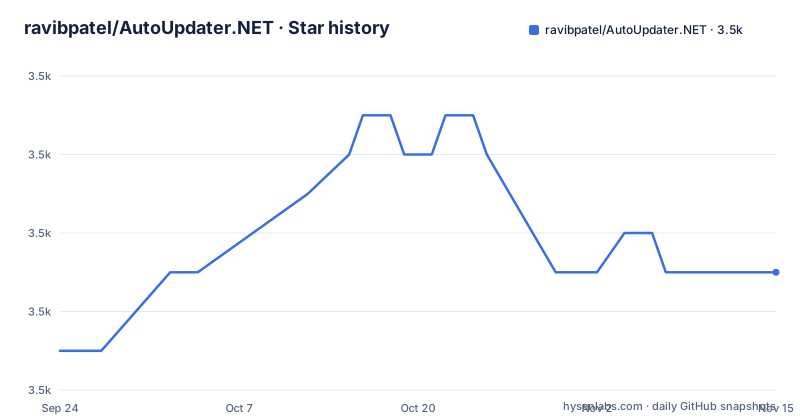
Star history
- ravibpatel/AutoUpdater.NET3,533 ★ · +2
| Repository | 2026-09-24 | 2026-11-15 |
|---|---|---|
| ravibpatel/AutoUpdater.NET | 3.5k | 3.5k |
2 Stars in the last 52 days, measured from the daily GitHub snapshot. Compare with other projects
Editorial analysis
The download is executed, and the checksum is optional
Read the mechanism section as a sequence and the trust boundary is obvious. The library downloads an XML file from a server, reads the latest version out of it, compares that against the installed version, and if it is higher shows a dialog. When the user accepts, it downloads the update file named in that same XML and executes it, then leaves the rest of the update to that installer. The one control on that path is a checksum element, and the README lists it as optional. When you do supply it, the comparison happens before the update process runs, and an algorithm attribute picks between MD5, SHA1, SHA256, SHA384 and SHA512. So the default configuration is a downloaded document naming a URL, whose contents are then run, with no integrity check in between.
<checksum algorithm="MD5">Update file Checksum</checksum>The five algorithm choices include a broken one, which is worth knowing before you pick the first name in the list.
One attribute value removes the user from the loop
The optional mandatory element has a documented escalation. Setting it to true means the version cannot be skipped: it ignores the remind-later and skip options and hides both of those buttons on the dialog. Then the mode attribute on the same element changes what happens further. A value of 1 also hides the close button, so the dialog offers no exit. A value of 2 skips the dialog altogether and starts downloading and updating the application automatically. There is a third option layered on top: a minimum-version attribute means the mandatory treatment only applies when the installed version is below that number, which is the sensible way to force an update for a specific range without forcing it for everyone already current.
<mandatory mode="2">true</mandatory>An automatic mode is defensible for a security update and indefensible as a default, and the documentation presents all three without recommending any of them.
The version comparison is a four part string
Version handling is the part with the fewest moving parts and the most room for surprise. The installed version is taken from the assembly, which the README says you change through the project properties, and you can override it by assigning a version object to an installed-version field, or pass your own assembly as the second argument to the start method. The feed's version must be a four part version string, and it has to be higher than the installed one for anything to happen. Four parts with a required leading zero is a format that predates semantic versioning and does not care about which part of the number changed. A release that only tightens a dependency, for instance, still has to invent a fourth component to trigger an update.
WinForms or WPF only, Windows 8 and above
The scope is stated in one line and the platform list in three. This library only works for WinForms or WPF application projects, so it is not for a command line tool, a service or anything on a platform other than Windows. The supported Windows versions start at Windows 8, with an explicit exception below it: a lower version needs .NET Framework 4.5 or above installed for the zip extractor to work, and the workaround offered is to use an installer as the update file instead of a zip so the extractor is never involved. On the runtime side the list covers .NET Framework 4.6.2 or above, .NET Core 3.1, and .NET 5.0 or above. Given the age of the version numbers on the platform side, the interesting question for an adopter is what happens on a Windows release newer than the one the extractor was last exercised on, and the repository does not say.
The page opens with an empty heading and links the package twice
Small formatting details, but they are what a reader sees first. The README begins with a level-one heading that contains nothing at all, and the library's own name never appears as a heading. The section on the package repeats the same link twice in one line, once as a badge and once as text, both pointing at the same package on the package index. The install command is then shown inside a shell prompt marker, which is the Package Manager Console convention rather than a command you would run in a terminal, so copying it into a normal prompt does the wrong thing. None of this affects the library, and all of it suggests the file is assembled rather than maintained.
The sample feed points at one author's own host
Every example in the documentation uses URLs on the maintainer's personal domain, for the XML feed and for the update file, and the sample changelog URL points at this repository's releases page. That is normal for documentation, and it becomes something to think about the moment you copy a sample instead of writing your own. There is also a helper offered for producing the XML: a tool written by one of the users, distributed as a zip downloaded from a fork whose name carries a branch suffix. So the feed format, which is the one artefact you must get exactly right, has both an official example on someone's domain and a third-party generator in someone else's fork. Neither is a recommendation, and both are the kind of thing worth replacing with your own before you trust it.
Three projects, one solution, and a batch build
The repository is a solution with three project directories: the library itself, a test application that doubles as the thing the documentation keeps updating itself, and a separate zip extractor, which is the component the Windows version note is about. The extractor being its own project is the design decision worth noting, since it is what an older machine needs at runtime, and keeping it separate is what lets the rest of the update path avoid it. Build and continuous integration are Windows shaped: a batch file at the root and a configuration file for a hosted build service, with no workflow directory in the listing. The rest of the root is a licence, an ignore file, a logo directory and the readme you have been reading.
Editorial conclusion
AutoUpdater.NET fits a classic Windows desktop application that has no installer story of its own and needs to replace itself, and its whole surface is small: one XML file on a server and one call in the UI thread. Two things to decide before you ship it. Whether to enable the checksum element, because without it the library downloads a file from a URL in a document it also downloaded and runs it, and the only protection is your transport. And which mandatory mode you use, because one value removes the dialog entirely and starts the update with no user interaction at all. Also note the scope limits: WinForms or WPF only, Windows 8 and above.
Frequently asked questions
How do I add auto-update to a .NET desktop app with AutoUpdater.NET?
Add the using for the library's namespace, then call the start method with the URL of an XML file you host, from the UI thread. When the version in that file is higher than the installed assembly version, it shows an update dialog.
What does AutoUpdater.NET do after downloading an update file?
It executes the installer it just downloaded and leaves the rest of the update to that installer. If the feed gives a zip file URL instead of an installer, it extracts the zip contents into the application directory.
Does AutoUpdater.NET verify the update file it downloads?
Only if you add a checksum element to the feed. An algorithm attribute selects between MD5, SHA1, SHA256, SHA384 and SHA512, and the comparison happens before the update process runs.
Can AutoUpdater.NET update without asking the user?
Yes. Setting the mandatory element to true hides the skip and remind-later buttons, a mode attribute of 1 also hides the close button, and a mode of 2 skips the dialog and starts the download and update automatically.
Which applications and platforms does AutoUpdater.NET support?
WinForms or WPF desktop projects on Windows 8 or above, running on .NET Framework 4.6.2 or above, .NET Core 3.1, or .NET 5.0 or above. Below Windows 8, .NET Framework 4.5 or above is needed for the zip extractor, or you can ship an installer rather than a zip.
Official sources
Add this badge to your README
If you maintain this project, the badge below links readers to this analysis and shows its maintenance status from the daily GitHub snapshot. Paste the markdown into your README; add ?metric=license or ?metric=stars to the image URL for a different field.

[](https://hysenlabs.com/projects/ravibpatel-autoupdater-net)Star history chart for your README
[](https://hysenlabs.com/projects/ravibpatel-autoupdater-net)Was this useful?