Rectangle versions follow your macOS, and its tiling cycles layouts rather than settling on one
Move and resize windows on macOS with keyboard shortcuts and snap areas
At a glance
- What is it?
- Rectangle is a macOS window manager built on Spectacle, with edge snap areas and row or column tiling that repeats through grid layouts as you press the shortcut again. Window animation ships off by default and stays experimental, tiling never rearranges itself when you move a window, and macOS 14 decides which release you can actually install.
- Who is it for?
- Adopt Rectangle if you want keyboard-driven window management on macOS and you accept that layout is something you ask for rather than something that adapts. Do not adopt it for automatic rearrangement, since moving or resizing a window deliberately leaves the grid alone until you press the shortcut again, and do not adopt it as a snaps replacement for anything if animation matters, because that feature is off by default and documented as experimental.
- Can I use it commercially?
- Check first. The repository uses a licence we do not classify automatically, so read its LICENSE file before any commercial use.
- Is it still maintained?
- Yes. The repository last received commits 3 days ago.
- What is it written in?
- Mainly Swift, according to GitHub's language statistics.
Answers come from the project's GitHub data, last synced on November 13, 2026, and from our analysis. They are not legal advice.
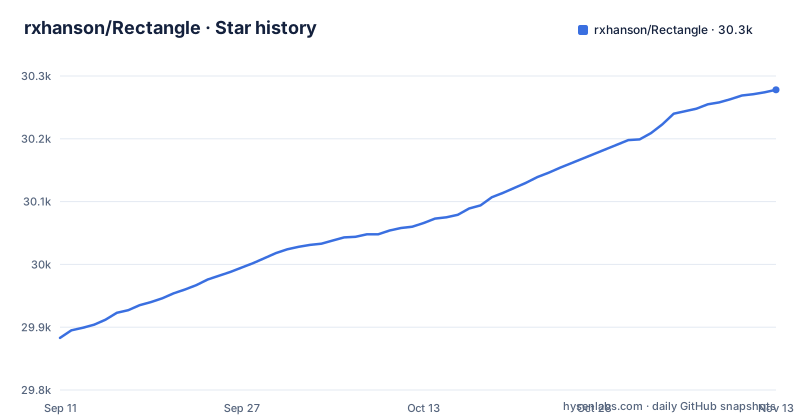
Star history
- rxhanson/Rectangle30,278 ★ · +395
| Repository | 2026-09-11 | 2026-11-13 |
|---|---|---|
| rxhanson/Rectangle | 29.9k | 30.3k |
395 Stars in the last 63 days, measured from the daily GitHub snapshot. Compare with other projects
Editorial analysis
Your macOS version decides which build you can install, not the release page
The system requirements are stated as macOS 14 and newer, and everything below that has a pinned release rather than a degraded one. Systems on macOS 10.15 through 13 are directed to v1.100, and systems on 10.13 or 10.14 are directed to v0.73.
That split is the single most consequential fact for anyone installing this. The current line is a 2.x series, and a Mac that cannot run it is not offered a feature-reduced build but an old one, which means a different feature set and a different bug surface depending on your OS. Check the version before reading anything else about a setting, because a setting described here may simply not exist in the build you can install.
Installation itself is unremarkable. A disk image is available from rectangleapp.com or from the Releases page, and there is a Homebrew cask:
brew install --cask rectangleOn macOS 13 or earlier, use the pinned v1.100 or v0.73 release instead. The homepage is rectangleapp.com, and the project describes itself as a window management app for macOS based on Spectacle, which is worth knowing if you are choosing between window managers and want to know what the geometry behaviour is derived from.
Six snap areas, and the footprint is a prediction rather than a promise
The interaction is a drag to an edge. When the cursor reaches the edge of the screen you see a footprint, and that footprint shows what the app will attempt to do to the window when you release the click. The wording is deliberate: it attempts, because an application that constrains its own window can refuse the result.
There are six distinct snap outcomes, distinguished by where you drag rather than by a modifier key. The left or right edge gives the corresponding half. The top maximizes. A corner produces a quarter in that corner. The left or right edge just above or below a corner gives the top or bottom half. The bottom left, center, or right third gives that third. And dragging from the bottom left or right third to the bottom center produces the first or last two thirds, which is the only snap area that needs a movement path rather than a single position.
That last one is the entry most newcomers miss, because it requires dragging past the third until the cursor reaches the center, and the footprint is what tells you it registered.
The keyboard shortcuts are described as self explanatory, with the caveat that the snap areas can use explanation if you have never used them on Windows or another window management app.
Window animation is off by default and the documentation says why it stays experimental
Two settings affect how the snap is presented, and both ship disabled: Animate windows sits in Behavior, Extras, and Blur footprint in Snap Areas. Animate windows is labelled experimental, and Blur footprint gives a blurred snap preview instead of an outline.
The animation has specific behaviour worth knowing before you enable it. When an app limits its window size or aspect ratio, animated snapping keeps the selected edge or center aligned rather than letting the window drift. Dragging a snapped window begins restoring its previous size as soon as the window starts moving, and a quick release lets the remaining restore animation continue instead of cutting it off. Title-bar double-click maximize and restore follow the same animation setting and the same timing as snapping, so you cannot tune one without the other.
The honest part is the caveat, which names a known rough edge: far-right title-bar grabs can still show visible jumps. The reason for the experimental label is also given. Repeatedly updating a window's size and position during the transition may cause issues in some edge cases, so the feature has been tested in known scenarios but is not claimed to be settled.
For most people that is a reasonable trade for smoother resizing. If you have an app with a strict aspect ratio, test that app first, because the alignment guarantee and the experimental warning point at the same code path.
Tiling cycles through layouts, and the limits default to three
Rows and Columns are hidden by default. Enabling Show Extra shortcuts in menu under Behavior, Extras puts them in the Tiling submenu, and separate keys are assigned to Tile in Rows and Tile in Columns under Settings, Shortcuts, Extra. Their keyboard shortcuts remain available even while the submenu is hidden, which is the arrangement to prefer if you never open the menu.
What the actions do is precise. Each arranges ordinary windows in the current Space on the display that contains the focused window, including windows covered by others. When no ordinary window is focused, the display under the mouse pointer is used instead, and Tile All follows the same rule. Windows on another display stay where they are, and an empty target display does nothing. The exception is combined-display mode: when it is enabled and the macOS setting for Displays have separate Spaces is turned off, Rows and Columns tile across the combined area instead.
The cycling is the part that surprises people. From an unrecognised layout the first press gives one window per row or column, and pressing again cycles through distinct grids. Maximum windows per column and Maximum windows per row control the cycle independently, both default to 3, and both are separate from the single-window Repeated commands setting. Setting a limit to 1 restores the original one-per behaviour.
The layouts are enumerated in the documentation. Six windows with a column limit of 3 cycle through six columns of one, three columns of two, then two columns of three. Five windows cycle through `1,1,1,1,1`, then `2,2,1`, then `3,2`. A column holding fewer windows still fills its full height. Duplicate layouts are skipped, so four windows at a limit of 3 alternate between four groups of one and two groups of two, and a limit above the window count adds nothing. Order comes from each window's upper-left position before anything moves, rows running top to bottom and columns left to right.
Equal widths hold to one pixel, unless app minimums make it impossible
The tiling geometry is described with a precision that suggests it has been worked through. Columns have equal widths and rows have equal heights, within one display pixel, and only when the applications allow it. The grid fills the selected work area inside macOS reservations such as the menu bar and the Dock, as well as Rectangle's own configured screen-edge gaps.
App size restrictions take precedence over equal division, and the worked example makes the rule concrete. If two columns share 1000 pixels and one of the applications requires at least 600, a feasible allocation is 600 for that column and 400 for the other. The requirement wins; equality is the goal rather than the rule.
What happens when no allocation satisfies every restriction is the part to design around. The layout is still attempted, and the stated consequence is that it may leave a gap or overlap. There is a second failure mode in the same vein: if an application does not respond in time, the layout may remain partial. Both are silent outcomes rather than errors, so a grid that looks wrong is more likely to be an unsatisfiable constraint than a bug.
Windows belonging to Todo are excluded, following the same rules as the other multi-window actions, and the bands respect Todo's existing sidebar reservation. The example given is 1000 pixels available with a 200-pixel sidebar reservation, in which case the remaining windows tile within the leftover 800 pixels while Todo stays where it is.
Nothing rearranges itself, so what you see is the layout you asked for
This is the behavioural decision that separates Rectangle from tiling systems that chase your windows around. Moving or resizing a window, opening or closing one, and changing screen-edge gaps all leave the arrangement alone. Nothing is rearranged automatically.
Instead, the next press of the same action reapplies its active layout using whatever windows exist and wherever they are now. That is a deliberate rule and it has a consequence worth stating plainly: after you resize a window out of its column, pressing the tiling shortcut again will snap it back into the grid rather than honour the size you just chose.
Two edge behaviours make this less annoying than it first sounds. A press that would leave the layout unchanged advances immediately to the next layout, so you do not have to press twice to progress through the cycle. And lowering a limit below the active layout causes the next press to use the greatest allowed layout instead.
The active layout is not persisted. Rectangle keeps it only while running, and after a restart the first press advances from an intact, recognisable grid if there is one, otherwise it starts from one window per row or column. Combined with the ordering rule, which reads upper-left positions before moving anything, this means a layout is reproducible from the window arrangement alone, without stored state.
Ignoring an app un-registers its shortcuts, and a URL scheme drives actions
Conflicts are handled by removing the shortcut registration rather than by intercepting keystrokes. When an ignored app is frontmost, keyboard shortcuts are un-registered from macOS, and when that app is no longer frontmost they are registered again. The stated use is an app that has the same shortcuts as Rectangle and where you do not want them changed.
The procedure is deliberately narrow. Focus the app, make one of its windows frontmost, open the Rectangle menu and select Ignore app. To reverse it, bring that app frontmost again, open the same menu and deselect Ignore.
Actions can also be triggered from outside the app through a URL scheme:
rectangle://execute-action?name=[name]with names including `left-half` and `right-half`. The instruction attached to it is not to activate Rectangle if it can be avoided, which is what makes the scheme usable from a script or a launcher without stealing focus. Terminal commands are documented separately in TerminalCommands.md at the repository root.
The source layout is an Xcode project rather than a Swift package: `Rectangle.xcodeproj/`, the `Rectangle/` sources, `RectangleTests/` for the test target, and `SECURITY.md`, `CODE_OF_CONDUCT.md` and `CONTRIBUTING.md` alongside the licence file. The repository records no licence identifier in its metadata despite that file being present, which is worth settling if you intend to fork. The latest release is v2.0.4, published on 2026-10-20, and the last push was on 2026-10-29.
Editorial conclusion
Adopt Rectangle if you want keyboard-driven window management on macOS and you accept that layout is something you ask for rather than something that adapts. Do not adopt it for automatic rearrangement, since moving or resizing a window deliberately leaves the grid alone until you press the shortcut again, and do not adopt it as a snaps replacement for anything if animation matters, because that feature is off by default and documented as experimental. Three things to verify on your own machine: that your macOS version has a build at all, since macOS 14 and newer take the current releases while 10.15 to 13 are pinned to v1.100 and 10.13 to 10.14 to v0.73; whether your apps impose minimum widths that make an equal-width grid infeasible, because the documented behaviour is to attempt the layout anyway and leave a gap or an overlap; and whether the combined-display path is what you want, since tiling then spans every display only when combined-display mode is on and the macOS setting for separate Spaces is off. The latest release is v2.0.4, published on 2026-10-20.
Frequently asked questions
How do you install Rectangle on a Mac?
Download the latest disk image from rectangleapp.com or from the GitHub Releases page, or use the Homebrew cask with brew install --cask rectangle. Check your macOS version first: the current releases need macOS 14 or newer, macOS 10.15 to 13 is served v1.100, and macOS 10.13 to 10.14 is served v0.73.
How do you use Rectangle on a Mac?
Drag a window to a screen edge and a footprint appears showing what will happen on release: an edge gives a half, a corner a quarter, the top maximizes, and the bottom thirds divide the screen. Keyboard shortcuts handle the same actions, and the Tiling submenu's Rows and Columns can be enabled with Show Extra shortcuts in menu.
How do you use the Rectangle app for tiling windows on macOS?
Enable Rows and Columns through Show Extra shortcuts in menu under Behavior, Extras, then assign separate keys to Tile in Rows and Tile in Columns under Settings, Shortcuts, Extra. The action arranges ordinary windows on the display holding the focused window, and pressing it repeatedly cycles through grid layouts, with Maximum windows per row and Maximum windows per column both defaulting to 3.
Official sources
Add this badge to your README
If you maintain this project, the badge below links readers to this analysis and shows its maintenance status from the daily GitHub snapshot. Paste the markdown into your README; add ?metric=license or ?metric=stars to the image URL for a different field.

[](https://hysenlabs.com/projects/rxhanson-rectangle)Star history chart for your README
[](https://hysenlabs.com/projects/rxhanson-rectangle)Was this useful?