HardwareVisualizer: a Tauri dashboard whose sensor access depends on which installer you pick
A cross-platform hardware monitor with real-time dashboards, usage graphs, and customizable visualizations.
At a glance
- What is it?
- shm11C3/HardwareVisualizer is a cross-platform desktop hardware monitor built as a TypeScript and React front end over a Rust and Tauri core, shipping as MSI, EXE, DMG, deb, rpm and AppImage. Whether you get CPU temperature depends on the install path: the MSI offers to set up PawnIO, Winget and the EXE installer do not, and three of those sensor groups are missing on Linux entirely.
- Who is it for?
- This is a reasonable choice if you want a hardware dashboard that keeps its history on your own machine and works the same way on three operating systems, and if you read the installer differences before you install rather than after, because the temperature and power sensors are the feature people notice and they are gated differently on every platform.
- Can I use it commercially?
- Yes, with conditions. GPL-3.0 is a copyleft licence: if you distribute software that includes it, you must release that software's source code under the same licence. Running it internally without distributing it does not trigger that obligation.
- Is it still maintained?
- Yes. The repository received new commits within the last day.
- What is it written in?
- Mainly TypeScript, according to GitHub's language statistics.
Answers come from the project's GitHub data, last synced on October 23, 2026, and from our analysis. They are not legal advice.
Star history
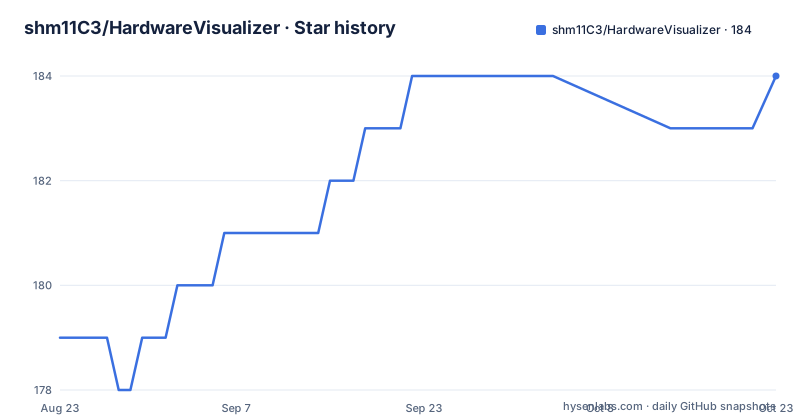
- shm11C3/HardwareVisualizer184 ★ · +5
| Repository | 2026-08-23 | 2026-10-23 |
|---|---|---|
| shm11C3/HardwareVisualizer | 179 | 184 |
5 Stars in the last 61 days, measured from the daily GitHub snapshot. Compare with other projects
Editorial analysis
Windows sensors hinge on which of four install paths you take
The same feature is available or not depending on how you installed, and the README is unusually explicit about it. The .msi installer is recommended because it places the application under Program Files, which the Run as administrator on startup option requires. That same installer offers to set up PawnIO, a kernel mode driver for direct hardware access, and the option is selected by default but can be deselected. When selected, the installer downloads a pinned PawnIO release, verifies it, and installs only what is missing. With the .exe installer, or with Winget, or later at any time, you set PawnIO up yourself from Settings, Advanced. The silent install case has its own line, and it is the one that bites unattended deployments:
msiexec /i HardwareVisualizer_x.x.x_x64_en-US.msi /qn EXTERNAL_COMPONENT_PAWNIO=1Without that property a quiet install completes and leaves you without CPU temperature, CPU power and motherboard sensors. Winget installs never set PawnIO up.
Basic monitoring needs no rights, sensors need administrator access
The permission model is stated as a note and it is the clearest statement of what the app is doing at any moment. Basic monitoring does not require administrator rights. The sensors read through PawnIO, which covers CPU temperature and power, and motherboard temperatures and fans, do need administrator access, and the way to get it is a settings toggle labelled Run as administrator on startup under Advanced. So the app is designed to be usable unprivileged and to escalate only for the specific readings that require a kernel driver. The reason the MSI is recommended follows from the same design: the toggle is available when the application is installed under Program Files, which is where the MSI puts it and where a per user install would not. PawnIO is a separate component in this arrangement, and it is not removed when HardwareVisualizer is uninstalled, so a machine that had it set up keeps it afterwards.
Linux splits its data sources between polkit, smartctl and root
The Linux story is the one with the most visible gaps, and the README does not hide them. Three specific things are needed beyond a plain install. Detailed memory information asks for authorization through polkit, by running pkexec dmidecode. Storage Health uses smartctl from smartmontools. Intel GPU usage uses intel_gpu_top. Both of the latter two usually need root access, and the advice given is to restart the app with sudo so they can run. So on Linux, the honest summary is that core monitoring works, memory detail triggers a password prompt, storage and Intel GPU figures need the application started as root, and the sensor group that works on Windows with PawnIO does not work here at all: CPU temperature, power draw and motherboard sensors are stated as not available on Linux yet. The packaging follows the distribution, a deb for Debian and Ubuntu, an rpm for Fedora and RHEL, and an AppImage for everything else, which is made executable and run directly.
A SourceForge listing with a near identical name is not this project
The download section carries a security notice that goes further than a normal distribution statement, and it is the part of this README most worth reading before clicking anything. Official distribution is through exactly two channels, GitHub Releases and hardviz.com, and any other distribution, including third party mirrors and listings on download sites, is stated to be not affiliated with the project. A specific case is named. The SourceForge project called Hardware Visualizer was created without the author's involvement, and they state they cannot verify the authenticity or safety of the ZIP archives published there, with the instruction to use them at your own risk. The near miss in the name is what makes it worth writing down at all, since a search for the application's name will surface both listings. For provenance checks there is a separate download verification guide in the docs directory, and a code signing policy document at the top of the repository, which is the document to read if you want to check a binary's signature rather than its download page.
Three view modes over live gauges, and a hardware history kept on disk
The features divide into three groups. Performance gives live CPU, memory and GPU gauges and usage graphs, per core usage, a list of running processes, motherboard sensors and fans, and power draw, with a choice between Panels, Compact and Monitor views, panels that can be hidden or reordered, and a selector for which GPU to show on a machine with several. System Specifications is a static sheet covering CPU, GPU, memory, storage, platform, motherboard and BIOS and network, with a hardware report you can copy, and Storage Health reporting SMART health, temperature and wear for each drive. Insights is built on a hardware history that stays on the machine, which is the part that distinguishes this from a live dashboard, since it is about looking back over days and months rather than the current second. First time setup asks for a theme, a language, and optionally a custom background image, with the Japanese README alongside the English one.
A Rust workspace with a dev profile tuned to keep the build cache small
The Cargo file is where the engineering decisions show. It is a workspace with two members, a core crate and the Tauri crate, with a third directory excluded. The dev profile compiles at opt level zero with overflow checks on and link time optimisation off, and the debug setting is line tables only, chosen because full debuginfo for the workspace made each shared build subtree more than 40 gigabytes; the escape hatch for anyone stepping through code in a debugger is an environment variable that turns full debugging back on. A per package profile then strips debuginfo from the bundled DuckDB C++ library specifically, because that library alone carried 2.3 gigabytes of debug information per subtree and nothing in this repository debugs into it. The release profile is the opposite: size optimisation, link time optimisation, one codegen unit, symbols stripped. A separate CI profile inherits release but turns optimisation off and breaks codegen into 256 units so the build is fast enough for every commit.
Five test surfaces, from Vitest coverage to native first run smoke tests
The scripts in the package file show how wide the checking is. Unit tests run under Vitest with coverage. End to end tests run under Playwright, and there are two more Playwright configurations dedicated to render performance and to memory, so a regression in how much the dashboard allocates is a test failure rather than a feeling. Native behaviour has its own suite run through Node with type stripping, a first run smoke test for settings, with a separate tsconfig for type checking it and another for CI telemetry. Linting is Biome, with separate lint, format and CI entries, and a build that runs tsc before Vite. There are also scripts for checking and testing agent guidance, testing agent hooks, pruning build directories, generating the licence file for each of the three platforms, and running a licence checker in production mode. Alongside them sit several configuration files for coding agents at the top level, an OpenSSF scorecard badge, a Fossa licence badge, and a DeepWiki link, so the project's own tooling is part of what it ships.
Editorial conclusion
This is a reasonable choice if you want a hardware dashboard that keeps its history on your own machine and works the same way on three operating systems, and if you read the installer differences before you install rather than after, because the temperature and power sensors are the feature people notice and they are gated differently on every platform. It is a poor fit if you need those sensors on Linux, where CPU temperature, power draw and motherboard readings are stated as unavailable, or if you want deep hardware inventory, since much of that on Linux is delegated to dmidecode through polkit, smartctl and intel_gpu_top, all of which want root. Before you install, check three things: which installer you use, since the MSI is the only one that offers PawnIO setup and silent installs need an explicit property to get it; where you download from, since the project states it is distributed only through GitHub Releases and hardviz.com and warns specifically about a SourceForge listing of a similarly named project that was created without the author's involvement; and what the history feature stores on your disk, since Insights is built from a hardware history that stays local and the retention window is not stated in the text.
Frequently asked questions
How do I install HardwareVisualizer on Windows with CPU temperature support?
Use the .msi installer, which is recommended because it installs under Program Files, and accept the PawnIO option, which is selected by default. It downloads a pinned PawnIO release, verifies it and installs what is missing. The .exe installer, Winget and later settings under Advanced all leave PawnIO to you.
Does HardwareVisualizer need administrator rights?
Not for basic monitoring. Sensors read through PawnIO, covering CPU temperature and power and motherboard temperatures and fans, need administrator access, which is enabled by turning on Run as administrator on startup under Settings, Advanced.
Can I get CPU temperature on Linux with HardwareVisualizer?
Not yet. CPU temperature, power draw and motherboard sensors are stated as not available on Linux. Detailed memory information asks through polkit with pkexec dmidecode, Storage Health uses smartctl, and Intel GPU usage uses intel_gpu_top, which usually need root, so the app is restarted with sudo.
Is the Hardware Visualizer project on SourceForge official?
No. The README states that project was created without the author's involvement and that the authenticity and safety of its ZIP archives cannot be verified. Official distribution is only through GitHub Releases and hardviz.com, and a download verification guide is provided for checksums and provenance.
What does Insights show in HardwareVisualizer?
Insights is built from a hardware history that stays on your computer, so it is about reviewing how the machine behaved over days and months rather than the current second. Storage Health reports SMART health, temperature and wear for each drive, and a hardware report can be copied from System Specifications.
How is HardwareVisualizer built and tested?
The Cargo file defines a workspace of a core crate and the Tauri crate, with per package debug settings that strip the DuckDB library's debuginfo. Tests include Vitest with coverage, Playwright end to end tests plus render and memory configurations, and a native first run smoke test, with Biome for linting.
Official sources
Add this badge to your README
If you maintain this project, the badge below links readers to this analysis and shows its maintenance status from the daily GitHub snapshot. Paste the markdown into your README; add ?metric=license or ?metric=stars to the image URL for a different field.

[](https://hysenlabs.com/projects/shm11c3-hardwarevisualizer)Star history chart for your README
[](https://hysenlabs.com/projects/shm11c3-hardwarevisualizer)Was this useful?