XboxDownload works by rewriting one domain name, not by accelerating a transfer
Xbox Download Assistant: Supports download acceleration for Xbox, Microsoft Store, PlayStation, Nintendo Switch, EA App, Battle.net, Epic Games, Ubisoft Connect, Riot Games, and Rockstar Games, and fixes access issues for Steam Store & Community and GitHub.
At a glance
- What is it?
- Xbox Download Assistant points an Xbox console, a PC Store install or a PlayStation download at a domestic content delivery host by rewriting the download domain, because the console chooses that domain from the IP address it sees. The README is a set of network instructions: pick a local IP in the console's subnet, set the console's DNS by hand, and put it back to automatic afterwards.
- Who is it for?
- This tool suits a player behind a slow link to the international Microsoft content hosts who is willing to change console DNS settings and remember to change them back. It does not suit a console on IPv6 unless you disable that on the router, and it does nothing for a game whose content is not cached on the domestic CDN at all.
- Can I use it commercially?
- Not without permission. GitHub finds no licence file in the repository, and without a licence all rights are reserved by default: you may read the code but not reuse it. Check the README, or ask the authors, before using it.
- Is it still maintained?
- Yes. The repository received new commits within the last day.
- What is it written in?
- Mainly C#, according to GitHub's language statistics.
Answers come from the project's GitHub data, last synced on November 14, 2026, and from our analysis. They are not legal advice.
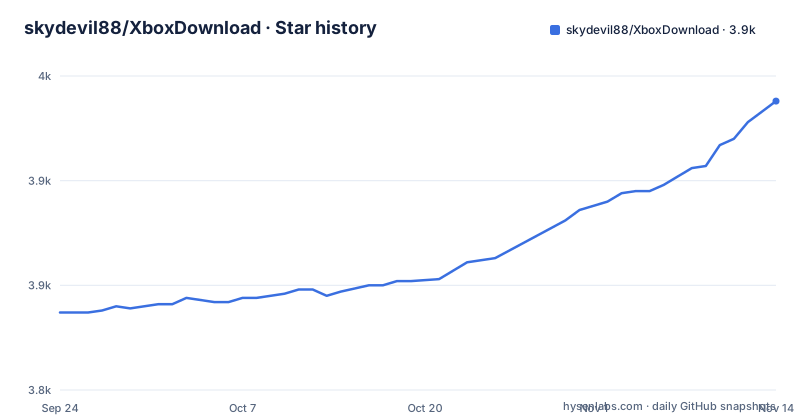
Star history
- skydevil88/XboxDownload3,938 ★ · +101
| Repository | 2026-09-24 | 2026-11-14 |
|---|---|---|
| skydevil88/XboxDownload | 3.8k | 3.9k |
101 Stars in the last 51 days, measured from the daily GitHub snapshot. Compare with other projects
Editorial analysis
The console picks its download domain from the IP it sees
The explanation section is the part of this project that generalises beyond Xbox. A console allocates its game download domain based on the address of the user, and a domestic address is served content from the country domain, which has local delivery servers and is therefore fast, except for unpopular games that are not cached. An address outside the country is served from the international domain, which has no local servers, so the console has to reach them from abroad and downloads slowly. The consequence people hit is the third case: if you use an accelerator or a proxy, the network is identified as outside the country and the console is handed the international domain anyway, so the tool you paid for actively defeats the speedup. That is why the tool's approach is a rewrite rather than a tunnel.
The rewrite only fires when the interface is Simplified Chinese
The acceleration principle is one sentence: the international download host is redirected to the country host so the download is locked to a local server, and the same mechanism is then reused for the PC Microsoft Store, PlayStation, Nintendo Switch, EA, Battle.net international, Epic, Ubisoft, Riot Games and Rockstar downloads. A note follows immediately, and it is the kind of thing that costs an hour if you miss it, saying the redirect only takes effect when the interface language is set to Simplified Chinese. So the feature is gated on a language setting rather than on a checkbox, which means a user who has their assistant in English will find that the tool starts, listens, and changes nothing. The application is built on Avalonia 12 for a .NET 10.0 target, and the repository ships an English readme alongside the Chinese original.
Console setup means manual DNS, and a restore step you must not forget
The console instructions start with a prerequisite that is easy to skip: pause a download that is already in progress before changing anything. Then three steps. In the assistant, run the speed test with imported addresses, test candidates near your home, and right click one to select it. Choose a local address in the same range as the console, which is normally a private range, and tick both the DNS service and the HTTP or HTTPS service before starting to listen. On the console, go through settings to the network, into the advanced settings, to the DNS settings, choose manual, set the primary DNS to the machine running the assistant, whose address is shown in its lower left corner, and leave the secondary field empty. Two warnings come with it: disable IPv6 on the router if the console is using it, and set the console back to automatic when the download finishes, because otherwise the console cannot get online once the assistant is closed.
The local address has to be in the console's own subnet
That third step is the one that fails most often, and the troubleshooting notes explain why. The console has to reach the machine running the assistant directly, which means the machine's address must be in the same range the console is on, and the example given is a private home range with a particular address, described as one you should judge for yourself. If that choice is wrong the symptom is silence rather than an error: the documentation's first troubleshooting entry is having no logs at all, which it attributes either to the wrong local address or to the machine's firewall or a security suite blocking it, and the advice is to pick again or turn the software off. The second entry is a port already in use, where force closing the other process usually frees it, and the suggested diagnostic is the standard netstat listing.
A third case is a console sharing the machine's WiFi hotspot
There is a separate configuration for the case where the console is not on the same wired network at all but is joining the internet through the machine's own hotspot. Three settings change. The listening address becomes any address rather than a chosen one, the DNS service is not enabled, and setting a local DNS address on the machine is cancelled, which removes the need to pick a subnet at all. The console's own DNS settings can then be left on automatic, which is the same advice given for the wired case after the download finishes. So the project is explicit that the DNS dance is only needed when the two devices talk directly, and the hotspot arrangement trades speed control for a configuration that does not need to be undone.
Two routes get the finished game back onto the console
Downloading on the machine and installing on the console is described as two methods. The first is to listen with the download link display enabled, pause the console download, right click and copy the address, then fetch the file with a PC download tool. PC Store games on a subscription work the same way, and installation then goes through the tools menu of the Store client. The second method skips the pause: point the assistant's local upload folder at the download folder, enable local upload, start listening, and let the console upload from the machine. Both require the console to be able to see the machine, so neither is faster than the first in any way the README claims, and the difference is whether a human copies a link or a folder watcher does it.
Hard drive import renames by content identifier and needs a network boot
The hard drive route is the most involved and the most fragile. Connect the console's external drive to the machine, switch the assistant into PC mode, copy the downloaded files in and rename each to its content identifier, or download straight to the root of the drive to avoid the copy. Switching the mode back, deleting the paused game on the console, reconnecting the drive and booting online are all required, and the console has to be online for the move step. The README also names two failure modes explicitly: the antivirus may need to be turned off for the conversion, and launching the game from the external drive makes the console download it again, because the application does not support importing a game by launching it from there. The rename itself is done through the drive's file information view rather than by hand.
Without the machine, the fix moves to hosts entries
A separate document covers the case where you do not want to run a computer at all. On OpenWrt the instructions are to install a lightweight web server or nginx and use URL rewriting to send the console to the domestic delivery servers, with that document linked from the main file. Other routers are handled by editing hosts entries directly, with the procedure being to speed test both the international and the country domains separately and write the fastest address found into hosts, so either domain works. The entry groups are given explicitly: two lines for the main shared download host, two more for hosts used only by older Xbox One games, and two for the delivery hosts used by applications and some PC games. The international group is listed separately and carries a restriction that is easy to miss, since those entries must use an Akamai address and cannot use the country one:
address=/assets1.xboxlive.com/Akamai IP
address=/assets2.xboxlive.com/Akamai IP
address=/xvcf1.xboxlive.com/Akamai IP
Editorial conclusion
This tool suits a player behind a slow link to the international Microsoft content hosts who is willing to change console DNS settings and remember to change them back. It does not suit a console on IPv6 unless you disable that on the router, and it does nothing for a game whose content is not cached on the domestic CDN at all. Before using it, read the note about the interface language, because the rewrite only fires when the application is set to Simplified Chinese, and plan the restore step, since a console left on manual DNS stops working once the assistant is closed.
Frequently asked questions
How does XboxDownload speed up console downloads?
The console chooses its download domain from the IP address it sees, and the tool redirects the international Microsoft content host to the domestic one so the download is served locally. The same mechanism is applied to the PC Store, PlayStation, Nintendo Switch, EA, Battle.net, Epic, Ubisoft, Riot and Rockstar downloads.
Why does XboxDownload not change anything on my console?
The redirect is only enabled when the interface language is set to Simplified Chinese, which the README notes explicitly. A second cause is the local address: if the machine is not on the same address range as the console, the console cannot reach it, and the symptom is no logs at all rather than an error message.
Do I have to change the Xbox DNS settings back afterwards?
Yes. The README says that after the download finishes you must set the console DNS back to automatic, because otherwise the console cannot get online once the assistant is closed. It also notes that if the console is using IPv6 you have to disable IPv6 on the router first.
Can I use XboxDownload without a PC running the assistant?
Yes, through router side configuration. On OpenWrt the documented approach is a lightweight web server or nginx with URL rewriting, and on other routers you edit hosts entries after speed testing the international and country domains separately, writing the fastest address in so either domain is accelerated.
Official sources
Add this badge to your README
If you maintain this project, the badge below links readers to this analysis and shows its maintenance status from the daily GitHub snapshot. Paste the markdown into your README; add ?metric=license or ?metric=stars to the image URL for a different field.

[](https://hysenlabs.com/projects/skydevil88-xboxdownload)Star history chart for your README
[](https://hysenlabs.com/projects/skydevil88-xboxdownload)Was this useful?