ECTranslation translates the selected code in Android Studio, splitting identifiers first
Android Studio Plugin,Translate English to Chinese. Android Studio 翻译插件,可以将英文翻译为中文.
At a glance
- What is it?
- ECTranslation is an Android Studio plugin that translates English into Chinese, and the work it does before translating is the interesting part: it splits camel case and constant style identifiers into words, treats a run of capitals as one word, and ignores comments. It installs as a jar through the plugin disk installer, and the project documents its own changelog up to version 1.5.
- Who is it for?
- ECTranslation fits an Android developer who reads a lot of English documentation inside the IDE and wants the selected identifier or sentence translated in place, without leaving the editor. It is the wrong choice for a non Android Studio project, and the wrong choice for a team that cannot accept a plugin that calls an external translation service.
- Can I use it commercially?
- Not without permission. GitHub finds no licence file in the repository, and without a licence all rights are reserved by default: you may read the code but not reuse it. Check the README, or ask the authors, before using it.
- Is it still maintained?
- Yes. The repository last received commits 143 days ago.
- What is it written in?
- Mainly Java, according to GitHub's language statistics.
Answers come from the project's GitHub data, last synced on November 7, 2026, and from our analysis. They are not legal advice.
Star history
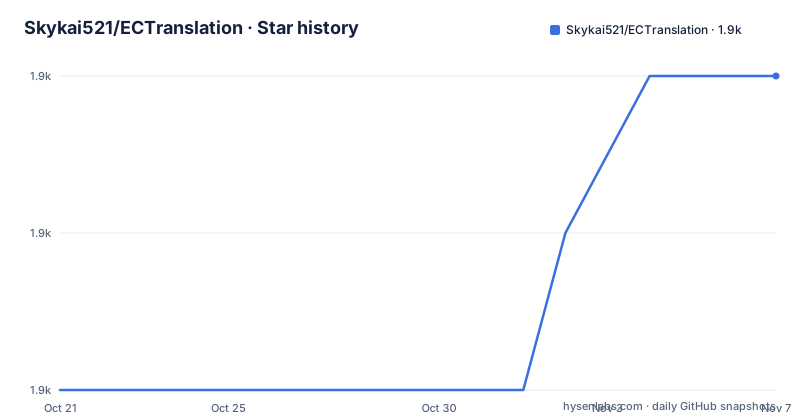
- Skykai521/ECTranslation1,868 ★ · +2
| Repository | 2026-10-21 | 2026-11-07 |
|---|---|---|
| Skykai521/ECTranslation | 1.9k | 1.9k |
2 Stars in the last 17 days, measured from the daily GitHub snapshot. Compare with other projects
Editorial analysis
Select code, press the shortcut, read Chinese
ECTranslation is an Android Studio plugin that translates English into Chinese. The whole interaction is three steps.
You select code in the editor, you choose Edit and then Translate, or you press the command and I shortcut, which you can set yourself. A dialog appears with the translation.
The changelog shows the plugin becoming more useful over its versions rather than merely existing. Version 1.0 was the first release with the basic functionality. Version 1.1 fixed a long press shortcut that made Android Studio unresponsive, and refactored the code. Version 1.2 added a time limit for the dialog display, and added splitting of words for translation, so that things like setContentView and ALIGN_CENTER can be translated. Version 1.3 removed the icon from the dialog prompt. Version 1.4 and version 1.5 added the improvements described below, and version 1.5 fixed a null pointer problem when translating on Android Studio 2.3.
The primary language is Java, the project is not archived, and the last push was on 2026-06-18. The listed GitHub releases are 1.3 from 2016-05-24 and 1.2 from 2016-05-20, while the changelog runs to version 1.5, so the newer versions exist in the repository as built jars rather than as tagged releases. The repository root holds ECTranslation.iml, a resources/ and img/ directory, a src/ directory, and the compiled jars ECTranslation1.1.jar through ECTranslation1.5.jar.
The licence is not stated in the repository, which is a real consideration for a plugin that runs inside a commercial IDE.
Installing a jar through the plugin disk installer
The installation path is unusual enough to be worth spelling out, because it is not a marketplace install and it involves a restart of the IDE.
You clone the project and get the ECTranslation.jar, or you download it from the GitHub releases page. Then you open Android Studio, go to Preferences, then Plugins, then Install plugin from disk, select the ECTranslation.jar, install it, and restart Android Studio.
The restart is not optional in the way a settings change usually is not. This is a plugin that registers an action in the editor and a menu entry, and the IDE loads plugins at start up, so a jar that is dropped into the plugins folder while the IDE is running will not be picked up until it comes back.
Because the artefact is a jar rather than a plugin from a repository, the version compatibility is the user's problem. There is no version range in the manifest that the installer checks for you, and the plugin targets the IntelliJ platform rather than a specific Android Studio build, which means it has to keep working with each IDE release that changes the platform APIs. The null pointer fix in version 1.5 for Android Studio 2.3 is the shape of that problem: a platform change broke a code path and the plugin had to be patched.
The QA section in the README is brief. It asks whether it works on Windows and Mac, and the answer is that it does, which matters because the plugin is installed from disk and the path handling in the plugin installer differs between the two platforms.
Identifiers are split before they are translated
The feature that makes this plugin more than a text box is the word splitting, and the changelog describes it in two steps across versions 1.2 and 1.4.
Version 1.2 added splitting of words for translation, so that identifiers such as setContentView and ALIGN_CENTER can be translated at all. Left alone, a camel case name is one long token to a translation service, and the result is usually a transliteration of a single word rather than a translation of the words in it.
Version 1.4 refined that. The abbreviation splitting was improved, with the example that the original splitting would turn UID into three separate letters, U, I and D, and after the change a run of consecutive capital letters is treated as one word. That single change is what makes a constant like ALIGN_CENTER translatable, since the uppercase run stays intact and is translated as an abbreviation rather than as three letters.
So the plugin's model is that code identifiers are compound words wearing a naming convention, and the convention has to be undone before the words can be translated. That is a small idea, and it is the difference between a plugin that produces nonsense for code and one that produces something a developer can use.
The other version 1.4 change is in the same spirit but about selection. Word selection was improved so that you only need to place the cursor inside a word for it to be recognised as the current selection, with the example being a sentence where the cursor sits in the middle of a word, and the plugin works out that the word is the one to translate. There is an important caveat attached: if there is a word or sentence currently selected with the mouse, the automatic recognition will not be performed, so an existing selection always wins.
The net effect is that you can translate a single word without selecting it, which is much quicker in practice than dragging a selection over it.
Comments are skipped and results also go to the Event Log
The version 1.4 changelog contains two more behaviours that matter for a plugin running inside a code editor.
The first is that comments are ignored, with the comment markers listed explicitly, and the asterisk and runs of consecutive whitespace. A translation of a selection that contains a comment should not translate the comment, and a translation of a line that is mostly comment should not return a translation of punctuation.
The second is that the translation result is also output to the Event Log. That is a small decision with a large consequence for the plugin's usefulness in a debugging workflow, because the Event Log is the place a developer can copy from when the dialog is gone, and because the log survives the dialog being dismissed.
There is also a change to the dialog itself. When the selected content is a sentence, the dialog now shows only the translation result and no longer shows the selected content, while the word translation logic is unchanged. The reasoning is practical rather than cosmetic. For a single word, the dialog shows the word alongside its translation so you can see what was sent. For a sentence, showing the source text again just takes up the space that the result needs.
One more small change came in version 1.4, and it is a usability one for a right handed mouse user. A plugin entry was added to the editor right click menu, so Translate can be triggered from the context menu in the editor.
The keymap is where the plugin becomes yours, and the mouse shortcut is the trap
The plugin ships with a keyboard shortcut and the README walks through making it your own.
To set one, you go to Preferences, then Keymap, search for Translate, right click and choose to add a keyboard shortcut, then enter the combination you want. That is the whole procedure, and it means the plugin never really imposes its default on you.
The mouse shortcut is the part the README warns about. You can add a mouse shortcut in the same place, and the README says it is not recommended because it affects the double click behaviour in the sidebar. So the mouse route is available, and it comes with a known cost, which is a reasonable thing for a plugin to do but a reasonable thing for a user to read first.
The default binding is command and I, which is worth a note for people on the keymap of a non Mac platform, where the command key does not exist. A user on Windows or Linux who assumes the printed shortcut applies to them will find the action in the Keymap settings under a different name, which is exactly where the search step sends them.
The rest of the configuration surface is small on purpose. There is no settings panel in the README, no configuration file, and no options beyond the keymap. The plugin is a jar, a shortcut, and a dialog, and everything that can be changed about it is changed through the IDE's own keymap mechanism rather than through a plugin specific screen.
What the README leaves out
Three gaps are worth naming, because a reader following the README will hit all of them.
The first is the translation service. The Thanks section credits Youdao, with a link to its open API, and also credits a simple Android Studio translation plugin written by someone else, which is where the idea and the API choice come from. What the README does not document is where you put the service credentials, and which service the plugin calls. For a plugin that sends your code to a third party, that is the first question, and it is not answered anywhere in the document.
The second is the licence. There is no licence file in the repository listing, and the package metadata does not state one. The plugin is distributed as a jar that people install into a commercial IDE, so the terms are the first thing an organisation has to establish, and here they have to ask the author.
The third is the version story. The releases page lists 1.2 and 1.3 from May 2016, the changelog describes versions 1.4 and 1.5 with substantive changes, and the repository carries the built jars for 1.1 through 1.5. The last push was in June 2026, so someone is still working on it, but there is no tagged release for the versions that contain the identifier splitting and the cursor based selection that make the plugin worth using. Anyone installing from the releases page gets version 1.3, which predates all of it.
The QA section points to issue 6 for the garbled translation problem, which is the right place to look for the encoding answer, and confirms that both Windows and Mac are supported.
Editorial conclusion
ECTranslation fits an Android developer who reads a lot of English documentation inside the IDE and wants the selected identifier or sentence translated in place, without leaving the editor. It is the wrong choice for a non Android Studio project, and the wrong choice for a team that cannot accept a plugin that calls an external translation service. Verify first where the translation service credentials are configured, because the README does not document that step, and expect the plugin to be tied to the Android Studio versions it was built against.
Frequently asked questions
How do I install the ECTranslation plugin?
Get the ECTranslation.jar by cloning the project or downloading it from the releases, then in Android Studio go to Preferences, then Plugins, then Install plugin from disk, select the jar, install it and restart Android Studio. There is no marketplace listing and no plugin repository involved.
How do I trigger a translation in ECTranslation?
Select the code, then choose Edit and then Translate, or use the keyboard shortcut, which is command and I by default and can be changed. Version 1.4 also added a Translate entry to the editor right click menu, and if a mouse selection exists it takes priority over the automatic word detection.
How does ECTranslation handle identifiers like setContentView and ALIGN_CENTER?
The plugin splits compound identifiers into words before translating them, which version 1.2 added. Version 1.4 improved that so a run of consecutive capital letters is treated as one word, meaning UID is no longer split into the letters U, I and D.
Can I change the keyboard shortcut in ECTranslation?
Yes. Go to Preferences, then Keymap, search for Translate, right click and add a keyboard shortcut with the combination you want. A mouse shortcut can be added the same way, but the README advises against it because it affects the sidebar double click behaviour.
Does ECTranslation work on Windows and Mac?
Yes, the QA section of the README confirms that it can be used on both Windows and Mac. For garbled translation output it points to issue 6 for the fix.
Official sources
Add this badge to your README
If you maintain this project, the badge below links readers to this analysis and shows its maintenance status from the daily GitHub snapshot. Paste the markdown into your README; add ?metric=license or ?metric=stars to the image URL for a different field.

[](https://hysenlabs.com/projects/skykai521-ectranslation)Star history chart for your README
[](https://hysenlabs.com/projects/skykai521-ectranslation)Was this useful?