spatie/pdf-to-image: PHP PDF Raster Conversion Guide
Convert a pdf to an image
At a glance
- What is it?
- spatie/pdf-to-image wraps Imagick and Ghostscript to render selected PDF pages as JPG, PNG, or WebP images from PHP. It fits application code that needs predictable page selection and output sizing, but requires PHP 8.2+, Imagick, Ghostscript, and careful handling of encrypted files.
- Who is it for?
- Adopt spatie/pdf-to-image when a PHP application needs to turn selected PDF pages into common image files through a small object API. Do not choose it if the host cannot provide Imagick and Ghostscript, or if encrypted documents include passwords unsupported by ImageMagick 7 and the platform command-line rules.
- Can I use it commercially?
- Yes. MIT is a permissive licence: you can use, modify and sell software built on it, as long as you keep its copyright and licence notices.
- Is it still maintained?
- Yes. The repository last received commits 3 days ago.
- What is it written in?
- Mainly PHP, according to GitHub's language statistics.
Answers come from the project's GitHub data, last synced on November 7, 2026, and from our analysis. They are not legal advice.
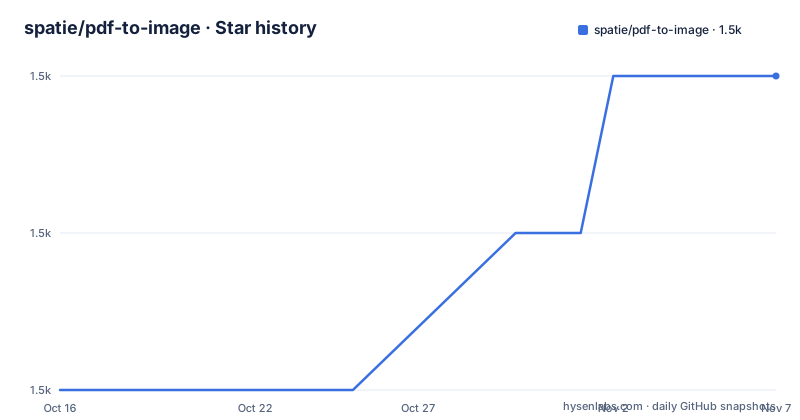
Star history
- spatie/pdf-to-image1,460 ★ · +2
| Repository | 2026-10-16 | 2026-11-07 |
|---|---|---|
| spatie/pdf-to-image | 1.5k | 1.5k |
2 Stars in the last 22 days, measured from the daily GitHub snapshot. Compare with other projects
Editorial analysis
Why spatie/pdf-to-image Exists in a PHP Application
spatie/pdf-to-image addresses a narrow but common server-side task: rendering a PDF document into raster image files. It is intended for PHP developers who need a document preview, page thumbnail, image attachment, or selected-page export without requiring a separate desktop application or manual conversion workflow. The package does not turn arbitrary documents into editable images, perform OCR, extract embedded text, or build a general document conversion service. Its stated purpose is PDF-to-image conversion, and its API centers on selecting pages and saving them with explicit formats, quality, resolution, and dimensions.
That narrow scope is useful when application code already works with Composer. The caller constructs a `Pdf` object from a file path and calls `save()`. The object also provides methods for page counts, selected pages, thumbnails, output dimensions, and background colors. This keeps conversion logic inside the PHP process without requiring the project to expose command-line conversion flags throughout its own code.
The choice is less suitable for workloads that require a browser-based renderer, vector export, PDF editing, or text extraction. The repository does not document support for those tasks. Its implementation depends on native command-line and extension facilities rather than a pure PHP rasterizer, so a Composer installation alone is not sufficient.
The Imagick and Ghostscript Rendering Path
Based on the repository documentation, conversion runs through Imagick, which in turn uses Ghostscript. Both are external requirements in the real environment even though conversion is triggered from PHP. The README specifically refers to the Ghostscript `gs` command, making the native installation part of the operating environment rather than a Composer-only dependency.
The main object is `\Spatie\PdfToImage\Pdf`. It receives `$pathToPdf`, retains conversion settings through fluent methods, and writes one or more image files through `save()` or `saveAllPages()`. By default, only the first page is rendered. `selectPage()` changes the current page, while `selectPages()` accepts multiple page numbers in one call. For example, `selectPages(2, 4, 5)` documents conversion of the second, fourth, and fifth pages into a destination directory.
Output format follows the filename extension when it is `jpg`, `jpeg`, `png`, or `webp`; an unrecognized extension produces JPG output. The return shape reflects cardinality: `save()` returns an array of saved filenames when multiple pages are rendered and a string containing one path for a single image. This dual return type is practical for both selected-page and all-page jobs, but application code that expects one stable return type must account for it.
Imagick also exposes the page size through `getSize()`, whose result is a `\Spatie\PdfToImage\DTOs\PageSize`. That is useful before rendering because unusually large PDF dimensions can cause resource problems later.
Installing the Package and Rendering the First Page
The README requires PHP 8.2 or later. Install Imagick and Ghostscript at the operating-system level first, because Composer does not supply those native facilities. Then install the PHP package through Composer. This is the exact installation command documented by the project:
composer require spatie/pdf-to-imageAfter installation, create `Pdf` with the source path and pass the intended image path to `save()`. The following is the README's minimal example:
$pdf = new \Spatie\PdfToImage\Pdf($pathToPdf);
$pdf->save($pathToWhereImageShouldBeStored);
For the first real use, ensure that the destination location is appropriate for the filename-based format decision. A destination ending in `jpg`, `jpeg`, `png`, or `webp` requests that format, while another extension falls back to JPG. When rendering all pages, the destination must already exist as a directory. The documented all-page call is:
$pdf->saveAllPages($directoryToWhereImagesShouldBeStored);A reliable first application flow would initialize the package, validate that the source PDF is readable, and confirm that the native environment provides Imagick and Ghostscript. The README does not provide a separate diagnostic command or a configuration file for those services. Any setup procedure for installing or enabling them must therefore come from the host platform and those native projects rather than this repository.
Selecting Pages and Controlling Image Output
The API distinguishes between a single output and a multi-page output through both selection methods and return values. To save the second page only, pass its number to `selectPage()` before saving:
$pdf->selectPage(2)
    ->save($pathToWhereImageShouldBeStored);
For selected pages in a single operation, use `selectPages()`. The destination for this example is an existing directory because several images will be produced:
$pdf->selectPages(2, 4, 5)
    ->save($directoryToWhereImageShouldBeStored);
Output controls are chainable. `quality()` accepts a compression quality from 0 to 100, and `resolution()` sets output DPI. The enum-based `format()` method can select `OutputFormat::Webp` without relying on the destination filename. Image geometry can be handled through two distinct methods. `thumbnailSize()` defines thumbnail dimensions, while `size()` sets the output image dimensions. Either accepts a width alone, with height calculated automatically, or width and height together.
These controls should not be treated as interchangeable. A thumbnail method and an output sizing method can specify pixels in similar-looking calls, but their documented purposes differ. Resolution changes raster density, while width and height control dimensions. The README does not document interaction behavior when quality, resolution, thumbnail size, and explicit size are combined, so code that stacks several options should be checked against representative PDFs before relying on exact output dimensions.
Encrypted PDFs and the ImageMagick Version Boundary
Password-protected PDFs expose a concrete compatibility boundary. The README says encrypted files require ImageMagick 7. On ImageMagick 7, pass the document password through `password()`. A developer can check support with `Pdf::supportsPasswordProtectedPdfs()`, which the documentation says returns `true` on ImageMagick 7. On ImageMagick 6, the `imagick` extension cannot write the required internal password field, so `password()` throws `PasswordNotSupported` rather than allowing conversion to fail later with an unrelated file-read error.
Pdf::supportsPasswordProtectedPdfs(); // true on ImageMagick 7Even on ImageMagick 7, not every password character is supported. ImageMagick passes the password to Ghostscript through a command line after replacing characters outside a platform-specific allowlist with underscores. On Linux and macOS, ASCII letters, digits, space, and a listed set of punctuation are accepted. Single quotes and non-ASCII characters are not supported on those platforms. On Windows, the single quote is supported, but the double quote and backslash are not. An unsupported character causes `PasswordContainsUnsupportedCharacters`.
This restriction comes from the native command path, not from PHP string handling. Before accepting an arbitrary password, code can call `Pdf::supportedPasswordCharacters()` and validate the input. The README states that there is no length limit as long as every character is allowed. This makes the library usable for encrypted PDFs, but not for every valid document password.
Native Rendering Limits, Alternatives, and Operational Cost
Ultra-wide PDFs present a documented loading problem. The README attributes some failures to Imagick resource policy and shows increased `width` and `height` limits in `policy.xml`:
<policy domain="resource" name="width" value="4GiB"/>
<policy domain="resource" name="height" value="4GiB"/>
The README says values should be selected for the specific use case, so copying `4GiB` blindly is not a universal recommendation. This operation changes an Imagick host policy, not package configuration. It also illustrates the library's main deployment trade-off: application behavior depends on versions and policies outside the Composer package.
A real alternative is to invoke Ghostscript and Imagick directly in native host code instead of wrapping them with `spatie/pdf-to-image`. The underlying approach remains PDF rasterization through Ghostscript and Imagick. The difference is control. Direct integration can expose native flags and host behavior without this package's fluent object API, but the application then owns command construction, output naming, page selection, format handling, and error interpretation. `spatie/pdf-to-image` is preferable when its documented API matches the required operations; it is the wrong abstraction when an application needs native rendering controls that the package does not expose.
Maintenance is recent rather than archival. The repository is not archived, and its last push was on 2026-09-08. Releases 3.3.0, 3.4.0, and 3.5.0 were published in June, August, and September 2026 respectively. That cadence does not remove upgrade work: each Composer update should be checked against changes for PHP 8.2+, Imagick, Ghostscript, and encrypted-password behavior. The MIT license permits use and modification under its terms, but deployment teams should read `LICENSE.md` themselves for the applicable obligations.
Editorial conclusion
Adopt spatie/pdf-to-image when a PHP application needs to turn selected PDF pages into common image files through a small object API. Do not choose it if the host cannot provide Imagick and Ghostscript, or if encrypted documents include passwords unsupported by ImageMagick 7 and the platform command-line rules. Verify the installed ImageMagick version, Ghostscript command, output directory, PDF page dimensions, and required character set in `password()` before moving the conversion flow into production.
Frequently asked questions
What does spatie/pdf-to-image require?
It requires PHP 8.2 or later, the Imagick extension, and Ghostscript. The README also notes issues to check involving Ghostscript and Imagick.
Does spatie/pdf-to-image convert every PDF page?
No. Only the first page is rendered by default. Use `selectPage()` for one alternate page, `selectPages()` for selected pages, or `saveAllPages()` to render all pages.
Can spatie/pdf-to-image open encrypted PDF files?
Encrypted PDF support requires ImageMagick 7 and the `password()` method. Passwords must also contain only characters accepted by the platform-specific allowlist returned by `Pdf::supportedPasswordCharacters()`.
Official sources
Add this badge to your README
If you maintain this project, the badge below links readers to this analysis and shows its maintenance status from the daily GitHub snapshot. Paste the markdown into your README; add ?metric=license or ?metric=stars to the image URL for a different field.

[](https://hysenlabs.com/projects/spatie-pdf-to-image)Star history chart for your README
[](https://hysenlabs.com/projects/spatie-pdf-to-image)Was this useful?