Stirling PDF: a one-line Docker server, an open-core license, and REST endpoints for nearly every tool
Stirling PDF is an open-source PDF platform with 50+ tools to edit, merge, sign, redact, convert, and OCR files, self-hosted so documents never leave your servers.
At a glance
- What is it?
- Stirling PDF runs as a desktop client, a browser UI or a self-hosted server with a private API. The server starts with a single docker run command; the harder questions are which features sit behind the paid plans, which tools lack an API, and how to keep up with a fast release cadence.
- Who is it for?
- Stirling PDF fits individuals and teams who want PDF editing, redaction, OCR and conversion on their own hardware, with a REST API for automation and a server that starts from one Docker command. It is a weaker fit for buyers who need a fixed feature set without reading license terms, because the project is open-core and some enterprise items are tied to paid plans.
- Can I use it commercially?
- Check first. The repository uses a licence we do not classify automatically, so read its LICENSE file before any commercial use.
- Is it still maintained?
- Yes. The repository received new commits within the last day.
- What is it written in?
- Mainly Java, according to GitHub's language statistics.
Answers come from the project's GitHub data, last synced on November 13, 2026, and from our analysis. They are not legal advice.
Star history
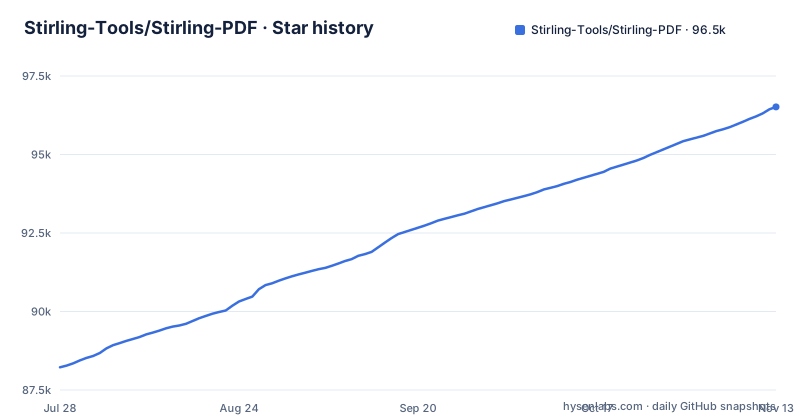
- Stirling-Tools/Stirling-PDF96,517 ★ · +8,295
| Repository | 2026-07-28 | 2026-11-13 |
|---|---|---|
| Stirling-Tools/Stirling-PDF | 88.2k | 96.5k |
8,295 Stars in the last 108 days, measured from the daily GitHub snapshot. Compare with other projects
Editorial analysis
The quick start is a single foreground container on port 8080
Stirling PDF ships its server as a container image, and the whole quick start is one line:
docker run -p 8080:8080 docker.stirlingpdf.com/stirlingtools/stirling-pdfOnce the container is up, the web interface is at http://localhost:8080. Two details in that line matter. The image is pulled from docker.stirlingpdf.com, the project's own registry hostname, while the Docker badge at the top of the repository points to stirlingtools/stirling-pdf on Docker Hub; if your network only allows Docker Hub, that is the path to try. The command also carries no tag, no volume mount and no detach flag. It runs in the foreground, pulls whatever the untagged default is at that moment, and keeps nothing outside the container, so anything you save inside it goes away with the container. That is fine for a first look at the tools. It is not a deployment. For persistent setups, desktop installs and Kubernetes, the project sends readers to the Documentation Guide at docs.stirlingpdf.com.
Desktop, browser and server are three deployments, but only the server gets a command on GitHub
Stirling PDF positions itself as one product that runs three ways: a personal desktop client, a browser UI, and a self-hosted server that exposes a private API. The pitch behind all three is the same: edit, sign, redact, convert and automate PDFs without sending documents to an external service. For someone choosing between them, the repository front page gives unequal help. The server path has the Docker command above. The desktop client and the Kubernetes path are handed off to the documentation site, and the quick-start section names no installer, package manager command or list of supported platforms for the desktop build. People looking for a Windows build, an Android app or a portable version will not get an answer from the quick start; they need the installation pages on docs.stirlingpdf.com. The consequence is practical. On a locked-down office machine where Docker is not an option, the GitHub page alone does not tell you whether the desktop client fits your constraints, so read the installation docs before promising anyone a rollout.
Open-core licensing splits the free build from the paid plans
GitHub reports the license as NOASSERTION, which means its detector could not match the LICENSE file to a single standard license. The project's own wording is that Stirling PDF is open-core, and it points to the LICENSE file for details. Next to the documentation and API links sits a separate Server Plan & Enterprise page at docs.stirlingpdf.com/Paid-Offerings. Under the heading Enterprise-grade, the capability list names SSO, auditing and flexible on-prem deployments. The front page does not say which of those are in the open part and which need a paid plan. If your evaluation depends on single sign-on or audit trails, read the LICENSE file and the Paid-Offerings page before installing, because discovering after a pilot that a requirement belongs to a paid tier changes the budget conversation. For an individual who only wants to merge, split or compress files on a personal machine, the open-core split matters less, but the license terms still decide what you may modify and redistribute.
REST endpoints cover nearly all tools, which is not the same as all of them
The developer pitch is that REST APIs are available for nearly all of the 50+ tools, so an existing system can call Stirling PDF instead of a person clicking through the browser. The API reference is hosted on Scalar's registry under stirling-pdf-processing-api rather than inside the repository. The word nearly is the part to plan around. Some tools have no API counterpart, and the front page does not name which ones. Before wiring Stirling PDF into a batch job, open the API reference and confirm that every operation your pipeline needs, whether OCR, redaction, signing or conversion, has an endpoint. If one is missing, that step stays manual in the browser UI, which undercuts the reason for running a self-hosted API for unattended processing in the first place. The same check applies when upgrading: an endpoint you depend on is part of a contract you are now tracking across releases.
No-code pipelines in the UI, with throughput left for you to measure
Automation comes in two layers. Inside the browser UI there are no-code pipelines built directly in the interface, and the same work can be driven through the APIs. The project frames this as able to process millions of PDFs. That figure is a statement about intended scale, not a benchmark: the front page gives no hardware sizing, no per-document timing and no concurrency settings. Anyone planning to work through a large backlog needs to put a representative sample through a test instance and time it on their own hardware before quoting a schedule. The no-code pipeline is the lower barrier for an office team that does not write code. The API route is the one that fits into existing systems such as a document management backend or an intake queue, and it is also the route that lets you measure and retry each document individually.
Building from source runs through Task, not raw Gradle
The repository combines a Java backend with a separate frontend and Gradle build files: build.gradle, settings.gradle, gradlew, a buildSrc/ directory, and top-level app/, engine/, frontend/, docker/ and testing/ directories. Contributors are not expected to drive that by hand. The project uses Task as a unified command runner for build, dev and test, configured in Taskfile.yml and a .taskfiles/ directory. To start the editor in development mode:
task devTo see the most common commands:
taskTask therefore has to be installed before any of this works, and a contributor who calls gradlew directly is stepping around the path the maintainers support. Fuller instructions are in docs/developer/DeveloperGuide.md, and contribution rules are in .github/CONTRIBUTING.md. The interface ships in more than 40 languages, and new translations follow docs/developer/HowToAddNewLanguage.md. The top level also carries AGENTS.md and CLAUDE.md, files aimed at AI coding assistants working in the codebase.
Three releases in nine days make the untagged image a moving target
The project is under active development: the last push landed on 2 November 2026, and the 3.2 line shipped three releases in quick succession. v3.2.0 on 15 October 2026 brought a new Multi-tool, better handling of password-protected PDFs and a list of other improvements. v3.2.1 on 21 October 2026 followed with viewer improvements and bug fixes, and v3.2.2 on 24 October 2026 added new annotations along with minor changes. That pace is good for getting fixes and awkward for reproducibility. Because the quick-start command names no tag, two machines running it a week apart can end up on different releases, with different viewer and annotation behavior in front of users. For any instance shared by a team, pin the image to a specific version, read the release notes before moving between versions, and keep the previous image around so you can roll back if a change to the viewer or the Multi-tool disrupts someone's workflow.
Editorial conclusion
Stirling PDF fits individuals and teams who want PDF editing, redaction, OCR and conversion on their own hardware, with a REST API for automation and a server that starts from one Docker command. It is a weaker fit for buyers who need a fixed feature set without reading license terms, because the project is open-core and some enterprise items are tied to paid plans. Before adopting it, confirm on the Paid-Offerings page whether SSO and auditing are in the tier you will run, check the API reference for every operation your workflow needs, and pin the image version instead of pulling the untagged default.
Frequently asked questions
Is Stirling PDF open source?
Stirling PDF calls itself open-source and, more precisely, open-core. The code is on GitHub at Stirling-Tools/Stirling-PDF, the LICENSE file sets the terms, and GitHub reports the license as NOASSERTION.
Is Stirling PDF free?
The project is open-core: the open part is in the GitHub repository, while a Server Plan and Enterprise offering are described at docs.stirlingpdf.com/Paid-Offerings. Check that page to see which features need a paid plan.
How to install Stirling PDF with Docker?
Run docker run -p 8080:8080 docker.stirlingpdf.com/stirlingtools/stirling-pdf and open http://localhost:8080. For persistent, desktop and Kubernetes setups, follow the Documentation Guide at docs.stirlingpdf.com.
How to install Stirling PDF on Windows?
Stirling PDF offers a desktop client, but the GitHub quick start only covers the Docker command. Desktop installation options are in the Documentation Guide at docs.stirlingpdf.com.
What is Stirling PDF?
Stirling PDF is an open-core PDF platform that runs as a desktop app, in the browser, or on your own server with a private API. It offers 50+ tools for editing, merging, splitting, signing, redacting, converting, OCR and compression.
Official sources
Add this badge to your README
If you maintain this project, the badge below links readers to this analysis and shows its maintenance status from the daily GitHub snapshot. Paste the markdown into your README; add ?metric=license or ?metric=stars to the image URL for a different field.

[](https://hysenlabs.com/projects/stirling-tools-stirling-pdf)Star history chart for your README
[](https://hysenlabs.com/projects/stirling-tools-stirling-pdf)Was this useful?