Baguette: a headless iOS simulator CLI where every tap carries the screen size
Headless control for Apple's Simulators — 3D models, taps, swipes, multi-finger gestures, 60 fps streaming, and a multi-device farm
At a glance
- What is it?
- tddworks/baguette is a single Swift binary plus a browser UI for driving iOS simulators without opening Xcode or Simulator.app; it requires an Apple Silicon Mac with Xcode 26 and its simulator frameworks. It was built because two existing tools stopped working on iOS 26. Its interface tells you more about how the input path works than any feature list would, and its documentation is generated and linted rather than written.
- Who is it for?
- Read Baguette as a replacement for a layer that stopped existing rather than as a feature-rich simulator. It suits a team doing automated UI work on iOS 26 who has accepted that their tooling links Apple's private simulator frameworks and must be rebuilt when Apple changes them again, which is exactly the situation this project is in.
- Can I use it commercially?
- Yes. Apache-2.0 is a permissive licence: you can use, modify and sell software built on it, as long as you keep its copyright and licence notices.
- Is it still maintained?
- Yes. The repository last received commits 7 days ago.
- What is it written in?
- Mainly Swift, according to GitHub's language statistics.
Answers come from the project's GitHub data, last synced on November 13, 2026, and from our analysis. They are not legal advice.
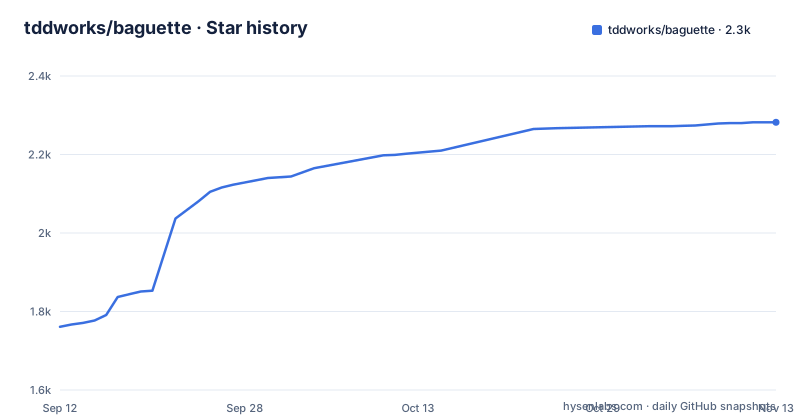
Star history
- tddworks/baguette2,282 ★ · +521
| Repository | 2026-09-12 | 2026-11-13 |
|---|---|---|
| tddworks/baguette | 1.8k | 2.3k |
521 Stars in the last 62 days, measured from the daily GitHub snapshot. Compare with other projects
Editorial analysis
It exists because two other tools stopped working
The justification is one clause long and it is the most important sentence in the file. Baguette targets iOS 26 and later, where the 5-argument HID call that `idb` and `AXe` rely on stopped working. So this project is not competing with those tools on features, it is replacing the input path they used, on the operating system version where that path was cut off. The implementation constraint follows from the platform: the install section says Baguette links the private SimulatorKit and CoreSimulator frameworks that ship with Xcode, which means it needs Apple Silicon with Xcode 26 present on the machine, and it needs the private interfaces to keep matching whatever Xcode is installed. The file even anticipates friction with the package manager, pointing to a troubleshooting section for the case where Homebrew complains about Rosetta. Everything else in the tool, the streaming, the accessibility tree, the camera and motion injection, is built on that one decision.
A tap carries the screen size with it
The quickest way to understand the input path is to read one command:
baguette tap --udid <UDID> --x 219 --y 478 --width 438 --height 954Four numbers, and two of them describe the device rather than the target. Coordinates are device points, and the width and height are the screen size in points, which the file tells you to obtain from `baguette chrome layout --udid <UDID>`. The same unit convention shows up in the accessibility reader, where `baguette describe-ui` reports what is on screen with frames in device points. So the tool deliberately does not read the device geometry for you: the caller supplies the screen size on every gesture, which is more typing in exchange for not guessing, and it means a script that hardcodes 438 by 954 is a script written against one device. `baguette describe-ui --udid <UDID>` and `baguette list` are the two commands that give you the identifiers and the sizes you need before anything else works.
Two hostnames in consecutive lines, one port, two paths
The quick start block is short enough to read in one breath and it has a detail worth copying deliberately:
baguette serve                          # web UI at http://127.0.0.1:8421/simulators
open http://localhost:8421/farm         # every booted simulator side by side
The first line binds and names the machine interface as `127.0.0.1`, and the second asks you to open `localhost` for a different route on the same port. Both forms appear in consecutive lines of the same block, which means the tool is expected to be reached two ways and a reader who copy-pastes gets a page that is one hostname away from the documented one. The two paths do different jobs. `/simulators` is the management surface you use to add documentation and drive devices, and `/farm` is the multi-device view that shows every booted simulator side by side, which is what you want when the point of the exercise is comparing states across several devices at once. The web surface is not read only: the table also documents a JS SDK so you can drive the same routes from your own page.
Output sizes have names, not numbers
Screen capture uses a vocabulary rather than a pixel pair, and the two commands share it:
baguette screenshot --udid <UDID> --size appstore-6.9 --output hero.png
baguette record     --udid <UDID> --size appstore-6.9 --duration 10 --output demo.mp4
One named size, `appstore-6.9`, applies to both a still image and a ten-second clip, which is the point: the feature table calls it one output-size vocabulary, and the name encodes a device class rather than a resolution you have to look up. Recording adds a `--duration` in seconds and both add `--output`. The same table row also lists frame streams to stdout and 3D device renders, which are the two cases a file name does not fit, and the streaming figure in the project's own summary is 60 fps. So the capture path covers the three shapes a caller actually needs: a file, a pipe, and a rendered 3D view of the device rather than just its screen.
The docs are generated from the binary and checked by a budget linter
The Makefile says more about how this project is run than the feature table does. There is a target that regenerates the command reference, the docs index and the baguette skill references, and it carries the instruction never to edit those by hand. It runs a Swift build first and then a Python generator against the built binary, which means the reference is a description of what the tool can do rather than a promise about what it will do. A second target reports the documentation against a directory called `docs/documentation-design/` and checks three things: links, budgets, and the changelog. Budgets are the interesting one, since a documentation budget is a hard limit on how long a page may be, which is why the feature table is a table. A third area handles the changelog at release time with scripts described as extract, promote, rollover. The web tests are JavaScript and run under the Node test runner rather than the Swift one, so the project carries three toolchains: Swift to build, Python to document, and Node to test its own web layer.
Two capitalized directories do the work inside the simulator
The tree tells you how host-side injection is possible at all. Alongside the expected `Sources/`, `Tests/`, `Package.swift` and `Package.resolved` sit two directories whose names start with a capital letter, `Companion/` and `Injected/`. Capitalization is the signal: these are build products or generated trees rather than library sources, and their names describe the two halves of the mechanism, something that accompanies the simulator and something injected into it. That is the answer to the obvious question about a tool that injects touches without opening Simulator.app, and it is not explained in prose anywhere in the file. The rest of the root is ordinary: a Makefile, a `build.sh`, a `baguette.json` for configuration, a `.swift-format` file for formatting, `codecov.yml` for coverage, `assets/` for the demo clip, and `scripts/`. There are also two agent-facing directories, `skills/` and `.claude-plugin/`, so the tool is distributed as a coding agent plugin as well as a binary.
The coverage reaches past the simulator into a physical phone
The feature table has eleven rows and the outer edges are where it stops looking like a simulator tool. Companion screens are listed as CarPlay and a paired Watch, iPhone Duo and its hinge, and a physical iPhone marked as preview, so the boundary between simulated and real hardware is explicitly in progress rather than settled. The buttons row includes the Watch crown, not just the phone's own hardware. The simulated world row takes the Mac webcam or a file as the camera, plus GPS and routes, CoreMotion, and network conditioning for a slower link. Apps and files covers deep links and URL schemes, and drag-and-drop install of apps and photos. And the device lifecycle row contains the forward compatibility entry: repair input after Xcode 27's Device Hub. A feature listed as a repair for a version of Xcode newer than the one required to install is a project telling you what its maintenance model is.
Plugins are subprocesses from a bakery, and the README documents its own video
Extension happens through plugins, and the mechanism is stated rather than implied: you add panels and commands from a trusted bakery, and they run as subprocesses. The word is the project's own, and the tree backs it up with a `plugins/` directory and an example bakery built with Expo under `examples/`. Subprocess plugins mean the extension surface is whatever a child process can do, including everything the main binary can do, which is why the file qualifies the source as trusted. The other self-referential corner is the demo. The three video links are hosted as repository attachments, and beneath them sits a note explaining that the raw clip lives at `assets/demo.mp4` and that you should drag it into a GitHub web edit of the README to upload it as a CDN-hosted video and replace the line with the generated address. So the file documents its own media maintenance, which is either honest housekeeping or a marker that the links are provisional. Recent tags are v0.2.2, v0.2.1 and v0.2.0, all within the last two weeks.
Editorial conclusion
Read Baguette as a replacement for a layer that stopped existing rather than as a feature-rich simulator. It suits a team doing automated UI work on iOS 26 who has accepted that their tooling links Apple's private simulator frameworks and must be rebuilt when Apple changes them again, which is exactly the situation this project is in. It is the wrong choice for a Windows or Linux CI box, for Intel Macs, and for anyone who needs stability across Xcode versions rather than coverage of the newest one. Three things to check first. Confirm your machine can run it, because the install is a Homebrew formula that requires Apple Silicon and Xcode 26 and links SimulatorKit and CoreSimulator directly, with a separate troubleshooting note for a Rosetta complaint. Plan for that coupling rather than assuming it away, since the same table already carries a repair path for Xcode 27's Device Hub, which tells you the team expects breakage to be routine. And read the docs the way the project wants you to: `docs/commands.md` and the skill references are generated from the built binary and the file says never to edit them by hand, so a stale page there means a stale build, not a stale document.
Frequently asked questions
How do I install baguette and what does it need?
Run brew install baguette. It requires Apple Silicon with Xcode 26, because it links the private SimulatorKit and CoreSimulator frameworks that ship with Xcode, and the file points to a troubleshooting section for a Homebrew complaint about Rosetta.
Why did tddworks build baguette instead of using idb or AXe?
The file says both of those tools rely on a 5-argument HID call that stopped working on iOS 26 and later. Baguette is a single Swift CLI plus web UI that drives a simulator headlessly without Xcode or Simulator.app.
How do I find the screen size to pass to a baguette tap?
Run baguette chrome layout with the UDID to get it. Coordinates are device points, so a tap needs --x and --y plus the --width and --height of the screen in points, and baguette describe-ui reports accessibility frames in the same unit.
What can plugins add to baguette?
Panels and commands from a trusted bakery, and they run as subprocesses. The repository ships a plugins directory and an example bakery built with Expo, so an extension is a child process rather than an in-process hook.
Which companion screens can baguette drive?
The coverage table lists CarPlay and a paired Watch, iPhone Duo with its hinge, and a physical iPhone marked as preview, and the buttons row includes the Watch crown. It also documents repairing input after Xcode 27's Device Hub.
Official sources
Add this badge to your README
If you maintain this project, the badge below links readers to this analysis and shows its maintenance status from the daily GitHub snapshot. Paste the markdown into your README; add ?metric=license or ?metric=stars to the image URL for a different field.

[](https://hysenlabs.com/projects/tddworks-baguette)Star history chart for your README
[](https://hysenlabs.com/projects/tddworks-baguette)Was this useful?