GitSavvy brings Git and GitHub commands into Sublime Text
Full git and GitHub integration with Sublime Text
At a glance
- What is it?
- GitSavvy is a Sublime Text plugin that exposes Git workflows through command-palette entries, editor views, diffs, history tools, and GitHub commands. It fits developers who want repository operations inside the editor, but its interface conventions and Git version requirements add setup work.
- Who is it for?
- GitSavvy is suitable for Sublime Text developers who want Git operations, history inspection, staged editing, and selected GitHub actions without leaving the editor. It is a poor fit for Sublime Text 2, or for users whose advanced rebasing workflows require Git older than 2.38.0.
- Can I use it commercially?
- Yes. MIT is a permissive licence: you can use, modify and sell software built on it, as long as you keep its copyright and licence notices.
- Is it still maintained?
- Yes. The repository last received commits 7 days ago.
- What is it written in?
- Mainly Python, according to GitHub's language statistics.
Answers come from the project's GitHub data, last synced on November 7, 2026, and from our analysis. They are not legal advice.
Star history
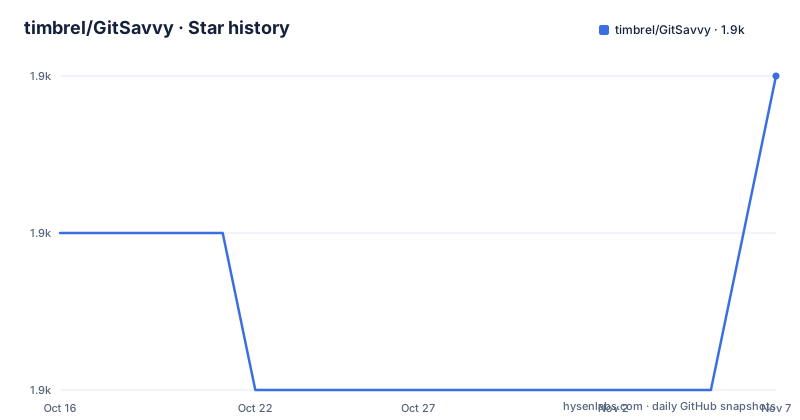
- timbrel/GitSavvy1,942 ★ · +1
| Repository | 2026-10-16 | 2026-11-07 |
|---|---|---|
| timbrel/GitSavvy | 1.9k | 1.9k |
1 Stars in the last 22 days, measured from the daily GitHub snapshot. Compare with other projects
Editorial analysis
Why GitSavvy targets Sublime Text developers
GitSavvy solves a workflow gap for developers who use Sublime Text as their primary editor and still need regular access to Git and GitHub operations. Instead of treating Git only as a separate command-line program, the plugin adds commands to Sublime's Command Palette and provides dedicated views for repository state, history, diffs, commits, and file-level inspection. Git commands are generally prefixed with `git: `, while GitHub commands use `github: `.
The intended audience is visible in the plugin's design. GitSavvy connects repository operations to files and selections in an editor. Its line-history command can inspect selected lines, including lines inside diff hunks. Its diff commands can operate on the current file, let users move through changed files, and allow individual lines to be selected for staging. The commit interface can expose staged and unstaged changes, and the diff view provides actions for committing or amending a previous commit.
This does not replace Git. The README explicitly describes one recommended binding as “the equivalent of `git status`,” which indicates that Git remains the underlying command system. GitSavvy's contribution is the editor interface around Git. That distinction matters for adoption: developers gain keyboard-driven access to repository work, but they are still constrained by the behavior and version of the local Git installation.
The plugin is especially relevant to users who spend substantial time reading history, examining line ownership, moving between revisions, and editing changes before committing. Developers who only need occasional `git status` or `git add` calls may find the feature set excessive. It is also a poor match for Sublime Text 2 because the current main line supports Sublime Text versions above build 4000.
How GitSavvy organizes status, history, and revision navigation
GitSavvy presents Git work through dedicated Sublime Text views rather than a single dialog. The README identifies `git: status` and `git: Repo History` as the main starting points. Status provides a repository-focused entry point for inspecting working-tree state, while Repo History is the broader interface for log, graph, rebase, branch, and tag operations.
Repo History is more than a read-only log viewer. Its menu can be opened with `[enter]`, and `[r]` opens the rebase menu. Pressing `[s]` hides commits so branches and tags become easier to identify, while `[ctrl+r]` searches and selects a branch or tag. Pressing `[o]` opens the full commit or patch under the cursor, with `[p]` available for further navigation. The view therefore combines commit inspection with repository selection and rebasing.
File and line history are separate workflows. `gs_line_history` accepts a text selection and shows the history of those lines, including selections made in a diff hunk. `gs_show_file_at_commit` displays a file at a chosen revision, including `HEAD`, while retaining history navigation controls. Inline diff is also available, but the README notes that it toggles between the pre-change and post-change states and can move through file history.
Change navigation is available in normal buffers and GitSavvy views through `gs_super_next` and `gs_super_prev`. This makes GitSavvy useful even when the active panel is source code rather than a dedicated history view. The architecture is therefore split between repository-wide views and editor-aware commands that use the current file, selection, diff, or hunk as context.
Installing GitSavvy through Package Control
The simplest documented installation uses Sublime Text Package Control. First, install the Sublime Text Package Control plugin if it is not already present. Open the Command Palette, choose `Package Control: Install Package`, and enter `GitSavvy`.
After installation, GitSavvy may add the checked-out branch name and dirty status to the Sublime Text status bar. The README says that this status display can be changed in the settings. Most of the plugin becomes available through the Command Palette, opened with `ctrl+shift+p` on Windows or `cmd+shift+p` on macOS. Search for commands beginning with `git: ` for Git operations or `github: ` for GitHub operations.
A source checkout is the alternative documented installation path. Clone the repository directly into Sublime Text's Packages folder, then restart the editor. The README also requires running `Package Control: Satisfy Dependencies` after a direct checkout. This route is intended for users who want more control over the files they pull down or who intend to submit changes to GitSavvy.
GitSavvy does not ship global shortcuts. Users must define their own bindings in Sublime Text, which is a deliberate choice rather than an installation omission. The README provides these examples:
{ "keys": ["ctrl+shift+s"], "command": "gs_show_status"},
{ "keys": ["ctrl+shift+g"], "command": "gs_graph", "args": { "all": true }},
{ "keys": ["ctrl+shift+c"], "command": "gs_commit"}
Add bindings in a Sublime Text keymap file and reload the editor configuration. The first binding opens status, the second opens the history graph with `all: true`, and the third opens the commit interface. The exact placement of user bindings is not specified in the README.
A first Sublime Text Git workflow
Begin with `git: status` after installation. From the status view, use the branch subview with `[tab]` when you need to inspect or create branches. The README gives `[b]` as the branch-creation control in that subview. Branch creation is also available through the Command Palette and Repo History, so the same task can be approached from several interfaces.
For a commit, invoke `gs_commit` or map it to a key. If changes are already staged, the interface opens with those changes. If nothing is staged, it can show all changes. Inside the diff, `[u]` unselects parts of the changes and `[ctrl+enter]` commits. This staged-area workflow is the first substantial GitSavvy feature to try because it connects editing, staging, and committing without requiring a separate interface for each step.
A useful second workflow starts with selected source lines. Bind `gs_line_history`, select one or more lines, and inspect where those lines came from. This is also available inside a diff, where following a hunk can reveal how the current change developed. For repository history, use `git: Repo History`, press `[enter]` for its main menu, and use `[o]` to inspect the full commit or patch under the cursor.
For current-file review, the README provides a binding for `gs_diff` with `current_file: true`. In that view, `[a]` toggles between the current-file and all-changes modes, `[l]` opens a file chooser, and `[N]` and `[P]` move between files. The plugin supports context-sensitive history inspection, but the interface is modal and keyboard-heavy, so first use should focus on these documented entry points rather than every command.
Git version constraints and failure modes in rebasing
GitSavvy requires Git 2.18.0 or later. That is the minimum documented version, but it is not sufficient for every advertised workflow. The README specifically says that advanced rebasing features require Git 2.38.0 or later. A user can therefore satisfy the basic installation requirement while still finding that an advanced rebase command is unavailable or behaves differently with an older Git binary.
The version boundary is especially relevant because GitSavvy places interactive actions, including branch selection, commit inspection, and rebase menus, around the Git process. If the local Git installation does not provide the required capabilities, changing Sublime Text key bindings cannot resolve the underlying incompatibility. Upgrading Git is the first technical check for users adopting advanced rebasing.
The current main line does not support Sublime Text 2. For Sublime Text 3, the README directs users to the `st3-2.39.1` tag for the last supported version. This creates a version-management decision: current users need a compatible Sublime Text build above build 4000, while Sublime Text 3 users must deliberately check out an older GitSavvy line.
The README also warns that the latest Sublime Text development build may crash, while another build may provide the better experience. That warning matters during installation because GitSavvy is an editor plugin, not an isolated terminal client. A failure in the editor host can affect the apparent reliability of Git operations even when the Git command itself succeeds.
GitSavvy compared with command-line Git and GitHub access
The real alternative is to keep Git in a terminal and use Sublime Text only for editing files. That approach follows Git's command-line interface directly, including repository status, commits, diffs, history, branches, and rebase operations. GitHub work can likewise be handled outside the editor. The tradeoff is workflow separation: the developer switches between source files and terminal output instead of using Sublime Text views and commands.
GitSavvy changes the approach by making repository state available through editor-aware surfaces. A selection can become input to line-history search, a diff can be examined and amended without leaving the editor, and a file can be viewed at `HEAD` or another revision with history navigation built into the view. Repository branches and tags can also be selected from Repo History.
That integration comes with a learning cost. GitSavvy uses multiple commands for related goals, specialized views, bracket-style keys such as `[enter]`, `[r]`, `[s]`, and `[o]`, and user-defined Sublime Text bindings. It also does not ship global shortcuts, so the initial configuration is unfinished until the user creates a personal set of key mappings. The alternative is simpler to begin with when terminal commands and editor shortcuts are already comfortable; GitSavvy is more relevant when history and diff navigation repeatedly cross the boundary between code and repository state.
The README documents GitHub commands but does not provide a complete list of GitHub operations, authentication requirements, or supported API behavior in the quoted instructions. Adoption for GitHub-specific work should therefore be based on the commands available in the installed editor rather than an assumption that all GitHub features are covered.
Maintenance, packaging, and the MIT license
The repository is not archived, and the last push was on 2026-10-13. Recent releases include 2.60.1 on 2026-09-15, 2.60.0 on 2026-09-10, and 2.59.0 on 2026-07-22. These dates indicate recent project activity without establishing any performance or reliability result.
GitSavvy is distributed under the MIT license. That identifies the license recorded for the project, but this review does not provide legal advice or interpret how the license applies to a particular deployment. Users who distribute modified copies or incorporate code into another product should review the actual license text themselves.
The package is primarily a Sublime Text plugin, and the repository includes `dependencies.json`, `setup.cfg`, `pyproject.toml`, and `uv.lock`. The `pyproject.toml` metadata names the project `GitSavvy`, lists `requires-python = "==3.8.*"`, and declares no runtime dependencies in its `dependencies` array. The README separately says that direct source checkouts require `Package Control: Satisfy Dependencies`, so the documented installation path and the Python metadata serve different purposes. That distinction should be checked when maintaining a fork or preparing an offline installation.
Upgrading the plugin can therefore involve Package Control, GitSavvy version compatibility with the editor, and the version of Git available on the host. The README documents the supported Git minimum and the higher version required for advanced rebasing, but it does not document a rollback procedure.
Editorial conclusion
GitSavvy is suitable for Sublime Text developers who want Git operations, history inspection, staged editing, and selected GitHub actions without leaving the editor. It is a poor fit for Sublime Text 2, or for users whose advanced rebasing workflows require Git older than 2.38.0. Before adoption, verify that your installed Git version satisfies the relevant feature requirements, then review the available commands and install only the key bindings that fit your editing style. The project was last pushed on 2026-10-13 and is not archived.
Frequently asked questions
How do I install GitSavvy in Sublime Text?
Install Sublime Text Package Control, open the Command Palette, choose `Package Control: Install Package`, and enter `GitSavvy`. For a direct checkout, clone the repository into the Packages folder, restart Sublime Text, and run `Package Control: Satisfy Dependencies`.
What Git version does GitSavvy require?
GitSavvy requires Git 2.18.0 or later. The README says that advanced rebasing features require Git 2.38.0 or later.
Does GitSavvy work with Sublime Text 2?
No. The current main line supports Sublime Text versions above build 4000, while Sublime Text 2 is not supported. Sublime Text 3 users are directed to the `st3-2.39.1` tag for the last supported version.
How do I open GitSavvy commands?
Use Sublime Text's Command Palette with `ctrl+shift+p` on Windows or `cmd+shift+p` on macOS. Git commands generally begin with `git: ` and GitHub commands with `github: `.
Why are some GitSavvy shortcuts not working?
GitSavvy does not ship global shortcuts. The README supplies optional key bindings for commands such as `gs_show_status`, `gs_graph`, and `gs_commit`, so users need to define their own bindings in Sublime Text.
Official sources
Add this badge to your README
If you maintain this project, the badge below links readers to this analysis and shows its maintenance status from the daily GitHub snapshot. Paste the markdown into your README; add ?metric=license or ?metric=stars to the image URL for a different field.

[](https://hysenlabs.com/projects/timbrel-gitsavvy)Star history chart for your README
[](https://hysenlabs.com/projects/timbrel-gitsavvy)Was this useful?