TOCropViewController: the crop UI, and the dismissal it leaves to you
A view controller for iOS that allows users to crop portions of UIImage objects
At a glance
- What is it?
- An Objective-C view controller for cropping UIImage objects, wrapped for Swift, with four installation paths and two library names. It hands back a cropped image through a delegate and expects your code to handle every exit.
- Who is it for?
- Use it when your app needs the familiar iOS Photos crop interaction and you are willing to own the delegate callbacks and the dismissal. Skip it when you need free-angle rotation, a crop that is not a rectangle or circle, or the video and filter features that the README points readers to IMG.LY for.
- Can I use it commercially?
- Yes. MIT is a permissive licence: you can use, modify and sell software built on it, as long as you keep its copyright and licence notices.
- Is it still maintained?
- Yes. The repository last received commits 7 days ago.
- What is it written in?
- Mainly Objective-C, according to GitHub's language statistics.
Answers come from the project's GitHub data, last synced on November 15, 2026, and from our analysis. They are not legal advice.
Star history
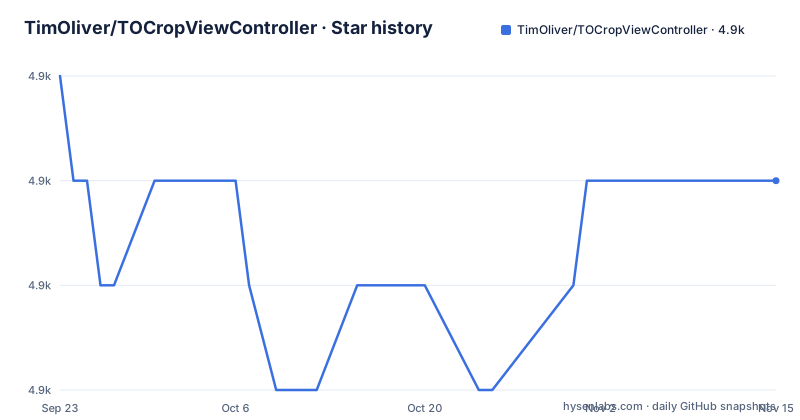
- TimOliver/TOCropViewController4,948 ★ · -1
| Repository | 2026-09-23 | 2026-11-15 |
|---|---|---|
| TimOliver/TOCropViewController | 4.9k | 4.9k |
-1 Stars in the last 53 days, measured from the daily GitHub snapshot. Compare with other projects
Editorial analysis
Modal by default, but it can ride a UINavigationController stack
Using the controller is deliberately thin. Create an instance with the UIImage you want to crop, set the delegate, and present it. It prefers a modal presentation, and it can also be pushed onto a UINavigationController stack when your navigation structure needs that instead.
func presentCropViewController() {
  let image: UIImage = ... //Load an image

  let cropViewController = CropViewController(image: image)
  cropViewController.delegate = self
  self.present(cropViewController, animated: true, completion: nil)
}

func cropViewController(_ cropViewController: CropViewController, didCropToImage image: UIImage, withRect cropRect: CGRect, angle: Int) {
        // 'image' is the newly cropped version of the original image
    }
The delegate hands you three things: the cropped image, the CGRect it was taken from, and the rotation angle that was applied. Complete working apps live in the sample project at the top of the repository, TOCropViewControllerExample.xcodeproj.
Cancellation is your code, not the controller's
The one piece of work the library does not do is close itself. The reason is a UIKit convention: like MFMailComposeViewController and other UIViewController subclasses, the class that presents the crop view controller is expected to dismiss it. So a cancelled crop leaves a controller on screen until you remove it. The fix is a second delegate method: implement cropViewController:didFinishCancelled: and call dismissViewController:animated: from there. If you skip it, the user taps cancel and nothing visibly happens, and the bug reads as a frozen modal rather than a missing callback.
showActivitySheetOnDone trades the delegate callback for a share sheet
There are two endings to a crop, and a single flag chooses between them. By default the cropped image is returned to your delegate. With showActivitySheetOnDone set to true, the controller passes the result straight to a UIActivityViewController instead.
func presentCropViewController() {
    var image: UIImage? // Load an image
    let cropViewController = CropViewController(image: image)
    cropViewController.showActivitySheetOnDone = true
    self.present(cropViewController, animated: true, completion: nil)
}
That is convenient for a share flow and wrong for a flow that needs the crop rectangle or the angle, because the share sheet becomes the destination. Decide per screen rather than globally, since the delegate callback and the activity sheet are not both offered on the same path. The two documented uses for the controller are editing a profile picture and sharing part of a photo online, and the share sheet option exists for the second one.
Two library names across four installation paths, and you need only one
The naming split runs through every install method. CocoaPods has two entries, one per language:
pod 'TOCropViewController'pod 'CropViewController'The Swift Package Manager route declares the repository URL in Package.swift:
dependencies: [
  // ...
  .package(url: "https://github.com/TimOliver/TOCropViewController.git"),
],
Carthage takes the same repository as a Cartfile line, then `carthage update`, then an import from the Carthage/Build folder. That folder holds two separate frameworks: import TOCropViewController.framework for Objective-C projects and CropViewController.framework for Swift, and you do not need both. The Carthage route then hands you back to Carthage's own getting started guide to finish the integration, so the README stops short of describing the Xcode steps. A manual copy is the fourth path: the Objective-C sources sit in Objective-C/TOCropViewController and the Swift files in Swift/CropViewController, so an Objective-C project copies one directory and a Swift project copies both.
A circular crop swaps both the initializer and the callback
Circular output is a different mode rather than an option on the same one. The cropping style is set at construction time, and the delegate method changes with it.
- (void)presentCropViewController
{
UIImage *image = ...; // Load an image

TOCropViewController *cropViewController = [[TOCropViewController alloc] initWithCroppingStyle:TOCropViewCroppingStyleCircular image:image];
cropViewController.delegate = self;
[self presentViewController:cropViewController animated:YES completion:nil];
}

- (void)cropViewController:(TOCropViewController *)cropViewController didCropToCircularImage:(UIImage *)image withRect:(CGRect)cropRect angle:(NSInteger)angle
{
// 'image' is the newly cropped, circular version of the original image
}
One inconsistency is worth knowing before you copy code: the Swift circular sample declares its delegate parameter as TOCropViewController? while the Swift basic sample uses CropViewController. Write the signature against your own stored property type rather than copying either one verbatim.
Rotation is locked to 90 degree segments, and a reset button undoes everything
The interaction model is the one from the iOS Photos editor, and its limits are part of that model. Cropping is done by dragging the edges of a grid overlay, rotation moves in 90-degree segments only, the crop box can be clamped to a specific aspect ratio, and a reset button completely undoes all changes. There is no free-angle rotation and no arbitrary rectangular or polygonal shape, so a straighten-the-horizon feature cannot be built on top of this controller. The presentation details follow the same source: iOS 7 and 8 style translucency over the cropped region, a custom animation and layout when the device rotates to landscape, custom opening and dismissal animations, and localization in 28 languages.
iOS 12 is the floor, and visionOS plus Mac Catalyst are enabled but unofficial
The stated system requirement is iOS 12.0 or above. The README adds a disclaimer that visionOS and Mac Catalyst modes are also enabled, and that they are not officially supported, while pull requests for them are welcome. So those two platforms are reachable, not supported, and a bug report against them sits outside the promise. On the maintenance side, version 3.2.0 shipped on 2026-08-05, 3.1.2 on 2026-04-07 and 3.1.1 on 2025-11-20, and the last push to the main branch landed on 2026-11-01 under the MIT license. The repository layout backs that up: two podspec files, one per library name, a Package.swift, a Gemfile, buildkite and fastlane directories for automation, plus CHANGELOG.md and CONTRIBUTING.md. If the crop flow you need is outside rectangles, circles and 90 degree steps, the README itself points at another product, IMG.LY, for video editing and photo filters, and labels that link as an affiliate link.
Editorial conclusion
Use it when your app needs the familiar iOS Photos crop interaction and you are willing to own the delegate callbacks and the dismissal. Skip it when you need free-angle rotation, a crop that is not a rectangle or circle, or the video and filter features that the README points readers to IMG.LY for. Before you pick an install path, decide between TOCropViewController and CropViewController once.
Frequently asked questions
What does TOCropViewController let a user do to an image?
Crop by dragging the edges of a grid overlay, optionally produce a circular copy, rotate in 90-degree segments, clamp the crop box to an aspect ratio, and undo all changes with the reset button.
What does the TOCropViewController interface look like on an iPhone?
It is designed with the iOS Photos app editor in mind, with iOS 7 and 8 style translucency over the region being cropped, a custom animation and layout for landscape rotation, custom opening and dismissal animations, and localization in 28 languages.
How do I install TOCropViewController with CocoaPods?
Objective-C projects add pod 'TOCropViewController' to the Podfile and Swift projects add pod 'CropViewController'. The Swift name is a wrapper that encapsulates the Objective-C controller and exposes a more native interface.
Does TOCropViewController dismiss itself when the user cancels?
No. Following the UIKit convention for view controller subclasses such as MFMailComposeViewController, the presenting class implements cropViewController:didFinishCancelled: and calls dismissViewController:animated: from there.
Official sources
Add this badge to your README
If you maintain this project, the badge below links readers to this analysis and shows its maintenance status from the daily GitHub snapshot. Paste the markdown into your README; add ?metric=license or ?metric=stars to the image URL for a different field.

[](https://hysenlabs.com/projects/timoliver-tocropviewcontroller)Star history chart for your README
[](https://hysenlabs.com/projects/timoliver-tocropviewcontroller)Was this useful?