ExplorerPatcher: it patches the desktop window manager and restarts your shell
This project aims to enhance the working environment on Windows
At a glance
- What is it?
- ExplorerPatcher restores the Windows 10 taskbar, Start menu and Alt+Tab behaviour on newer Windows by patching Explorer and dwm, and its settings live in a Properties dialog on the taskbar rather than in a separate application window. The release names begin with a Windows-style build number, the last push was 2026-07-06, and the README documents four ways to undo it.
- Who is it for?
- Use ExplorerPatcher if you have moved to a newer Windows and want the Windows 10 shell behaviour back, and you are the kind of user who is comfortable with an installer that prompts for elevation and restarts explorer.exe. Do not use it as a general Windows tuning tool, because the settings the README documents are three shell-style switches and a note that some features may be unavailable on some Windows versions.
- Can I use it commercially?
- Yes, with conditions. GPL-2.0 is a copyleft licence: if you distribute software that includes it, you must release that software's source code under the same licence. Running it internally without distributing it does not trigger that obligation.
- Is it still maintained?
- Yes. The repository last received commits 3 days ago.
- What is it written in?
- Mainly C, according to GitHub's language statistics.
Answers come from the project's GitHub data, last synced on November 23, 2026, and from our analysis. They are not legal advice.
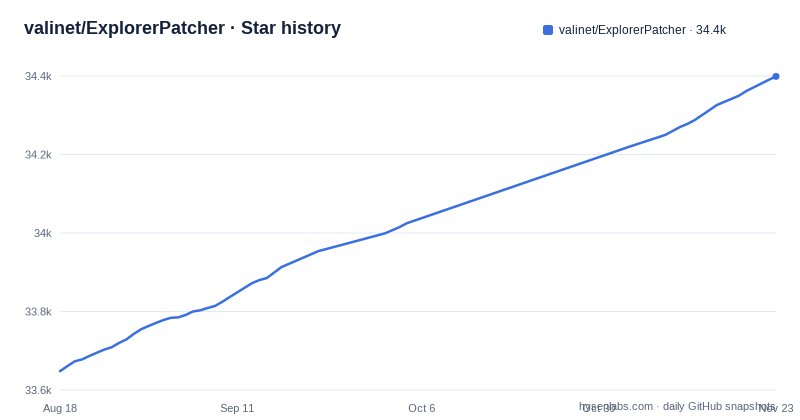
Star history
- valinet/ExplorerPatcher34,399 ★ · +751
| Repository | 2026-08-18 | 2026-11-23 |
|---|---|---|
| valinet/ExplorerPatcher | 33.6k | 34.4k |
751 Stars in the last 97 days, measured from the daily GitHub snapshot. Compare with other projects
Editorial analysis
The release tag is the Windows build number it was made for
Look at the three most recent release names and the versioning scheme explains itself. They are 26100.9711.71.1 published on 2026-10-29, 26100.8457.70.4 on 2026-07-06 and 26100.8457.70.3 on 2026-06-20.
The names are four-part numbers starting with 26100, which looks like a Windows build number; the README does not explain the scheme.
That is the honest shape of this project. It patches a component of Windows that Microsoft changes, so it has to be rebuilt whenever Windows changes. The last push to the repository was 2026-07-06, the same day as release 26100.8457.70.4; the newest release, 26100.9711.71.1, is dated 2026-10-29. What you are installing is a build-specific binary, which is also why the README's line about some features being unavailable on some Windows versions is not a formality.
The installer closes explorer.exe, and the settings live on the taskbar
There is no application window. You download a setup program from the releases page, choosing ep_setup.exe for a device with an Intel or AMD processor or ep_setup_arm64.exe for a Snapdragon device, and you run it. The installer prompts for elevation, closes explorer.exe, installs the necessary files, and when it is done you see the desktop again along with the Windows 10 taskbar.
That last sentence is the whole UX: the shell restarts, and the change is visible before you have opened anything. From then on the configuration lives where the start button lives. You right-click the taskbar, choose Properties, and get a dialog with the settings in it, alongside a section for uninstalling and one for updates.
The consequences are worth stating plainly. This is a system-level modification, it needs administrator rights, and it replaces the shell that is running while you use the machine.
Three switches, each independent, plus a version caveat
The Properties dialog is not a general settings panel. The options the README walks through are three, and each sits in its own section. In the Taskbar section there is Taskbar style. In the Start menu section there is the Start menu style, which you set to Windows 10 to get the old Start menu. In the Window switcher section there is the Window switcher (Alt+Tab) style, which you set to Windows 10 to get the old Alt+Tab.
What that tells you is that the features are independent, and you can take one without the others.
The caveat is one line and it is the only limitation the README states: some features may be unavailable on some Windows versions. It is doing real work. The README does not publish a per-build support matrix, so finding out which combinations work on your build means trying them.
Four ways to uninstall, including renaming the setup file
A tool that replaces part of your shell has to be reversible, and four routes are documented. You can right-click the taskbar and click Properties, or search for ExplorerPatcher, and go to the Uninstall section. You can use Programs and Features in Control Panel, or Apps and features in the Settings app. You can run the uninstall switch on the setup program:
ep_setup.exe /uninstallOr you can rename the setup file to ep_uninstall.exe and run that.
The last two are the interesting ones, because they do not depend on the taskbar dialog being present. Both only need the setup file, not the taskbar Properties dialog.
ep_dwm is the directory that explains the shell restart
The repository tree tells you what is being modified. There is ExplorerPatcher/ for the main project, ep_dwm/ which is the desktop window manager side, ep_extra/ for additional components, and ep_extra_valinet.win7alttab/ which is the alternative Alt+Tab, named after the Windows 7 style it reproduces. There are also ep_startmenu/, ep_starttiledata for the Start menu tiles, ep_weather_host/ and ep_weather_host_stub/ for the weather widget, ep_gui/ for the taskbar Properties dialog, and ep_setup/ plus ep_setup_patch/ for the installer itself.
The ep_dwm name points at the desktop window manager side of the project; the README does not describe what it does.
There is also ExplorerPatcher-L10N/, which is the localisation work, and a libs/ directory, with .gitmodules present so some of those libraries arrive as submodules. So the delivered binary is assembled from a main patch, a set of extras, a desktop window manager component and localisation files, which is a fair amount of moving parts to be trusting on a machine you also do your work on.
Building it means a Windows toolchain and two dependency fetchers
The build files are all in the root and they are Windows-native. ExplorerPatcher.sln is a Visual Studio solution, build.proj is the project file, and there are two batch scripts, BuildDependenciesDebug.bat and BuildDependenciesRelease.bat, whose names say what they do: fetch the build dependencies for a debug or a release configuration. The headers debug.h and version.h sit alongside them.
Also present are CHANGELOG.md, FUNDING.yml for the sponsorship, and CODE_OF_CONDUCT is absent while .github/ and .gitignore are not, so the administrative surface is small.
The practical consequence for anyone wanting to build or fork it is that this is a C project targeting Windows, with Visual Studio as the expected toolchain. A fork is not something you pick up on a Linux box.
Updates are built in, and the donation ask is tied to new Windows builds
There are two update paths, and the built-in one is documented in a wiki page of its own. The program has built-in updates: go to Properties and then Updates to configure them, check for updates and install them, with the details on the wiki page called Configure-updates. The alternative is to download the latest setup file for x64 or for ARM64 from the releases page and simply run it, which is the same route as the first install.
Which of the two you use is up to you; the Configure-updates wiki page covers the built-in path.
The sponsorship note is short and tells you what the money is for: if the project is essential to your daily life, consider donating through the Sponsor button so development can continue, with the stated purpose of keeping support for newer Windows builds. That is a candid description of the cost model. Every Windows release means new work on someone, and the project has no other revenue line described in the README. There is a Discord server for support and a wiki for everything the README leaves out.
Editorial conclusion
Use ExplorerPatcher if you have moved to a newer Windows and want the Windows 10 shell behaviour back, and you are the kind of user who is comfortable with an installer that prompts for elevation and restarts explorer.exe. Do not use it as a general Windows tuning tool, because the settings the README documents are three shell-style switches and a note that some features may be unavailable on some Windows versions. Before you install: take the installer from the project's own releases page, pick ep_setup.exe for Intel or AMD and ep_setup_arm64.exe for Snapdragon, and note the four uninstall routes, including `ep_setup.exe /uninstall` and renaming the setup file to ep_uninstall.exe. Check which build your Windows is, because the release names begin with a build number such as 26100; the newest release is 26100.9711.71.1 (2026-10-29), and the last push was 2026-07-06.
Frequently asked questions
What is ExplorerPatcher used for?
It aims to enhance the working environment on Windows by putting the Windows 10 shell behaviour back on newer builds. The options it documents are a taskbar style, a Start menu style and a window switcher style for Alt+Tab, each set independently to Windows 10, and the note is that some features may be unavailable on some Windows versions.
How do I install ExplorerPatcher on Windows 11?
Download the latest setup program from the project's releases page, choosing ep_setup.exe for an Intel or AMD processor or ep_setup_arm64.exe for a Snapdragon one, and run it. It prompts for elevation, closes explorer.exe and installs the files, after which the desktop and the Windows 10 taskbar reappear.
How do I use ExplorerPatcher once it is installed?
Right-click the taskbar and choose Properties. From there the Taskbar section has the taskbar style, the Start menu section has the Start menu style to set to Windows 10, and the Window switcher section has the Window switcher (Alt+Tab) style, also set to Windows 10. The same dialog holds the Uninstall and Updates sections.
How do I get rid of ExplorerPatcher?
Four ways are documented: the Uninstall section in the taskbar Properties dialog, Programs and Features in Control Panel or Apps and features in the Settings app, running `ep_setup.exe /uninstall`, or renaming ep_setup.exe to ep_uninstall.exe and running that. The last two work even if the taskbar dialog does not appear.
Is ExplorerPatcher a virus?
The README does not make that claim either way. What it does say is that the setup program is downloaded from the project's Releases page, and that the installer prompts for elevation and closes explorer.exe, which is the sort of behaviour that makes people ask the question in the first place.
Can I download ExplorerPatcher for Windows 11?
The release names are Windows build numbers, and the three most recent are 26100.9711.71.1, 26100.8457.70.4 and 26100.8457.70.3, so the project is publishing builds against a specific Windows build. Whether a given feature works on your build is not published as a matrix, and the README only says that some features may be unavailable on some Windows versions.
Official sources
Add this badge to your README
If you maintain this project, the badge below links readers to this analysis and shows its maintenance status from the daily GitHub snapshot. Paste the markdown into your README; add ?metric=license or ?metric=stars to the image URL for a different field.

[](https://hysenlabs.com/projects/valinet-explorerpatcher)Star history chart for your README
[](https://hysenlabs.com/projects/valinet-explorerpatcher)Was this useful?