ShellCheck for VS Code: linting shell scripts as you type
Integrates ShellCheck into VS Code, a linter for Shell scripts.
At a glance
- What is it?
- The vscode-shellcheck extension runs ShellCheck inside Visual Studio Code with quick fixes, a bundled binary for common platforms, a WebAssembly build for browser-based editors, and support for reading your .shellcheckrc file.
- Who is it for?
- This extension is a good fit for anyone who writes shell scripts in VS Code and wants ShellCheck findings while editing rather than only in a CI job, and bundling the binary removes the usual install step that stops teams from adopting the linter at all. It is the wrong tool if you need to enforce linting across a repository, since an editor extension only checks the files the person editing has open, and it will not help you if your editors are not VS Code.
- Can I use it commercially?
- Yes. MIT is a permissive licence: you can use, modify and sell software built on it, as long as you keep its copyright and licence notices.
- Is it still maintained?
- Yes. The repository last received commits 7 days ago.
- What is it written in?
- Mainly TypeScript, according to GitHub's language statistics.
Answers come from the project's GitHub data, last synced on November 7, 2026, and from our analysis. They are not legal advice.
Star history
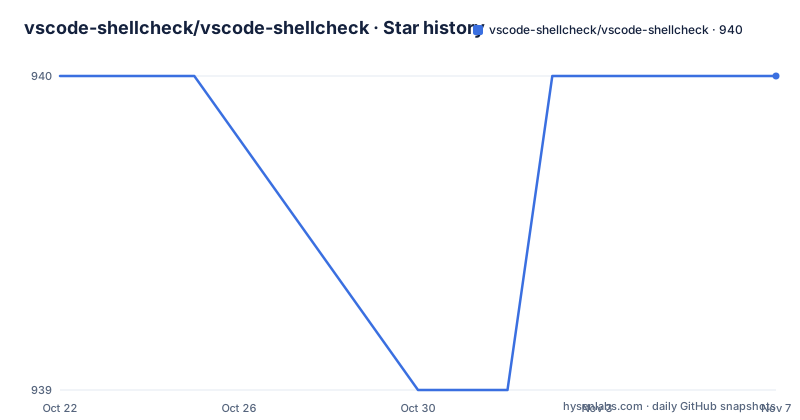
- vscode-shellcheck/vscode-shellcheck940 ★ · +0
| Repository | 2026-10-22 | 2026-11-07 |
|---|---|---|
| vscode-shellcheck/vscode-shellcheck | 940 | 940 |
0 Stars in the last 16 days, measured from the daily GitHub snapshot. Compare with other projects
Editorial analysis
What the extension actually adds to the editor
ShellCheck is a linter for shell scripts, and this extension puts it inside Visual Studio Code. The README summarises the goal as linting shell scripts as you type, with quick fixes and nothing else to install.
The feature list is short and specific. The extension reports ShellCheck's warnings in the editor and in the Problems view, either as you type or on save. It offers quick fixes for single warnings and a Fix All action for the whole file. It bundles ShellCheck, so there is no binary to install on common platforms. It works on vscode.dev and github.dev through a bundled WebAssembly build. And it reads your `.shellcheckrc`, the same way the `shellcheck` command line does.
The last point is the one that decides whether the extension is useful to you. A linter integration that ignores your project configuration is a linter integration you will end up muting, because every warning it reports is one you have already decided to accept. Reading `.shellcheckrc` means the editor and the command line agree, which is the property that makes an editor linter worth trusting.
The intended user is a developer who writes bash, sh or bats scripts in VS Code, and the extension activates on the `shellscript` and `bats` languages, so it does not run on unrelated files. The package keywords list sh, bash, dash, ksh and posix alongside bats, and the repository topics name the same territory: bash, hacktoberfest, linter, shell, visual-studio-code and vscode-extension.
A bundled binary for most platforms, and PATH for the rest
The distribution story is the reason this extension exists in the form it does. Bundling the linter means a new user does not have to install a Haskell binary, put it on the PATH and keep it current before the first warning appears.
The extension bundles precompiled ShellCheck binaries for Linux on `x86_64`, `arm64` and `arm`, for macOS on `x86_64` and `arm64`, and for Windows on `x86_64` and `arm64` with the `x86_64` binary. On other platforms it runs the `shellcheck` found on your PATH.
That fallback is what makes the extension usable on an unusual platform, and it is also where behaviour can differ from what you expect. A PATH binary is whatever version your machine has, which may be much older than the bundled one, and the resulting diagnostics can differ. If you want a specific binary, the `shellcheck.executablePath` setting points at it, and it takes priority over the bundled one.
The Windows arm64 case is worth noting because it is the one place the extension is not running the binary matching the machine: on Windows arm64 it uses the `x86_64` binary, which works through emulation but is not the native build.
The extension is published on the Visual Studio Marketplace as `timonwong.shellcheck`, and also on Open VSX for VSCodium and other editors that use it. The manifest declares a separate browser entry point, `./dist/web/extension.cjs`, next to the main `./dist/extension.js`, which is how the same extension runs in the browser-based editors.
The WebAssembly runtime is the experimental path
A WebAssembly build of ShellCheck is bundled for every platform, and the extension exposes it as a runtime choice. The `shellcheck.runtime` setting is `"native"` by default, with `"wasm"` as the experimental alternative, and there is a command, ShellCheck: Use the Experimental WebAssembly Runtime, that switches to it.
The reason the WebAssembly path is not automatic is the same reason it exists. A native binary can be started as a child process and can be told to resolve paths relative to the script, while the browser build cannot, and neither can run in a desktop-only editor. The WebAssembly runtime is what makes the extension work at all on vscode.dev and github.dev, where there is no process to spawn and no PATH to search.
The setting table also draws a line that is easy to miss. The `shellcheck.watchConfigFiles.user` setting, which re-lints open scripts when a config file outside the workspace such as `~/.shellcheckrc` changes, is marked as native runtime only. Watching a file outside the workspace is a filesystem operation that the browser runtime cannot perform.
The upside of the WebAssembly path is that the same extension and the same configuration work in a browser tab, with no install step at all. The cost is that it is explicitly experimental, and the diagnostics you get in the browser may not be identical to what the native runtime produces.
Settings for when to run, what to ignore and how long to wait
The settings table is where the extension's behaviour is defined, and it is worth reading rather than guessing, because the defaults are conservative.
`shellcheck.enable` is `true` and turns the linter on or off. `shellcheck.run` is `"onType"`, and can be `"onSave"` or `"manual"`, where manual means only the Lint Current Document command runs it. `shellcheck.enableQuickFix` is `true` and controls whether fixes are offered at all.
The two settings you are told to prefer a config file for are `shellcheck.exclude`, a list of rule codes to ignore such as `"1017"`, and `shellcheck.customArgs` for extra arguments. The documentation for both says to prefer `.shellcheckrc`, which is the right advice, since a config file travels with the repository and a personal setting does not.
`shellcheck.ignorePatterns` defaults to csh, fish, tcsh, xonsh and zsh files, so the extension stays quiet on shells it cannot usefully check, and `shellcheck.ignoreFileSchemes` defaults to the Git and pull request views, which is how the extension avoids linting the contents of read-only virtual documents.
Two settings are about the working directory and the clock. `shellcheck.useWorkspaceRootAsCwd` is `false`, so by default ShellCheck runs from the script's own directory rather than the workspace root. `shellcheck.runTimeout` is `0`, which means the default of 30 seconds before a run is stopped, and `shellcheck.maxConcurrentRuns` is also `0`.
There are two experimental entries as well. `shellcheck.markdownDiagnostics` is `false` and enables a formatted hover, and the two `shellcheck.watchConfigFiles` settings, for the workspace and the user, are both `false` and trigger a re-lint when a config file changes.
Applying fixes on save with source.fixAll.shellcheck
The quick fix workflow is where the extension changes what you type rather than only what you read. A single warning gets a light bulb action, and Fix All applies every automatic fix in the file.
To run that automatically on save, the README gives this configuration:
{
  "editor.codeActionsOnSave": {
    "source.fixAll.shellcheck": "explicit"
  }
}
The `explicit` level is the interesting detail. VS Code offers three levels for code actions on save, and `explicit` means the action runs only when it was explicitly requested, which keeps the automatic fix from rewriting your file behind your back in ways you did not ask for. If you would rather trigger it deliberately, the documentation points to running Fix All from the Command Palette instead.
The other commands fill out the loop. ShellCheck: Lint Current Document lints the active script now. ShellCheck: Show Menu opens the status bar menu, which is where you change when ShellCheck runs or turn it off for the workspace. ShellCheck: Collect Diagnostics For Current Document opens a troubleshooting report for the active script, which is what you would attach to a bug report when the diagnostics do not match what the command line produces.
The ShellCheck icon in the status bar is the entry point for all of this, so the extension is usable without ever touching the Command Palette.
Restricted Mode is where the executable path becomes a policy question
The extension declares that untrusted workspaces are supported in a limited way, and the manifest names the one setting that is restricted: `shellcheck.executablePath`.
What that means is spelled out in the README. In Restricted Mode, only the value from your user settings is used for the executable path. A workspace that sets `shellcheck.executablePath` in its own settings cannot redirect the linter in a restricted window.
This is a sensible design and it is worth understanding why it exists. The extension will run a binary that the workspace names. If a repository you have just opened could set that path, the repository could point the extension at a program of its choosing and have it executed the next time you open a shell script. Restricting the setting to user scope in a restricted window removes that path, while still letting you configure your own binary globally.
The same reasoning explains why the setting exists at all. Letting a user point at a different `shellcheck` is useful when the bundled version does not match your project, or when your organisation pins a ShellCheck release. The cost is that it is also the most dangerous setting in the extension, which is why the manifest treats it as a restricted configuration rather than an ordinary one.
Virtual workspaces are also marked as supported in a limited way, consistent with a browser-hosted editor that has no local filesystem to search for a binary.
A frequent release cadence and a localised extension
The extension is MIT licensed, the `license` field in the manifest says MIT, and the LICENSE file sits at the repository root. The categories in the manifest place it under Linters and Programming Languages, and the publisher is `timonwong`, with the package distributed as `shellcheck`.
Maintenance is active. The last push was on 2026-10-19, and the release history is dense: v0.47.0 and v0.48.0 both on 2026-10-11, then v0.48.1 on 2026-10-13. Two releases on the same day followed by a patch two days later is the shape of a version bump followed by a quick fix, so if you are on 0.47.0 the jump to 0.48.1 is worth taking.
Two details in the tree are worth noting for anyone who contributes or translates. The `l10n/` directory and a set of `package.nls.*.json` files for German, Spanish, French, Japanese, Korean, Brazilian Portuguese, Simplified Chinese and Traditional Chinese mean the extension is localised, and the manifest points `l10n` at that directory. There is also a `snippets/` directory wired up for both the `shellscript` and `bats` languages, so common shell constructs are available as snippets.
The tooling around the build is a modern Node setup with an esbuild script, renovate for dependency updates, a cspell configuration, and a `mise.toml` for tool versions, plus separate `docs/` and `doc/` directories and a CHANGELOG.md. The repository also carries AGENTS.md and CLAUDE.md files, which tells you something about how the maintainers expect automated agents to work in the tree.
Editorial conclusion
This extension is a good fit for anyone who writes shell scripts in VS Code and wants ShellCheck findings while editing rather than only in a CI job, and bundling the binary removes the usual install step that stops teams from adopting the linter at all. It is the wrong tool if you need to enforce linting across a repository, since an editor extension only checks the files the person editing has open, and it will not help you if your editors are not VS Code. Before adopting, check the platform list, because the extension bundles binaries for Linux, macOS and Windows only and falls back to a `shellcheck` on your PATH elsewhere, and note that in Restricted Mode only `shellcheck.executablePath` from user settings is honoured. The last push was on 2026-10-19 and the current version is 0.48.1.
Frequently asked questions
Do I need to install ShellCheck separately for the VS Code extension?
No on common platforms. The extension bundles precompiled ShellCheck binaries for Linux on x86_64, arm64 and arm, for macOS on x86_64 and arm64, and for Windows on x86_64 and arm64. On other platforms it runs the shellcheck found on your PATH.
How do I install the ShellCheck extension in VS Code?
Install it from the Visual Studio Marketplace, or from Open VSX in VSCodium and other editors that use it. From Quick Open run ext install timonwong.shellcheck, or from a terminal run code --install-extension timonwong.shellcheck.
Does the extension respect my .shellcheckrc file?
Yes. It reads your .shellcheckrc the same way the shellcheck command line does, and the documentation recommends preferring .shellcheckrc over the shellcheck.exclude and shellcheck.customArgs settings for exactly that reason.
Can ShellCheck run fixes automatically when I save?
Yes. Add source.fixAll.shellcheck to editor.codeActionsOnSave with the explicit level, and the extension applies every automatic fix in the file on save. You can also run Fix All on demand from the Command Palette.
What is the WebAssembly runtime option for?
It is the experimental path that lets the extension run on vscode.dev and github.dev, where there is no local process to spawn. The shellcheck.runtime setting defaults to native, and the ShellCheck: Use the Experimental WebAssembly Runtime command switches to it.
Official sources
Add this badge to your README
If you maintain this project, the badge below links readers to this analysis and shows its maintenance status from the daily GitHub snapshot. Paste the markdown into your README; add ?metric=license or ?metric=stars to the image URL for a different field.

[](https://hysenlabs.com/projects/vscode-shellcheck-vscode-shellcheck)Star history chart for your README
[](https://hysenlabs.com/projects/vscode-shellcheck-vscode-shellcheck)Was this useful?